
When you pick up an Android smartphone, every element you see—from the battery icon in the top right corner to the navigation buttons at the bottom—is part of a complex, integrated framework known as the System UI. While most users interact with it hundreds of times a day, the term “System UI” often only enters the average person’s vocabulary when a technical error occurs. However, understanding what System UI is, how it functions, and why it is critical to the mobile experience is essential for any tech-savvy user.
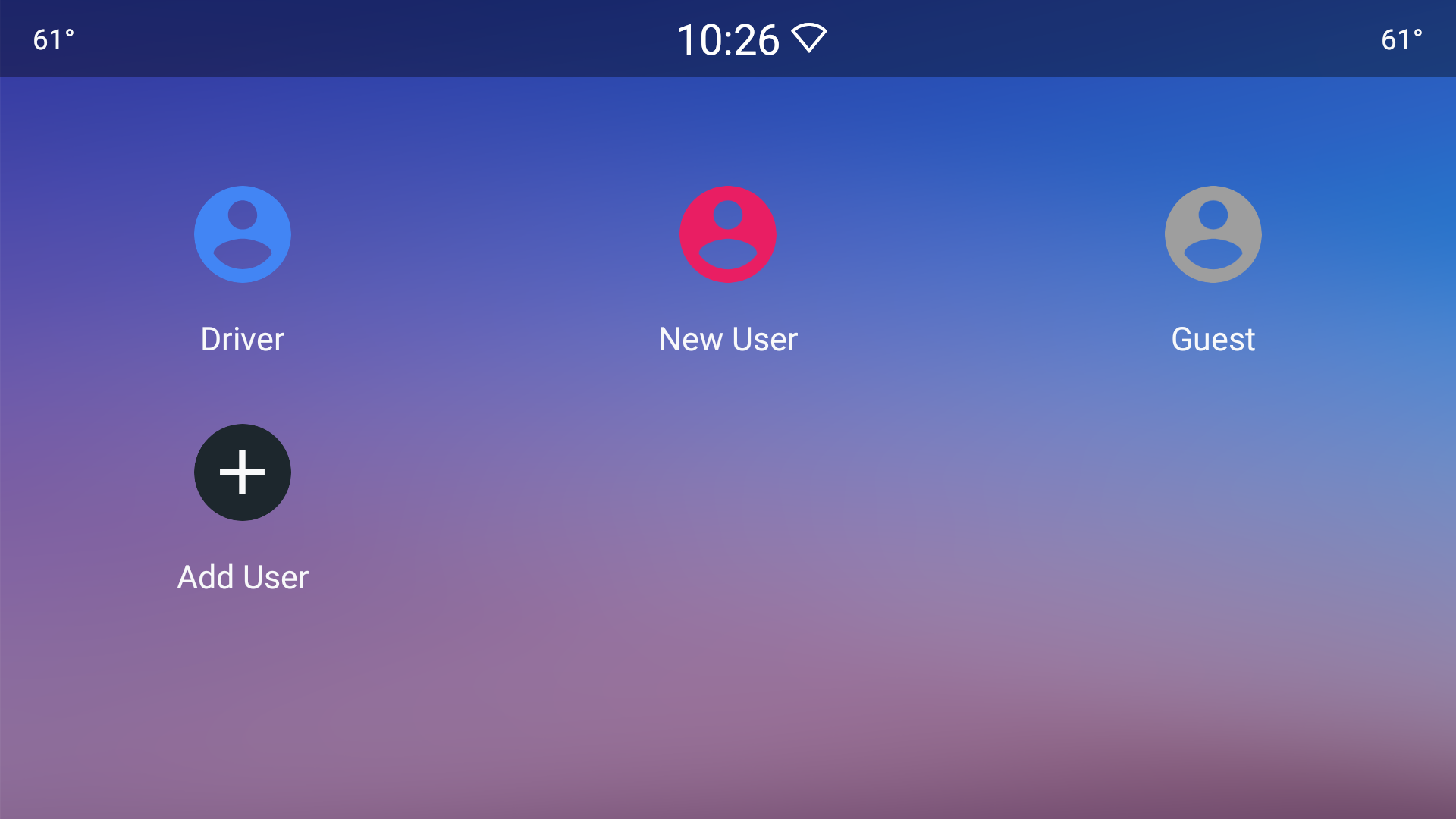
System UI is not a single application in the traditional sense, nor is it the operating system itself. Rather, it is a specialized user interface that allows users to control and customize their interaction with the Android operating system (OS) and the device’s hardware. It is the visual layer that bridges the gap between raw code and human interaction.
Defining the System UI: The Bridge Between User and Machine
At its most basic level, System UI (System User Interface) is a type of application that provides the display for everything on your phone that isn’t part of a specific third-party app. When you open an app like Instagram or Spotify, that app takes over the main “canvas” of your screen. However, even while that app is open, the clock remains visible, the notifications can still be pulled down, and the home button remains accessible. All of these persistent elements are managed by the System UI process.
The Visual Framework of Android
The System UI is responsible for the environment in which apps run. It manages the “chrome” of the operating system. In web design, “chrome” refers to the windows, toolbars, and menus that surround a webpage; in Android, the System UI is the chrome that surrounds your mobile experience. It ensures that regardless of which app you are using, the core functions of the device—such as checking the time, monitoring signal strength, or switching between tasks—remain consistent and reachable.
Is System UI an App?
Technically, System UI is a system-level application, often identified by the package name com.android.systemui. Because it is a system app, it starts automatically when the device boots up and remains active in the background for as long as the phone is powered on. Unlike a standard app, you cannot “uninstall” the System UI. If the System UI process were to be deleted or permanently disabled, the phone would become a “brick,” as there would be no way for the user to trigger actions, open apps, or view the status of the hardware.
Key Components of the Android System UI
To truly grasp the scope of the System UI, one must look at the specific elements it controls. It is a modular system, meaning it handles several distinct visual and functional areas simultaneously.
The Status Bar and Notification Shade
The Status Bar is the thin strip at the very top of the screen. It displays vital information such as the current time, battery percentage, Wi-Fi connectivity, and cellular signal strength. It also serves as the landing zone for notification icons.
The Notification Shade is the pull-down menu that appears when you swipe down from the status bar. This is perhaps the most frequently used part of the System UI. It aggregates alerts from various apps, allowing users to read messages, archive emails, or control music playback without fully entering the respective apps. The System UI manages the priority of these notifications, grouping them and providing “silent” or “alerting” designations based on user preference.
Navigation Bars and Gesture Navigation
Whether your device uses the classic three-button layout (Back, Home, and Recents) or the modern gesture-based navigation, the System UI is the engine behind it. In gesture mode, the System UI listens for swipes from the bottom or sides of the screen and translates those physical movements into software commands. This component is crucial for multitasking, as it enables the “Overview” or “Recents” screen, where users can see a carousel of currently running applications.
The Lock Screen
The Lock Screen is the first part of the System UI a user encounters. It handles more than just security; it displays the clock, active notifications, and shortcuts to the camera or Google Assistant. The System UI coordinates with the device’s security hardware—such as fingerprint scanners or facial recognition sensors—to transition the user from the locked state to the home screen.
Quick Settings: Control at Your Fingertips
By swiping down twice from the top of the screen (or using a two-finger swipe), users access the Quick Settings tiles. This interface allows for rapid toggling of hardware features like Bluetooth, Airplane Mode, Flashlight, and Screen Rotation. The System UI allows users to rearrange these tiles, providing a level of personalization that ensures the most-used tools are always a second away.
Customizing the System UI: From System UI Tuner to Material You
One of Android’s greatest strengths is its flexibility. Unlike more rigid operating systems, Android’s System UI has historically allowed for significant customization, both through official channels and hidden developer tools.
The History of the System UI Tuner
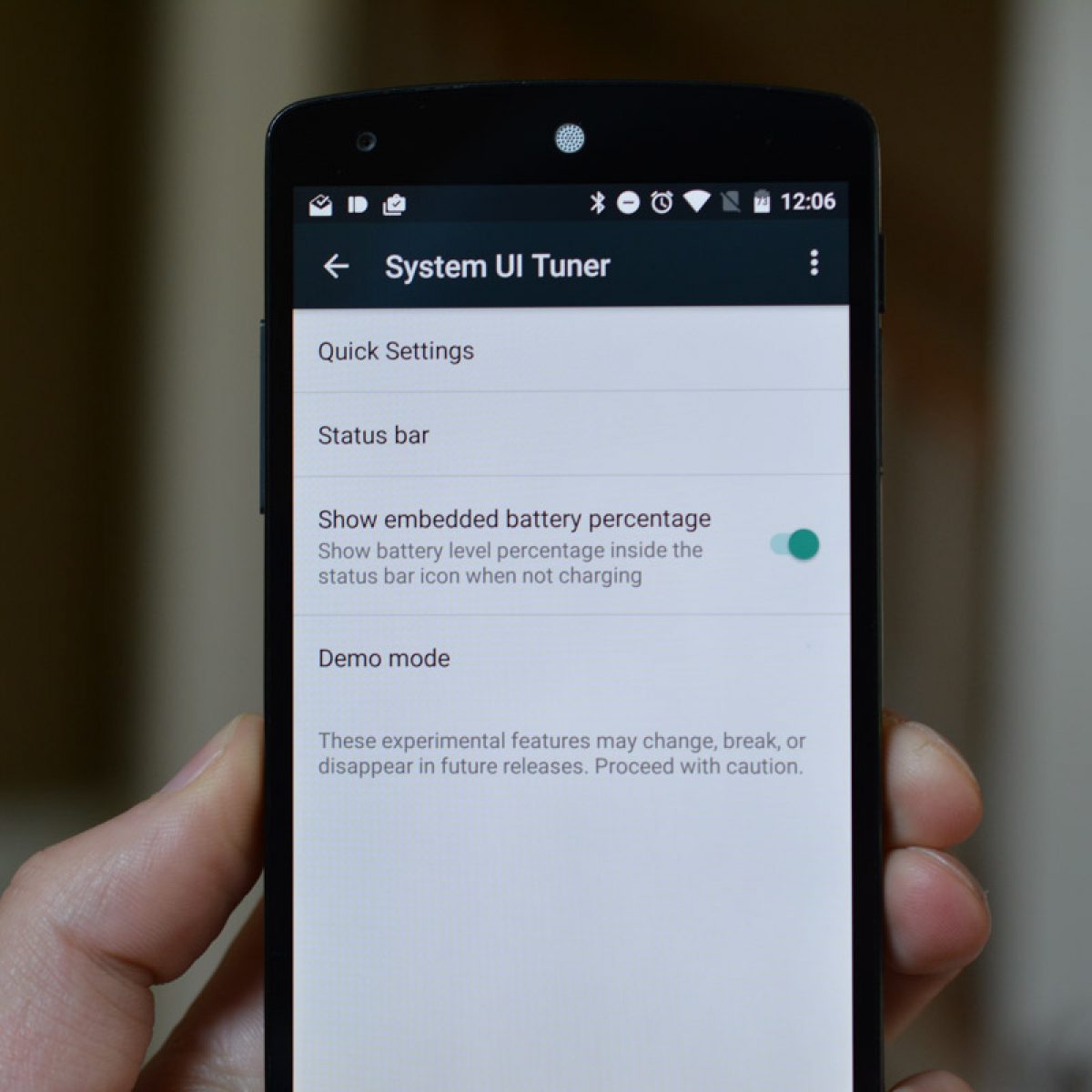
In older versions of Android (specifically Android 6.0 Marshmallow through Android 8.0 Oreo), Google included a hidden menu called the “System UI Tuner.” By long-pressing the settings gear icon in the notification shade, users could unlock a menu that allowed them to hide certain icons from the status bar (like the alarm icon or Bluetooth icon) or enable a “demo mode” for clean screenshots. While Google has since hidden or moved many of these features into the standard “Developer Options,” the spirit of the Tuner lives on in the deep customization available in modern Android builds.
Material You and Dynamic Color Integration
With the release of Android 12, Google introduced “Material You,” a design philosophy that revolutionized how the System UI looks. The “Monet” engine within the System UI can now extract colors from the user’s wallpaper and apply those colors across the entire interface. This includes the notification shade, the volume sliders, the lock screen clock, and even supported app icons. This level of integration means that the System UI is no longer a static blue-and-white menu; it is a dynamic, living part of the phone’s aesthetic that adapts to the user’s personal style.
Third-Party Customization and the “Android Experience”
Manufacturers like Samsung (with One UI), OnePlus (with OxygenOS), and Xiaomi (with MIUI/HyperOS) do not use the “stock” Android System UI. Instead, they take the base System UI code from the Android Open Source Project (AOSP) and heavily modify it. This is why a Samsung phone looks and feels different from a Google Pixel. These “skins” change the shape of the buttons, the animation of the notification shade, and the layout of the settings menu, all while relying on the same underlying System UI framework.
Troubleshooting Common System UI Errors and Performance Issues
Because the System UI is so deeply integrated into the phone’s operation, errors within this process can be frustrating. The most common issue users face is the dreaded “System UI has stopped” or “Unfortunately, System UI has stopped” popup.
Fixing the “System UI Has Stopped” Error
This error usually indicates a crash in the com.android.systemui process. It can be caused by several factors:
- Incompatible Themes: If you are using a third-party launcher or a custom theme engine (like Substratum), an update to the Android OS can cause the theme to become incompatible with the System UI, leading to crashes.
- Corrupted Cache: Sometimes, the temporary data stored by the Google App or the System UI itself becomes corrupted. Clearing the cache for the “Google App” and “System UI” in the settings menu often resolves the issue.
- Google App Updates: Since the Google Assistant and Google Search are tightly coupled with the System UI, a buggy update to the Google App can cause the entire interface to glitch. Uninstalling updates to the Google App is a common troubleshooting step.
Impact on Battery Life and System Performance
Because the System UI is always running, it does consume a portion of the device’s CPU and battery. However, this is usually negligible. If you notice “System UI” at the top of your battery usage charts, it may indicate that a specific widget or a background notification is forcing the UI to refresh too frequently. Keeping your phone’s software updated and limiting the number of active widgets can help maintain a lean and efficient System UI.
The Future of System UI: AI Integration and Modular Design
As we look toward the future of mobile technology, the System UI is set to become even more intelligent and less intrusive.
Predictive UI Elements
The next frontier for the System UI is the integration of on-device Artificial Intelligence. Future iterations of Android are expected to use AI to predict which Quick Settings you might need based on your location or time of day. For example, if the System UI learns that you always turn on “Do Not Disturb” and “Blue Light Filter” at 10:00 PM, it may automatically suggest these toggles or even adjust the interface layout to make them more prominent during evening hours.

Deeper Integration with Wearables and Ecosystems
The System UI is also expanding beyond the phone screen. With the growth of the “Internet of Things” (IoT), the Android System UI now includes dedicated “Device Controls” within the notification shade, allowing users to dim lights or lock front doors without opening a separate smart-home app. As foldable phones and tablets become more common, the System UI is evolving to handle multi-window layouts and taskbars, blurring the line between mobile and desktop computing.
In conclusion, the System UI is the unsung hero of the Android operating system. It is the silent facilitator of every swipe, tap, and notification. By understanding its components and how it operates, users can better appreciate the engineering complexity of their devices and take control of their digital environment. Whether through the vibrant colors of Material You or the functional efficiency of the notification shade, the System UI remains the definitive face of the modern smartphone experience.
aViewFromTheCave is a participant in the Amazon Services LLC Associates Program, an affiliate advertising program designed to provide a means for sites to earn advertising fees by advertising and linking to Amazon.com. Amazon, the Amazon logo, AmazonSupply, and the AmazonSupply logo are trademarks of Amazon.com, Inc. or its affiliates. As an Amazon Associate we earn affiliate commissions from qualifying purchases.