
In an era defined by burgeoning digital content and increasingly sophisticated software, maintaining optimal system performance has become a perpetual challenge for computer users. From high-resolution photos and 4K videos to sprawling software installations and a constant stream of temporary internet files, our storage drives are under relentless assault. This digital deluge often leads to sluggish performance, frustrating error messages about low disk space, and a general sense of digital disarray. To address this widespread issue, modern operating systems have introduced intelligent solutions designed to automate the often-tedious task of disk cleanup. Among these, Storage Sense stands out as a proactive, built-in feature, primarily found in Microsoft Windows, engineered to intelligently manage your drive space by automatically identifying and removing unnecessary files.
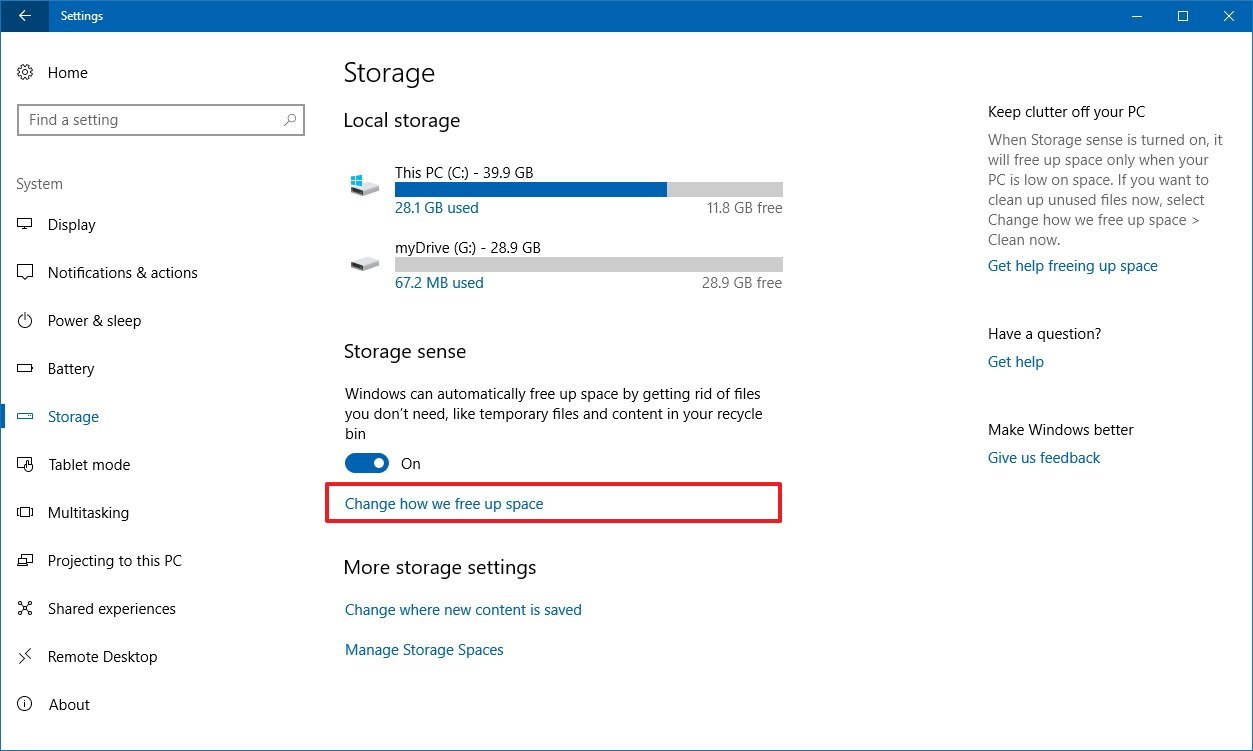
Storage Sense isn’t just another disk cleanup utility; it’s a smart system that operates in the background, making informed decisions about which files can be safely deleted to free up valuable disk space without user intervention. Its goal is to maintain a healthy balance between system performance, available storage, and user convenience. By automating routine maintenance tasks, Storage Sense liberates users from the constant worry of managing their digital clutter, allowing them to focus on productive tasks rather than system hygiene. Understanding how Storage Sense works, how to configure it, and its myriad benefits is crucial for anyone looking to optimize their Windows experience and reclaim precious gigabytes from the digital ether.
Understanding the Digital Clutter Conundrum
The accumulation of digital clutter is an inevitable consequence of modern computing. Every interaction, every download, every application installation contributes to the ever-growing mountain of data on our hard drives. While many of these files are essential for system operation or user data, a significant portion comprises temporary files, outdated caches, forgotten downloads, and remnants of uninstalled applications that serve no current purpose but continue to occupy valuable space.
The Ever-Growing Digital Footprint
Our digital lives are expanding at an unprecedented rate. From the seemingly innocuous act of browsing the internet, which generates countless temporary files and cookies, to the creation and storage of large media files like photographs, videos, and music, our storage devices are constantly being filled. Software installations, especially those for modern games and professional applications, can consume tens, if not hundreds, of gigabytes. Operating system updates, while vital for security and functionality, also leave behind temporary installation files that are no longer needed after the update is complete. Furthermore, the recycle bin, a digital safety net for deleted items, often becomes a repository for files that are never truly purged, quietly hogging space in the background. This relentless accumulation transforms a clean, fast system into a slow, unresponsive one over time.
The Impact of Unmanaged Storage
The consequences of unmanaged storage extend far beyond simply running out of room. A full hard drive can severely impact system performance. When a drive approaches its capacity, the operating system struggles to find contiguous blocks of space for new files, leading to fragmentation and slower read/write speeds. This slowdown manifests in longer boot times, sluggish application launches, and overall system unresponsiveness. Moreover, many applications and even the operating system itself require a certain amount of free disk space to function correctly, particularly for temporary files, virtual memory (swap files), and update installations. A lack of available space can lead to application crashes, update failures, and even system instability. Beyond performance, the sheer volume of unnecessary files makes it harder to locate important documents, back up critical data, and even perform basic file management tasks efficiently. It creates a sense of digital chaos that can be detrimental to productivity and user experience.
Storage Sense: An Intelligent Solution
Storage Sense is Microsoft’s answer to the digital clutter conundrum, offering an automated and intelligent approach to disk cleanup. Instead of requiring users to manually hunt down and delete unwanted files, Storage Sense works proactively in the background, identifying and purging unnecessary data based on user-defined rules and system logic.
Core Functionality and Purpose
At its heart, Storage Sense is a utility designed to free up disk space by automatically deleting files that are no longer needed. Its primary purpose is to maintain system health and performance by preventing the accumulation of digital junk. This includes temporary files created by applications and the operating system, items in the Recycle Bin that have exceeded a certain age, and even temporary files related to cloud synchronization services like OneDrive. By automating these tasks, Storage Sense ensures that your system always has a reasonable amount of free space, leading to smoother operation, faster application loading, and a more stable computing environment. It acts as a digital janitor, constantly sweeping away the debris of daily computer usage without requiring direct user intervention.
How Storage Sense Identifies and Cleans Files
Storage Sense employs a set of pre-defined rules and heuristics to identify files suitable for deletion. It doesn’t arbitrarily delete files; rather, it targets specific categories of data known to be temporary or non-essential. The core mechanisms involve:
- Temporary Files: This category includes files created by applications, system processes, and web browsers that are only needed for a short period. Once their purpose is served, they become redundant. Storage Sense identifies and removes these remnants.
- Recycle Bin: Files moved to the Recycle Bin are not immediately deleted. Storage Sense monitors the age of these files and, after a user-specified period (e.g., 30 days), automatically empties them, permanently reclaiming the space.
- Downloads Folder: While not deleting all files in the Downloads folder, Storage Sense can be configured to delete files that haven’t been opened or modified for a certain duration, assuming they are no longer needed. This is particularly useful for single-use installers or documents.
- Previous Windows Installations/Update Files: After a major Windows update, previous versions of system files are often kept for a short period in case a rollback is needed. Once this grace period expires, Storage Sense can identify and remove these large, outdated files.
- Cloud-Synced Content (OneDrive): For users utilizing OneDrive’s “Files On-Demand” feature, Storage Sense can automatically free up local space by setting older, less-frequently accessed cloud files to “online-only,” meaning they are removed from local storage but remain accessible from the cloud.
Default Behavior and Smart Cleaning
Out of the box, Storage Sense is often configured with sensible defaults designed to offer a good balance between proactive cleaning and data safety. By default, it might run automatically when disk space is low, or on a recurring schedule (e.g., daily, weekly, monthly). Its “smart cleaning” aspect means it prioritizes cleaning up the most impactful files first and typically only acts when necessary, avoiding constant background operations that could interfere with user activities. The system is designed to be intelligent enough to understand when a file is genuinely old and unused versus one that might be temporarily inactive but still important. This intelligent filtering minimizes the risk of inadvertently deleting crucial user data, offering peace of mind alongside enhanced performance.
Harnessing the Power of Storage Sense: Configuration and Customization
While Storage Sense offers intelligent default settings, its true power lies in its configurability. Users can tailor its behavior to match their specific needs, defining what gets cleaned, when it gets cleaned, and under what conditions. This level of customization ensures that Storage Sense works in harmony with individual workflows and data management strategies.
Accessing Storage Sense Settings
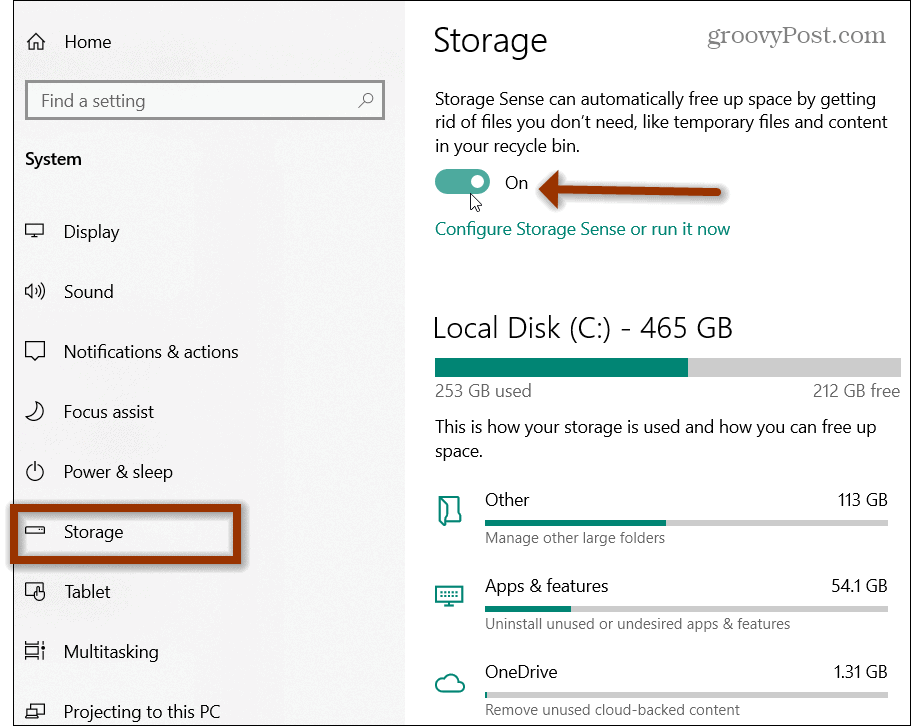
Configuring Storage Sense is straightforward within Windows. You can access its settings by navigating to:
- Start Menu > Settings (the gear icon).
- Select System.
- Click on Storage in the left-hand pane.
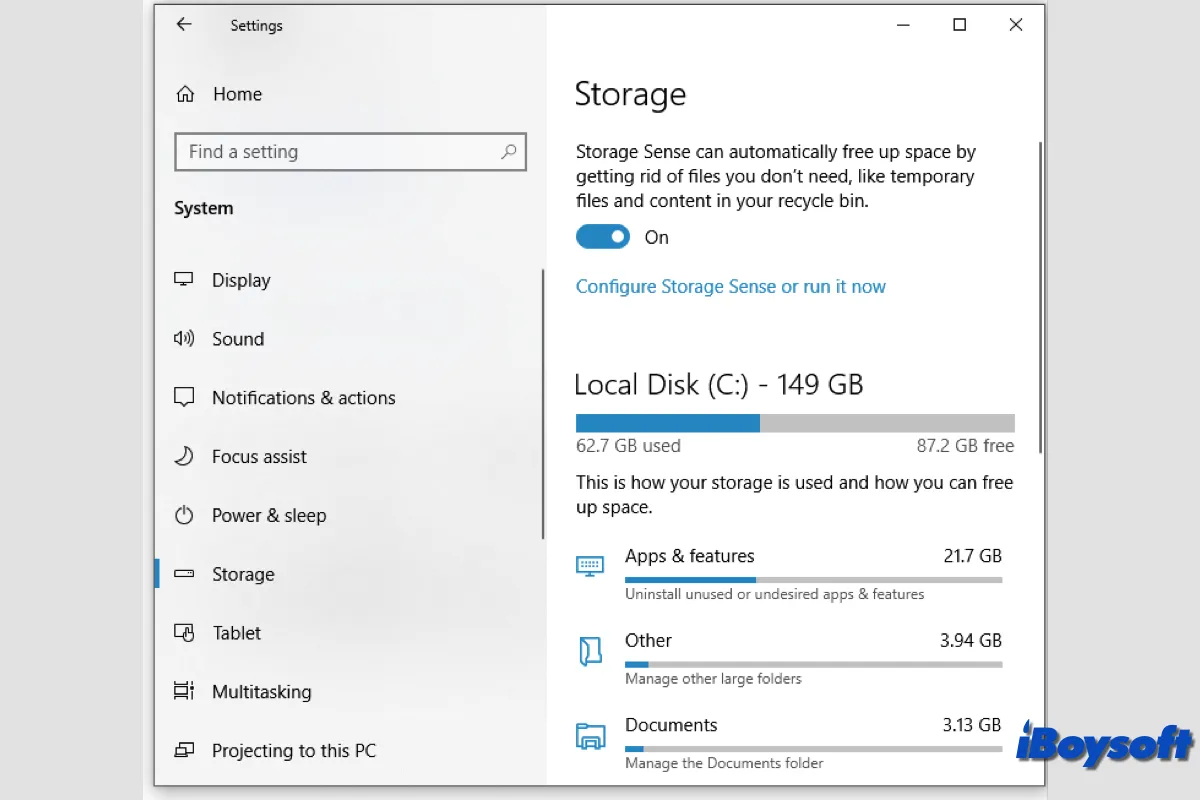
- Here, you’ll see a summary of your storage usage and the option to toggle Storage Sense on or off. Below this, click on “Configure Storage Sense or run it now” to dive into the detailed settings.
This central hub provides a comprehensive overview of how Storage Sense operates and allows you to fine-tune its parameters.
Managing Temporary Files and Recycle Bin
Within the Storage Sense configuration, you’ll find specific options for managing temporary files and the Recycle Bin, which are often the largest culprits of wasted space:
- Temporary Files: You can choose to “Delete temporary files that my apps aren’t using.” Additionally, you can specify how often Storage Sense should run this cleanup (e.g., every day, week, month, or only when disk space is low). There’s also an option to explicitly define what type of temporary files to remove, such as Windows log files, temporary internet files, and diagnostic data.
- Recycle Bin: Here, you can set how frequently items in your Recycle Bin are automatically deleted. The default is often 30 days, meaning any file residing in the Recycle Bin for longer than a month will be automatically purged. You can adjust this period to be shorter (e.g., 1 day) or longer (e.g., 60 days) depending on how much time you need as a safety net for accidental deletions.
Handling Cloud Content (OneDrive Integration)
For users who leverage Microsoft OneDrive, Storage Sense offers robust integration to help manage local storage when “Files On-Demand” is enabled. This feature allows you to see all your OneDrive files in File Explorer without necessarily storing them all on your device.
- “Free up local space now”: This option manually converts all eligible local files that haven’t been used recently to “online-only” status, immediately freeing up significant disk space.
- “Make files available again after (X) days”: Storage Sense can be configured to automatically change local-only OneDrive files that haven’t been used in a specific number of days back to “online-only.” This means if you download a file from OneDrive and don’t touch it for, say, 30 days, Storage Sense will automatically remove its local copy while keeping it safely stored in the cloud. This is an incredibly powerful feature for devices with limited local storage, such as tablets or laptops with SSDs.
Customizing Cleanup Schedules and Thresholds
Beyond specific file types, Storage Sense allows you to define the overall operational logic:
- Run Storage Sense: You can specify when Storage Sense should run automatically. Options typically include “Every day,” “Every week,” “Every month,” or “When disk space is low.” The “When disk space is low” option is particularly useful as it acts as a reactive measure, only initiating cleanup when your drive is nearing capacity.
- Delete files in my Downloads folder that haven’t been open for more than: This crucial setting lets you decide if Storage Sense should touch your Downloads folder and, if so, how old files must be before they are considered for deletion. Options range from “Never” to “1 day,” “14 days,” “30 days,” or “60 days.” This is an important customization, as many users keep important files in their Downloads folder temporarily.
By carefully adjusting these settings, users can fine-tune Storage Sense to perform automatic cleanups that align perfectly with their usage patterns, ensuring optimal storage management without fear of losing important data.
Beyond Basic Cleanup: Benefits and Best Practices
Storage Sense is more than just a convenience; it’s a critical tool for maintaining the long-term health and performance of your Windows system. Its automated capabilities deliver tangible benefits that extend beyond simply freeing up space, contributing significantly to a smoother, more efficient digital experience.
Enhancing System Performance
One of the most immediate and noticeable benefits of using Storage Sense is the improvement in system performance. A cluttered and near-full hard drive can significantly slow down your computer. When Storage Sense regularly cleans out temporary files, old system caches, and other unnecessary data, it ensures that your operating system has ample breathing room. This free space is vital for several performance-critical functions:
- Virtual Memory (Paging File): Windows uses a paging file (or swap file) on your hard drive as an extension of your RAM. If your drive is full, the paging file cannot expand, leading to slower performance when RAM is heavily utilized.
- Application Performance: Many applications create temporary files during operation. If they can’t create these files efficiently due to low disk space, application responsiveness can suffer.
- File System Efficiency: A less cluttered drive is easier for the operating system to manage, leading to faster file access and reduced fragmentation, especially on traditional HDDs.
By keeping your drive lean, Storage Sense directly contributes to faster boot times, quicker application launches, and an overall more responsive computing experience.
Reclaiming Valuable Disk Space
The most obvious benefit is the significant reclamation of disk space. Modern solid-state drives (SSDs), while fast, often come with smaller capacities compared to traditional hard drives, making efficient space management paramount. Storage Sense can routinely recover gigabytes of space that would otherwise be silently consumed by digital detritus. This reclaimed space can then be used for new applications, larger media files, or simply to provide a buffer for future system operations. For users with limited storage, such as those with entry-level laptops or tablets, this automatic cleanup can make the difference between a functional device and one constantly warning about low disk space. It prolongs the usability of your device and reduces the need for premature storage upgrades.
Maintaining Digital Hygiene Effortlessly
Perhaps the greatest advantage of Storage Sense is its ability to maintain digital hygiene effortlessly. For many users, manually sifting through files, emptying the Recycle Bin, and clearing temporary folders is a chore that is easily neglected. Storage Sense automates these mundane but essential tasks, ensuring that your system remains clean and optimized without requiring constant user intervention. This set-it-and-forget-it approach frees up your time and mental energy, allowing you to focus on more productive or enjoyable activities. It instill a sense of order and cleanliness in your digital environment, which can contribute to a less stressful computing experience.
Complementing Your Backup Strategy
While Storage Sense is designed to delete unnecessary files, it can also indirectly complement your backup strategy. By regularly removing temporary and redundant data, it reduces the overall volume of data you need to back up. This means faster backup times, smaller backup files, and potentially lower costs if you’re paying for cloud storage based on usage. Furthermore, by keeping your primary drive lean, it makes it easier to distinguish truly important files that require regular backup from ephemeral data. It encourages a more organized approach to your data, implicitly supporting better backup practices by reducing the “noise” in your storage.
Potential Considerations and Advanced Tips
While Storage Sense is a powerful and generally safe tool, understanding its nuances and potential implications is important. A conscious approach to its configuration and a grasp of file management principles can help users maximize its benefits while avoiding unintended consequences.
Understanding File Deletion vs. Archiving
It’s crucial to differentiate between file deletion by Storage Sense and intentional archiving. Storage Sense is designed to delete files it deems temporary or unneeded. This means those files are permanently removed from your system (after a grace period in the Recycle Bin) and are not easily recoverable without specialized data recovery tools, which are not always successful.
- Deletion: Suitable for truly temporary files, old caches, and data you are certain you will never need again.
- Archiving: If you have files that are rarely accessed but still potentially valuable (e.g., old projects, sentimental photos, tax documents from years ago), they should be archived to external storage (external hard drive, network-attached storage, or dedicated long-term cloud storage) rather than left on your primary drive hoping Storage Sense won’t touch them, or relying on its Recycle Bin rules. Archiving ensures long-term preservation and easy retrieval.
Never rely on Storage Sense to manage files you intend to keep for the long term but rarely access.
Best Practices for Selective Cleanup
While Storage Sense automates many aspects, it’s wise to combine its automation with a periodic manual review and selective cleanup for certain areas:
- Downloads Folder: Exercise caution with the “Delete files in my Downloads folder…” setting. If you frequently download and then forget about important documents or installers, set this to “Never” or a very long period (e.g., 60 days). Periodically review this folder manually to move important items to dedicated storage locations or delete truly unnecessary ones.
- User Folders: Storage Sense primarily targets system-level temporary files and the Recycle Bin. It generally avoids your personal document, picture, or video folders unless explicitly configured through cloud sync features like OneDrive’s Files On-Demand. Always maintain manual control over your core personal data.
- Large Files: Use the “Storage usage” breakdown in the Storage settings to identify “Other” or “Large files” that might be consuming significant space. Storage Sense might not target these, and a manual review can reveal old game installations, unedited video projects, or duplicated files that can be safely moved or deleted.
When to Manually Intervene
Despite its intelligence, there are situations where manual intervention remains beneficial or even necessary:
- Pre-update Cleanup: Before a major Windows feature update (which can require significant free space), running Storage Sense manually or using the older Disk Cleanup utility (which has some advanced options not exposed in Storage Sense) can be beneficial to ensure maximum available space.
- Emergency Space Reclamation: If you suddenly find your drive critically full and need immediate space, manually running Storage Sense (click “Run Storage Sense now” in its settings) can be quicker than waiting for its next scheduled run.
- Identifying Specific Space Hogs: If Storage Sense doesn’t seem to free up enough space, use the “Storage usage” section in settings to investigate which categories (Apps & features, Temporary files, Documents, etc.) are consuming the most space. This can point to specific large applications, game installations, or user-generated content that require manual attention beyond Storage Sense’s scope.
- Troubleshooting: If you suspect Storage Sense might have deleted a file you needed (though rare), quickly check the Recycle Bin. If it’s not there, immediately stop using the drive and consider data recovery software if the file is critical.
By combining the automated efficiency of Storage Sense with a thoughtful understanding of your data and occasional manual oversight, you can achieve optimal storage management, ensuring a fast, clean, and reliable computing experience.
Conclusion
Storage Sense represents a significant leap forward in operating system intelligence, transforming the often-dreaded task of disk cleanup into an effortless background operation. In a world where digital content continues to expand at an exponential rate, proactive storage management is no longer a luxury but a necessity for maintaining system performance and user sanity. By intelligently identifying and purging unnecessary temporary files, managing the Recycle Bin, and integrating seamlessly with cloud services like OneDrive, Storage Sense ensures that your Windows device remains lean, responsive, and free from the shackles of digital clutter.
Its configurable settings empower users to tailor its behavior to their specific needs, striking a perfect balance between automation and control. Whether you’re a casual user looking to offload maintenance tasks or a power user seeking to maximize every gigabyte of your SSD, understanding and utilizing Storage Sense is an indispensable aspect of modern digital hygiene. It not only reclaims valuable disk space and enhances system performance but also contributes to a more organized and stress-free computing environment. Embrace Storage Sense as your silent partner in digital upkeep, allowing you to focus on what truly matters while your system intelligently manages itself.
aViewFromTheCave is a participant in the Amazon Services LLC Associates Program, an affiliate advertising program designed to provide a means for sites to earn advertising fees by advertising and linking to Amazon.com. Amazon, the Amazon logo, AmazonSupply, and the AmazonSupply logo are trademarks of Amazon.com, Inc. or its affiliates. As an Amazon Associate we earn affiliate commissions from qualifying purchases.