
When you navigate the specifications of a modern Apple computer, the term “SSD” appears front and center. For users transitioning from older mechanical hardware or those simply curious about what powers their daily computing experience, understanding SSD storage is essential. Solid State Drive (SSD) technology is the backbone of the modern Mac, responsible for everything from how quickly your machine boots to the fluid responsiveness of demanding professional software.
Understanding the Fundamentals of SSD Technology
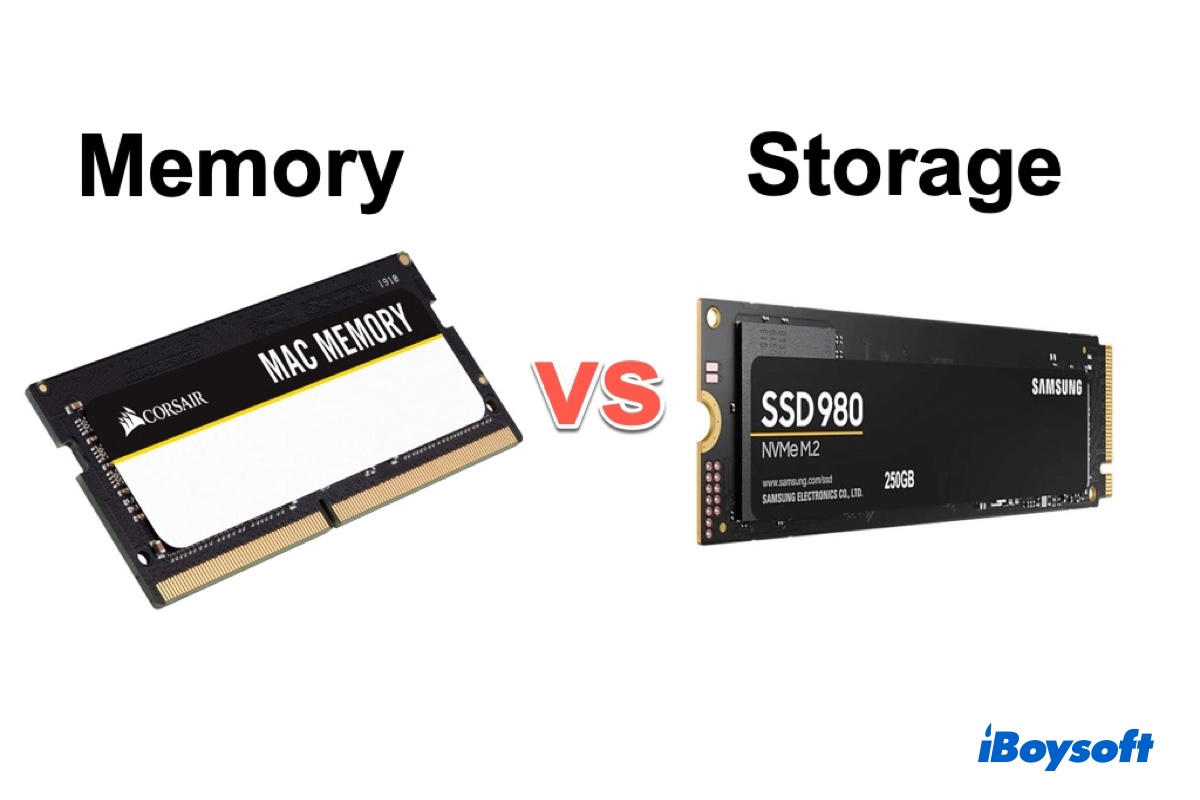
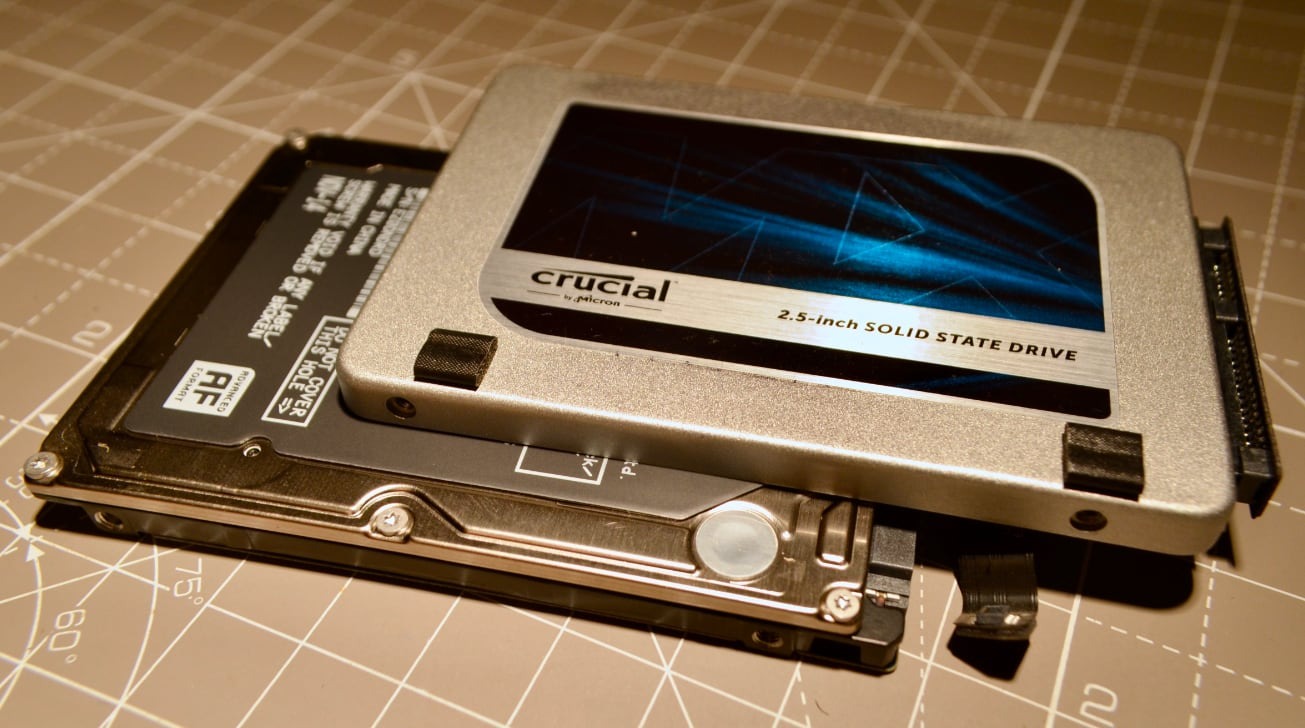
At its core, an SSD is a storage device that uses integrated circuit assemblies to store data persistently, typically using flash memory. Unlike traditional Hard Disk Drives (HDDs) that rely on spinning magnetic platters and a moving mechanical read/write head, an SSD has no moving parts. This fundamental difference is what revolutionized computing speed.
The Shift from Mechanical to Digital
In the era of the HDD, the physical limitations of hardware created a “bottleneck.” To find a file, the drive had to physically move an arm to a specific location on a spinning disk. This process, while impressive for its time, resulted in latency. An SSD, by contrast, accesses data almost instantaneously because it relies on electrical signals. In a Mac, this means the operating system, macOS, can retrieve system files in milliseconds, resulting in the “snappy” feel that Apple users have come to expect.
NAND Flash Memory Explained
The “Solid State” in SSD refers to the use of NAND flash memory. This is a type of non-volatile storage, meaning it retains its data even when your Mac is powered off. These chips store data using floating-gate transistors, allowing for dense data packing in a physically small footprint. This is the primary reason why modern MacBook Air and MacBook Pro models can be incredibly thin while still offering high-capacity storage.
Why Apple Prioritizes SSDs in macOS Architecture
Apple’s integration of SSDs into their ecosystem is not merely a hardware choice; it is a software philosophy. macOS is highly optimized for the speed and architecture of flash storage. When Apple transitioned away from mechanical drives years ago, they didn’t just swap parts; they redesigned how the operating system manages data.
Unified Memory and Storage Interaction
On modern Apple Silicon (M-series chips), the relationship between storage and memory has become even tighter. Because SSDs are now so fast, the Mac can utilize “swap memory” far more effectively. If your RAM is nearing capacity, the Mac can offload data to the SSD temporarily. Because the SSD is built on such high-speed protocols, the performance penalty for this swap is virtually unnoticeable to the average user, allowing smaller RAM configurations to perform tasks that would have frozen older machines.
Trim Support and Data Management
macOS includes a background utility known as “TRIM.” Because of how NAND flash memory works, data cannot be overwritten directly; it must be erased before being rewritten. TRIM allows the operating system to inform the SSD which blocks of data are no longer considered in use (for instance, after you delete a file). This prepares those blocks for future writes, ensuring that your Mac’s storage remains fast over its entire lifespan.
The Evolution of Speed: From SATA to NVMe

If you are looking at older Macs versus new ones, you might notice a vast difference in data transfer rates. This is due to the evolution of the interface protocol used by the SSD.
The NVMe Advantage
Modern Macs use the NVMe (Non-Volatile Memory Express) protocol. Unlike older SATA-based SSDs, which were essentially designed to mimic the old hard drive communication style, NVMe was built specifically for flash storage. It allows for massive parallelism, meaning your Mac can process multiple data requests at once rather than lining them up in a queue. This is why copying large video files or exporting high-resolution photos on an M2 or M3 MacBook feels instantaneous.
Encryption and the Secure Enclave
Another critical aspect of Mac SSD storage is security. Apple’s SSDs are hardware-encrypted. When you set up a Mac, your data is automatically encrypted via the Secure Enclave. Because the storage is soldered directly onto the logic board in most modern Mac configurations, this creates a formidable security barrier. Even if a physical drive were removed, the data remains cryptographically locked, providing peace of mind for professionals and casual users alike.
Choosing the Right Capacity for Your Workflow
One of the most frequent questions Mac users face is how much SSD storage they actually need. Unlike PCs, where storage can often be upgraded later, most modern Macs feature soldered storage. This makes your initial purchase decision permanent.
Factors Influencing Your Decision
- Cloud Dependency: If you utilize iCloud heavily for Photos, Documents, and Desktop, you may be able to get away with a smaller base storage model. iCloud optimizes storage by keeping full-resolution files in the cloud and smaller, space-saving versions on your local Mac.
- The Creator’s Requirement: If you are a video editor, photographer, or musician, the high-speed nature of your SSD is vital. Working off the internal drive is significantly faster than using external hardware. In these professional workflows, 1TB or 2TB is often considered the baseline, as media files—especially 4K or 8K video—consume gigabytes of space in seconds.
- System Overhead: Remember that macOS itself occupies a significant portion of the drive, along with your installed applications and cache files. An 8GB or 16GB “scratch” file created by software like Adobe Photoshop can quickly consume available space, leading to performance degradation if the drive is constantly at capacity.
The Role of External Storage
While internal SSD storage is the fastest and most secure, modern Macs feature Thunderbolt / USB4 ports that offer blazing-fast transfer speeds. Many users choose to purchase a lower-capacity internal SSD and supplement it with an external NVMe enclosure. This allows for a tiered storage strategy: keep your OS and active projects on the internal drive, and archive finished projects or media libraries on an external high-speed SSD.
Maintenance and Longevity of Mac SSDs
Because SSDs have a finite number of write cycles—the number of times data can be written to a specific cell before it degrades—many users worry about the longevity of their Mac’s storage.
Wear Leveling Algorithms
macOS and the SSD’s controller work together using “wear leveling.” This technology ensures that data is spread evenly across all cells in the flash memory. Instead of writing to the same physical spot over and over, the controller distributes the workload. This extends the life of the drive significantly; in fact, the vast majority of Mac users will replace their computer due to software obsolescence or battery wear long before the SSD reaches the end of its functional life.
Best Practices for Healthy Storage
- Maintain Free Space: SSDs perform best when they have breathing room. It is widely recommended to keep at least 15–20% of your SSD empty. This allows the controller ample space to move data around for wear leveling and background maintenance.
- Avoid Constant “Fill and Delete”: While not a major concern for the average user, constantly filling your drive to 100% capacity and deleting large chunks of data repeatedly can put unnecessary stress on the flash cells.
- Monitor with Utility Tools: You can monitor your drive’s health using the Disk Utility app or specialized third-party software that tracks S.M.A.R.T. status. For most, however, simple regular backups—using Time Machine or cloud sync—are the most important maintenance step you can take.
In conclusion, SSD storage on a Mac is far more than just a place to save files. It is an intricate, high-speed component that defines the user experience, security, and performance limits of the device. By understanding how this technology functions, users can make more informed decisions when purchasing their hardware and managing their digital assets effectively. Whether you are a casual browser or a creative professional, the SSD is the silent engine driving the efficiency of your Apple ecosystem.
aViewFromTheCave is a participant in the Amazon Services LLC Associates Program, an affiliate advertising program designed to provide a means for sites to earn advertising fees by advertising and linking to Amazon.com. Amazon, the Amazon logo, AmazonSupply, and the AmazonSupply logo are trademarks of Amazon.com, Inc. or its affiliates. As an Amazon Associate we earn affiliate commissions from qualifying purchases.