
In the realm of digital imaging and graphic software, few features have revolutionized the workflow of professionals as much as “Smart Objects” in Adobe Photoshop. Since their introduction, Smart Objects have transitioned from a niche power-user tool to a fundamental pillar of modern design. At its core, a Smart Object is a specialized type of layer that contains image data from raster or vector images, such as Photoshop or Illustrator files. However, the technical implications of using them go far beyond simple layer management.
For any tech-professional, digital artist, or software enthusiast, understanding Smart Objects is the key to unlocking “non-destructive editing.” This is the practice of making complex changes to an image—such as scaling, rotating, or applying filters—without overwriting the original pixel data. By preserving the source content, Smart Objects allow for a level of flexibility and precision that standard raster layers simply cannot match.
Understanding the Mechanics: What is a Smart Object?
To understand a Smart Object, one must first understand the limitations of traditional raster layers. In a standard Photoshop layer, pixels are “baked in.” If you scale a small image to be very large, Photoshop “interpolates” or guesses where new pixels should go, resulting in blurriness. Conversely, if you shrink a high-resolution image and then try to scale it back up, the data is already lost; the software cannot “remember” the original detail.
The Container Metaphor
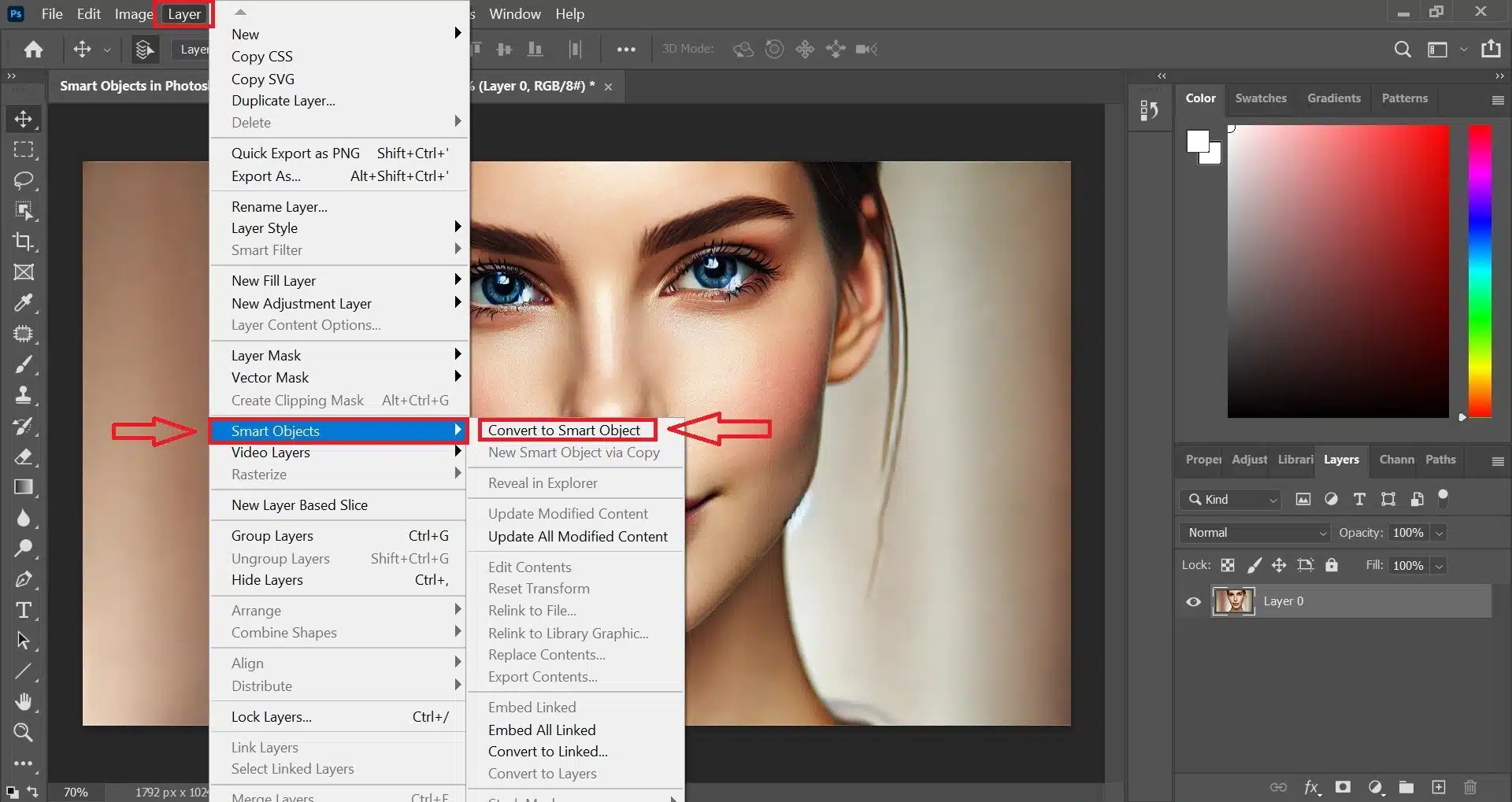
The most effective way to visualize a Smart Object is as a protective “container” or a “wrapper” around your file. When you convert a layer into a Smart Object, Photoshop takes the original image data and places it inside a digital vault. Whatever you do to that layer on your main canvas—distorting it, shrinking it, or applying a blur—you are actually applying those transformations to the container, not the contents inside.
Because the original data remains untouched inside the vault, you can always revert to the original state or make further adjustments without any loss of quality. This technical layer of abstraction is what separates professional-grade software from basic photo editors.
Non-Destructive Data Preservation
The primary technical benefit of this architecture is data preservation. When you work with a Smart Object, Photoshop maintains the source’s original resolution and characteristics. If you import a 40-megapixel photograph as a Smart Object, you can scale it down to the size of a postage stamp to fit a layout, and later scale it back up to its full size. Photoshop will refer back to the original “vaulted” data to redraw the pixels, ensuring the image remains as crisp as the day it was imported.
Core Benefits and Workflow Advantages
The transition from destructive editing to a Smart Object-centric workflow provides several high-level advantages that improve both the quality of the output and the efficiency of the design process.
Infinite Scaling and Resizing
In a fast-paced production environment, assets often need to be repurposed for different platforms—from social media thumbnails to large-format print banners. Using Smart Objects allows a designer to transform an asset repeatedly. Because the transformation is mathematical rather than pixel-destructive, you can rotate a Smart Object by 45 degrees, then 12 degrees, then back again, without the “anti-aliasing” artifacts that would typically degrade a standard layer after multiple rotations.
Smart Filters: Flexibility in Effects
Perhaps the most powerful technical feature of Smart Objects is their interaction with Photoshop’s filter library. When you apply a filter (such as Gaussian Blur, Sharpen, or Noise) to a regular layer, the pixels are permanently altered. To change the effect, you usually have to “Undo” your work and lose progress.
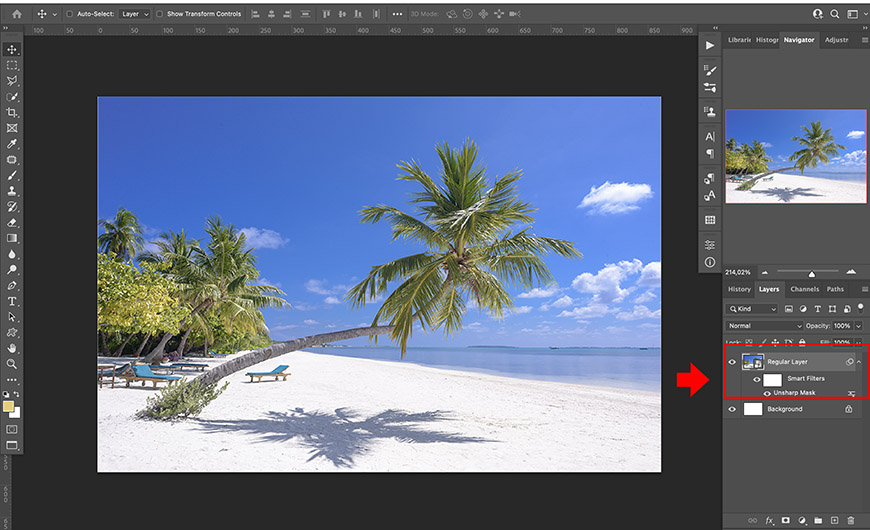
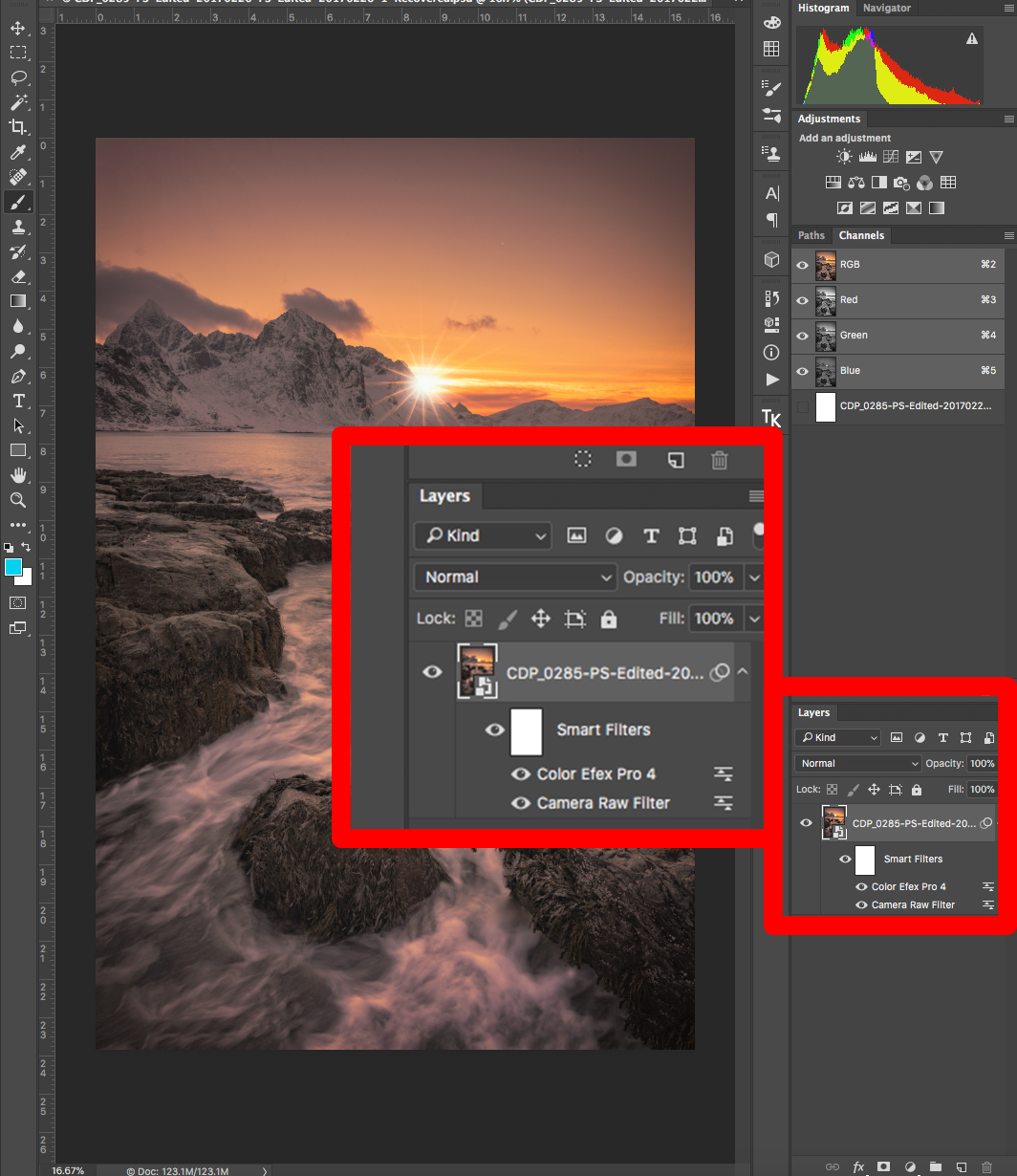
However, applying a filter to a Smart Object creates a “Smart Filter.” This appears as a sub-layer in your layers panel. You can double-click the filter at any time to change its parameters, toggle its visibility, or even change its blending mode. This allows for an iterative technical workflow where you can fine-tune the “look” of an image hours or days after the initial edit was made.
Linked vs. Embedded Smart Objects
Adobe expanded the utility of this technology by introducing “Linked” Smart Objects.
- Embedded Smart Objects: The source file is stored inside the Photoshop (PSD) file. This makes the PSD self-contained but increases the file size significantly.
- Linked Smart Objects: The PSD merely points to an external file on your hard drive or a cloud server. If you update the external file (for example, a logo design), every Photoshop document that links to that file will automatically update. This is a crucial feature for tech teams and studios working on large-scale projects where assets are constantly evolving.
Practical Applications in Modern Design
Beyond the technical definitions, the application of Smart Objects is where the software truly shows its value in professional ecosystems.
Creating Reusable Mockups
If you have ever seen a high-quality preview of a website on a laptop screen or a logo on a coffee mug, you are likely looking at the work of Smart Objects. Designers create “Mockup” files where the screen or the mug surface is a Smart Object. To update the mockup, you simply double-click the Smart Object, paste your new design into the source window, and save. Photoshop automatically warps, scales, and applies the correct lighting effects to the new content based on the transformations applied to the container.
Handling Vector Data and Illustrator Integration
Photoshop is a raster-based tool, while Adobe Illustrator is vector-based. Vectors are mathematical paths that can be scaled infinitely without losing quality. When you copy a vector shape from Illustrator and paste it into Photoshop as a Smart Object, it retains its vector properties. This means you can scale a logo to the size of a skyscraper within Photoshop, and it will remain perfectly sharp because Photoshop is technically “rendering” the Illustrator data in real-time.
Batch Updating through Global Links
In corporate environments where a brand’s color palette or logo might change, Linked Smart Objects are a lifesaver. By linking a “Logo_Final.ai” file across fifty different marketing banners, a technician only needs to update the single source file once. Photoshop will detect the change the next time the files are opened (or via the “Update All Modified Content” command), ensuring consistency across an entire digital campaign with minimal manual labor.
Advanced Techniques and Technical Tips
To truly master Smart Objects, one must understand how to manage the technical overhead and use advanced nesting strategies.
Stacking and Nesting Smart Objects
A sophisticated technique involves “nesting” Smart Objects—placing one Smart Object inside another. For instance, you could have a Smart Object containing a person’s head, which is inside another Smart Object containing their full body. This allows for “hierarchical editing.” You can change the facial expression in the inner object, and that change propagates through all the transformations applied to the body in the outer object. This modular approach is similar to “Prefabs” in game engines or “Components” in UI design tools like Figma.
Replacing Content with Ease
The “Replace Contents” command is a powerful shortcut for rapid prototyping. By right-clicking a Smart Object layer, you can choose to replace its internal data with a different file entirely. Photoshop will maintain all the filters, layer styles, and transformations you already applied to the old object and apply them to the new one. This is an essential skill for A/B testing different images within the same layout.
Performance Considerations and File Size
While Smart Objects are powerful, they are not “free” in terms of computational resources. Because an Embedded Smart Object stores the full resolution of the original file, your PSD file size can balloon quickly. Furthermore, because Photoshop must “render” the contents of the container every time you make a change, working with dozens of complex Smart Objects can strain your RAM and Scratch Disk.
To optimize performance:
- Use Linked Objects for large assets to keep PSD file sizes manageable.
- Rasterize Smart Objects only as a last resort when the design is 100% final and you need to reduce system lag.
- Use “Convert to Linked” to move internal data to an external file if the PSD becomes too sluggish.
The Future of Non-Destructive Workflows
As Adobe continues to integrate AI and machine learning through Adobe Sensei, the role of the Smart Object is evolving. We are seeing “Smart” features that can automatically recognize objects and create depth maps, all of which rely on the non-destructive foundation that Smart Objects provided over a decade ago.
In conclusion, the Smart Object is more than just a layer type; it is a philosophy of digital preservation. By decoupling the “display” of an image from its “source data,” Photoshop allows users to work with a safety net. Whether you are a UI designer, a digital painter, or a tech enthusiast looking to optimize your creative workflow, mastering Smart Objects is the single most important step toward professional-grade digital craftsmanship. It transforms Photoshop from a simple canvas into a powerful, non-linear editing engine capable of handling the most demanding modern design tasks.
aViewFromTheCave is a participant in the Amazon Services LLC Associates Program, an affiliate advertising program designed to provide a means for sites to earn advertising fees by advertising and linking to Amazon.com. Amazon, the Amazon logo, AmazonSupply, and the AmazonSupply logo are trademarks of Amazon.com, Inc. or its affiliates. As an Amazon Associate we earn affiliate commissions from qualifying purchases.