
In today’s fast-paced digital world, our computers are extensions of our lives, whether for work, creativity, or entertainment. We rely on them for everything from drafting crucial reports and managing our finances to staying connected with loved ones and enjoying the latest streaming services. This constant interaction means that shutting down our machines entirely can often feel like an inconvenience, a disruption to our workflow and digital momentum. This is where the ingenious feature known as “sleep mode” comes into play. Far from being a mere power-saving gimmick, sleep mode is a sophisticated technological solution designed to offer a seamless balance between immediate accessibility and energy efficiency.

When you’re juggling multiple tasks, perhaps switching between a complex software development environment, a video conference, and an online banking portal, the thought of a full shutdown and subsequent reboot can be daunting. It translates to lost time, potentially lost progress on unsaved work, and the frustrating experience of re-establishing all your open applications. Sleep mode elegantly sidesteps these issues, offering a middle ground that keeps your digital life readily available without draining your battery or the planet’s resources. But what exactly is sleep mode, how does it function, and why is it such a valuable feature in modern computing? This article will delve deep into the mechanics and benefits of computer sleep mode, exploring its role within the broader landscape of technology, personal productivity, and even its subtle financial implications.
The Mechanics of Slumber: How Sleep Mode Works
At its core, sleep mode is a low-power state designed to conserve energy while allowing for a quick resumption of your computing tasks. Unlike a complete shutdown, which powers off all hardware components, sleep mode essentially puts your computer into a state of hibernation, but with a crucial difference. When you put your computer to sleep, it doesn’t completely turn off. Instead, it saves the current state of your system – including all open applications, documents, and settings – into your computer’s Random Access Memory (RAM).
Think of RAM as your computer’s short-term memory. It’s where your operating system and active programs reside, allowing for rapid access to information. In sleep mode, the RAM remains powered, albeit at a significantly reduced voltage. This continuous power to RAM is what enables the lightning-fast wake-up process. When you move your mouse, press a key, or open the laptop lid, the computer receives a signal to exit sleep mode. It then quickly restores the information from RAM, bringing your desktop back to exactly where you left it, often in a matter of seconds.
The Difference Between Sleep and Hibernation
It’s important to distinguish sleep mode from another power-saving feature: hibernation. While both aim to reduce energy consumption, their underlying mechanisms and benefits differ:
-
Sleep Mode: As described above, sleep mode keeps your system state in RAM. This allows for a very quick resume, as the data is readily accessible. However, because RAM requires constant power, if the battery is completely depleted or the power is unexpectedly cut, your unsaved work can be lost. Sleep mode is ideal for short breaks.
-
Hibernation Mode: Hibernation, on the other hand, saves your entire system state – everything that was in RAM – to your hard drive or Solid State Drive (SSD). Once saved, the computer completely powers down, consuming virtually no energy. When you next turn on your computer, it reads the data from the storage drive and restores your session. This process takes longer than waking from sleep, as it involves reading a larger amount of data from slower storage. Hibernation is best suited for longer periods of inactivity or when you want to ensure no data is lost due to power failure, but you don’t need immediate access.
Many modern operating systems, like Windows and macOS, offer both sleep and hibernation. Users can often configure their power settings to choose which mode is activated after a certain period of inactivity or when the power button is pressed. Understanding this distinction is key to optimizing your computer’s power management for different scenarios.
The Multifaceted Benefits of Sleep Mode: Beyond Power Saving
While the primary appeal of sleep mode lies in its energy-saving capabilities, its advantages extend far beyond mere electricity conservation. In the context of our interconnected digital lives, sleep mode offers significant benefits in terms of productivity, efficiency, and even the longevity of our devices.
Enhancing Productivity and Workflow
For professionals and students alike, interruptions can be costly. Sleep mode is a game-changer for maintaining a fluid workflow. Imagine you’re in the middle of writing a complex document, debugging a piece of code, or analyzing financial spreadsheets. If you need to step away for a few minutes to grab a coffee or take a quick call, initiating sleep mode ensures that as soon as you return, your entire workspace is waiting for you. No more waiting for applications to load, re-opening files, or trying to recall precisely where you were. This instant resume capability minimizes context switching, a well-documented drain on cognitive resources, allowing you to dive back into your tasks with minimal friction.
This is particularly valuable in environments where quick transitions are common. For instance, a designer might be working on multiple visual projects, each requiring specific software and settings. Sleep mode allows them to quickly switch between these projects without the overhead of full shutdowns, significantly speeding up their creative process. Similarly, for someone managing personal finances or researching investment opportunities, the ability to quickly access their banking portal or trading platform without a lengthy boot-up sequence can be crucial.
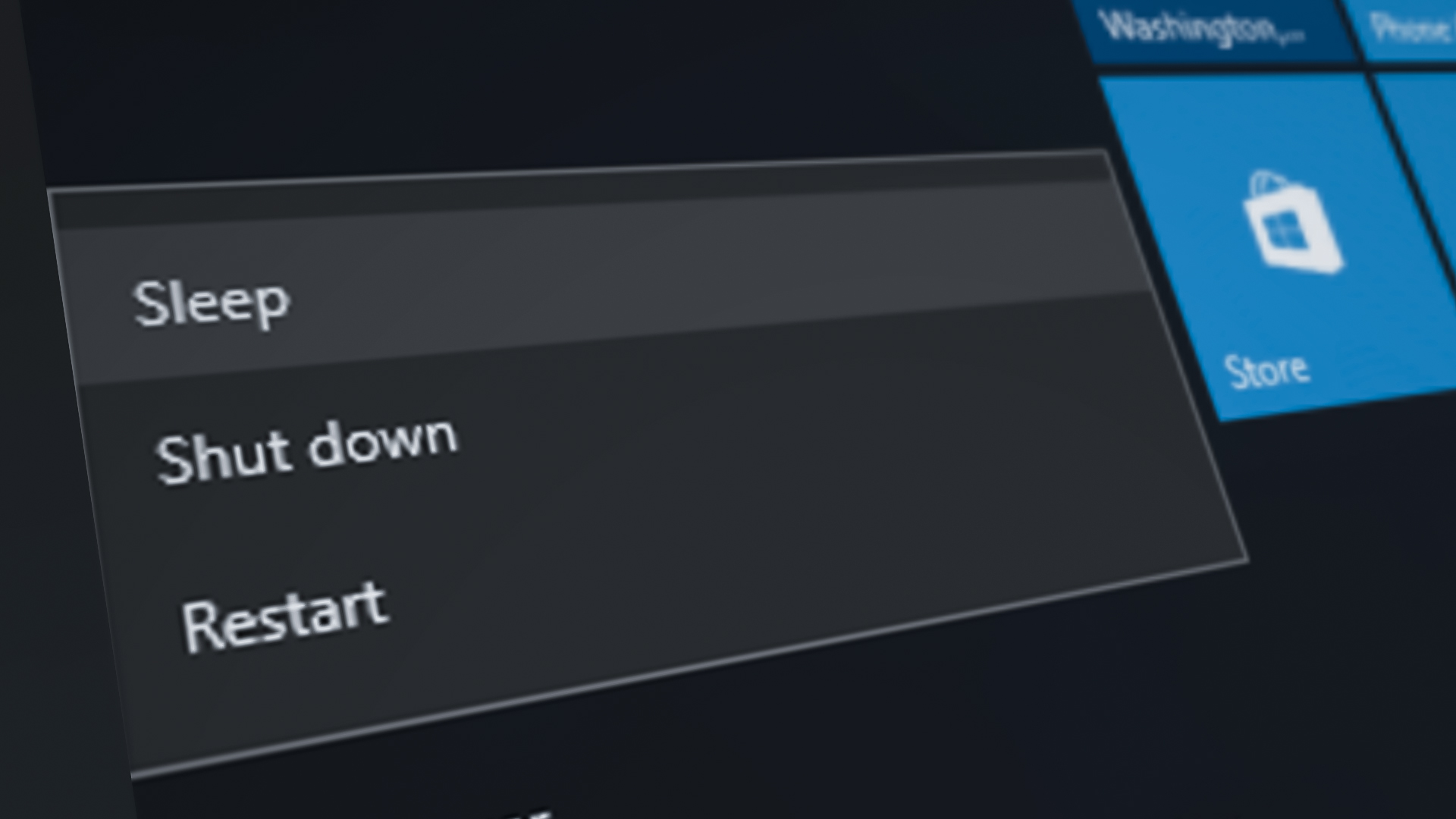
Extending Battery Life and Reducing Wear and Tear
Laptops are designed for portability, and their battery life is a critical factor in their usability. Sleep mode is instrumental in maximizing this battery life. By reducing the power consumption of components like the CPU, RAM, and hard drive, sleep mode allows your laptop to remain operational for much longer periods without needing to be plugged in. This is especially beneficial for students attending lectures, professionals on business trips, or anyone working remotely.
Furthermore, while the impact is often debated, frequent full shutdowns and startups can theoretically put more stress on certain hardware components over their lifespan compared to transitioning to a low-power state. By utilizing sleep mode for shorter breaks, you might contribute to a slightly extended operational life for your computer’s internal components. This subtle reduction in wear and tear, combined with the energy savings, represents a tangible benefit for the user.
Environmental and Financial Implications
The energy saved by utilizing sleep mode, especially across millions of computers, has a significant positive environmental impact. Reduced electricity consumption translates to a lower demand on power grids, which often rely on fossil fuels, thus lowering carbon emissions. While one computer in sleep mode might save only a few dollars on an electricity bill annually, the collective impact of billions of devices is substantial.
From a personal finance perspective, even modest energy savings can add up over time. For individuals or households mindful of their expenses, optimizing power settings, including the judicious use of sleep mode, can contribute to lower utility bills. This aligns with a broader trend of “smart living,” where technology is leveraged not just for convenience but also for efficiency and sustainability, impacting both our wallets and the planet. When considering the total cost of ownership for a computer, including its operational energy consumption, features like sleep mode play a small but contributing role in its overall financial footprint.
Customizing Sleep Mode: Tailoring to Your Needs
Recognizing the diverse ways people use their computers, operating systems provide a degree of customization for sleep mode. This allows users to tailor its behavior to their specific habits and preferences, ensuring that it works for them, not against them.
Setting Sleep Timers and Power Options
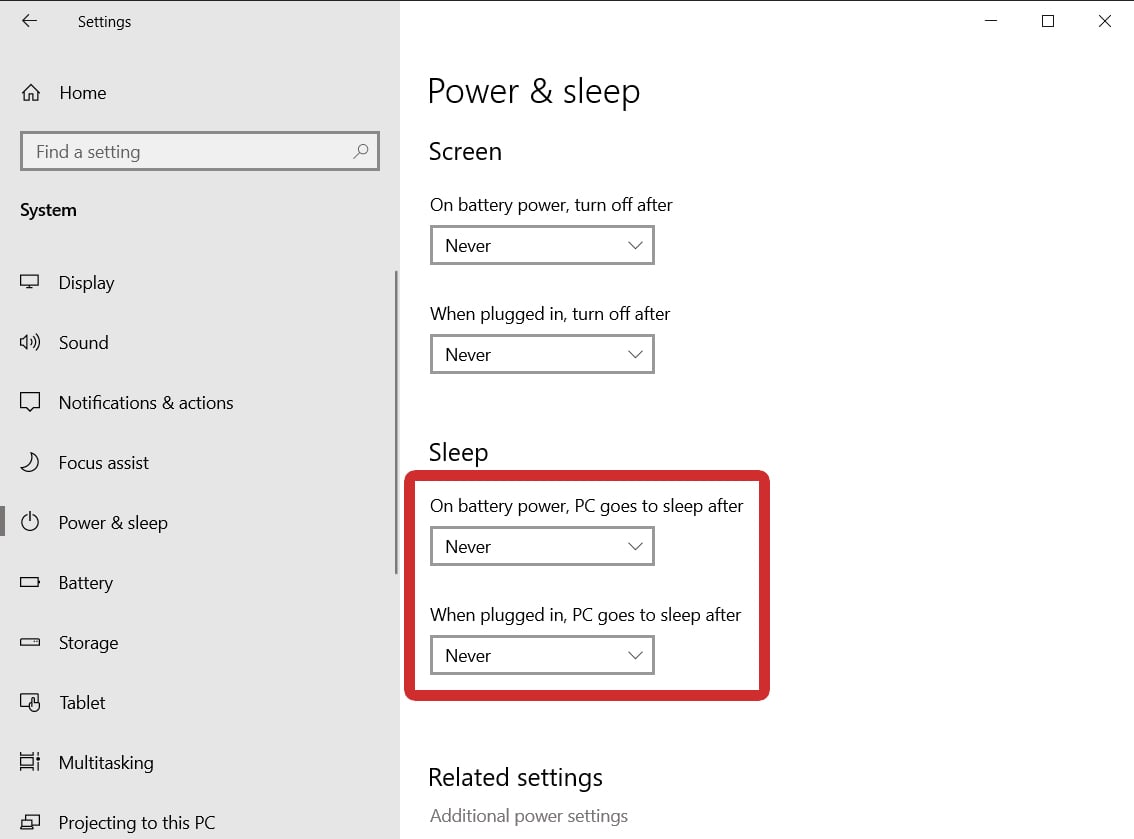
Both Windows and macOS offer intuitive control panels for managing power options, including when the computer enters sleep mode. Users can typically set different timers for when the display turns off and when the computer itself goes to sleep, both when plugged in and when running on battery power. For example, you might want your display to turn off after 5 minutes of inactivity but have the computer enter sleep mode only after 30 minutes.
These settings are accessible through the “Power Options” (Windows) or “Energy Saver” (macOS) settings. Here, you can also configure what happens when you close the laptop lid, press the power button, or choose to hibernate instead of sleep. This flexibility is crucial for optimizing battery life for mobile users while ensuring desktop computers are quickly accessible for home or office use.
Advanced Sleep Settings and Their Impact
Beyond basic timers, there are often more advanced settings that can influence how sleep mode functions. For instance, some systems allow you to wake the computer on a network activity (Wake-on-LAN), which can be useful for remote access or for computers in a business network. You can also often disable sleep mode entirely for specific applications or scenarios if needed, though this is generally not recommended for standard use due to the loss of power-saving benefits.
Understanding these advanced options can help users fine-tune their power management for optimal performance and efficiency. For individuals heavily invested in technology, such as gamers or those running demanding server applications, these settings might be adjusted to prevent unexpected sleep interruptions during critical operations. However, for the vast majority of users, sticking to the default or slightly adjusted timer settings offers a good balance of convenience and power saving.
Conclusion: Embracing the Power of Paused Productivity
In the ever-evolving landscape of personal technology, sleep mode stands as a testament to thoughtful design, offering a crucial bridge between our always-on digital lives and the need for energy conservation. It’s a feature that, while often taken for granted, significantly enhances our productivity by allowing for instant resumption of tasks, extends the life of our devices by reducing wear and tear, and contributes to a more sustainable technological ecosystem by minimizing energy consumption.
From the intricate workings of RAM powering our immediate access to data, to the user-friendly interfaces that allow us to customize its behavior, sleep mode is a sophisticated yet accessible tool. Whether you’re a student rushing between classes, a professional juggling deadlines, a creative mind lost in thought, or a diligent saver mindful of your financial and environmental footprint, understanding and utilizing sleep mode effectively can unlock a more seamless, efficient, and responsible computing experience. So, the next time you step away from your computer, consider the power of paused productivity – embrace sleep mode and let your digital world wait for you, instantly and efficiently.
aViewFromTheCave is a participant in the Amazon Services LLC Associates Program, an affiliate advertising program designed to provide a means for sites to earn advertising fees by advertising and linking to Amazon.com. Amazon, the Amazon logo, AmazonSupply, and the AmazonSupply logo are trademarks of Amazon.com, Inc. or its affiliates. As an Amazon Associate we earn affiliate commissions from qualifying purchases.