
In the landscape of modern computing, few interface elements are as ubiquitous or as vital as the reload button. Often represented by a circular arrow or a pair of arrows chasing each other, this small icon serves as the primary gateway for users to synchronize their local view of a webpage or application with the most current data available on a server. Despite its simplicity, the reload button—commonly referred to as the “refresh” button—is a sophisticated tool that bridges the gap between static local caching and the dynamic, ever-changing nature of the internet.
To understand what a reload button is, one must look beyond the simple act of clicking an icon. It is a command that initiates a complex sequence of technical events designed to ensure data integrity, resolve software glitches, and fetch updated assets. Whether you are navigating a complex web application, checking live sports scores, or troubleshooting a layout error on a website, the reload button is the universal “reset” for the digital age.
The Anatomy and Evolution of the Reload Interface
The reload button is a standard feature in virtually every web browser, including Google Chrome, Mozilla Firefox, Apple Safari, and Microsoft Edge. Its placement is almost always at the top of the browser window, typically situated within or adjacent to the address bar.
Visual Symbolism
The universal symbol for reload is the “ouroboros” of the digital world: a circular arrow pointing back at its own tail. This iconography is intuitive, suggesting a cycle or a return to the beginning. Before this standard was adopted, early browsers sometimes used text-based buttons or different icons, but as user experience (UX) design matured, the circular arrow became the global shorthand for “update this content.”
Placement and Accessibility
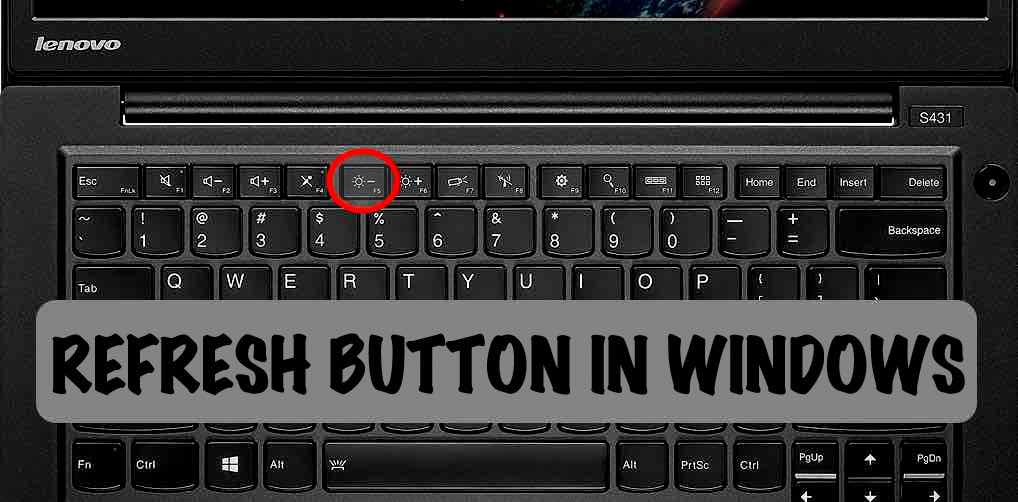
In desktop environments, the reload button is strategically placed to be easily accessible yet out of the way of the main content. For power users, the functionality of this button is mirrored by keyboard shortcuts. On Windows and Linux, F5 or Ctrl + R are the standard commands, while macOS users typically utilize Command + R. These shortcuts emphasize the button’s role as a high-frequency tool.
The Shift to Mobile: Pull-to-Refresh
As the world shifted toward mobile devices, the physical reload button began to disappear from the primary UI to save screen real estate. This led to the birth of the “pull-to-refresh” gesture. Originally popularized by the app Tweetie (later acquired by Twitter), this gesture allows users to drag down on a list of content to trigger a reload. Today, this is the standard “reload button” for the mobile era, proving that the function is more important than the specific form of a button.
The Technical Mechanics: What Happens When You Click Reload?
When a user clicks the reload button, they are not simply “re-opening” a page. Instead, they are instructing the browser to perform a series of coordinated requests to a remote server. Understanding this process is key to understanding why reloading is so effective at fixing common web issues.
The Request Cycle
At its core, clicking reload sends an HTTP (Hypertext Transfer Protocol) request to the server hosting the website. The browser says, in effect, “Send me the latest version of this URL.” The server then responds by sending the HTML, CSS, JavaScript, and media files required to render the page. This ensures that any changes made to the site since the last time it was loaded are now visible to the user.
Browser Caching vs. Fresh Content
To speed up browsing, browsers use a technique called “caching.” This involves storing copies of images, scripts, and other assets on your local hard drive so they don’t have to be downloaded every single time you visit a site.
While caching makes the internet feel fast, it can lead to “stale” content. If a website developer updates a stylesheet but your browser is still using the old version stored in its cache, the website may appear broken or outdated. The reload button forces the browser to check if there are newer versions of these files.
The “Hard Refresh”
A standard reload might still rely on some cached data to save time. However, there is a more powerful version known as a “Hard Refresh.” By holding Shift while clicking the reload button (or pressing Ctrl + Shift + R), the user instructs the browser to completely bypass the local cache.

During a hard refresh, every single byte of data is re-downloaded from the server. This is an essential troubleshooting step for developers and users alike when a website is behaving erratically or failing to show recent updates. It clears out corrupted temporary files and ensures a “clean” slate for the page rendering engine.
Why We Need the Reload Button: Use Cases and Troubleshooting
The reload button is the first line of defense in digital troubleshooting. Because web environments are incredibly complex—involving interactions between local hardware, internet service providers, and remote servers—things frequently go wrong.
Resolving Script Errors
Modern websites are powered by JavaScript, which handles interactive elements like menus, forms, and animations. Occasionally, a script may fail to execute correctly due to a momentary dip in internet connectivity or a conflict with a browser extension. When this happens, the page might become unresponsive. A quick click of the reload button restarts the script execution environment, often fixing the issue instantly.
Updating Dynamic Data
In the era of real-time information, the reload button is indispensable. While many modern sites use technologies like WebSockets or AJAX to update content automatically, many others still require a manual refresh. This is common on:
- News Sites: To see the latest breaking headlines.
- Auction Portals: To check if you have been outbid in the final seconds.
- Stock Market Dashboards: To get the most recent price fluctuations.
- Social Media Feeds: To see new posts from friends or followed accounts.
Fixing “Broken” Layouts
Sometimes a webpage loads “naked”—meaning the HTML (the structure) arrives, but the CSS (the styling) fails to load. This results in a white page with blue links and unstyled text. This usually happens because the request for the CSS file timed out. Clicking reload prompts the browser to try fetching those missing style files again, restoring the intended design of the site.
The Future of the Reload Button: Is It Becoming Obsolete?
As web technology advances, the traditional reload button is undergoing a transformation. In the early days of the web, every single interaction required a full page reload. Today, we are moving toward a “seamless” web where the need for a manual refresh is diminishing.
Single Page Applications (SPAs)
Modern platforms like Gmail, Facebook, and Spotify are built as Single Page Applications. In these environments, the browser only loads the core application once. As you navigate through different sections, the app fetches only the specific data it needs in the background. Because the “page” never technically changes, the traditional reload button becomes less relevant for navigation, though it remains a vital “emergency brake” if the application crashes.
Real-Time Synchronization
Technologies like “Hot Module Replacement” (HMR) and real-time data streaming are changing expectations. Users now expect their notifications to pop up and their feeds to update without manual intervention. As AI and automated data-fetching become more sophisticated, the browser of the future may manage data integrity so effectively that the user never feels the need to hit “refresh.”
The “Zombie” Tab Problem
Despite these advancements, the reload button remains necessary due to the way operating systems manage memory. Browsers often “suspend” tabs that haven’t been used in a while to save RAM. When you return to a suspended tab, it may be stuck in a frozen state. The reload button serves as the “wake-up” call, re-initializing the tab’s connection to the internet and the computer’s processor.

Conclusion: The Digital Safety Net
The reload button is more than just a UI element; it is a fundamental tool for digital navigation. It represents the user’s control over their environment, providing a way to demand the most current information and a mechanism to fix errors without needing deep technical knowledge.
Whether it is the physical button in a desktop browser or the intuitive pull-to-refresh gesture on a smartphone, the reload function ensures that our digital experiences remain synchronized with the real-time world. While web development trends move toward total automation and seamless updates, the reload button remains the ultimate safety net—a simple, reliable command that says, “Let’s try that again, and this time, give me everything you’ve got.” For as long as there is a gap between a server’s data and a user’s screen, the reload button will remain one of the most important icons in our digital lives.
aViewFromTheCave is a participant in the Amazon Services LLC Associates Program, an affiliate advertising program designed to provide a means for sites to earn advertising fees by advertising and linking to Amazon.com. Amazon, the Amazon logo, AmazonSupply, and the AmazonSupply logo are trademarks of Amazon.com, Inc. or its affiliates. As an Amazon Associate we earn affiliate commissions from qualifying purchases.