
In the fast-paced world of digital communication, the “Send” button is often clicked a fraction of a second before a critical realization hits: a typo in the subject line, a missing attachment, or, worse, an email sent to the wrong “John” in your contact list. For professionals relying on Microsoft Outlook as their primary communication hub, the “Message Recall” feature has long been seen as a digital “undo” button. However, understanding the technical nuances, requirements, and limitations of this feature is essential for any modern professional looking to maintain a polished digital presence.
This article explores the mechanics of the Outlook Message Recall feature, providing a technical breakdown of how it operates within the Microsoft ecosystem, its inherent limitations, and the best practices for managing digital errors in a corporate environment.
Understanding Message Recall: How It Works and Why It’s Essential
At its core, Message Recall is a feature in Microsoft Outlook for Windows that allows a sender to retrieve a message they have already sent. Depending on the settings chosen, the feature can either delete the message from the recipient’s inbox entirely or replace it with a corrected version. While it sounds like a fail-safe, the technology relies heavily on the underlying infrastructure of the email environment.
The Mechanics of the Recall Process
The recall function is not a universal “delete” command that ripples across the entire internet. Instead, it is a specific instruction sent from your Outlook client to the Microsoft Exchange server. When you trigger a recall, Outlook sends a “Recall-Message” control packet to the recipient’s mailbox. If the conditions are met, the server acting on behalf of the recipient’s mailbox identifies the original message ID and executes the command—either removing the email or swapping it for the new one.
From a technical standpoint, this is a “client-side” request that requires “server-side” cooperation. This is why the feature is most reliable within a closed corporate network where both the sender and the receiver are using the same Exchange server or Microsoft 365 tenant.
Exchange Server vs. Personal Accounts
One of the most common points of confusion regarding Message Recall is its availability across different account types. Message Recall is strictly a feature of the Microsoft Exchange environment. This means it works for most corporate and school accounts hosted on Microsoft 365 or Exchange Server.
However, if you are using a personal account—such as Outlook.com, Hotmail, Gmail, or an IMAP/POP3 account—the traditional Message Recall feature is essentially non-existent. In these cases, once the message leaves your outgoing server and is handed off to an external provider (like Google or Yahoo), the sender loses all technical control over the data. Understanding this distinction is the first step in avoiding the false sense of security that the recall button might provide.
Step-by-Step Guide: How to Recall an Email in Outlook
For those operating within a compatible Exchange environment, knowing exactly where to find the recall tool can save precious seconds during a high-stress “oops” moment. The process varies slightly depending on whether you are using the Classic Outlook desktop application or the newer iterations.
Recalling an Email in the Desktop App
To attempt a recall in the classic Outlook for Windows application, the message must first be located in your “Sent Items” folder.
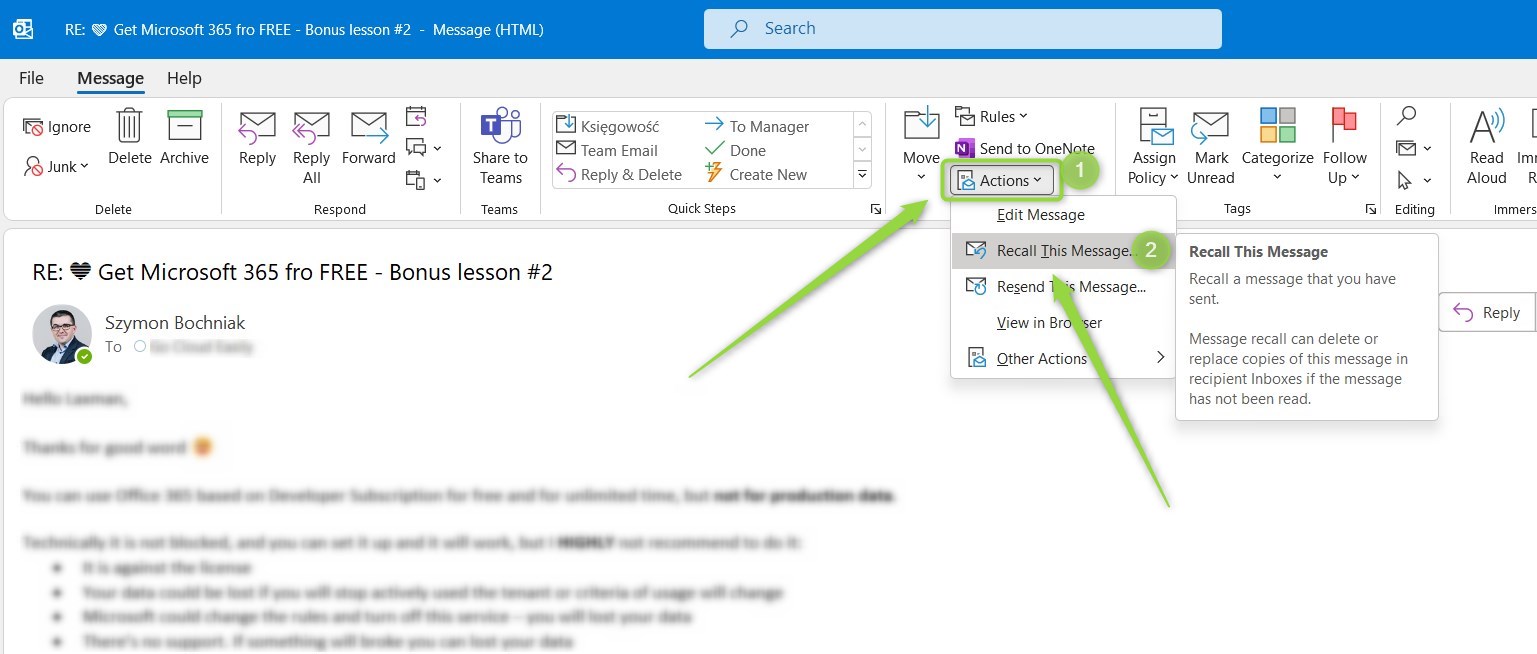
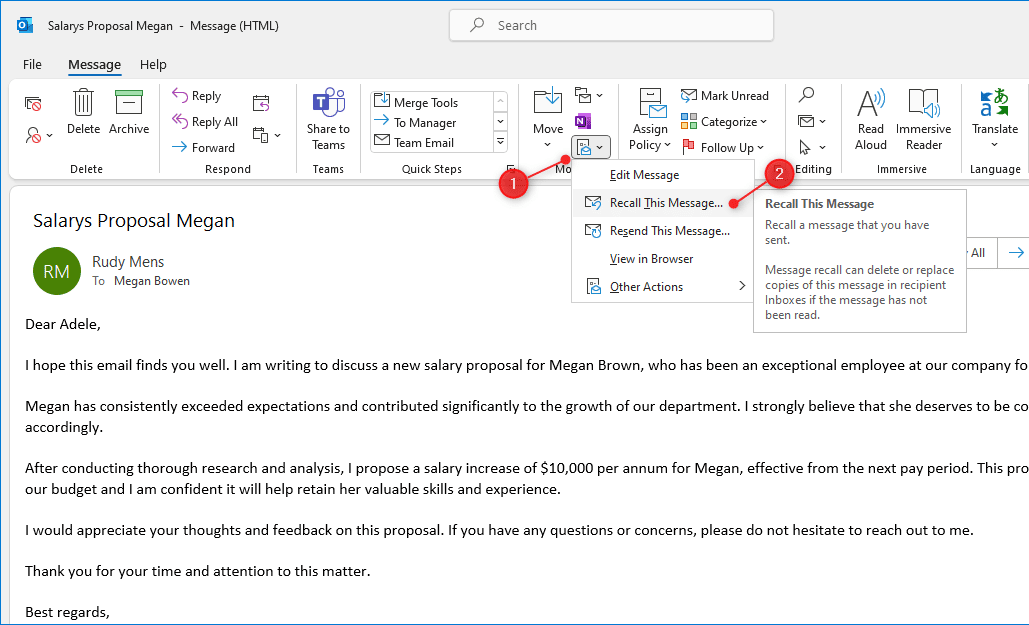
- Open the Sent Message: You must double-click the message to open it in a new, standalone window. The recall feature is not available via the reading pane.
- Navigate to Actions: On the “Message” tab in the ribbon, look for the “Move” group. Click on “Actions.”
- Select Recall This Message: A dialog box will appear, offering two primary choices:
- Delete unread copies of this message: This simply attempts to remove the email.
- Delete unread copies and replace with a new message: This allows you to edit the original text and send a corrected version.
- Tracking: It is highly recommended to keep the box checked that says “Tell me if recall succeeds or fails for each recipient.” This provides a digital receipt (a “Success” or “Failure” notification) for your attempt.
Recalling an Email in Outlook for the Web and “New” Outlook
In recent years, Microsoft has updated the recall functionality for Outlook on the Web and the “New” Outlook for Windows. In these versions, the process is slightly more streamlined. When you navigate to your Sent Items and select a message, you can often find the “Recall Message” option under the “More Actions” (three dots) menu at the top right of the message header.
Crucially, the cloud-based recall system is often more effective than the legacy desktop version because it processes the request directly through the Microsoft 365 cloud, reducing the reliance on the recipient’s local Outlook client being open at that exact moment.

The Critical Limitations: Why Recall Often Fails
Despite its utility, Message Recall is notorious for its failure rate. In many cases, the attempt to recall an email actually draws more attention to the mistake. Understanding why this happens is vital for any tech-savvy user.
The Recipient Factor: Read vs. Unread
The most significant hurdle to a successful recall is the status of the message. If the recipient has already opened the email, the recall will fail. In the classic version of Outlook, the recipient may even receive a notification stating that the sender wants to recall the message, effectively prompting them to read it if they haven’t already. This creates a “Streisand Effect” where the attempt to hide the error makes the error more visible.
Cross-Platform and Server Barriers
As mentioned earlier, Message Recall is an Exchange-to-Exchange feature. If you send an email from your corporate Outlook account to a client using Gmail, a recall attempt will never work. The Gmail server does not recognize the Exchange “recall” command; instead, it will simply deliver a second email to the client with the subject line “Sender would like to recall the message,” which can be highly embarrassing for the sender.
Furthermore, even within an Exchange environment, if the recipient is viewing their email via a mobile device using a third-party mail app (like the default iOS Mail app) rather than the official Outlook mobile app, the recall command may not be processed correctly.
Privacy and Notification Issues
In some organizational configurations, administrators disable the ability to recall messages to ensure a transparent audit trail. Additionally, if the recipient has “Preview” enabled in their notification settings, they may see the content of the “recalled” message on their lock screen or desktop toast notification before the server can delete it. In the eyes of the recipient, the message was “seen,” even if it technically disappears from the inbox later.
Best Practices and Modern Alternatives for Error-Free Communication
Given the unreliability of the recall feature, tech-literate professionals should look toward more robust methods for preventing and correcting communication errors.
Utilizing “Undo Send” as a Proactive Buffer
The most effective alternative to Message Recall is the “Undo Send” feature. Unlike recall, which tries to “take back” a message already delivered, “Undo Send” places a deliberate delay on your outgoing mail.
In Outlook for the Web and the New Outlook, you can navigate to Settings > Mail > Compose and reply, and set an “Undo send” delay of up to 10 seconds. When you click “Send,” the email sits in your Outbox for those 10 seconds, allowing you to click “Undo” and stop the delivery before the message ever leaves Microsoft’s servers. This is a much more reliable “safety net” because it prevents the error from ever reaching the recipient.
Double-Checking Attachments and Recipient Lists
The best way to handle an email error is to prevent it. High-stakes communication should always involve a “pre-flight check.” Many professional users adopt a habit of adding the recipient’s email address last, ensuring they cannot accidentally send an unfinished draft. Others use Outlook “Rules” to create a mandatory 1-minute delay on all outgoing messages, providing a consistent window to catch mistakes.
Professional Etiquette When a Recall Fails
If you realize a recall has failed or isn’t possible (e.g., you sent it to an external Gmail address), the best course of action is transparency. Rather than sending a robotic recall request that might not work, send a brief, professional follow-up:
“Please disregard my previous email; I accidentally sent an unfinished draft [or forgot the attachment]. Please see the corrected version below. My apologies for the confusion.”
This approach demonstrates accountability and is often viewed more favorably than an automated system message.
Conclusion
The Outlook Message Recall feature is a valuable tool within the specific confines of a Microsoft Exchange environment, but it is far from a universal “get out of jail free” card. By understanding the technical requirements—such as the need for both parties to be on the same server and the requirement that the message remains unread—users can better gauge when to attempt a recall and when to opt for a professional apology. As digital tools continue to evolve, the shift toward proactive features like “Undo Send” represents a more reliable path to maintaining professional integrity in our digital correspondence.
aViewFromTheCave is a participant in the Amazon Services LLC Associates Program, an affiliate advertising program designed to provide a means for sites to earn advertising fees by advertising and linking to Amazon.com. Amazon, the Amazon logo, AmazonSupply, and the AmazonSupply logo are trademarks of Amazon.com, Inc. or its affiliates. As an Amazon Associate we earn affiliate commissions from qualifying purchases.