
In the modern digital landscape, our homes and offices are filled with a growing ecosystem of connected devices. From gaming consoles and smart home hubs to private servers and security cameras, the demand for seamless external access to internal resources has never been higher. However, the basic architecture of the internet and the security protocols of your home router often act as a barrier to these connections. This is where “port forwarding” becomes an essential tool for any tech-savvy user.
Port forwarding is a networking technique used to direct external internet traffic to a specific device on a local area network (LAN). To the uninitiated, it may seem like a complex administrative task, but understanding how it works is key to unlocking the full potential of your hardware. This article explores the mechanics of port forwarding, its practical applications, and the security considerations necessary to keep your network safe.
Understanding the Mechanics: The Digital Doorman
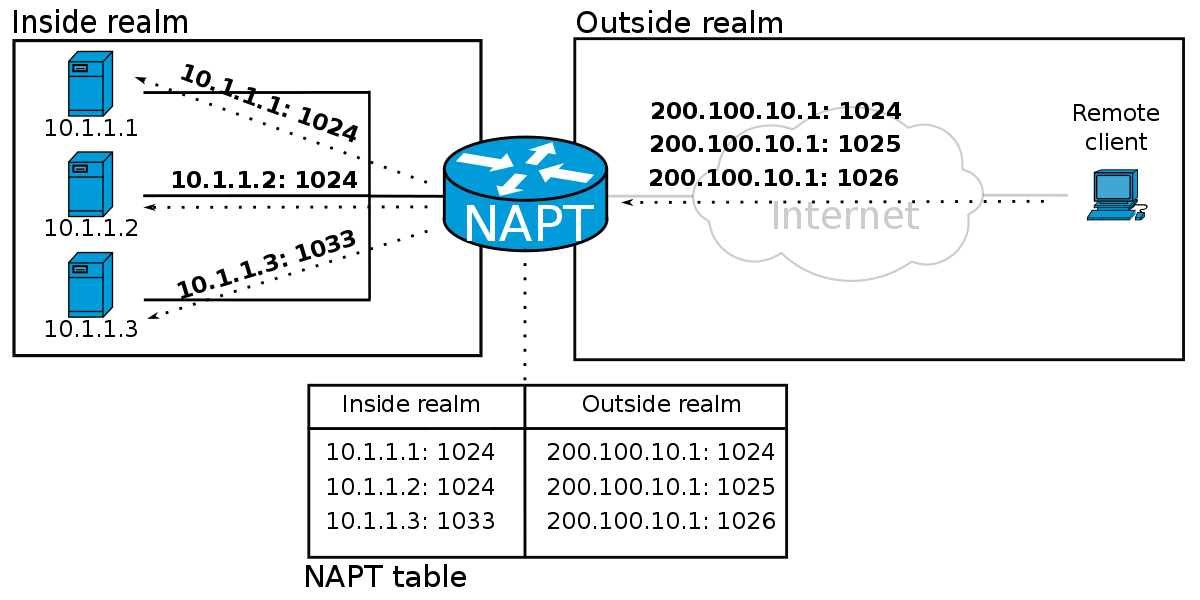
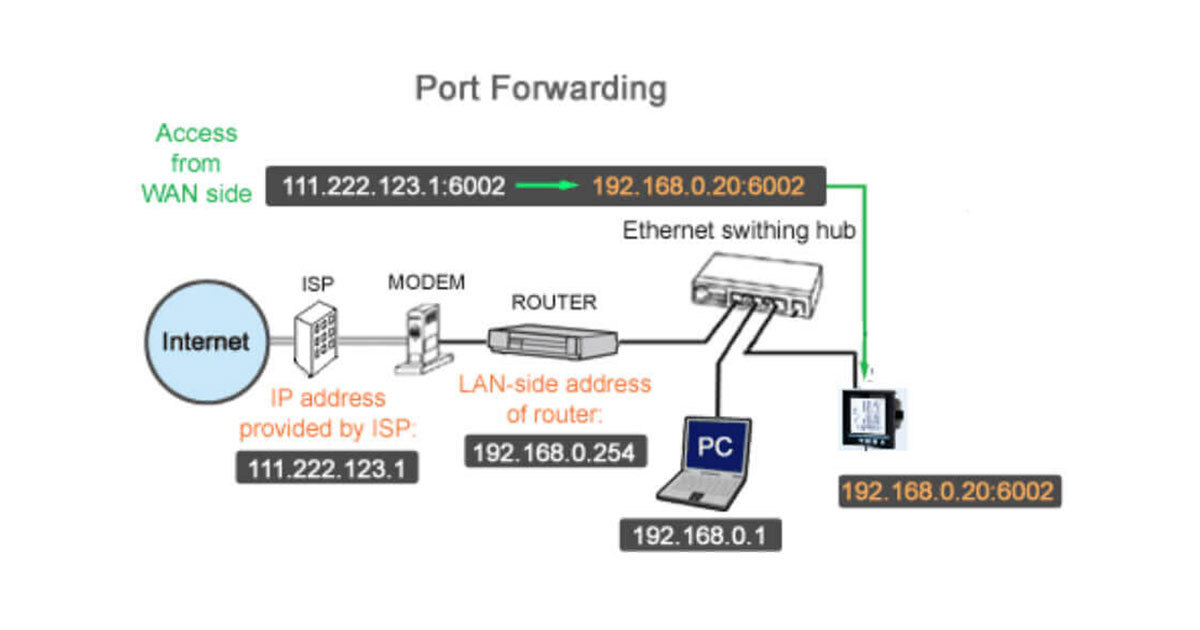
To understand port forwarding, one must first understand how a router interacts with the internet. Your router acts as the single point of entry for your entire home. It possesses one “Public IP address” provided by your Internet Service Provider (ISP), which represents your entire network to the outside world. Inside your home, however, every device—your laptop, smartphone, and smart TV—has its own “Private IP address.”
This separation is managed through a process called Network Address Translation (NAT). NAT allows multiple devices to share a single public IP, but it also creates a problem: if a computer from the outside world tries to send data to your network, the router doesn’t automatically know which internal device should receive it.
The Role of Ports in Data Transmission
In networking, a “port” is a virtual point where network connections start and end. Ports are numbered from 0 to 65535. Think of your Public IP address as the street address of an apartment building, and the ports as the individual apartment numbers. Certain ports are standardized for specific tasks; for example, web traffic (HTTP) typically uses Port 80, while secure web traffic (HTTPS) uses Port 443.
When you initiate a request from inside your network—like visiting a website—the router remembers that your laptop asked for that data and directs the incoming response back to you. However, when an external source tries to initiate a connection to your network unsolicited, the router’s firewall sees this as a security risk and blocks the connection. Port forwarding tells the router: “Whenever data arrives on this specific port, ignore the security block and send it directly to this specific internal IP address.”
Static vs. Dynamic IP Addresses
For port forwarding to work consistently, the target device must have a Static IP address. By default, most routers use DHCP (Dynamic Host Configuration Protocol) to assign IP addresses, meaning your console or server might get a different internal address every time it reboots. If the internal IP changes, the port forwarding rule will point to an empty slot, breaking the connection. Assigning a static IP ensures the “pathway” created by port forwarding always leads to the correct destination.
Essential Use Cases: Why Configure Port Forwarding?
While the average web surfer may never need to touch their router settings, several high-performance tech activities require port forwarding to function correctly or efficiently.
Enhancing the Online Gaming Experience
Perhaps the most common reason for port forwarding is online gaming. Modern multiplayer games require low-latency, two-way communication between your console (PlayStation, Xbox, PC) and the game servers. If your router’s NAT is set to “Strict” or “Type 3,” you may experience lag, chat issues, or the inability to join matches.
By forwarding specific ports (such as Port 3074 for Xbox Live), you allow the game server to communicate directly with your console. This results in an “Open NAT” status, significantly improving matchmaking speed and connection stability.
Hosting Home Servers and Web Services
As more users opt for “de-clouding”—moving their data from third-party services like Google Drive or Dropbox to private hardware—port forwarding becomes a necessity. If you run a Network Attached Storage (NAS) device or a media server like Plex, you likely want to access your files while away from home.
Port forwarding allows you to “pinhole” through your firewall so you can stream your movie library or download a document from your home server while using a coffee shop’s Wi-Fi. Similarly, developers who host their own web servers or Minecraft servers for friends rely on port forwarding to make those local environments accessible via the public internet.
Remote Desktop and IoT Access
For professionals, Remote Desktop Protocol (RDP) or Secure Shell (SSH) access allows them to control their home or office workstation from a remote location. Without port forwarding, the remote connection request would be blocked by the router. Furthermore, certain legacy smart home devices or high-end security camera systems require specific ports to be open so that their dedicated apps can pull live video feeds when the user is not on the local Wi-Fi.
A Step-by-Step Guide to Setting Up Port Forwarding
Configuring port forwarding is a logical process that requires access to your router’s administrative interface. While every router brand (Asus, TP-Link, Netgear, etc.) has a slightly different menu, the steps remain fundamentally the same.
Step 1: Identify the Target Device’s Details
Before touching the router, you must know the Internal IP address of the device you want to reach. On Windows, you can find this by typing ipconfig in the Command Prompt. On a console, it is found in the Network Settings. As mentioned previously, ensure you have reserved this IP as a “Static IP” within your router’s DHCP reservation menu to prevent it from changing.
Step 2: Access the Router Console
Open a web browser and enter your router’s gateway IP address (usually 192.168.1.1 or 192.168.0.1). You will need the administrative username and password, which is often found on a sticker on the bottom of the router hardware.
Step 3: Locate Port Forwarding Settings
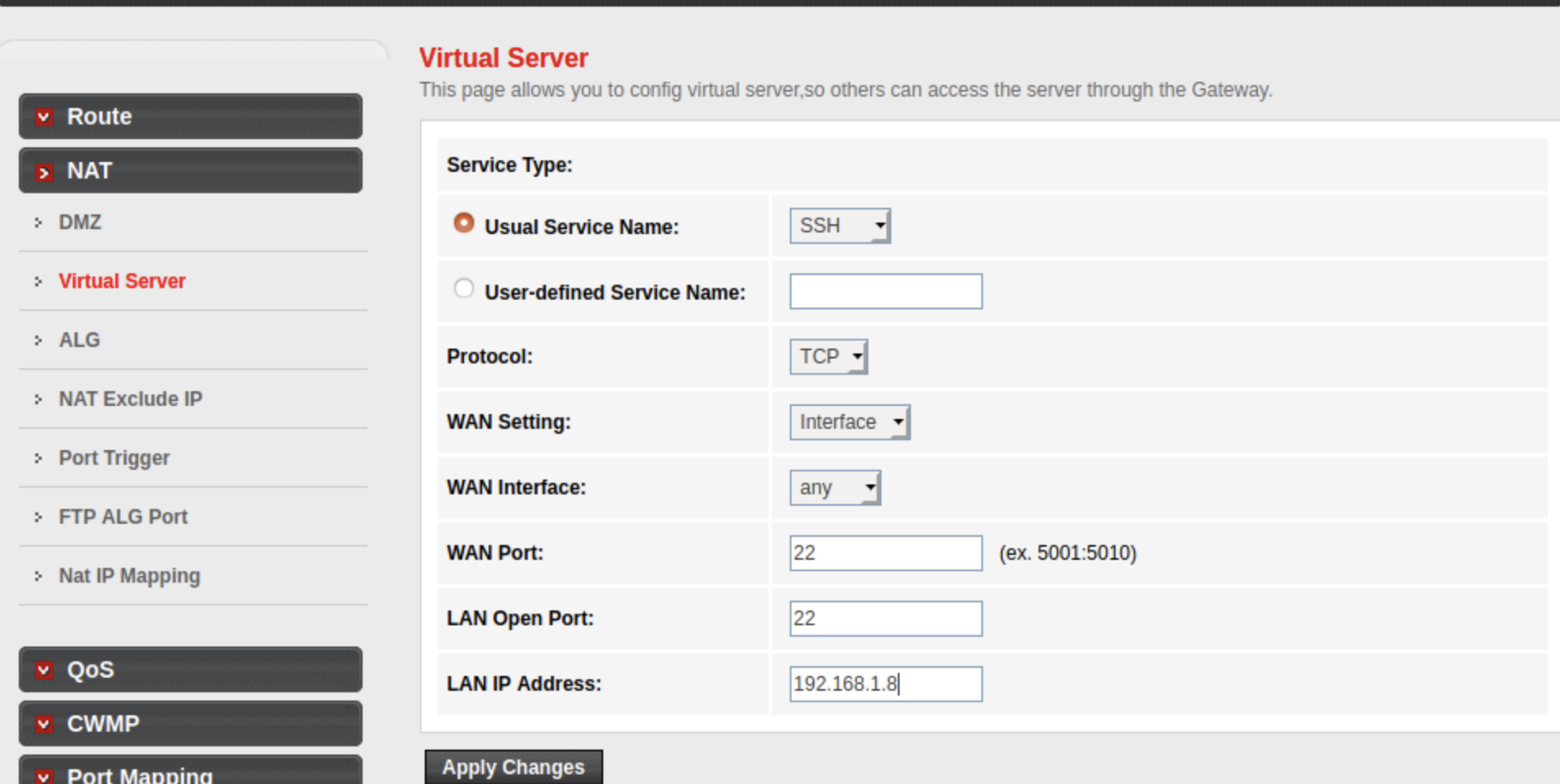
Navigate to the “Advanced,” “WAN,” or “Firewall” tab. Look for a section labeled “Port Forwarding,” “Virtual Server,” or “Port Mapping.”
Step 4: Create the Rule
You will be asked to fill in several fields:
- Service Name: A label for your reference (e.g., “Minecraft Server”).
- Protocol: Usually TCP, UDP, or Both. The application you are using will specify which one it requires.
- External Port: The port number the outside world will use to connect.
- Internal Port: Usually the same as the external port.
- Internal IP Address: The static IP of the device you are forwarding to.
Once saved, the router will apply the rule, and the specific “door” to your network will be open.
Security Implications and Best Practices
Opening a port is, by definition, creating a hole in your network security. While necessary for some applications, it is not without risk. An open port is an invitation for automated bots and malicious actors to attempt to exploit vulnerabilities in the software listening on that port.
The Risks of Open Ports
If you forward a port to an outdated server or a device with a weak password, a hacker can use that port as an entry point into your entire network. For example, leaving Port 3389 (RDP) open to the internet is a common target for brute-force attacks. Once an attacker gains access to one device, they can often “pivot” to other devices on your LAN.
Strategies for Safer Forwarding
To mitigate these risks, follow these tech-security best practices:
- Use Non-Standard Ports: If a service uses Port 80 by default, consider setting the “External Port” to something obscure like 58293. This won’t stop a dedicated hacker, but it will hide you from basic automated scanners.
- Keep Software Updated: If you are forwarding a port to a NAS or a PC, ensure the operating system and the specific application are always updated with the latest security patches.
- Avoid DMZ (Demilitarized Zone): Most routers have a DMZ setting that opens all ports to a specific device. This is extremely dangerous and should only be used for troubleshooting for very short periods.
- Use a VPN Instead: For remote access to files or desktops, a Virtual Private Network (VPN) is significantly more secure than port forwarding. A VPN creates an encrypted tunnel into your network, allowing you to access all devices without opening individual ports to the public.
Conclusion: Balancing Functionality and Security
Port forwarding remains a cornerstone of home networking for power users, gamers, and self-hosting enthusiasts. It bridges the gap between the protective isolation of NAT and the need for global connectivity. By understanding the relationship between IP addresses and ports, you can optimize your gaming experience, host your own services, and maintain control over your digital environment.
However, with great connectivity comes the responsibility of security. As you open doors to your network, ensure they are well-guarded with strong passwords, updated software, and a “need-to-open” policy. By following the technical guidelines outlined above, you can enjoy a high-performance network that is both functional and resilient against external threats.
aViewFromTheCave is a participant in the Amazon Services LLC Associates Program, an affiliate advertising program designed to provide a means for sites to earn advertising fees by advertising and linking to Amazon.com. Amazon, the Amazon logo, AmazonSupply, and the AmazonSupply logo are trademarks of Amazon.com, Inc. or its affiliates. As an Amazon Associate we earn affiliate commissions from qualifying purchases.