
The ping command stands as one of the most fundamental and universally recognized utilities in network diagnostics. Conceived by Mike Muuss in 1983, its primary function is to test the reachability of a host on an Internet Protocol (IP) network and to measure the round-trip time for messages sent from the originating host to a destination computer. More than just a simple “hello,” ping provides crucial insights into network connectivity, latency, and packet loss, making it an indispensable tool for network administrators, IT professionals, and even curious home users. Its name, an analogy to the sonar pulse used by submarines, perfectly encapsulates its purpose: sending out a signal and listening for an echo to determine distance and presence.
The Fundamentals of Ping: A Network Diagnostic Staple
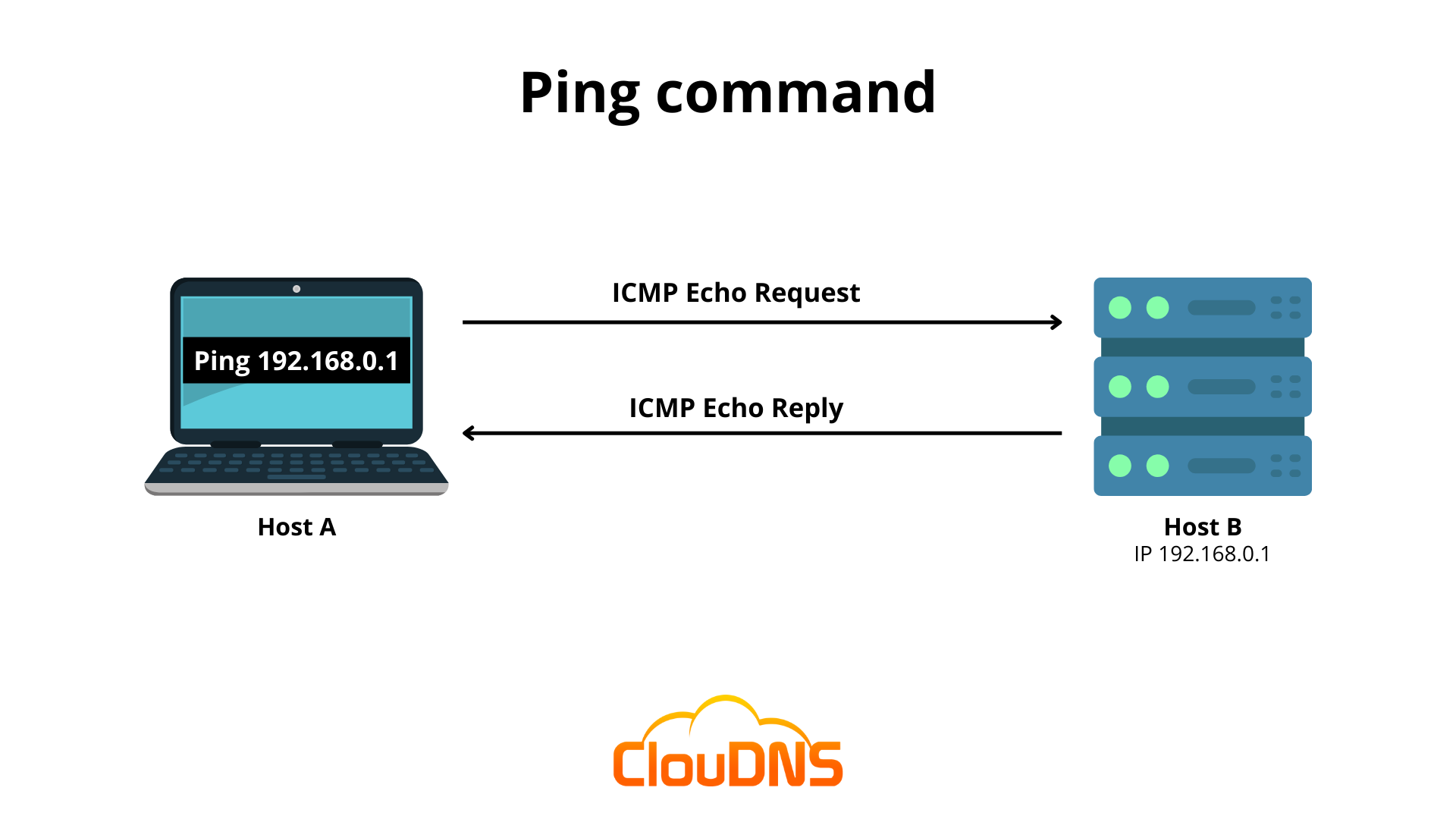
At its core, the ping command operates on the Internet Control Message Protocol (ICMP), a supporting protocol in the Internet Protocol suite. Specifically, it uses ICMP echo request packets to solicit ICMP echo reply packets from a target host. This simple request-and-reply mechanism forms the backbone of its diagnostic capabilities.
How Ping Works: Echo Request and Reply
When a user executes the ping command followed by an IP address or hostname, the operating system constructs and dispatches a series of ICMP echo request packets towards the specified destination. These packets traverse the network, hop by hop, until they ideally reach the target host. Upon receiving an echo request, the destination host, if it is active and configured to respond, generates an ICMP echo reply packet and sends it back to the originating machine.
The sending host then measures the time taken for each echo request to return as an echo reply. This duration is known as the Round-Trip Time (RTT). Ping typically sends multiple packets (e.g., four on Windows, continuous on Linux/macOS until stopped) and calculates statistics based on the responses received. These statistics include the minimum, maximum, and average RTT, as well as the percentage of packet loss—packets sent but not returned. The Time To Live (TTL) value, which indicates the number of hops a packet can take before being discarded, is also reported, offering insights into the network path.
Why Ping Matters: Core Use Cases
The significance of the ping command stems from its simplicity and the immediate, actionable data it provides. Its core use cases include:
- Verifying Network Connectivity: The most basic use is to ascertain if a remote host is alive and reachable. If ping returns replies, there’s a connection. If it times out, there’s a problem.
- Measuring Latency: The RTT figures directly indicate the latency or delay in communication. High RTT values suggest network congestion, distant servers, or slow connections.
- Identifying Packet Loss: A percentage of lost packets points to network instability, overloaded links, or faulty hardware along the path.
- Troubleshooting DNS Resolution: Pinging a hostname first (e.g.,
ping google.com) and then its IP address (e.g.,ping 142.250.191.142) can help determine if a connectivity issue lies with the domain name system (DNS) or with the network path itself. If the IP address pings successfully but the hostname does not, the DNS resolver is likely at fault.
These fundamental insights make ping an initial and often decisive step in diagnosing a wide array of network issues, from a simple inability to browse a website to complex routing problems within an enterprise network.
Mastering Ping: Syntax and Common Options
While the basic ping <target> command is straightforward, understanding its various options across different operating systems allows for more nuanced and powerful diagnostics.
Basic Ping Syntax Across Operating Systems
The fundamental syntax remains largely consistent:
- Windows:
ping <IP address or hostname>- Example:
ping 192.168.1.1orping www.example.com - By default, Windows sends 4 packets.
- Example:
- Linux/macOS:
ping <IP address or hostname>- Example:
ping 192.168.1.1orping www.example.com - By default, Linux and macOS ping continuously until interrupted by
Ctrl+C.
- Example:
Understanding Ping Output: Latency, Packet Loss, and TTL
A typical ping output provides a wealth of information:
Pinging example.com [93.184.216.34] with 32 bytes of data:
Reply from 93.184.216.34: bytes=32 time=25ms TTL=54
Reply from 93.184.216.34: bytes=32 time=24ms TTL=54
Reply from 93.184.216.34: bytes=32 time=26ms TTL=54
Reply from 93.184.216.34: bytes=32 time=25ms TTL=54

Ping statistics for 93.184.216.34:
    Packets: Sent = 4, Received = 4, Lost = 0 (0% loss),
Approximate round trip times in milli-seconds:
    Minimum = 24ms, Maximum = 26ms, Average = 25ms
Reply from [...]: Confirms a successful echo reply from the target.bytes=32: The size of the ICMP data payload.time=25ms: The RTT for that specific packet in milliseconds. This is your latency measurement.TTL=54: The Time To Live value. Each router a packet passes through decrements the TTL. A lower TTL often indicates more hops. If TTL reaches zero, the packet is discarded.Ping statistics: Summarizes the session, showing total packets sent, received, and lost, along with the packet loss percentage.Approximate round trip times: Provides the minimum, maximum, and average RTT, giving a clearer picture of overall network performance to that host.
Advanced Ping Options for Deeper Diagnostics
Both Windows and Unix-like systems offer flags to modify ping’s behavior:
- Windows Options:
-t: Pings the specified host until stopped (Ctrl+C).-n <count>: Specifies the number of echo requests to send (e.g.,ping -n 10 example.com).-l <size>: Specifies the size of the send buffer in bytes (e.g.,ping -l 1000 example.comto send larger packets). Useful for testing link capacity.-i <TTL>: Sets the Time To Live value (e.g.,ping -i 5 example.comto limit hops).-w <timeout>: Specifies the timeout in milliseconds to wait for each reply (e.g.,ping -w 5000 example.comto wait 5 seconds).
- Linux/macOS Options:
-c <count>: Specifies the number of echo requests to send (e.g.,ping -c 10 example.com).-s <size>: Specifies the number of data bytes to be sent (e.g.,ping -s 1000 example.com).-t <TTL>: Sets the IP Time To Live (e.g.,ping -t 5 example.com).-W <timeout>: Time to wait for a response, in seconds (e.g.,ping -W 5 example.com).-i <interval>: Waitintervalseconds between sending each packet (e.g.,ping -i 0.5 example.comfor half-second intervals).-A: Audible ping.-f: Flood ping (sends packets as fast as possible, typically requires root privileges). Use with caution as it can overwhelm networks.
These options enable users to simulate various network conditions, probe specific aspects of connectivity, and gather more granular data for effective troubleshooting.
Practical Applications of Ping in Modern Networks
Beyond basic connectivity checks, the ping command serves numerous practical roles in maintaining and troubleshooting modern network environments.
Troubleshooting Connectivity Issues
The most common application of ping is to pinpoint where a connectivity problem lies. A systematic approach often involves:
- Ping the Loopback Address (127.0.0.1 or localhost): Verifies that the TCP/IP stack on the local machine is functioning correctly. If this fails, the issue is internal to the machine.
- Ping the Local Machine’s IP Address: Confirms the network interface card (NIC) is properly configured and functioning.
- Ping the Default Gateway: Checks connectivity to the local router or switch. Failure here indicates a problem between your machine and the gateway (e.g., faulty cable, incorrect IP settings).
- Ping a Known Local IP Address: Pinging another device on the same local network verifies local network connectivity.
- Ping a Known Internet IP Address (e.g., 8.8.8.8 for Google’s DNS): Determines if internet connectivity is available beyond the local network.
- Ping a Known Internet Hostname (e.g., www.google.com): If this fails but the IP address pings successfully, it points to a DNS resolution problem.
This methodical process quickly narrows down the scope of a problem, helping diagnose whether it’s local to the machine, on the local network, or further out on the internet.
Assessing Network Performance and Latency
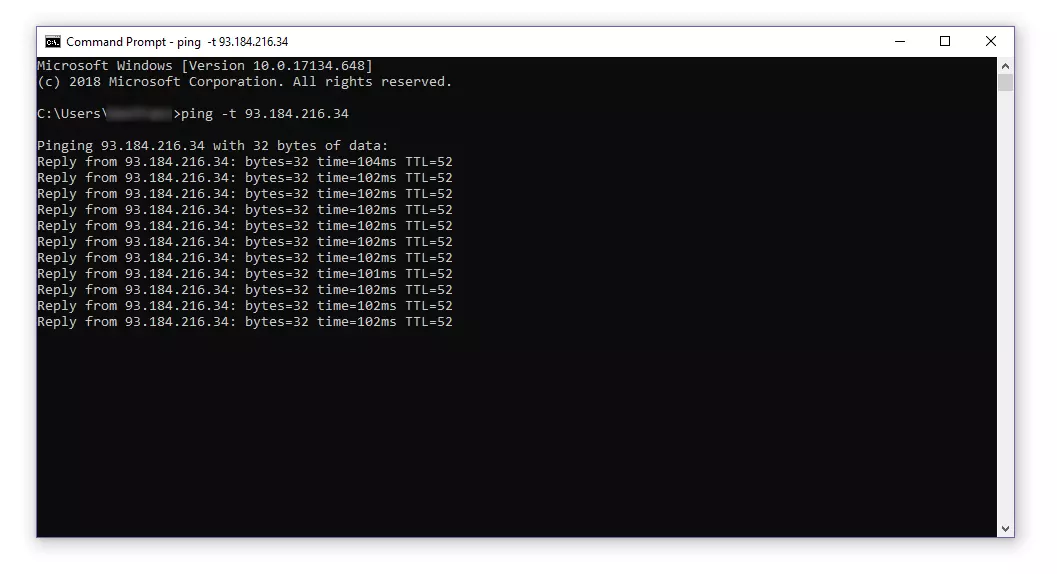
Ping’s RTT measurements are invaluable for understanding network performance, particularly in latency-sensitive applications like online gaming, VoIP, or video conferencing. Consistently high RTT values indicate network bottlenecks, geographical distance to the server, or poor quality internet service. By performing continuous pings (ping -t on Windows, or default behavior on Linux/macOS) and observing fluctuations in RTT and packet loss, users can monitor network stability over time. Spikes in RTT or periods of high packet loss often correlate with network congestion or issues with specific network devices.
Verifying DNS Resolution
As mentioned, pinging both a hostname and its corresponding IP address is a quick way to diagnose DNS issues. If ping example.com fails but ping 93.184.216.34 (example’s IP) succeeds, then the local DNS server or its configuration is likely failing to translate the domain name into an IP address. This is a common troubleshooting step for “website not found” errors that don’t stem from direct connectivity loss.
Basic Security Auditing and Network Discovery
While not a full-fledged security tool, ping can offer rudimentary insights for network security. A ping sweep (pinging a range of IP addresses) can identify active hosts on a network segment, providing a basic form of network discovery. However, many systems and firewalls block ICMP echo requests for security or operational reasons, meaning the absence of a ping reply doesn’t definitively mean a host is offline. This blocking is often done to prevent network reconnaissance or denial-of-service attacks that exploit ICMP. Therefore, ping’s utility in security auditing is limited and should be combined with other tools.
Limitations and Alternatives to Ping
Despite its utility, ping is not a panacea for all network diagnostics. Understanding its limitations and knowing when to use alternative tools is crucial for comprehensive network management.
When Ping Isn’t Enough: ICMP Blocking and Firewall Implications
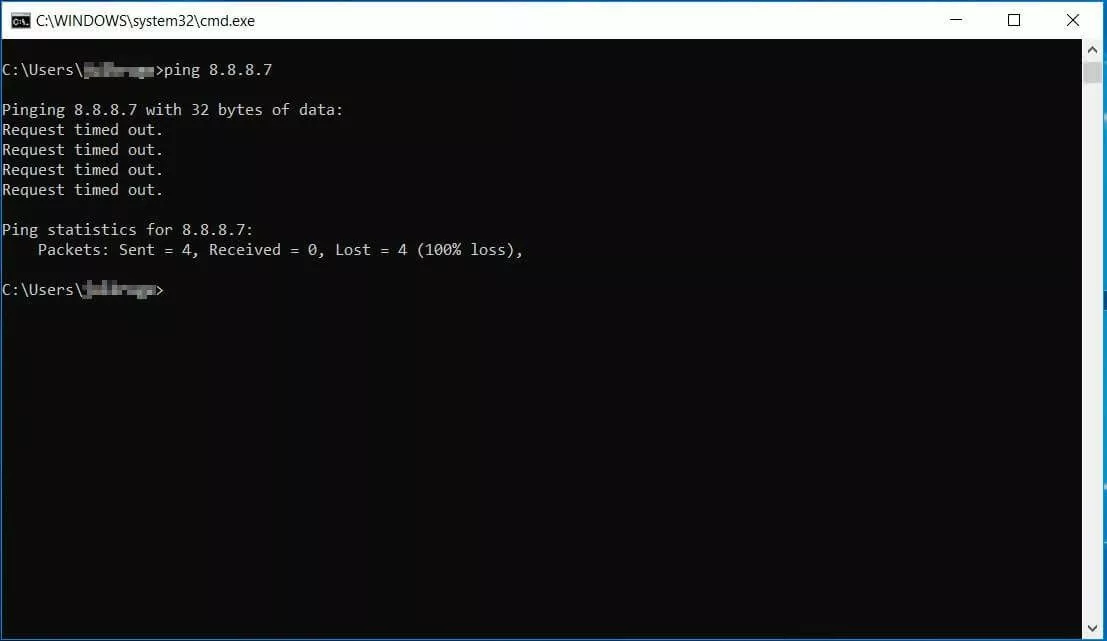
A significant limitation of ping is its reliance on ICMP. Many network administrators and security policies deliberately block ICMP echo requests at the firewall or on individual hosts. This is a common practice to mitigate certain types of attacks (like ICMP floods or reconnaissance) or simply to reduce network noise. When ICMP is blocked, a ping command will time out or report 100% packet loss, even if the target host is fully operational and reachable via other protocols (like HTTP, SSH, or RDP). This can lead to false negatives, making ping an unreliable indicator of actual service availability in environments with strict security policies.
Furthermore, ping only tests basic reachability. It doesn’t tell you if a specific service (like a web server on port 80 or an email server on port 25) is running or accessible. A host might be reachable, but the specific application you’re trying to connect to might be down or blocked.
Advanced Diagnostic Tools (Traceroute, MTR, Netstat)
When ping provides insufficient information or misleading results, more advanced tools become necessary:
- Traceroute (tracert on Windows): This command maps the path packets take to reach a destination, listing each router (hop) along the way and the time taken to reach it. This is invaluable for identifying where along the network path latency or packet loss is occurring, rather than just knowing it’s happening. It uses ICMP or UDP packets with incrementing TTL values to achieve this.
- MTR (My Traceroute): A combination of ping and traceroute, MTR continuously sends packets and displays real-time statistics for each hop, including packet loss and average latency. This provides a dynamic view of network performance across the entire path, making it excellent for diagnosing intermittent issues.
- Netstat: Displays active network connections, routing tables, interface statistics, and masquerade connections. It helps determine which ports are open and listening on a local machine, which connections are established, and which processes are using those connections.
- Telnet/Netcat: These tools can be used to test connectivity to specific ports on a remote host. For example,
telnet example.com 80will attempt to connect to the web server on port 80. If successful, it confirms the service is running and accessible, circumventing ICMP blocking issues for service-specific checks.
Beyond Simple Reachability: Performance Monitoring Tools
For ongoing, comprehensive network health assessment and performance management, dedicated network monitoring solutions are superior. Tools like Nagios, Zabbix, PRTG, or specialized Application Performance Monitoring (APM) suites offer:
- Continuous Monitoring: Constantly check the status of devices and services.
- Alerting: Notify administrators automatically when thresholds are crossed or outages occur.
- Historical Data and Trending: Collect and analyze performance metrics over time to identify long-term trends, capacity issues, and recurring problems.
- Protocol-Specific Checks: Monitor the availability and performance of specific services (HTTP, SMTP, FTP, etc.) rather than just basic ICMP reachability.
- Visualizations: Provide dashboards and graphs for easy interpretation of complex network data.
While ping remains the first line of defense for quick checks, integrating it into a broader toolkit of advanced diagnostics and monitoring solutions ensures a robust approach to network management and troubleshooting in any technology environment. Its simplicity, speed, and ubiquity ensure its continued relevance as a foundational networking utility.
aViewFromTheCave is a participant in the Amazon Services LLC Associates Program, an affiliate advertising program designed to provide a means for sites to earn advertising fees by advertising and linking to Amazon.com. Amazon, the Amazon logo, AmazonSupply, and the AmazonSupply logo are trademarks of Amazon.com, Inc. or its affiliates. As an Amazon Associate we earn affiliate commissions from qualifying purchases.