
In the modern mobile landscape, our smartphones are repositories of our most sensitive information. From our precise geographic location and private photographs to our biometric data and real-time conversations, the sheer volume of personal data accessible to a mobile device is staggering. As we install various applications to enhance our productivity or entertainment, we inadvertently open doors to this data. The component that stands at these doorways, deciding who gets in and who stays out, is the Permission Controller.
For many users, the “Permission Controller” is a term they might only encounter when browsing through a list of system apps or when an obscure error message appears. However, it is one of the most critical elements of the Android operating system’s security architecture. It serves as the interface and the logic engine that bridges the gap between user intent and application access.
What is the Permission Controller?
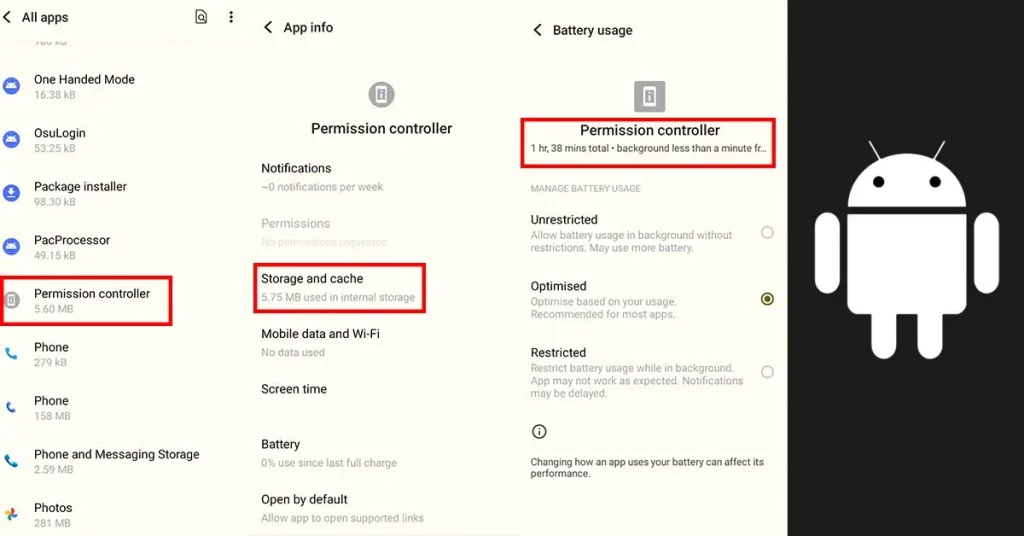
To understand the Permission Controller, one must first view it as a specialized system application rather than just a line of code buried in the kernel. In technical terms, it is often identified by the package name com.google.android.permissioncontroller. Its primary role is to manage and enforce the permissions granted to applications on a device.
Defining the Core Component
The Permission Controller is the dedicated module within the Android framework that handles the user interface (UI) and the underlying logic for granting, revoking, and managing permissions. Whenever an app requests access to your camera, microphone, or contacts, the pop-up window you see is generated and managed by the Permission Controller. It ensures that the request is presented in a standardized way, preventing malicious apps from spoofing the permission dialog to trick users into granting access.
The Evolution of Android Permissions
In the early days of Android, permissions were a “take it or leave it” proposition. When you installed an app from the Play Store, you were presented with a long list of everything the app might ever need. If you clicked “Install,” you granted all those permissions simultaneously. This was a security nightmare, as users rarely read the fine print.
The introduction of the Permission Controller revolutionized this flow by moving to a “runtime permission” model. Starting with Android 6.0 (Marshmallow), permissions were requested only when needed, and the Permission Controller was the engine that facilitated this shift. Today, it has evolved into a modular component, meaning it can be updated independently of the main operating system through the Google Play Store, ensuring that security patches reach users faster.
How the Permission Controller Works Under the Hood
The Permission Controller does not operate in a vacuum. It sits between the hardware/system services and the third-party applications. Its operation can be broken down into the UI layer, the enforcement layer, and the update mechanism.
The User Interface Layer
The most visible aspect of the Permission Controller is the dialog box. When an application calls a specific API—for instance, asking the system for the device’s GPS coordinates—the system pauses the app’s request and triggers the Permission Controller. The Controller then displays a standardized overlay. This overlay is designed to be unhackable by the requesting app; the app cannot see what you click or intercept the touch event, which is a vital protection against “clickjacking” attacks.
System Services and Enforcement
Once a user makes a choice—”Allow,” “Deny,” or “Only while using the app”—the Permission Controller records this decision in a secure system database. When the app subsequently tries to access the data, the Android system checks this database. If the Permission Controller has recorded a “Deny,” the system returns an empty data set or an error to the app, effectively neutralizing the threat without crashing the application. This enforcement happens at the system level, meaning even if an app attempts to bypass the UI, the underlying gates remain closed.
Modular Updates via Project Mainline
One of the most significant technical advancements in recent years is the inclusion of the Permission Controller in “Project Mainline.” Historically, if a bug was found in how permissions were handled, a user would have to wait for a full OS update from their phone manufacturer (like Samsung or OnePlus). Now, because the Permission Controller is a modular component, Google can push updates directly to the device via the Play Store. This ensures that the logic governing your privacy is always up to date with the latest security standards, regardless of how old your phone’s firmware might be.
Key Features and Security Benefits
The Permission Controller is not just a static gatekeeper; it is an active security suite that employs several advanced features to protect user data.
Granular Control Over Hardware and Data
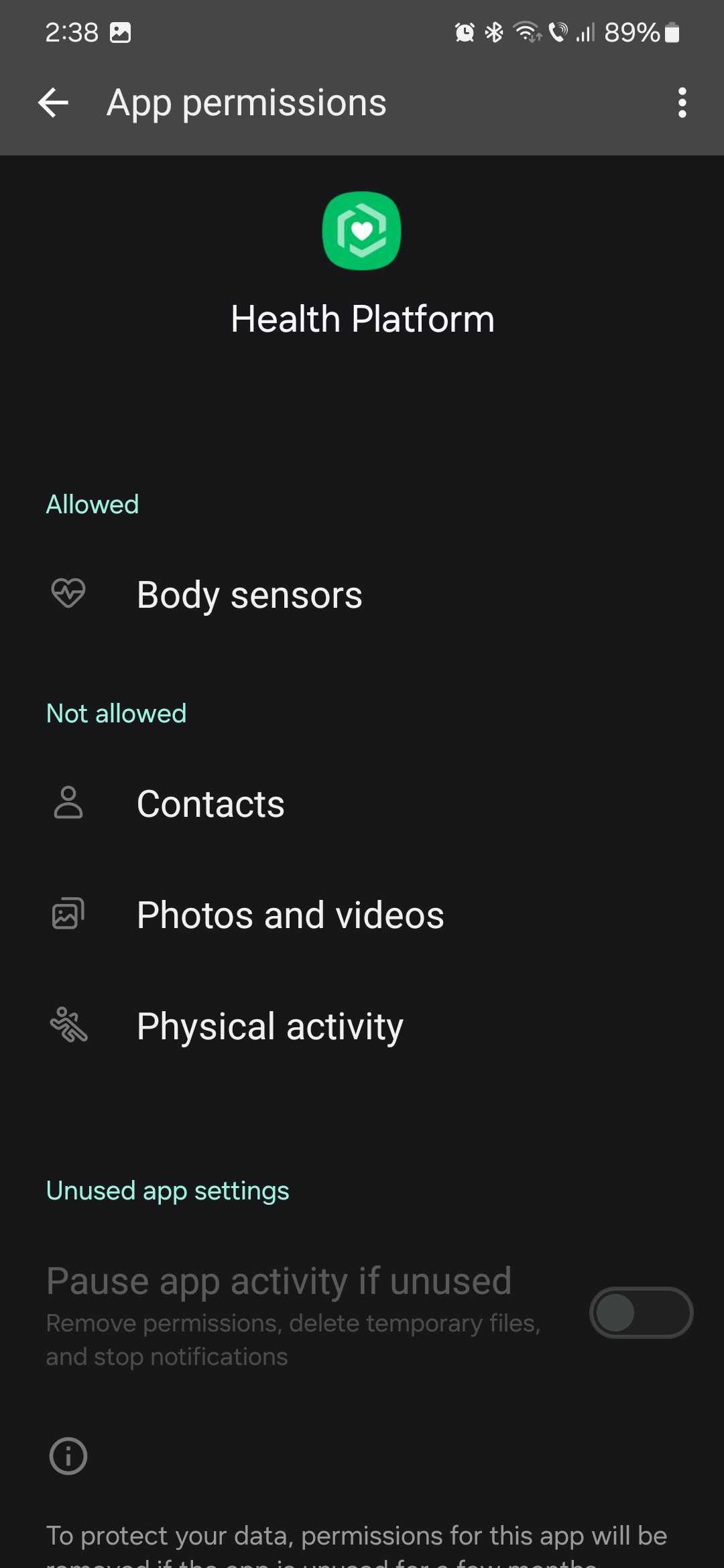
Modern versions of the Permission Controller allow for extreme granularity. Instead of a binary “Yes” or “No,” users can choose to grant access “Only while using the app.” This prevents a weather app, for example, from tracking your location while it is running in the background. The Permission Controller also handles “approximate vs. precise” location permissions, allowing users to give apps enough info to function (like a weather report) without giving away their exact street address.
One-Time Permissions and Background Access
To combat “permission creep”—where an app collects data long after its initial use case has passed—the Permission Controller introduced “One-time permissions.” This is particularly useful for apps you might only use once, such as a document scanner that needs the camera for a single session. Once the app is closed, the Permission Controller automatically revokes the access, requiring the app to ask again next time.
Automated Permission Reset
One of the most insightful features added to the Permission Controller in recent iterations is the “Auto-reset” function. If you haven’t opened an app in several months, the Permission Controller assumes you no longer need it to have sensitive access. It will automatically revoke all permissions for that app and notify you. This “safety net” ensures that forgotten apps sitting on your phone don’t become silent windows for data harvesting.
Why You Should Care: The Role of Permission Controller in Digital Security
In the realm of cybersecurity, the Permission Controller is your first line of defense against “Leaky Apps” and “Stalkerware.” Without it, the mobile ecosystem would be a “Wild West” where any downloaded utility could potentially act as a surveillance tool.
Preventing Malware and Data Leaks
Malicious software often relies on gaining broad permissions to execute its payload. For example, a Trojan disguised as a simple calculator might request access to your SMS messages to intercept two-factor authentication (2FA) codes. The Permission Controller makes this suspicious behavior obvious to the user. By isolating these requests and providing a clear path to denial, the Controller prevents the unauthorized exfiltration of sensitive data.
Enhancing User Transparency
Transparency is a core tenet of digital security. The Permission Controller includes a “Permission Manager” or “Privacy Dashboard” where users can see a timeline of which apps accessed which sensors. If you see that your microphone was accessed at 3:00 AM by a flashlight app, the Permission Controller provides the evidence needed to uninstall the offending software. This level of insight empowers users to take an active role in their own digital defense.
Managing and Troubleshooting the Permission Controller
While the Permission Controller is designed to be a “set it and forget it” component, users can interact with it to optimize their device’s security posture or resolve technical glitches.
Accessing Permission Settings
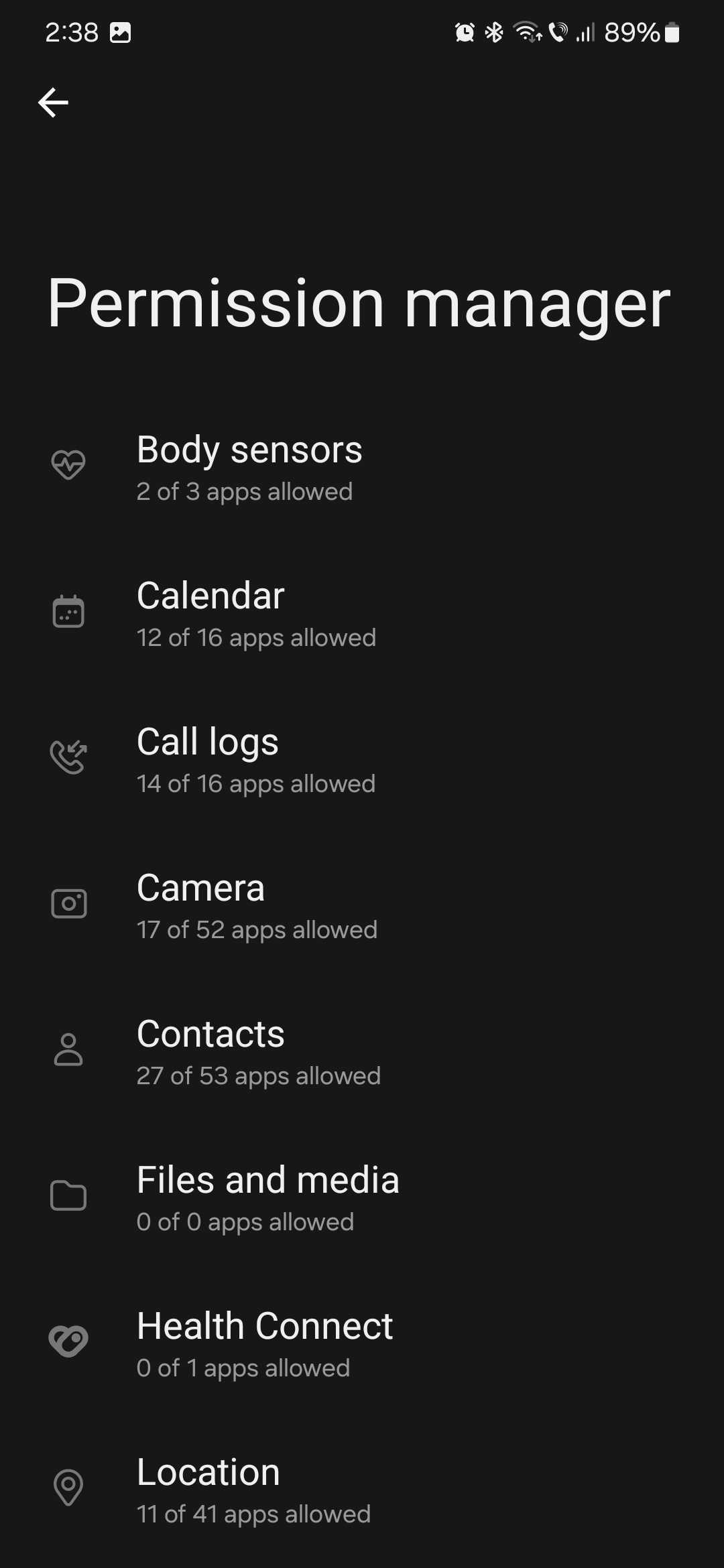
To see the Permission Controller in action, users can navigate to their device’s “Settings,” then “Privacy,” and finally “Permission Manager.” Here, you can see a breakdown of all categories—Camera, Location, Microphone, etc. Selecting a category shows every app that has access. This interface is the “frontend” of the Permission Controller, and auditing this list once a month is a highly recommended security practice.
Common Issues and Fixes
Occasionally, users may see an error stating “Permission Controller has stopped” or find that permission pop-ups aren’t appearing. This usually happens due to a corrupted cache or a conflict during a system update. Since it is a system app, you cannot uninstall it (and you shouldn’t try), but you can often fix issues by going to “Settings > Apps > Show System Apps > Permission Controller” and clearing the cache. Ensuring that the “Google Play System Update” is current is also a vital step in keeping the Controller functioning correctly.
In conclusion, the Permission Controller is a masterclass in modern software engineering and digital security. It takes the complex, technical world of API hooks and system calls and translates them into simple, actionable choices for the user. By acting as a sophisticated, modular, and transparent gatekeeper, it ensures that our smartphones remains tools for our benefit, rather than instruments for our surveillance. Understanding and utilizing the features of the Permission Controller is essential for anyone looking to navigate the digital world with confidence and privacy.
aViewFromTheCave is a participant in the Amazon Services LLC Associates Program, an affiliate advertising program designed to provide a means for sites to earn advertising fees by advertising and linking to Amazon.com. Amazon, the Amazon logo, AmazonSupply, and the AmazonSupply logo are trademarks of Amazon.com, Inc. or its affiliates. As an Amazon Associate we earn affiliate commissions from qualifying purchases.