
Navigating the hidden corridors of the Windows file system often reveals large, mysterious files that occupy gigabytes of precious storage space. Among the most prominent of these is pagefile.sys. Found in the root directory of your system drive, this file often triggers a mix of curiosity and frustration for users attempting to declutter their SSDs. Is it a remnant of a past update? Is it a bloated log file? Or is it a critical component of the Windows architecture?
To manage a modern workstation or gaming rig effectively, one must understand the delicate balance between physical hardware and software-level resource management. pagefile.sys is not an accident or a digital waste product; it is a fundamental pillar of how Windows handles memory. Understanding its function, its limitations, and the consequences of its removal is essential for any user looking to optimize their system performance.
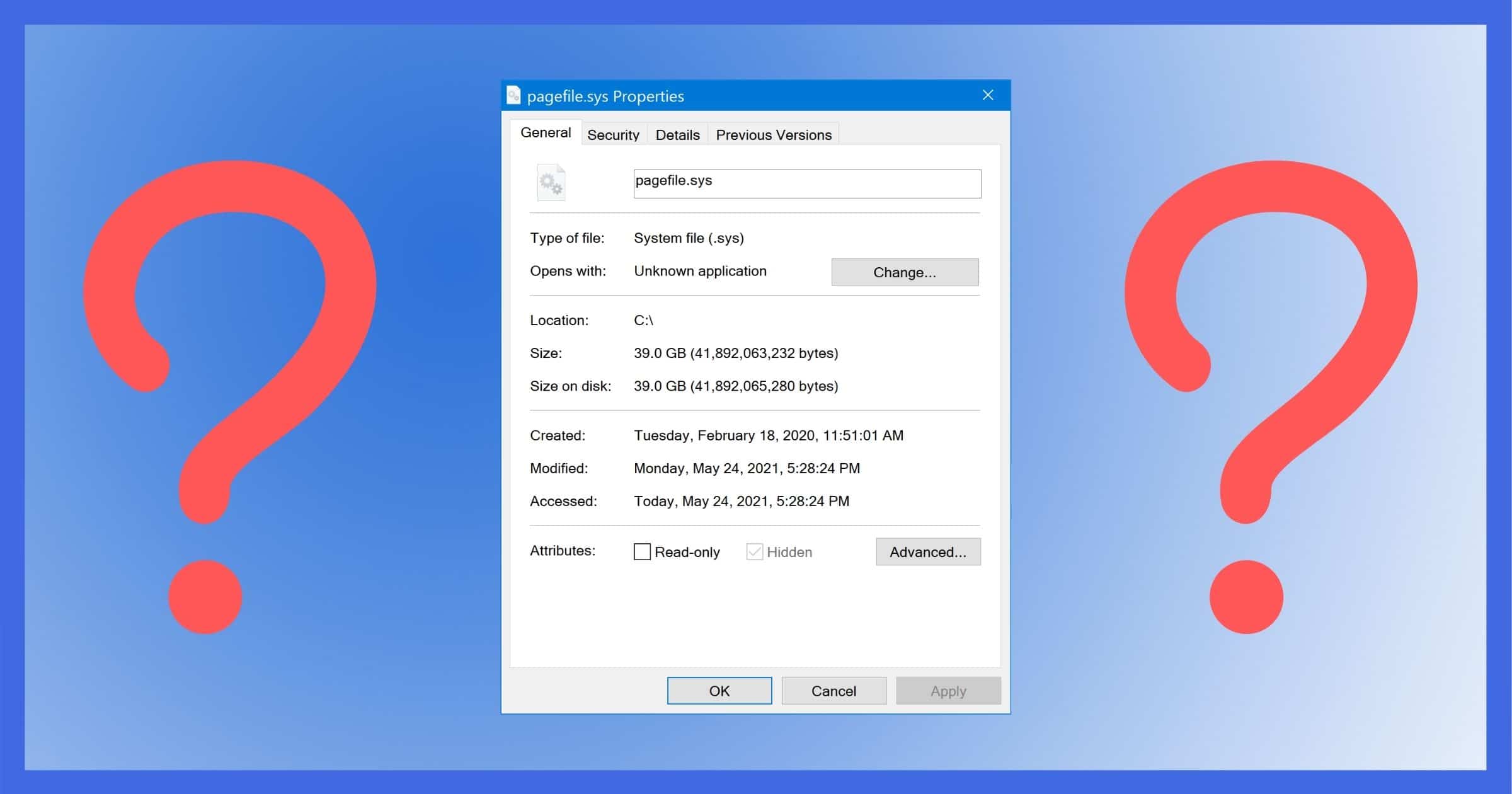
Understanding the Role of Pagefile.sys in Modern Computing
At its core, pagefile.sys is Windows’ implementation of “Virtual Memory.” To understand why it exists, we must first look at the relationship between your computer’s Random Access Memory (RAM) and its permanent storage (SSD or HDD). RAM is incredibly fast but expensive and limited in capacity. Your storage drive is much larger but, even with modern NVMe technology, significantly slower than RAM.
The Relationship Between RAM and Virtual Memory
When you run applications—be it a web browser with fifty tabs, a high-end video editor, or a modern AAA game—the data required for those processes is loaded into your RAM for immediate access by the CPU. However, RAM is a finite resource. If you have 16GB of RAM and your active processes demand 20GB, the system faces a crisis. Without a safety net, the computer would simply crash or terminate programs unexpectedly.
This is where pagefile.sys comes in. It acts as an “overflow” area on your hard drive. When your physical RAM begins to fill up, Windows identifies data that hasn’t been accessed recently—perhaps a background application or a system service—and “swaps” it out of the fast RAM and into the pagefile.sys on your drive. This process, known as paging, frees up physical RAM for the applications you are actively using at that moment.
How Windows Uses Paging to Prevent System Crashes
Beyond simple overflow, the page file serves a structural purpose in the Windows NT kernel. Windows is designed to use virtual memory even when physical RAM is still available. By moving low-priority data to the page file, the operating system ensures that there is always a buffer of high-speed RAM available for sudden spikes in demand.
Furthermore, pagefile.sys is crucial for system diagnostics. When a “Blue Screen of Death” (BSOD) occurs, Windows attempts to write the contents of the system memory to a crash dump file. For the system to record a full memory dump, it requires a page file large enough to hold the data. Without it, troubleshooting a recurring system failure becomes significantly more difficult, as the primary record of what went wrong is lost the moment the power cycles.
Performance Myths vs. Reality: Does the Page File Slow Down Your PC?
There is a long-standing debate in the tech community regarding whether the page file hinders performance. In the era of mechanical hard drives, the page file was a frequent bottleneck. Because HDDs use spinning platters and moving heads, accessing data in the page file was thousands of times slower than accessing RAM, leading to the dreaded “disk thrashing” that would cause a system to hang.
Managing High-Memory Applications
In the modern era, many users believe that if they have 32GB, 64GB, or even 128GB of RAM, they no longer need a page file. The logic seems sound: if you never run out of RAM, why waste space on a slow virtual substitute? However, this overlooks how software is coded. Many legacy applications and even some modern productivity suites are hard-coded to expect a page file to be present. If they don’t find it, they may throw “Out of Memory” errors or fail to launch, regardless of how much physical RAM is installed.
Windows also uses the page file to store “modified” pages that haven’t been written back to disk yet but aren’t currently active. By offloading these to the page file, the OS keeps the “Standby” list (a cache of recently used files) as large as possible, which actually makes the system feel snappier.
The Impact of SSDs on Virtual Memory Efficiency
The transition from HDDs to SSDs has fundamentally changed the impact of pagefile.sys. Because SSDs have near-instantaneous seek times, the latency involved in swapping data between RAM and the page file is drastically reduced. While it is still not as fast as RAM, the performance penalty for paging is no longer the system-paralyzing event it once was. For users with NVMe M.2 drives, the page file operates with such efficiency that most users will never notice when the OS is utilizing it.
Can You (and Should You) Delete Pagefile.sys?
The short answer is: Technically, yes, you can delete it, but you almost certainly shouldn’t. You cannot simply right-click the file and hit delete while Windows is running, as it is locked by the kernel. You would have to disable virtual memory in the system settings, which would then prompt Windows to remove the file.
The Risks of Disabling the Page File
Disabling pagefile.sys creates a hard ceiling for your system’s memory capacity. Once your physical RAM is exhausted, applications will begin to crash immediately. In many cases, Windows won’t even give you a warning; the active window will simply vanish.
More subtly, disabling the page file can lead to “memory fragmentation.” Without the ability to move smaller, stagnant blocks of data to the page file, your RAM can become cluttered with tiny “holes” of used memory that prevent large, contiguous blocks from being allocated to intensive programs like games or creative software. This can lead to a decrease in overall system stability and performance over time.
Scenarios Where Deleting or Moving the File Makes Sense
There are very few scenarios where removing the page file is beneficial. The primary reason users want to delete it is to reclaim disk space, especially on small 128GB or 256GB boot drives. If you are truly desperate for space, rather than deleting the file entirely, it is better to:
- Limit its size: Instead of letting Windows manage it (which can result in a file as large as your total RAM), you can set a manual “Maximum Size.”
- Move it: If you have a secondary SSD with more space, you can tell Windows to store
pagefile.syson the D: drive instead of the C: drive. This keeps the functionality intact while freeing up space on your primary boot partition.
How to Manage and Optimize Pagefile.sys Settings
If you’ve decided that the default Windows management isn’t right for your setup—perhaps because you’re a power user with specific workflow needs—Windows provides a way to customize how virtual memory is handled.
Step-by-Step Guide to Resizing the Page File
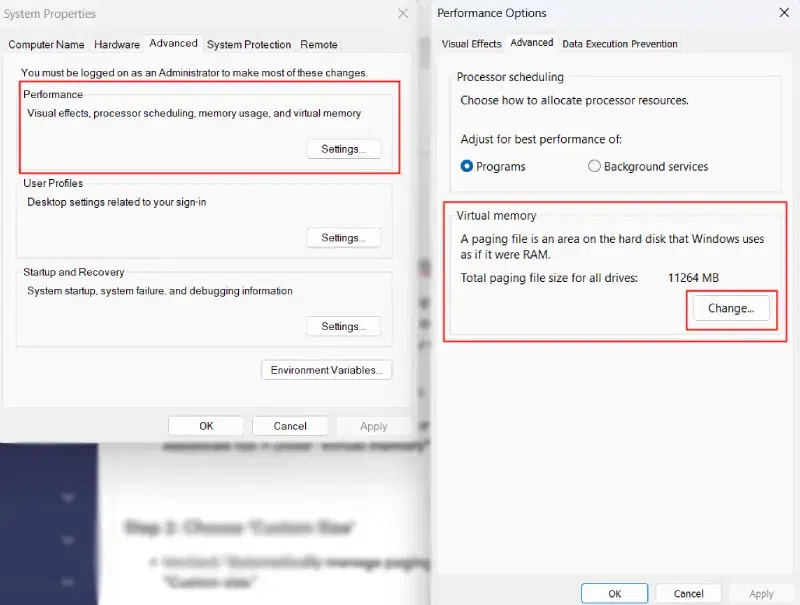
To adjust your settings, follow these steps:
- Open the Start Menu, type “Adjust the appearance and performance of Windows,” and press Enter.
- Navigate to the Advanced tab.
- Under the Virtual memory section, click Change…
- Uncheck the box that says “Automatically manage paging file size for all drives.”
- Select your C: drive, choose Custom size, and enter an initial and maximum size.
A common rule of thumb for a custom size is 1.5 times your physical RAM for the initial size and 3 times for the maximum, though with 16GB+ of RAM, this is often overkill. Setting a static size (where initial and maximum are the same) can prevent the file from becoming fragmented on a mechanical hard drive, though this is irrelevant for SSD users.
Relocating the Page File to a Different Drive
For those with multiple drives, moving the page file is a strategic way to manage storage. If you have a lightning-fast NVMe drive for your OS and a slower SATA SSD for storage, keeping the page file on the NVMe is ideal for performance. However, if your NVMe is full, moving the page file to the SATA SSD is a perfectly viable solution that will have a negligible impact on daily performance while freeing up several gigabytes on your primary drive.
Security Considerations and Best Practices
In highly secure environments, pagefile.sys can actually represent a security risk. Because the page file contains “spilled” data from your RAM, it may contain sensitive information—passwords, decrypted documents, or personal data—that was never intended to be written to the permanent storage.
Clearing the Page File on Shutdown
If you are concerned about digital forensics or data privacy, Windows can be configured to clear the page file every time the computer shuts down. This ensures that no remnants of your session remain on the disk. This can be enabled via the Registry Editor or Group Policy Editor (under Security Settings > Local Policies > Security Options > “Shutdown: Clear virtual memory pagefile”). Note that enabling this will significantly increase the time it takes for your computer to shut down, as Windows must overwrite the entire file with zeros.

Maintaining System Stability in High-Performance Environments
For gamers and creative professionals, the best practice is almost always to leave pagefile.sys alone and let Windows manage it. Modern versions of Windows (10 and 11) are remarkably efficient at dynamic memory management. They understand the hardware they are running on and will scale the page file according to current load and available disk space.
The “tweaking” culture of the early 2000s, which encouraged disabling the page file to “boost speed,” is largely obsolete. With the advent of high-speed SSDs and the sophisticated memory management of the modern Windows kernel, pagefile.sys is a silent partner in your computer’s stability. Rather than viewing it as a waste of space, view it as a critical insurance policy that ensures your system remains responsive, your data remains safe during crashes, and your software remains compatible with the Windows environment. Unless you are operating in a highly specialized, resource-constrained environment, the best way to handle pagefile.sys is to let it do its job in the background.