
In the architecture of Microsoft Outlook, the “message store” serves as the foundational repository for everything that makes the application functional. For the average user, Outlook is simply an interface—a dashboard of emails, calendar appointments, and contacts. However, beneath this interface lies a complex database management system that catalogs, indexes, and physically saves every byte of data processed by the client. Understanding the message store is essential for anyone responsible for data recovery, mailbox performance, or troubleshooting synchronization errors in a professional environment.
At its core, the Outlook message store is a structured storage file that acts as a local or server-side vault. When you receive an email, it does not exist in a vacuum; it is written into this storage file, structured according to MAPI (Messaging Application Programming Interface) protocols. Whether you are using a POP3, IMAP, or Microsoft Exchange account, your data is handled by the message store mechanism to ensure that your information remains retrievable, searchable, and organized.

The Physical Structure: PST and OST Files
The most tangible manifestations of the Outlook message store are the files stored on your local hard drive. These files are the containers for your mailbox data, and their specific behavior depends heavily on the type of email account you have configured.
Personal Storage Tables (PST)
The .pst file is the traditional format for local storage. Historically, it was the primary way users archived their emails. A PST file is a standalone database that sits on your local machine. Because it is independent of the server, it allows users to keep mail even when they are offline or when their mailbox quota on the server is full. However, the reliance on PST files carries inherent risks; if the file becomes corrupted or is lost, the data within it is gone unless a backup exists. Modern Outlook management often discourages the heavy use of PSTs due to their susceptibility to fragmentation and file-size corruption.
Offline Storage Tables (OST)
In modern corporate environments using Microsoft 365 or Exchange, the .ost file is the standard. An OST file is essentially a synchronized cache of your mailbox on the server. When you open Outlook, the application compares the OST file with the server’s database and performs a “sync” to ensure both locations mirror each other. This allows for an “offline” experience—you can draft emails, delete items, and move messages into folders while disconnected from the internet. Once the connection is restored, the message store reconciles these changes with the Exchange server. If an OST file is damaged, it is generally easier to recover than a PST because the “source of truth” remains on the server.
MAPI and the Logic of the Message Store
The message store is not just a digital folder; it is a sophisticated hierarchy managed by MAPI. MAPI is the set of rules that tells Outlook how to interpret the data inside the store. It defines how a message is wrapped, where its metadata (sender, timestamp, subject line) is kept, and how attachments are linked to the parent email.

Hierarchical Organization
Within the message store, data is categorized into folders (Inbox, Sent Items, Deleted Items). These are not merely visual folders; they are “containers” within the database. MAPI ensures that when you move an email from one folder to another, you are essentially updating the metadata pointer for that specific entry within the database. This structure is what allows for instantaneous searching. When you type a search term into the Outlook bar, you are querying the indexes generated by the message store’s MAPI layer.
The Role of Metadata and Attachments
One of the most complex tasks of the message store is managing attachments. Attachments are stored as binary data linked to the message object. The store must manage the overhead of these large files while keeping the database performant. In high-volume enterprise environments, this is why administrators often set mailbox limits; a massive message store with thousands of high-resolution attachments can lead to significant input/output latency, causing the application to hang or freeze.
Troubleshooting and Performance Management
Because the message store is a database, it is prone to the same issues as any other software-based repository: corruption, index bloat, and fragmentation. Over time, the internal structure of a PST or OST file can become messy as data is written, deleted, and overwritten.
Identifying Corruption
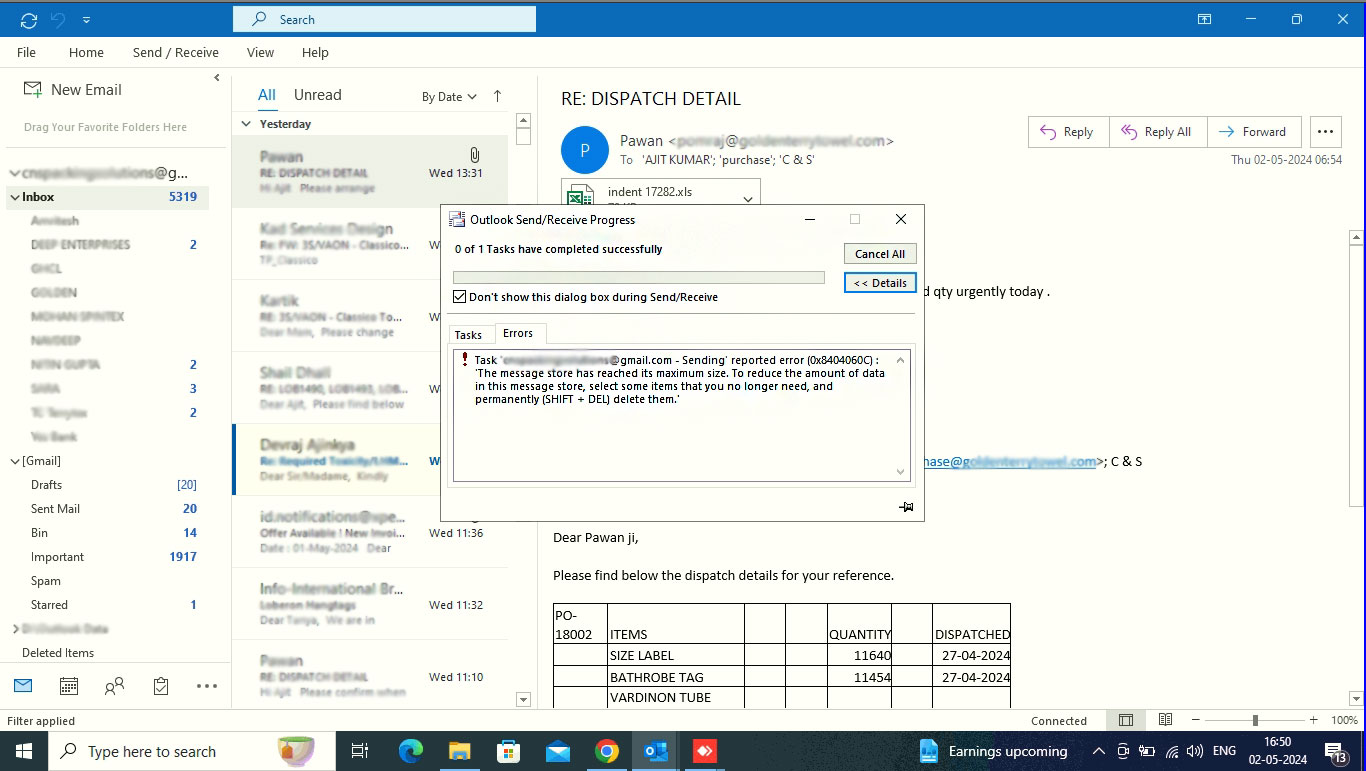
When the message store encounters a structural error, users typically see error messages related to “cannot expand the folder” or “the data file has reached its maximum size.” Microsoft provides a native tool, SCANPST.EXE (the Inbox Repair Tool), designed to scan the internal logic of these files and rectify header errors. While effective for minor corruption, it is not a cure-all for deep-seated database failures.
Strategies for Performance
- Regular Compaction: Outlook files can grow to immense sizes even after you delete items. “Compacting” the file—which can be done through the Outlook Data File settings—physically reduces the size of the file on your hard drive by reclaiming unused space left behind by deleted messages.
- Limit Archive Reliance: Avoid keeping massive PST archives attached to your Outlook profile. Each time Outlook opens, it must verify the integrity of every attached file, which significantly slows down load times.
- Index Rebuilding: If the search function within Outlook fails, it is often not a fault of the message store itself, but the Windows Search Indexer, which reads the store. Rebuilding the search index through the Control Panel is the standard procedure for restoring query functionality.
The Future of the Message Store in a Cloud-First World
As we shift toward cloud-centric workflows, the concept of the local message store is evolving. Microsoft is increasingly moving toward “Cached Exchange Mode,” which relies on the OST file, but also encourages users to rely on Outlook Web Access (OWA) for heavy lifting.
In the web version of Outlook, there is no physical file on your local machine; the message store exists entirely on Microsoft’s servers. The transition from local database management to cloud-based storage reduces the burden on the end-user. Users no longer need to worry about PST corruption, file sizes, or hard drive space. However, this shift places a higher premium on identity security. Since the message store is now hosted centrally, a compromised account gives an attacker access to the entire repository of your professional and personal communications.
Understanding the message store remains a vital skill. Whether you are migrating data to a new computer, performing data forensics, or simply trying to optimize your application’s speed, the message store is the central engine of your digital communication. By treating it with the care due to any database—periodic maintenance, proper backup protocols, and an awareness of its structural limits—users can ensure that their communication history remains secure, searchable, and accessible for years to come.
aViewFromTheCave is a participant in the Amazon Services LLC Associates Program, an affiliate advertising program designed to provide a means for sites to earn advertising fees by advertising and linking to Amazon.com. Amazon, the Amazon logo, AmazonSupply, and the AmazonSupply logo are trademarks of Amazon.com, Inc. or its affiliates. As an Amazon Associate we earn affiliate commissions from qualifying purchases.