
Android is the most widely used mobile operating system in the world, powering billions of devices from smartphones and tablets to televisions and wearable tech. Because of its open-source nature, Android exists in many forms, often customized by manufacturers like Samsung, Google, Xiaomi, and OnePlus. This diversity, while a strength, can lead to confusion when users need to identify exactly which version of the software they are running. Knowing your Android version is essential for troubleshooting technical issues, ensuring app compatibility, and maintaining the security of your digital life.
How to Find Your Android Version: A Universal Guide
The process of finding your Android version is relatively straightforward, though the specific menu names might vary slightly depending on the device manufacturer and the “skin” they have applied to the base software. However, the logic remains consistent across almost all modern devices.
Finding the Version on Stock Android (Pixel and Motorola)
If you are using a Google Pixel, a Nokia, or a Motorola device, you are likely running a version of Android that is very close to “stock.”
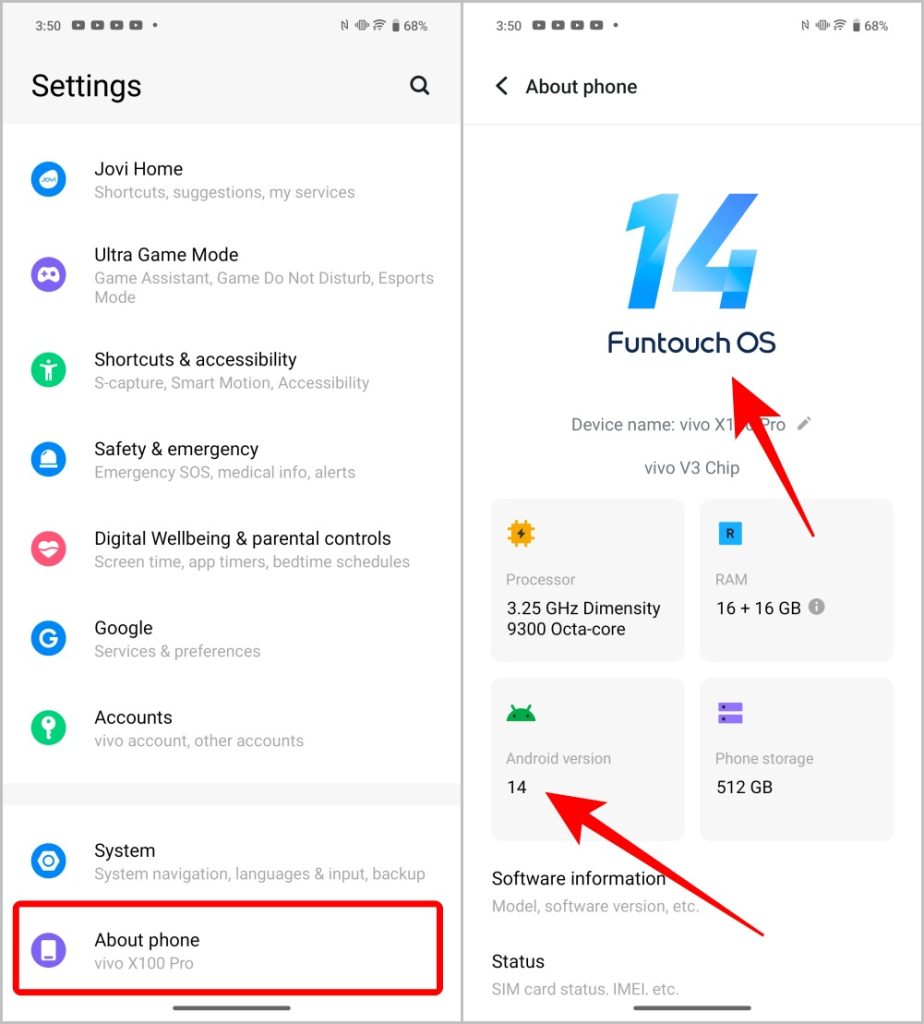
- Swipe down twice from the top of your screen to access the Quick Settings panel and tap the gear icon to open Settings.
- Scroll to the very bottom and select About phone.
- Look for the section labeled Android version. Here, you will see the numerical version (e.g., Android 13 or Android 14).
- Tapping on this section often reveals further details, such as the Android security update level and the Google Play system update version.
Finding the Version on Samsung Galaxy Devices (One UI)
Samsung uses its own interface called One UI, which reorganizes the settings menu slightly.
- Open the Settings app.
- Scroll down and tap on About phone.
- Tap on Software information.
- Your version will be listed under Android version. You will also see your One UI version here, which is equally important for Samsung users as it dictates the specific features available on Galaxy devices.
Finding the Version on Other Manufacturers (Xiaomi, OnePlus, Oppo)
For devices running MIUI, OxygenOS, or ColorOS, the path is similar:
- Go to Settings.
- Look for About device or About phone. In many of these skins, this option is actually at the top of the settings menu rather than the bottom.
- Tap on Version or Software info to find the Android number.
The Evolution of Android Naming: From Desserts to Numbers
To understand your Android version, it helps to understand how Google identifies them. For the first decade of its existence, Android versions were famously named after desserts in alphabetical order. This tradition created a unique culture around the operating system’s releases.
The Dessert Era
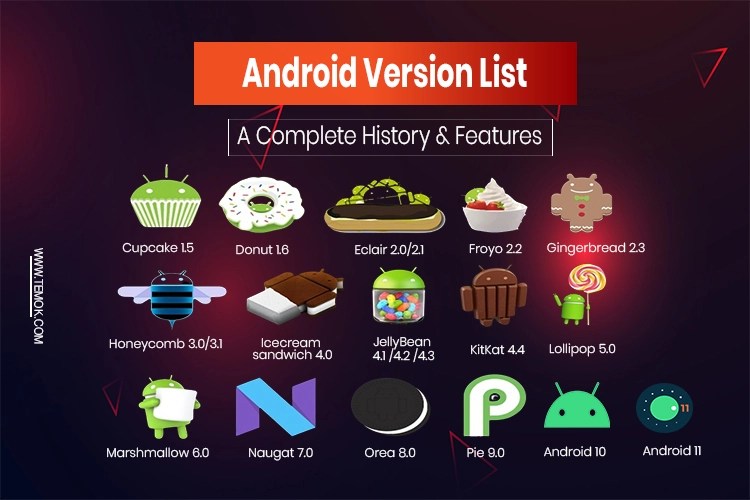
Beginning with Android 1.5 “Cupcake,” every major release followed the alphabet: Donut, Eclair, Froyo, Gingerbread, Honeycomb, Ice Cream Sandwich, Jelly Bean, KitKat, Lollipop, Marshmallow, Nougat, Oreo, and Pie. These names weren’t just marketing gimmicks; they represented significant leaps in mobile technology. For instance, Ice Cream Sandwich unified the tablet and smartphone interfaces, while Lollipop introduced “Material Design,” a design language that still influences the OS today.
The Shift to Numerical Branding
With the release of Android 10 in 2019, Google transitioned to a simpler numerical naming convention. The goal was to make the OS more accessible and globally recognizable, as dessert names didn’t always translate well or carry the same cultural weight in all regions. While Google engineers still use internal codenames (Android 14 was “Upside Down Cake”), the public-facing brand is now strictly numerical.
If your version number is 10 or higher, you are on the “modern” era of Android. If your version is 9.0 or lower, your device is running legacy software, which may have implications for your security and app support.
Why Your Android Version Matters
Knowing your Android version is not just about trivia; it has practical implications for how you use your device and how safe your data remains.
App Compatibility and API Levels
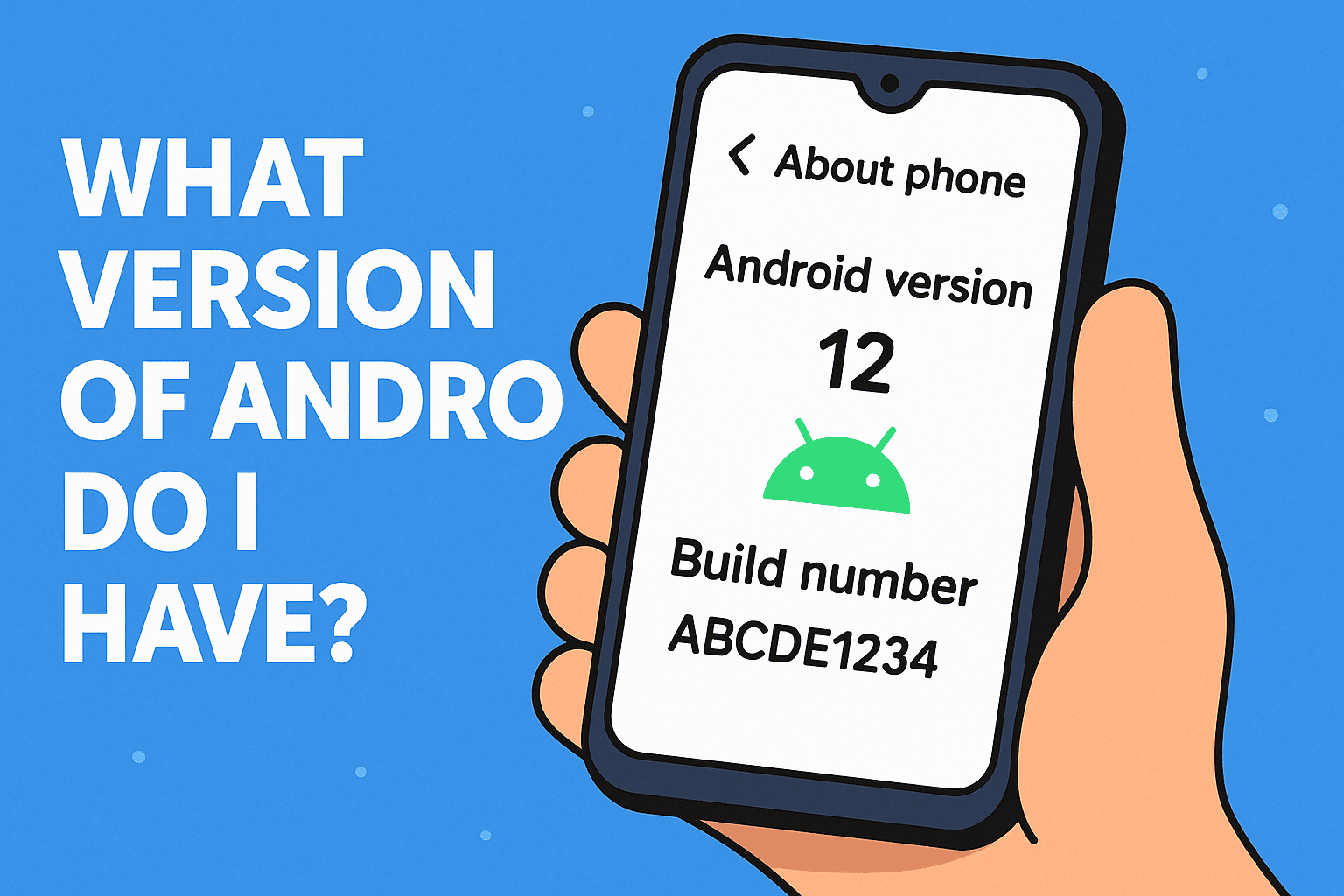
Developers build apps using specific Application Programming Interfaces (APIs). Each new version of Android introduces new APIs that allow apps to perform more complex tasks or utilize new hardware features. As Android evolves, older versions eventually lose support for popular apps. For example, many banking apps and high-end games now require at least Android 10 or 11 to function. If you find an app in the Google Play Store is “not compatible with your device,” the culprit is almost always an outdated Android version.
Security and Patch Management
One of the most critical reasons to check your version is to verify your security patch level. Unlike a full OS upgrade, security patches are smaller updates released monthly to fix vulnerabilities.
- Android Security Update: This protects the core OS from exploits.
- Google Play System Update: Introduced with Android 10 (Project Mainline), this allows Google to update critical system components directly through the Play Store without waiting for a full firmware update from the phone manufacturer.
If your device is running a version of Android that is more than three or four years old, it may have reached “End of Life” (EOL) status, meaning it no longer receives these vital security updates, making it a target for malware.
Performance and Battery Life
Each new iteration of Android brings “under-the-hood” improvements. Android 12, for example, introduced a more efficient way for the system to handle background tasks, while Android 13 focused on per-app language settings and refined notification permissions. Being on a newer version generally means better RAM management and optimized battery consumption through features like “Doze” and “Adaptive Battery.”
How to Update Your Android Device
If you check your version and realize you are behind, you should attempt to update immediately. Updates provide the latest features and, more importantly, the latest security defenses.
Checking for OTA Updates
Most updates are delivered “Over-the-Air” (OTA).
- Go to Settings.
- Select System or Software Update.
- Tap Check for updates.
If an update is available, your phone will download and prompt you to restart. It is highly recommended to perform these updates over Wi-Fi and with at least 50% battery life.
Why Some Phones Don’t Get Updates
One of the most common frustrations in the Android ecosystem is “fragmentation.” Because Google provides the software to manufacturers, and manufacturers often need to coordinate with mobile carriers, there can be a delay—or a total halt—in updates.
- Flagship vs. Budget: High-end phones (like the Pixel 8 or Samsung S24) now promise up to seven years of updates. Budget devices may only receive one or two years of support.
- Carrier Delays: If you bought your phone from a service provider (Verizon, AT&T, etc.), they must test the update before releasing it to your device, which can add weeks or months to the timeline.
Alternative Options: Custom ROMs
For tech-savvy users with older devices that are no longer officially supported, there is the world of “Custom ROMs.” Projects like LineageOS allow users to install newer versions of Android on hardware that the manufacturer has abandoned. While this requires unlocking the bootloader and carries some risks, it is a powerful way to extend the life of a gadget and keep it secure with the latest software.
Key Features of Recent Android Versions
To give context to the version number you found on your device, here is a look at what the most recent versions of Android brought to the table.
Android 12 and 13: Personalization and Privacy
Android 12 introduced “Material You,” a design revolution that extracts colors from your wallpaper and applies them to the entire system UI. It also introduced the Privacy Dashboard, which gives users a clear view of which apps have accessed their camera, microphone, or location in the last 24 hours. Android 13 refined this by adding a photo picker that limits an app’s access to only specific photos rather than your entire library.
Android 14: Customization and Accessibility
Android 14 focused heavily on the user experience, offering deeper lock screen customization, including different clock styles and shortcuts. It also improved support for hearing aids and introduced “Flash notifications” for users who prefer visual cues over audio ones. It also significantly improved system efficiency, helping older hardware run more smoothly.
Android 15 and Beyond: AI Integration
The newest versions of Android are shifting focus toward Artificial Intelligence. With the integration of Google Gemini and advanced on-device processing, modern Android versions are becoming “smarter,” offering features like AI-generated wallpapers, advanced photo editing (Magic Editor), and more proactive battery management.
By identifying your version of Android, you gain a better understanding of your device’s capabilities and limitations. Whether you are seeking the latest aesthetic trends or the most robust security protocols, staying informed about your software is the first step in mastering your mobile technology.
aViewFromTheCave is a participant in the Amazon Services LLC Associates Program, an affiliate advertising program designed to provide a means for sites to earn advertising fees by advertising and linking to Amazon.com. Amazon, the Amazon logo, AmazonSupply, and the AmazonSupply logo are trademarks of Amazon.com, Inc. or its affiliates. As an Amazon Associate we earn affiliate commissions from qualifying purchases.