
In the rapidly evolving landscape of mobile technology, the smartphone has transitioned from a simple communication tool into a sophisticated hub for our digital identities. Despite this complexity, users often find themselves facing a surprisingly common hurdle: forgetting their own phone number. Whether you have just purchased a new SIM card, are setting up a secondary work device, or are navigating a new Android OS update, locating your specific device information is a foundational skill.
On the Android platform, which is known for its open-source flexibility and diverse manufacturer “skins,” finding this information can vary slightly from one device to another. This guide provides a deep dive into the technical pathways of the Android ecosystem to help you retrieve your phone number, manage your SIM identity, and understand the security implications of your mobile digits.

Navigating the Android System Architecture
The most direct way to interface with your device’s identity is through the core System Settings. Android organizes hardware and network information within its “About Phone” architecture, though the path may differ based on whether you are using a “stock” version of Android (like on a Google Pixel) or a modified version (like Samsung’s One UI).
The Standard Settings Pathway
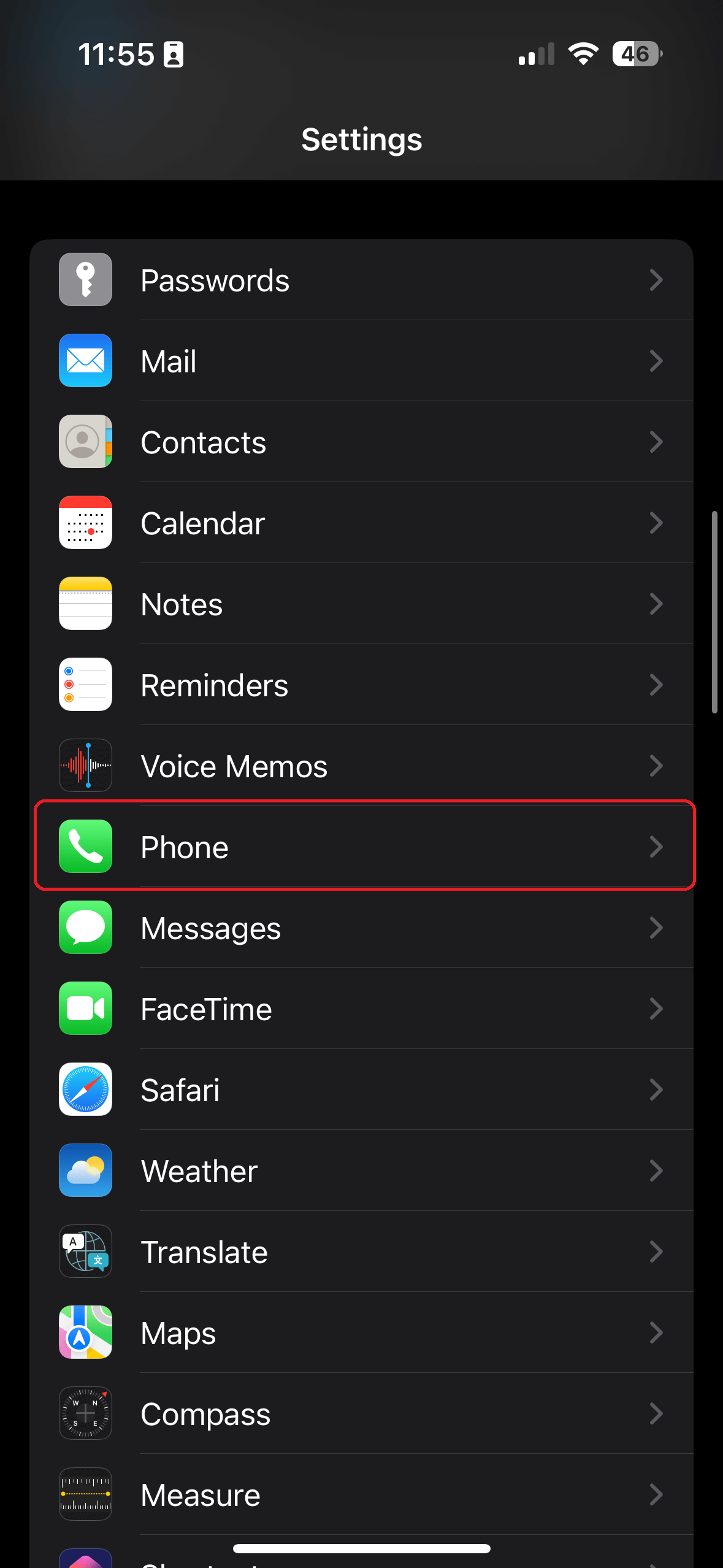
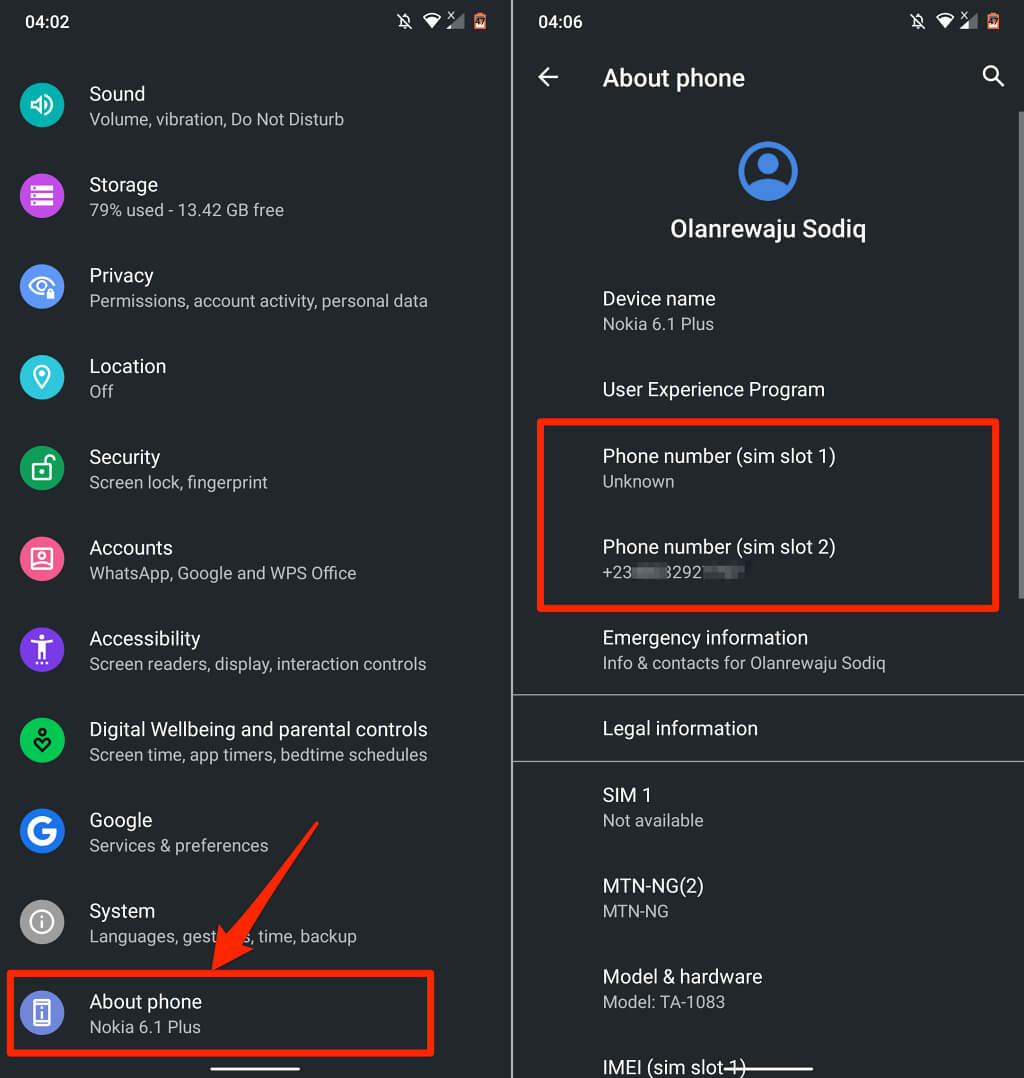
For the majority of modern Android devices running version 10 or higher, the process is streamlined. You begin by navigating to the Settings app, which acts as the central nervous system for your device configuration. From there, scroll to the bottom of the menu to find About Phone.
Within this section, Android displays a snapshot of your hardware. Your phone number is typically listed under a dedicated field labeled “Phone number.” If your device supports dual SIM cards, you may see “Phone number (SIM slot 1)” and “Phone number (SIM slot 2).” This information is pulled directly from the metadata stored on your SIM card by your carrier.
Variations in Manufacturer UIs
Because Android is highly customizable, manufacturers like Samsung, Xiaomi, and OnePlus often rearrange these menus to fit their aesthetic and functional goals. On a Samsung Galaxy device, for instance, you would navigate to Settings > About Phone, but the number is often displayed prominently at the very top of the screen alongside the model name and serial number.
In some older versions of Android, or specific carrier-locked firmware, you might need to go a step deeper: Settings > System > About Phone > Status > SIM Status. Here, the OS queries the Subscriber Identity Module (SIM) for the MSISDN (Mobile Station International Subscriber Directory Number). Understanding these variations is key for tech-savvy users who frequently switch between different hardware ecosystems.
Leveraging Native Communication Apps and USSD Codes
If the system settings are proving elusive, Android’s native communication tools—specifically the Phone and Contacts apps—offer alternative digital footprints of your assigned number.
The Contacts App and “My Info”
The Google Contacts app, which serves as the default directory for many Android phones, often creates a “Me” or “My Info” card at the very top of the contact list. This profile is automatically generated when you sign in with your Google Account and insert a SIM card. By tapping on this card, you can view the number associated with the device. This is particularly useful because it often aggregates your number with your email and recovery information, providing a holistic view of your digital identity.
Utilizing USSD Codes and Carrier Queries
From a technical standpoint, one of the most reliable ways to retrieve a number without navigating menus is via Unstructured Supplementary Service Data (USSD) codes. These are “quick codes” that trigger a direct query to your mobile carrier’s network.
By opening the Phone app (the dialer) and entering a specific string of characters, the carrier will push a message back to your screen containing your number. Common codes include:
- T-Mobile: #686#
- Verizon: #663#
- AT&T: *#99# (though this varies by region)
- Vodafone/Global: *123#
This method bypasses the local OS settings entirely and pulls data directly from the Service Node of your telecommunications provider, making it an excellent troubleshooting step if the phone displays your number as “Unknown.”
Third-Party Application Integration and SIM Management
In our modern app-centric economy, many of the tools we use daily already have our phone numbers integrated into their verification systems. If you are struggling to find your number through system menus, your favorite messaging apps can serve as a mirror.
Verification through Messaging Platforms
Apps like WhatsApp, Telegram, and Signal use your phone number as your primary account identifier. For example, in WhatsApp, you can tap the three-dot menu, go to Settings, and tap your Profile Picture. Your registered phone number will be displayed at the bottom. This is a failsafe method because these apps require active SMS verification to function, ensuring that the number displayed is the one currently authenticated on the device.
Managing Dual SIM and eSIM Settings
As the industry shifts toward eSIM technology, managing multiple numbers on a single Android device has become more complex. Modern Android versions include a SIM Manager or Mobile Network section within the “Network & Internet” settings.
In this sub-menu, Android allows you to toggle between physical SIMs and eSIM profiles. Each profile will list its respective phone number. This technical layer is crucial for professionals who manage separate work and personal lines, as it allows for the granular labeling of numbers, ensuring you always know which “identity” is active for data, calls, or messaging.
Digital Security and the Importance of Number Privacy
Finding your phone number is not just a matter of convenience; it is a critical component of your digital security posture. In the current tech landscape, your phone number acts as a primary key for Two-Factor Authentication (2FA) and account recovery.
The Role of the Phone Number in 2FA
Most major platforms—Google, banking apps, and social media—use your Android phone number to send One-Time Passwords (OTPs). Knowing exactly which number is registered to your device is vital for maintaining access to these services. If your Android settings show an incorrect number or “Unknown,” you risk being locked out of secure accounts or, worse, falling victim to “SIM swapping” attacks where a malicious actor redirects your number to their own hardware.
Privacy Settings and App Permissions
Android’s privacy dashboard allows you to monitor which apps have access to your “Phone” logs and “SMS.” Since your phone number is a gateway to your identity, it is a high-value target for data harvesters. Within Settings > Privacy > Permission Manager, you can see which third-party apps are permitted to read your phone number. Tech-proficient users should regularly audit these permissions to ensure that only trusted applications can access their telephony metadata.
Troubleshooting the “Unknown Number” Error
Occasionally, a user may navigate to “About Phone” only to find the dreaded “Number Unknown” message. This is a common technical glitch that usually stems from the way the carrier has provisioned the SIM card.
Why the OS Fails to Read the Number
When a SIM card is manufactured, the phone number is programmed into a specific data file on the chip. However, some carriers do not write the number to the SIM, especially if the number was ported from another provider. In these cases, the Android OS queries the SIM, finds a blank field, and returns “Unknown.”
Technical Fixes for Number Display
To resolve this, you can try several steps:
- Network Reset: Go to Settings > System > Reset Options > Reset Wi-Fi, Mobile & Bluetooth. This clears the local carrier cache and forces the phone to re-handshake with the cell tower.
- The “Write to SIM” Method: On some older Android devices, you could manually enter the number in the SIM status settings. On modern devices, however, the easiest fix is often to call your carrier and ask them to “re-provision” your line, which sends an over-the-air (OTA) update to your SIM card to fill in the missing metadata.
- Physical Inspection: Occasionally, a degraded or dirty SIM card can lead to read errors. Ejecting the SIM tray, cleaning the gold contacts with a microfiber cloth, and re-inserting it can often restore the connection between the hardware and the OS.
Conclusion
Understanding how to locate and manage your phone number on Android is a fundamental aspect of mobile literacy. From the depths of the “About Phone” menu to the technical utility of USSD codes and the security-focused world of 2FA, your phone number is more than just a sequence of digits—it is a digital anchor. By mastering these navigation paths and troubleshooting techniques, you ensure that you remain in control of your device’s identity and your broader digital footprint. Whether you are a casual user or a tech enthusiast, knowing your way around the Android system architecture is the first step in optimizing your mobile experience.
aViewFromTheCave is a participant in the Amazon Services LLC Associates Program, an affiliate advertising program designed to provide a means for sites to earn advertising fees by advertising and linking to Amazon.com. Amazon, the Amazon logo, AmazonSupply, and the AmazonSupply logo are trademarks of Amazon.com, Inc. or its affiliates. As an Amazon Associate we earn affiliate commissions from qualifying purchases.