
In the ecosystem of sandbox gaming, Minecraft stands as a titan of community-driven content and multiplayer interaction. At the heart of this interconnected world lies a fundamental piece of networking data: the Internet Protocol (IP) address. Whether you are attempting to join a friend’s creative world or looking to host a high-performance survival server for dozens of players, understanding what your Minecraft IP is—and how it functions within the broader architecture of the internet—is essential. This guide explores the technical nuances of IP addresses, the mechanics of server connectivity, and the vital security measures required to maintain a stable digital environment.
Understanding the Fundamentals of Minecraft Networking
Before identifying your specific IP address, it is necessary to understand the dual nature of network identification. Every device connected to the internet operates within a hierarchy of addresses that allow data packets to find their destination. In the context of Minecraft, you are dealing with two primary types of IP addresses: Local (Internal) and Public (External).
Local vs. Public IP Addresses
Your Local IP address is assigned by your router to your specific computer or console within your home network. Usually following a format like 192.168.x.x, this address allows your router to distinguish your PC from your smartphone or smart TV. If you are hosting a “LAN” (Local Area Network) game where everyone is in the same house using the same Wi-Fi, this is the address your friends will use.
However, if you want someone from a different city or country to join your Minecraft server, your local IP is useless to them. They require your Public IP address. This is the “front door” address provided by your Internet Service Provider (ISP) that represents your entire home network to the outside world. When a player enters your Public IP into their Minecraft client, the request hits your router, which must then be configured to send that traffic to your specific gaming machine.
The Role of Ports and Protocols
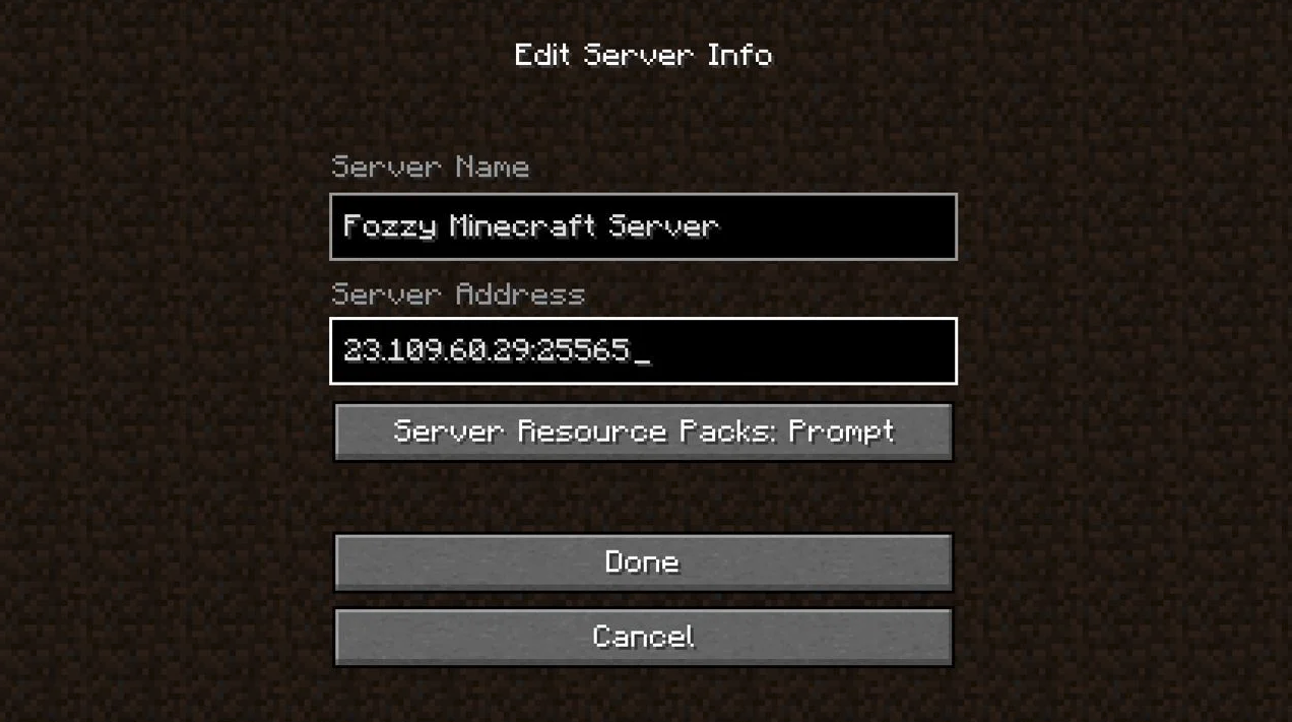
An IP address gets a user to your house, but the “Port” gets them to the right room. For Minecraft: Java Edition, the default port is 25565. For Bedrock Edition, it is typically 19132. Understanding ports is critical because a single IP address can host multiple services (like a web server on port 80 or a Minecraft server on 25565). When you share your “Minecraft IP,” you are often sharing a combination of the Public IP and the Port, formatted as 12.34.56.78:25565.
How to Find Your Minecraft IP on Different Platforms
The method for retrieving your IP address depends heavily on your operating system and whether you are looking for internal connectivity or external hosting.
Finding Your IP on Windows 10 and 11
For Windows users, the most direct method involves the Command Prompt (CMD). This tool provides a detailed breakdown of your network interface cards (NICs).
- Press the Windows Key, type “cmd,” and hit Enter.
- In the black window that appears, type
ipconfigand press Enter. - Look for a line labeled “IPv4 Address.” This is your Local IP (e.g.,
192.168.1.15). - To find your Public IP, the most efficient way is to open a web browser and search for “what is my IP.” Various technical tools and search engines will immediately display your external numeric address.
Locating the IP on macOS and Linux
Apple and Linux users have similarly straightforward methods for identifying their network coordinates.
- On macOS: Navigate to System Settings > Network. Select your active connection (Wi-Fi or Ethernet) and click “Details.” Your IP address will be displayed clearly within the TCP/IP tab.
- On Linux: Open the Terminal and type
hostname -Iorip addr show. These commands will return the local network address assigned to the machine.
Identifying the IP for Console and Bedrock Edition
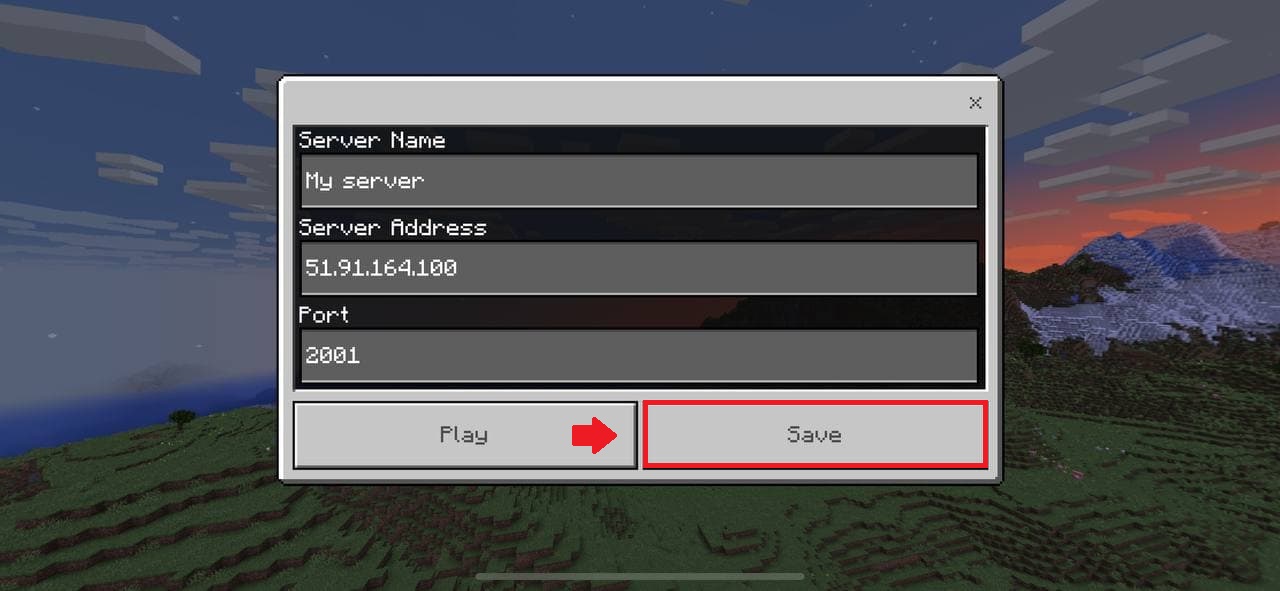
In the Bedrock Edition (available on Xbox, PlayStation, Switch, and Windows Store), networking is often handled through integrated friend lists and Microsoft Accounts, which abstracts the IP process. However, if you are joining a dedicated server, the process remains the same: you will need the server’s numerical IP or its registered domain name. If you are hosting a Bedrock server on a PC, you must find your Public IP as described above to allow console players to connect via the “Servers” tab.
Setting Up Your Server for Multiplayer Access
Simply knowing your IP is not enough to host a successful Minecraft session. Because modern routers act as firewalls, you must “open the door” to allow external players to reach your server software.
The Mechanics of Port Forwarding
Port Forwarding is a technical configuration within your router’s firmware. It tells the router: “Any incoming traffic on port 25565 should be directed specifically to the computer at local IP 192.168.x.x.”
To set this up, you must access your router’s gateway (usually by typing 192.168.1.1 into a browser), log in with administrative credentials, and locate the “Port Forwarding” or “Virtual Server” section. You will create a rule for TCP and UDP protocols to point to your computer’s local IP using the Minecraft port. Without this step, your Public IP will appear “closed” to any outside players trying to join.
Dealing with Dynamic IPs and DHCP Reservations
Most home internet connections use Dynamic IPs. This means your ISP may change your Public IP address every few days or every time your router restarts. This can be frustrating for Minecraft players, as the IP they saved yesterday may no longer work today.
To solve this, many advanced users employ Dynamic DNS (DDNS). Services like No-IP or DuckDNS allow you to associate your changing Public IP with a static hostname (e.g., mycraftserver.ddns.net). The DDNS software runs on your computer or router, constantly updating the hostname with your latest IP. Additionally, it is wise to set a DHCP Reservation for your server computer within your router settings. This ensures your computer’s Local IP never changes, preventing your port forwarding rules from breaking.
Cybersecurity and Privacy in Minecraft Networking
Sharing your IP address is not without risk. In the world of tech and digital security, your IP address is a piece of sensitive information that can be used to approximate your physical location or launch targeted attacks.
Protecting Your Public IP from DDoS Attacks
The most common threat in the gaming community is a Distributed Denial of Service (DDoS) attack. If a malicious actor obtains your Public IP, they can flood your network with junk data, causing your internet to crash and your Minecraft server to go offline.
To mitigate this risk, professional hosts and privacy-conscious users often use a “Reverse Proxy” or a specialized gaming VPN. These services provide a different IP address for players to connect to, which then tunnels the traffic to your actual home IP. If a DDoS attack occurs, it hits the proxy’s robust infrastructure instead of your home network.
Utilizing VPNs and Proxy Services
A Virtual Private Network (VPN) can hide your IP from the public eye, but it can also introduce “latency” or “lag.” For a high-performance game like Minecraft, where milliseconds matter, choosing a VPN with gaming-optimized servers is essential. Alternatively, tools like ngrok or Playit.gg allow you to host a server without port forwarding by creating a secure tunnel to their global network, providing you with a safe, temporary IP address to share with friends.
Advanced Connectivity: Dedicated Hosting vs. Self-Hosting
As a Minecraft community grows, the limitations of self-hosting on a home IP address become apparent. Technical constraints such as upload bandwidth, hardware uptime, and security risks often lead players to transition to dedicated hosting environments.
Benefits of Third-Party Data Centers
Professional Minecraft hosting companies (like Apex Hosting, BisectHosting, or PebbleHost) provide you with a dedicated IP address located in a high-tier data center. These facilities offer:
- Enterprise-Grade DDoS Protection: Scrubbing centers that filter out malicious traffic before it reaches your game.
- 99.9% Uptime: Your server remains online even if your home computer is turned off.
- High-Speed Fiber Connectivity: Data centers have massive symmetrical upload and download speeds, significantly reducing ping for players across the globe.
Setting Up a Domain Name for Your IP
Whether you host at home or through a provider, using a numeric IP address (like 104.22.33.1) is cumbersome. For a professional brand or a long-term community, registering a domain name (e.g., play.myserver.com) is the gold standard.
By using DNS Records—specifically “A Records” and “SRV Records”—you can point a custom domain to your Minecraft IP. This allows for a more memorable brand identity and gives you the flexibility to change your server’s underlying IP address without forcing your entire player base to update their server lists. You simply update the DNS record in your domain registrar’s dashboard, and the change propagates across the internet.
In conclusion, your Minecraft IP is more than just a string of numbers; it is the bridge between your local machine and the global gaming community. By mastering the technical aspects of local and public addressing, configuring port forwarding, and prioritizing digital security through proxies or dedicated hosting, you ensure a seamless and safe experience for everyone involved in your virtual world.
aViewFromTheCave is a participant in the Amazon Services LLC Associates Program, an affiliate advertising program designed to provide a means for sites to earn advertising fees by advertising and linking to Amazon.com. Amazon, the Amazon logo, AmazonSupply, and the AmazonSupply logo are trademarks of Amazon.com, Inc. or its affiliates. As an Amazon Associate we earn affiliate commissions from qualifying purchases.