
In the modern digital landscape, the router serves as the central nervous system of the home or office. It facilitates the flow of data between your devices—smartphones, laptops, IoT gadgets—and the vast expanse of the internet. However, most users treat their router as a “set it and forget it” appliance until something goes wrong or a specific configuration is required. To perform any meaningful administrative task, from changing a Wi-Fi password to enhancing your network security, you first need to answer a fundamental question: “What is my IP address for my router?”

This address, technically known as the Default Gateway, is the digital doorway to your router’s internal settings. Understanding how to find it, what it does, and how to use it is a cornerstone of basic digital literacy in the tech-driven 2020s.
1. Understanding the Distinction: Public vs. Private IP Addresses
Before diving into the steps to locate your router’s IP, it is essential to distinguish between the two types of IP addresses associated with your hardware. In the world of networking, not all addresses are created equal.
What is a Public IP Address?
Your Public IP address is the numerical label assigned to your entire network by your Internet Service Provider (ISP). Think of this as your home’s physical mailing address. It is how the rest of the internet identifies your connection. When you visit a website, that site “sees” your public IP to know where to send the requested data.
What is a Private (Router) IP Address?
Your Private IP address—often referred to as the “Gateway IP”—is used exclusively within your local area network (LAN). This is the internal address of your router itself. When you type this address into a web browser, you aren’t searching the internet; you are communicating directly with the router’s firmware. Common examples include 192.168.1.1 or 192.168.0.1.
The Role of the Default Gateway
In networking terminology, the router’s IP is the “Default Gateway.” It acts as the intermediary. Every packet of data sent from your computer that is destined for the outside world must first pass through this gateway. Conversely, any data coming in is sorted by the gateway and directed to the correct internal device. Understanding this hierarchy is vital for troubleshooting connectivity issues or setting up advanced software tools.
2. How to Find Your Router’s IP Address on Any Device
Finding your router’s IP address varies depending on the operating system you are using. While the address is often printed on a sticker on the physical router itself, software-based retrieval is more reliable, especially if the sticker has faded or the IP was manually changed.
Finding the IP on Windows (Command Prompt)
Windows provides several ways to find the gateway, but the Command Prompt remains the most efficient for tech enthusiasts.
- Press the Windows Key + R, type
cmd, and hit Enter. - In the black window that appears, type
ipconfigand press Enter. - Look for a section labeled “Wireless LAN adapter Wi-Fi” or “Ethernet adapter.”
- Locate the line that says Default Gateway. The sequence of numbers next to it (e.g.,
192.168.1.1) is your router’s IP address.
Finding the IP on macOS (System Settings)
Apple makes finding the router IP straightforward through the graphical user interface.
- Click the Apple Menu and select System Settings (or System Preferences).
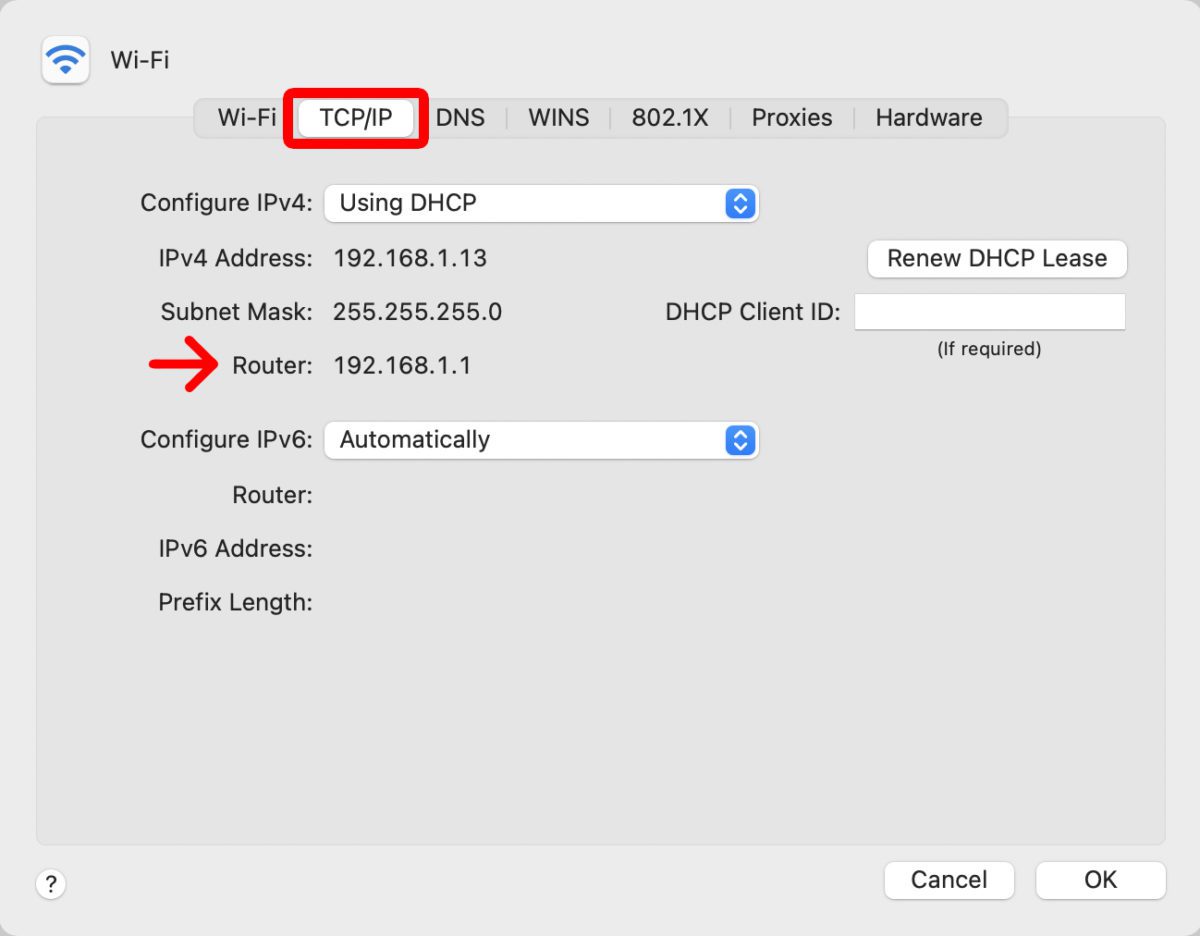
- Navigate to Network.
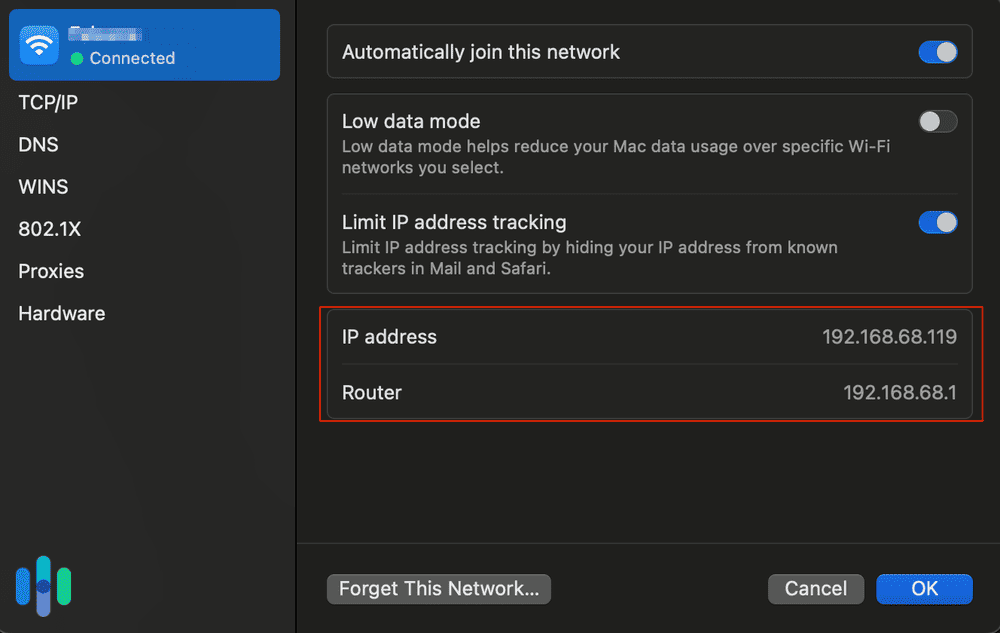
- Select your active connection (Wi-Fi or Ethernet) and click Details or Advanced.
- Click the TCP/IP tab. Your router’s IP will be listed clearly next to the word Router.
Locating IP Addresses on Mobile (iOS & Android)
If you don’t have a computer handy, your smartphone can reveal the gateway address.
- On iOS: Go to Settings > Wi-Fi. Tap the “i” icon next to your connected network. Scroll down to find the Router field.
- On Android: Go to Settings > Network & Internet > Wi-Fi. Tap the gear icon next to your current network. Look under Advanced or Network Details. You are looking for the “Gateway” entry.
3. Accessing and Navigating Your Router’s Web Interface
Once you have identified the IP address, the next step is accessing the router’s “brain”—the web-based setup page. This is where the actual configuration happens.
Common Default IPs and Login Credentials
If you are unable to find your IP using the methods above, you can try the industry standards. Most manufacturers use one of the following:
- Linksys/ASUS/TP-Link:
192.168.1.1 - Netgear/D-Link:
192.168.0.1 - Eero/Google Nest: These are primarily managed via mobile apps rather than web browsers.
To log in, you will need a username and password. If you haven’t changed these, they are likely set to the defaults (e.g., Username: admin, Password: password or admin). For security reasons, these should be updated immediately upon setup.
Navigating the Dashboard
Once logged in, you will see a dashboard. While layouts differ between brands like Netgear, ASUS, or TP-Link, the core categories remain consistent:
- Wireless Settings: Where you change the Network Name (SSID) and Wi-Fi password.
- Connected Devices/Client List: Shows every phone, TV, and fridge currently using your bandwidth.
- Security/Firewall: Settings for protecting your network from external threats.
Troubleshooting Connection Issues
If you type the IP address into your browser and the page fails to load, ensure you are connected to that specific router’s Wi-Fi. If you are using a VPN, disable it, as VPNs often mask local network addresses. If all else fails, a physical restart of the router can clear temporary software glitches that prevent access to the gateway.
4. Why You Should Know Your Router’s IP: Security and Optimization
Knowing your router’s IP isn’t just a party trick for the tech-savvy; it is a vital component of maintaining a secure and high-performing home network.
Updating Firmware for Enhanced Security
Just like your phone or computer, routers require software updates (firmware). Manufacturers release these updates to patch security vulnerabilities that could allow hackers to intercept your data. By accessing your router’s IP, you can check for updates and ensure your hardware is running the latest, most secure version of its operating system.
Changing SSID and Administrative Passwords
Using the default “out of the box” settings is a significant security risk. Hackers maintain databases of default passwords for every router model. By logging into the IP address, you can change the SSID (so people don’t know exactly what router model you have) and, more importantly, change the administrative password to a complex string that prevents unauthorized access to your settings.
Managing Connected Devices and Parental Controls
Digital security also involves monitoring internal traffic. By accessing the router interface, you can see if a neighbor is stealing your Wi-Fi or if an unknown device has joined your network. Furthermore, most modern routers offer Parental Controls, allowing you to limit internet access for specific devices during late-night hours or block malicious websites at the hardware level.
5. Advanced Configurations: Port Forwarding and Static IPs
For power users, gamers, and remote workers, finding the router IP is the first step toward advanced customization that can significantly improve software performance.
Understanding Port Forwarding for Gaming and Servers
Port forwarding tells your router that when a specific type of data request comes from the internet, it should be sent directly to a specific device on your network. This is common in online gaming to reduce “lag” or when hosting a home server. To set this up, you must access the router’s IP, navigate to the NAT or Port Forwarding section, and assign specific ports to your gaming console or PC.
Assigning Static IP Addresses
By default, most routers use DHCP (Dynamic Host Configuration Protocol) to assign IP addresses to devices, meaning your laptop’s internal IP might change every time you reboot. However, if you have a printer or a network-attached storage (NAS) drive, you want its address to stay the same. Within the router settings (accessed via the gateway IP), you can “reserve” an IP address for a specific device, ensuring it is always found at the same digital location.
Optimizing Wi-Fi Channels
If your internet feels sluggish, it might be due to interference from neighboring networks. Using the router’s interface, you can change the “Channel” your Wi-Fi operates on. Much like switching lanes in traffic, moving your Wi-Fi from a crowded channel (like Channel 6 on the 2.4GHz band) to a clearer one can drastically improve speeds and stability.
Conclusion
The IP address of your router is more than just a string of numbers; it is the master key to your digital environment. Whether you are a casual user looking to change a Wi-Fi password or a tech enthusiast building a sophisticated home lab, knowing how to identify and navigate your Default Gateway is essential. In an era where digital security and high-speed connectivity are non-negotiable, taking control of your router is the first step toward a safer, faster, and more efficient online experience. By mastering these simple technical steps, you transition from a passive consumer of technology to an informed administrator of your own digital domain.
aViewFromTheCave is a participant in the Amazon Services LLC Associates Program, an affiliate advertising program designed to provide a means for sites to earn advertising fees by advertising and linking to Amazon.com. Amazon, the Amazon logo, AmazonSupply, and the AmazonSupply logo are trademarks of Amazon.com, Inc. or its affiliates. As an Amazon Associate we earn affiliate commissions from qualifying purchases.