
In the realm of computing, particularly for users who spend significant time interacting with their screens, the mouse is an indispensable tool. While its primary function of navigation seems straightforward, the underlying technology that dictates its responsiveness and precision is often overlooked. One of the most critical, yet sometimes misunderstood, specifications of a computer mouse is its DPI, or Dots Per Inch. Understanding what DPI is, how it affects your user experience, and how to leverage it can dramatically improve your productivity, gaming performance, and overall digital interaction. This article delves deep into the concept of mouse DPI, dissecting its technical underpinnings, its practical implications, and how to make an informed choice when selecting a mouse based on this crucial metric.

The Technical Foundation: Understanding Dots Per Inch (DPI)
At its core, DPI is a measure of mouse sensitivity. It quantifies how accurately the mouse sensor can track physical movement on a surface and translate that into cursor movement on a digital display. However, the term “Dots Per Inch” itself can be a bit misleading in a purely digital context.
How Mouse Sensors Work: The Role of Pixels
Computer mice, especially modern optical and laser mice, employ a sensor that captures images of the surface they are resting on at an incredibly high rate. This sensor is essentially a tiny camera. As you move the mouse, this camera takes thousands of pictures per second. Image processing software then analyzes these captured frames, identifying distinct patterns and calculating the displacement between consecutive frames. This displacement is then converted into digital commands that move the cursor on your screen.
The “dots” in DPI refer to the number of individual points or pixels on your screen that the cursor will move in response to a one-inch physical movement of the mouse. A higher DPI setting means that a smaller physical movement of the mouse will result in a larger cursor movement on the screen. Conversely, a lower DPI setting requires a larger physical mouse movement to achieve the same cursor displacement.
Optical vs. Laser Sensors: A Key Distinction
While both optical and laser sensors operate on the principle of light-based tracking, they have fundamental differences that impact their performance and, consequently, their effective DPI.
Optical Sensors
Optical mice typically use a light-emitting diode (LED), often red, to illuminate the surface beneath the mouse. A small camera then captures images of the surface as it’s illuminated. Image processing analyzes these images to detect movement. Optical sensors are generally reliable on most opaque, non-glossy surfaces. However, they can struggle with highly reflective surfaces, glass, or extremely uneven textures.
Laser Sensors
Laser mice, as the name suggests, use a laser diode instead of an LED. Lasers provide a more concentrated and powerful light source, allowing the sensor to pick up finer details on the surface. This generally makes laser mice more accurate and responsive, capable of tracking on a wider variety of surfaces, including glossy ones and even some glass surfaces (though this is still dependent on the quality of the sensor and surface interaction). The enhanced detail capture also contributes to potentially higher and more consistent DPI readings.
The Evolution of DPI: From Basic to Extreme
Early computer mice, often with ball-based mechanisms, had very low resolutions. As technology advanced to optical and laser sensors, DPI capabilities saw a dramatic increase. What was once considered high DPI – perhaps a few hundred – is now considered standard or even low by today’s gaming and professional standards.
Modern gaming mice can boast DPI settings that reach into the tens of thousands, even exceeding 20,000 DPI. This astronomical increase is often achieved through advanced sensor technology and sophisticated firmware. However, it’s crucial to understand that simply having a high DPI number doesn’t automatically translate to better performance. The usability and effectiveness of extremely high DPI settings are heavily dependent on other factors, including the mouse’s polling rate, sensor quality, and the user’s specific needs.
Practical Implications: How DPI Affects Your User Experience
The theoretical understanding of DPI is essential, but its true value lies in its practical impact on how you interact with your computer. Whether you’re a casual user, a professional creative, or a competitive gamer, DPI plays a significant role in your daily workflow and enjoyment.
The Sensitivity Spectrum: Finding Your Sweet Spot
DPI fundamentally controls the sensitivity of your mouse. This sensitivity dictates how quickly the cursor moves across your screen relative to your physical hand movements.
Low DPI (e.g., 400-800 DPI)
At lower DPI settings, you’ll need to move your mouse a greater physical distance to traverse the same amount of screen real estate. This translates to slower, more deliberate cursor movements.
-
Pros:
- Precision: Lower DPI offers superior precision for tasks requiring fine motor control. This is invaluable for graphic designers, video editors, CAD professionals, and anyone who needs to make pixel-perfect selections or adjustments.
- Control: It provides a more controlled and less erratic cursor movement, reducing the likelihood of accidental clicks or overshooting targets.
- Stability: For general desktop use, particularly with high-resolution displays, a lower DPI can make the cursor feel more stable and less jittery.
-
Cons:
- Slow Navigation: Navigating large screens or multiple monitors can become time-consuming as you’ll need to make larger arm movements.
- Fatigue: Constantly making large sweeps of the mouse can lead to physical fatigue over extended periods.
High DPI (e.g., 1600+ DPI)
Higher DPI settings mean that even a slight flick of your wrist will cause the cursor to traverse a significant portion of your screen.
-
Pros:
- Speed: High DPI allows for rapid cursor movement across large screens or multiple monitors, significantly improving efficiency for tasks that involve extensive navigation.
- Less Physical Effort: It requires less physical effort and smaller hand movements, which can be beneficial for users with limited desk space or those seeking to reduce strain.
- Responsiveness: For fast-paced gaming, a higher DPI can contribute to quicker reaction times.
-
Cons:
- Lack of Precision: At extremely high DPI settings, the cursor can become difficult to control precisely. Small, unintended movements can lead to overshooting targets or making inaccurate selections.
- Jitter and Inaccuracy: If the sensor isn’t top-tier or the surface isn’t ideal, high DPI can exaggerate minor imperfections in tracking, leading to a jittery or inaccurate cursor.
- Over-Sensitivity: For general use, extremely high DPI can feel uncomfortably sensitive and lead to frustration.
DPI and Resolution: A Symbiotic Relationship
The ideal DPI setting is not a universal constant; it’s heavily influenced by your monitor’s resolution and the size of your display.

High-Resolution Displays (4K, 5K, etc.)
On high-resolution monitors, individual pixels are much smaller. To cover the same physical distance on the screen, you’ll need your cursor to move a larger number of pixels. This means that higher DPI settings can be more advantageous for users with high-resolution displays, as they allow for faster navigation without requiring excessive physical mouse movement. Without a sufficiently high DPI, navigating a 4K monitor with a low DPI setting would involve constant, tiring large sweeps of the mouse.
Multiple Monitors and Ultrawide Displays
When working with multiple monitors or ultrawide displays, the effective screen real estate you’re navigating is vastly increased. A high DPI setting can be instrumental in seamlessly moving your cursor between screens or across the expansive width of an ultrawide display, boosting productivity and reducing the physical effort required.
Gaming: The DPI Debate for Enthusiasts
For gamers, DPI is a particularly hot topic. The “best” DPI for gaming is often debated, and there’s no single answer that fits all genres or playstyles.
First-Person Shooters (FPS)
In fast-paced FPS games, precision and speed are paramount. Many professional FPS players opt for lower DPI settings (often between 400 and 1600 DPI) combined with high in-game sensitivity settings. This allows for precise aiming with larger arm movements, which can be more consistent, while still enabling quick flicks and turns with smaller wrist movements. This approach prioritizes control over raw speed.
Real-Time Strategy (RTS) and MOBAs
Games like StarCraft II or League of Legends require rapid unit selection and precise cursor placement for executing complex strategies. Players in these genres might favor slightly higher DPI settings than FPS players, allowing for quicker unit micro-management and faster map traversal.
Other Game Genres
Different genres will have different demands. Players of RPGs or simulation games might prioritize comfort and ease of navigation, potentially opting for a moderate DPI. Ultimately, finding the optimal DPI for gaming involves experimentation to match your playstyle, the game’s mechanics, and your personal preference.
Customization and Software: Fine-Tuning Your Mouse’s DPI
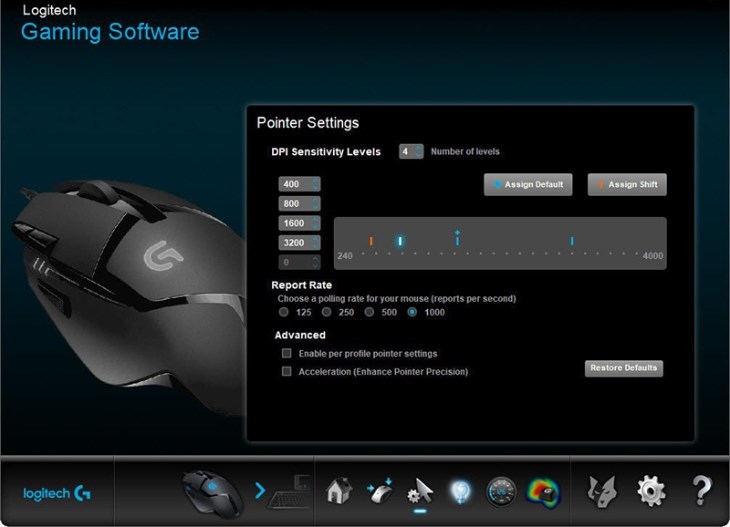
Modern gaming mice and even many high-end productivity mice come equipped with dedicated software that allows for extensive customization, including granular control over DPI settings. This software is key to unlocking the full potential of your mouse.
On-the-Fly DPI Switching
Many gaming mice feature dedicated buttons that allow you to instantly change the DPI setting while you’re using the mouse. This is incredibly useful for gamers who need to switch between precision aiming (low DPI) and quick target acquisition or turning (high DPI) within the same game. For example, in an FPS, you might use a high DPI for general movement and then press a “sniper button” to instantly drop to a much lower DPI for accurate aiming.
Software Suites and Profiles
Mouse manufacturers often provide software suites that offer a range of features beyond just DPI adjustment. These can include:
- DPI Steps: The ability to define specific DPI levels that you can cycle through using the on-the-fly buttons.
- Customizable Profiles: The option to save different DPI settings and button configurations for specific applications or games. This means your mouse will automatically adjust to your preferred settings when you launch a particular game or program.
- Polling Rate Adjustment: While not directly DPI, the polling rate (how often the mouse reports its position to the computer) is another crucial setting for responsiveness, and it’s often adjustable in the same software.
- Macro Recording: Many software suites allow you to record and assign complex sequences of keystrokes and mouse clicks to a single button.
- Lift-Off Distance (LOD): This setting determines how high you can lift the mouse off its surface before the sensor stops tracking. Fine-tuning LOD can prevent unwanted cursor movement when repositioning your mouse.
Finding the Right Balance: Beyond Just Numbers
It’s important to reiterate that the highest DPI number is not always the best. Many users find that extremely high DPI settings, even with advanced sensors, can lead to erratic cursor behavior. Often, a moderate DPI setting (e.g., 800-1600 DPI) coupled with adjusted in-game or operating system sensitivity provides the best balance of responsiveness and control.
The concept of “native” DPI is also relevant. Some sensors have a “native” resolution where they perform optimally and track most accurately. Pushing the DPI far beyond this native resolution, through interpolation, can sometimes introduce inaccuracies. High-quality sensors are designed to maintain accuracy across a wide range of their advertised DPI.
Making an Informed Choice: Selecting a Mouse Based on DPI Needs
When choosing a new mouse, understanding your own usage patterns and how DPI factors into them is paramount. Don’t get swayed solely by the highest DPI number advertised.
Assess Your Primary Use Case
- For General Productivity: If your primary use is web browsing, document editing, and general computer operation, a mouse with a DPI range that allows for comfortable navigation on your monitor resolution is sufficient. A DPI of 800-1600 is usually more than adequate, with the flexibility to adjust if needed.
- For Creative Professionals (Graphic Design, Video Editing): Precision is key here. Look for mice that allow for very low DPI settings (400-800 DPI) with excellent tracking accuracy. The ability to fine-tune sensitivity is crucial.
- For Gaming: This is where DPI becomes highly variable.
- FPS Gamers: Prioritize mice with accurate sensors and a good range of low DPI settings (400-1600 DPI), along with dedicated buttons for on-the-fly DPI switching.
- RTS/MOBA Players: A moderate to high DPI range (800-3200 DPI) with quick switching capabilities can be beneficial.
- MMO/RPG Players: Comfort and button customization are often more important, but a versatile DPI range is still a plus.
Key Features to Consider Beyond DPI
While DPI is a significant factor, it’s not the only one that determines a mouse’s performance.
- Sensor Quality: A high-quality sensor from reputable brands (e.g., PixArt) will provide superior tracking accuracy and consistency, especially at higher DPIs.
- Polling Rate: As mentioned, a higher polling rate (1000Hz is common for gaming mice) ensures that the mouse’s movements are registered more frequently by the computer, leading to smoother and more responsive cursor motion.
- Ergonomics and Build Quality: A comfortable grip and durable construction are essential for long-term use, regardless of the DPI.
- Wired vs. Wireless: For competitive gaming where latency is critical, wired mice are generally preferred. However, modern wireless technology has significantly reduced latency, making high-end wireless mice viable options for many.
- Software Functionality: As discussed, comprehensive software for customization can greatly enhance your mouse experience.
Experimentation is Key
The best way to determine your ideal DPI is through personal experimentation. Most mice allow you to adjust DPI settings through the operating system or dedicated software. Try different settings for your typical tasks and games, paying attention to how the cursor feels, how accurate your movements are, and whether you experience any fatigue. What feels “right” is subjective and will vary from person to person. Ultimately, the goal is to find a DPI setting that maximizes your comfort, control, and efficiency in your digital environment.
aViewFromTheCave is a participant in the Amazon Services LLC Associates Program, an affiliate advertising program designed to provide a means for sites to earn advertising fees by advertising and linking to Amazon.com. Amazon, the Amazon logo, AmazonSupply, and the AmazonSupply logo are trademarks of Amazon.com, Inc. or its affiliates. As an Amazon Associate we earn affiliate commissions from qualifying purchases.