
In the dynamic landscape of modern IT infrastructure, managing endpoints efficiently and securely is paramount for organizations of all sizes. As the workforce becomes increasingly mobile and diverse in its choice of devices, traditional on-premises management tools often fall short. This is where cloud-based solutions like Microsoft Intune step in, offering a comprehensive suite of tools for unified endpoint management. However, even within Intune’s robust framework, there are specialized components designed to extend its capabilities, particularly for the intricate needs of Windows devices. One such critical component, often operating behind the scenes but essential for advanced management tasks, is the Microsoft Intune Management Extension.

At its core, the Intune Management Extension is a lightweight client-side agent installed on Windows 10/11 devices that enables Intune to perform advanced management functions beyond what is typically possible through the standard Mobile Device Management (MDM) channel. While Intune’s MDM capabilities are excellent for basic device configuration, compliance, and app delivery for many modern apps, the Management Extension fills a crucial gap, unlocking sophisticated features vital for comprehensive Windows endpoint administration. Understanding its purpose, functionality, and how it integrates into the broader Microsoft 365 ecosystem is key for any IT professional navigating the complexities of modern device management. This article delves into the specifics of this extension, clarifying its role, technical underpinnings, and the profound benefits it brings to IT administrators.
Unpacking Microsoft Intune: A Foundation for Modern Device Management
To fully appreciate the significance of the Intune Management Extension, it’s essential to first understand the broader context of Microsoft Intune itself and the evolution of endpoint management.
The Evolution of Endpoint Management
For decades, managing computers primarily involved Active Directory and Group Policy Objects (GPOs) for on-premises devices, often coupled with System Center Configuration Manager (SCCM, now Microsoft Configuration Manager) for robust software deployment, patch management, and operating system deployment. This model served well in environments where devices were predominantly domain-joined and resided within the corporate network.
However, the rise of cloud computing, remote work, bring-your-own-device (BYOD) policies, and the increasing adoption of mobile devices like smartphones and tablets necessitated a new approach. Traditional tools struggled to manage devices off-network, non-Windows operating systems, or cloud-first applications effectively. This led to the emergence of Mobile Device Management (MDM) and Mobile Application Management (MAM) solutions, designed to secure and manage devices and applications from anywhere.
Microsoft Intune emerged as a leader in this transition, offering a cloud-native platform that unifies the management of diverse endpoints—Windows, macOS, iOS, Android, and Linux—from a single console. It’s a key component of Microsoft Endpoint Manager (now simply Microsoft Intune as a product family), aiming to simplify and modernize device and application management across the enterprise.
Core Capabilities of Microsoft Intune
Microsoft Intune provides a vast array of capabilities designed to empower IT departments to manage and secure their digital estate effectively:
- Device Enrollment and Configuration: Enables seamless enrollment of corporate-owned and personal devices, applying configuration policies for Wi-Fi, VPN, email, and security settings.
- Application Management: Facilitates the deployment, updating, and removal of applications across different platforms, including store apps, web apps, and line-of-business (LOB) apps. This includes both MDM-managed app delivery and more advanced options.
- Device Compliance: Defines and enforces compliance policies (e.g., OS version, PIN requirement, encryption status) to ensure devices meet organizational security standards before accessing corporate resources.
- Conditional Access Integration: Works hand-in-hand with Microsoft Entra ID (formerly Azure Active Directory) Conditional Access to ensure only compliant and managed devices can access sensitive corporate data and applications.
- Security Baselines and Antivirus Management: Helps secure Windows endpoints by deploying recommended security configurations and integrating with Microsoft Defender for Endpoint for advanced threat protection.
- Remote Actions: Allows IT to perform actions like device wipe, factory reset, remote lock, and restart for enrolled devices.
While Intune’s MDM channel excels at managing modern devices using built-in OS APIs, there are certain Windows-specific functionalities that require a more robust, agent-based approach. This is precisely where the Intune Management Extension becomes indispensable.
The Role and Importance of the Intune Management Extension
The Microsoft Intune Management Extension is a specialized agent designed to significantly expand Intune’s management capabilities for Windows 10 and Windows 11 devices, going beyond the limitations of the standard MDM protocol.
Bridging the Gap: From MDM to Advanced Application Deployment
The native MDM client built into Windows (known as the MDM Bridge WMI provider) is excellent for managing settings exposed via OMA-URI (Open Mobile Alliance Uniform Resource Identifier) or Configuration Service Providers (CSPs). This includes basic app deployments (MSI, store apps), device settings, and security policies. However, it has limitations, particularly when dealing with the intricacies of traditional Windows applications.
The Intune Management Extension steps in to bridge this gap, offering crucial functionality that the MDM channel cannot natively handle:
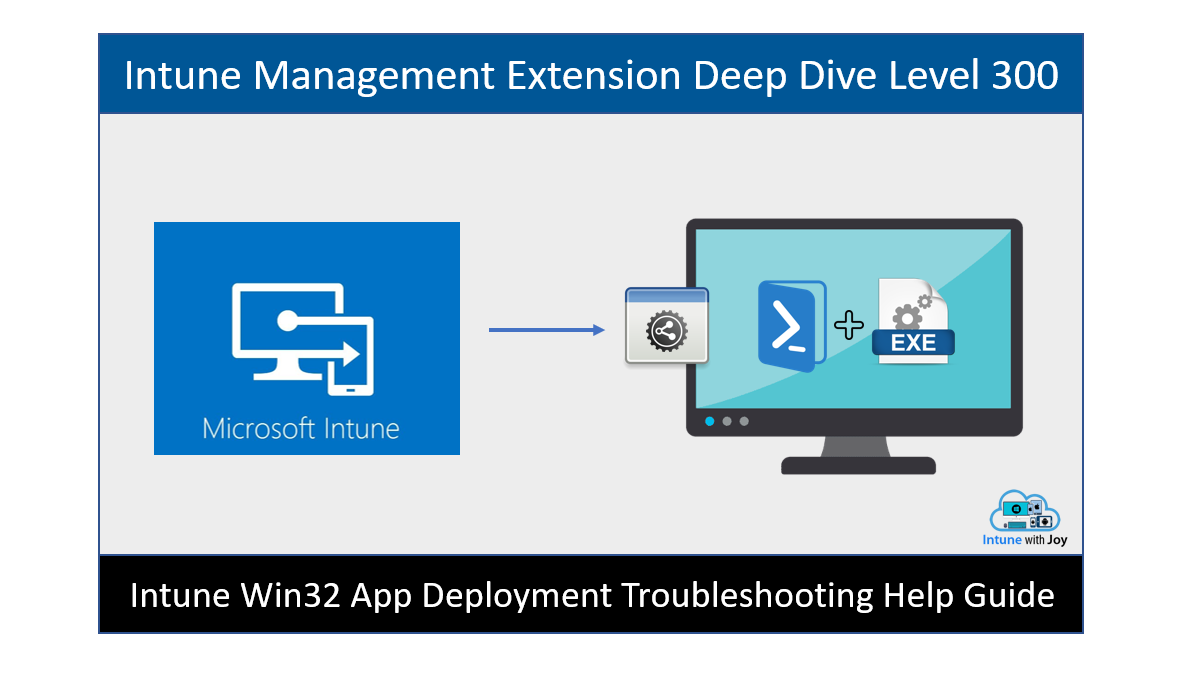
- Win32 App Deployment: This is arguably its most significant contribution. The extension enables the robust deployment of complex Win32 applications (e.g.,
.exe,.msiinstallers with dependencies, custom scripts) that require specific installation logic, detection rules, and uninstall commands. This allows organizations to manage legacy applications and complex software packages that are common in enterprise environments. - PowerShell Script Deployment: It allows IT administrators to deploy and run custom PowerShell scripts on enrolled Windows devices. This opens up a world of possibilities for advanced configuration, automation, remediation, and reporting that isn’t available through standard MDM policies.
- Proactive Remediations (formerly Endpoint Analytics): The extension facilitates the deployment of scripts for proactive detection and remediation of common device issues, improving end-user experience and reducing help desk tickets.
- Custom Compliance Settings: While Intune has built-in compliance policies, the extension enables the creation of custom compliance settings based on scripts, allowing organizations to define and enforce highly specific compliance requirements.
In essence, the Intune Management Extension provides a more powerful and flexible mechanism for managing the full lifecycle of Windows applications and executing custom code on devices, mirroring some of the advanced capabilities traditionally found in solutions like SCCM.
Key Scenarios Where the Extension Excels
Consider these practical scenarios where the Management Extension is invaluable:
- Deploying a proprietary line-of-business application: This app requires a complex installation script, checks for specific registry keys, and has a custom uninstallation procedure. The Win32 app deployment via the extension is the ideal solution.
- Automating a specific system configuration: An organization needs to frequently adjust a obscure registry setting or run a one-off maintenance task on a subset of devices. Deploying a PowerShell script through the extension achieves this efficiently.
- Ensuring legacy software prerequisites: Before installing a new application, IT needs to ensure a specific .NET Framework version or Visual C++ Redistributable is present. The extension allows for robust dependency handling in Win32 apps.
- Detecting and fixing common user issues: Users frequently report a specific network adapter issue. A proactive remediation script can be deployed via the extension to detect and automatically fix the problem without user intervention.
How the Extension Differs from Traditional MDM Agents
While both the MDM client and the Management Extension are agents on a Windows device, their roles are distinct:
- MDM Client: Built into Windows, relies on OMA-URI/CSP APIs, handles basic device configurations, security policies, and Universal Windows Platform (UWP) app deployments. Its communication is primarily pull-based from Intune.
- Intune Management Extension: A separate agent installed by Intune, it’s responsible for executing Win32 app deployments, PowerShell scripts, and other advanced tasks. It acts as an orchestrator for these complex operations, reporting status back to Intune. It also includes an auto-update mechanism to ensure it’s always running the latest version.
The extension complements, rather than replaces, the native MDM client, working in tandem to provide a holistic management experience for Windows devices.
Technical Deep Dive: How the Extension Works
Understanding the technical architecture and operational flow of the Intune Management Extension provides deeper insight into its power and reliability.
Architecture and Components
When a Windows device is enrolled in Intune and assigned a Win32 app or PowerShell script, Intune initiates the installation of the Management Extension if it’s not already present. The extension is installed as a Windows service and operates with elevated privileges (SYSTEM account) to perform its tasks.

Key components include:
- Intune Management Extension Service: The core service responsible for communicating with Intune, receiving policy assignments, downloading content, and executing tasks.
- Local Cache: The extension maintains a local cache for downloaded application content, scripts, and logs, optimizing performance and reducing network traffic for subsequent executions.
- Logs: Extensive logging (e.g., in
C:ProgramDataMicrosoftIntuneManagementExtensionLogs) provides detailed information for troubleshooting and monitoring the execution of scripts and application deployments.
Installation and Provisioning Process
The installation of the Intune Management Extension is typically seamless and automatic:
- Device Enrollment: A Windows 10/11 device is enrolled into Microsoft Intune (either through Azure AD Join, Hybrid Azure AD Join, or personal device enrollment).
- Assignment Detection: Intune detects that the device has been assigned a Win32 app, PowerShell script, or proactive remediation.
- Extension Deployment: Intune pushes the Intune Management Extension installer to the device via the MDM channel.
- Installation and Service Start: The extension is installed as a Windows service and starts running, establishing a communication channel with the Intune service.
- Policy Synchronization: The extension periodically checks with Intune for new policies, assignments, and content.
- Content Download and Execution: When a new assignment is detected (e.g., a Win32 app), the extension downloads the necessary content, executes the installation, and reports the status back to Intune.
This process ensures that the advanced management capabilities are deployed only when needed, minimizing overhead on devices that don’t require them.
Data Flow and Communication Mechanisms
The Intune Management Extension communicates securely with the Microsoft Intune service using standard HTTPS protocols.
- Polling for Assignments: The extension periodically polls the Intune service for new policies, Win32 app assignments, and script deployments. This polling interval is typically short (e.g., every hour) but can be triggered more frequently during initial setup or when new assignments are made.
- Content Download: When an assignment is received, the extension downloads the necessary content (e.g., Win32 app package, PowerShell script) from Azure storage, which is securely linked to the Intune service.
- Execution and Status Reporting: The extension executes the downloaded content (e.g., runs the installer, executes the script) with the appropriate context (typically SYSTEM). It then collects the execution results, including success/failure status, exit codes, and any output from scripts, and encrypts this information.
- Reporting Back to Intune: The collected status data is securely uploaded back to the Intune service, which then updates the administrative console, providing IT administrators with real-time feedback on deployment success or failure.
This robust communication mechanism ensures that IT administrators have a clear picture of the state of their managed devices and the success of their deployments.
Benefits and Best Practices for IT Administrators
The Microsoft Intune Management Extension profoundly enhances the capabilities of IT administrators, providing greater flexibility and control over Windows endpoints. Leveraging it effectively requires adherence to certain best practices.
Enhancing Flexibility and Control
The primary benefit of the Management Extension is the unparalleled flexibility it offers for managing Windows devices in a cloud-first world.
- Comprehensive Application Management: IT can deploy virtually any Windows application, from simple
.msipackages to complex enterprise suites, with sophisticated detection rules, dependencies, and requirement sets. This eliminates the need for separate on-premises tools for legacy app deployment. - Advanced Device Configuration: PowerShell scripts unlock a vast array of configuration possibilities that are not exposed through standard MDM CSPs. This allows for highly customized device hardening, automation of specific tasks, and integration with other systems.
- Improved User Experience: Proactive remediations reduce downtime and help desk calls by automatically detecting and fixing common issues before users even report them. This leads to a smoother, more reliable computing experience for end-users.
- Reduced Infrastructure Costs: By moving advanced management tasks to the cloud, organizations can reduce or eliminate the need for on-premises servers and infrastructure traditionally required for complex software deployment and scripting.
Streamlining Application Lifecycle Management
The extension plays a critical role in streamlining the entire application lifecycle, from deployment to updates and uninstallation.
- Intelligent Installation: Win32 app deployments allow for multiple installation attempts, different install contexts (user/system), and pre/post-installation scripts, ensuring reliable delivery even in challenging environments.
- Granular Detection: Powerful detection rules (file existence, registry keys, PowerShell scripts) ensure that applications are only installed if truly needed and that Intune correctly reports their installation status.
- Robust Uninstallation: Defining clear uninstall commands ensures clean removal of applications, maintaining system hygiene and reclaiming disk space.
- Automated Updates: The same Win32 app deployment mechanism can be used to deploy updated versions of applications, ensuring that users always have the latest, most secure software.
Troubleshooting Common Issues and Optimizing Performance
While robust, administrators should be aware of common troubleshooting steps and optimization tips:
- Check Logs First: The logs located at
C:ProgramDataMicrosoftIntuneManagementExtensionLogsare the most critical resource for troubleshooting.IntuneManagementExtension.logprovides an overview, while dedicated logs for Win32 apps and scripts offer detailed execution information. - Verify Requirements and Detection Rules: Many deployment failures stem from incorrect requirement rules (e.g., OS version, disk space) or flawed detection rules that wrongly indicate an app is not installed or already present.
- Test PowerShell Scripts Locally: Before deploying scripts via Intune, always test them thoroughly on a local device to ensure they execute as expected and handle potential errors gracefully.
- Network Connectivity: Ensure devices have stable internet connectivity and can reach Intune service endpoints and Azure storage for content downloads.
- Bandwidth Optimization: For large Win32 app deployments, consider using Microsoft Connected Cache or Delivery Optimization to reduce bandwidth consumption across the network.
- Pilot Deployments: Always pilot new Win32 apps or complex scripts to a small group of test users before rolling them out broadly.
By following these best practices, IT administrators can maximize the benefits of the Intune Management Extension and ensure a smooth, efficient endpoint management experience.
Looking Ahead: The Future of Endpoint Management with Intune
The Microsoft Intune Management Extension is not merely a static component; it’s an evolving part of Microsoft’s broader vision for unified endpoint management. Its capabilities are continually being refined and expanded to meet the demands of modern IT.
Integration with Microsoft 365 Ecosystem
The extension’s functionality will continue to deepen its integration within the larger Microsoft 365 ecosystem. This means tighter connections with:
- Microsoft Defender for Endpoint: Enhanced capabilities for security hardening, vulnerability management, and automated remediation based on threat intelligence.
- Endpoint Analytics: More sophisticated insights into device performance, application reliability, and user experience, powered by the telemetry collected and actions performed via the extension.
- Azure AD (Microsoft Entra ID): Stronger identity-driven management and access control, ensuring that only trusted users on compliant devices can access corporate resources.
- Universal Print: Potential for the extension to facilitate more advanced printer management scenarios for cloud-based printing solutions.
The goal is to create a seamless, interconnected fabric of management, security, and productivity services, with the Intune Management Extension playing a vital role in executing granular controls on Windows devices.
Evolving Security and Compliance Landscapes
As cyber threats become more sophisticated and regulatory requirements more stringent, the Intune Management Extension will be instrumental in helping organizations maintain a strong security and compliance posture.
- Enhanced Security Capabilities: Expect ongoing improvements in how the extension facilitates the deployment of security configurations, vulnerability patches, and custom security scripts.
- Advanced Compliance Validation: The ability to deploy custom compliance scripts provides a flexible mechanism for organizations to adapt to evolving compliance standards and perform granular checks that are unique to their industry or internal policies.
- Zero Trust Principles: The extension will further support Zero Trust architectures by ensuring that Windows devices continuously meet strict compliance and security requirements before gaining access to applications and data, regardless of their location.
In conclusion, the Microsoft Intune Management Extension is far more than just another agent; it is a strategic component that empowers Microsoft Intune to deliver comprehensive, enterprise-grade management for Windows 10 and Windows 11 devices. By extending Intune’s reach beyond native MDM capabilities, it enables IT administrators to deploy complex applications, execute custom scripts, and proactively manage device health with unparalleled flexibility and control. As organizations continue their journey towards cloud-first, modern management, understanding and effectively leveraging this extension will be crucial for building resilient, secure, and highly productive digital workplaces.
aViewFromTheCave is a participant in the Amazon Services LLC Associates Program, an affiliate advertising program designed to provide a means for sites to earn advertising fees by advertising and linking to Amazon.com. Amazon, the Amazon logo, AmazonSupply, and the AmazonSupply logo are trademarks of Amazon.com, Inc. or its affiliates. As an Amazon Associate we earn affiliate commissions from qualifying purchases.