
In the modern digital landscape, efficiency is the ultimate currency. Whether you are a data analyst, a software developer, or a project manager, the ability to streamline repetitive tasks can mean the difference between a productive workday and hours of tedious manual entry. At the heart of spreadsheet efficiency lies a powerful tool known as the Excel Macro. While often perceived as a complex feature reserved for high-level programmers, Macros are accessible tools that empower users to automate almost any sequence of actions within Microsoft Excel. This guide explores the technical architecture of Macros, the underlying power of VBA, and how you can leverage automation to transform your data management processes.

Understanding the Core of Excel Macros
To understand what a Macro is, one must first view Excel not just as a grid of cells, but as a programmable environment. At its simplest, a Macro is a recorded sequence of instructions that Excel can execute automatically. If you find yourself performing the same five steps every morning—such as importing data, bolding headers, applying a specific currency format, and generating a pivot table—you can “record” those steps into a Macro. Once saved, a single click or keyboard shortcut will trigger Excel to perform those actions in a fraction of a second.
What is VBA (Visual Basic for Applications)?
While “Macro” refers to the automated sequence itself, VBA (Visual Basic for Applications) is the programming language that makes it possible. Developed by Microsoft, VBA is an event-driven programming language integrated into most Microsoft Office applications. When you record a Macro, Excel is actually writing VBA code in the background. For advanced users, writing VBA directly allows for far more complexity than simple recording. It enables the creation of logic-based scripts that can make decisions (If/Then statements), repeat actions until a condition is met (Loops), and even interact with other software like Microsoft Word or Outlook.
How Macros Work: Recording vs. Coding
There are two primary ways to create a Macro: the Macro Recorder and the Visual Basic Editor (VBE). The Macro Recorder acts like a digital shadow; it tracks your mouse clicks and keystrokes, translating them into code. This is the entry point for most tech enthusiasts. However, the recorder has limitations—it cannot “think” or handle unexpected variables. Coding in the VBE, on the other hand, allows you to build robust scripts from scratch. In this environment, you can define variables, handle errors, and optimize the code for speed, which is essential when dealing with massive datasets that would otherwise crash a standard spreadsheet.
Why Automation is Essential in Modern Data Management
The transition from manual data handling to automated systems is a cornerstone of digital transformation. In a tech-centric professional environment, relying on manual processes is not only inefficient but also a significant security and accuracy risk.
Eliminating Repetitive Tasks and “Click Fatigue”
The most immediate benefit of Excel Macros is the reclamation of time. “Click fatigue” is a real phenomenon where the quality of work diminishes as a user performs the same mechanical actions repeatedly. By offloading these tasks to a Macro, tech professionals can focus on high-level analysis and strategy rather than the mechanics of data cleaning. Whether it is reformatting CSV exports from a CRM or consolidating weekly logs into a master sheet, Macros handle the “grunt work” with unparalleled speed.
Reducing Human Error and Enhancing Data Integrity
Human error is an inevitable byproduct of manual data entry. A single misplaced decimal point or a missed row during a copy-paste operation can lead to catastrophic failures in data reporting. Macros provide a level of consistency that humans cannot match. Once a Macro is tested and verified, it will execute the exact same steps every time without deviation. This ensures data integrity across complex technical projects, making the output reliable for further software integration or executive reporting.
Scalability in Software Workflows
In the tech world, scalability is key. A process that works for 10 rows of data must also work for 10,000. Macros allow users to scale their operations without a linear increase in effort. By utilizing VBA loops, a script can be instructed to process an entire folder of workbooks or iterate through thousands of data points, applying logic and formatting instantly. This scalability is what differentiates a basic spreadsheet user from a power user capable of managing enterprise-level data.
Getting Started: The Developer Tab and Basic Recording
Before you can harness the power of Macros, you must unlock the technical tools within the Excel interface. By default, the tools required for Macro creation are hidden to prevent novice users from accidentally altering the software’s backend.
Enabling the Developer Tab
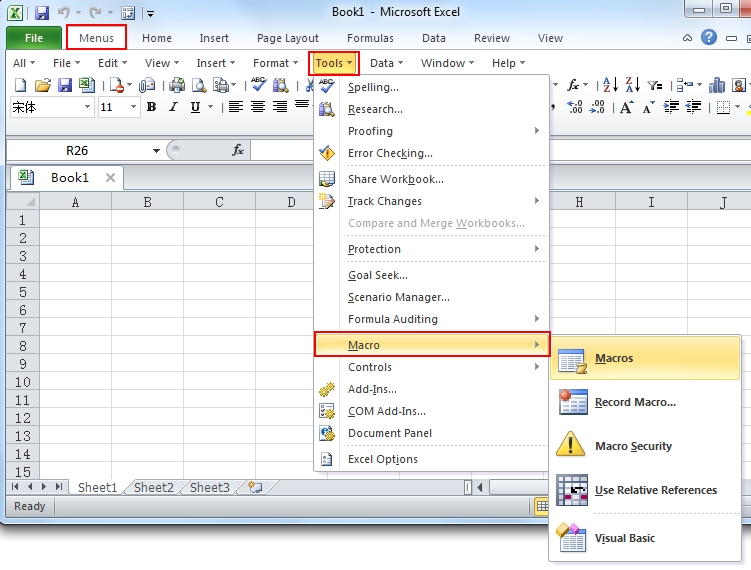
The first step for any aspiring automation expert is to enable the Developer Tab on the Excel Ribbon. This is done by right-clicking any existing tab, selecting “Customize the Ribbon,” and checking the box next to “Developer.” This tab is your command center, providing access to the Visual Basic Editor, the Macro list, the Recorder, and Form Controls (like buttons) that can be used to trigger your scripts.
Recording Your First Macro: A Step-by-Step Walkthrough
To record a Macro, navigate to the Developer tab and click “Record Macro.” You will be prompted to name it (no spaces allowed) and assign a shortcut key (e.g., Ctrl+Shift+Q). Once recording begins, every action is logged.
- Select a Range: Choose the cells you wish to format.
- Apply Logic: Change the font, add borders, or insert a formula.
- Stop Recording: Return to the Developer tab and click “Stop.”
You have now created a script. To test it, clear your formatting and press your assigned shortcut key. The speed at which Excel replicates your actions highlights the immediate value of this technology.
Saving Macro-Enabled Workbooks (.xlsm)
From a technical standpoint, it is vital to understand file extensions. Standard Excel workbooks are saved as .xlsx files, which do not support Macros for security reasons. To keep your automation scripts, you must save your file as an Excel Macro-Enabled Workbook (.xlsm). If you save a file containing Macros as a standard .xlsx, all your hard-coded logic will be stripped away and lost upon closing the application.
Advanced Capabilities: Writing and Editing VBA Code
While recording is a great starting point, the true power of Excel lies in the Visual Basic Editor (VBE). This is where Excel shifts from a spreadsheet tool to a development environment.
The Visual Basic Editor (VBE) Environment
Pressing Alt + F11 opens the VBE, a separate window where your code lives. Here, you will see a Project Explorer (listing your sheets and modules) and a Code Window. Understanding this environment is crucial for debugging. If a Macro fails, the VBE will highlight the problematic line of code in yellow, allowing you to troubleshoot the logic. This “debugging” process is a fundamental skill in software development and is equally applicable here.
Variables, Loops, and Logic: Making Decisions
The jump from a “recorded user” to a “VBA developer” involves learning core programming concepts:
- Variables: Storing data (like a user’s name or a total sum) in memory to be used later in the script.
- If-Then Statements: Allowing the Macro to make choices. For example: “If the value in Cell A1 is less than 0, highlight it red; otherwise, leave it green.”
- Loops (For/Next, Do/While): Commanding the Macro to repeat an action. A loop can tell Excel to “look at every row in this column and delete it if it contains the word ‘Error’.”
Creating User-Defined Functions (UDFs)
Beyond just automating tasks, VBA allows you to create your own Excel functions. If Excel’s built-in formulas (like VLOOKUP or SUMIF) aren’t enough for your specific technical needs, you can write a User-Defined Function. For instance, you could write a function called CalculateTax() that takes specific industry variables into account, and then use =CalculateTax(A1) directly within your spreadsheet cells just like a native Excel formula.
Security and Best Practices in the Digital Age
As with any powerful technology, Macros come with risks. Because they are essentially scripts that run on your computer, they can be used by malicious actors to spread viruses or steal data.
Understanding Macro Security Risks
For years, “Macro viruses” were a common threat. Today, Microsoft has robust security measures in place. When you open an .xlsm file from the internet, Excel will typically disable Macros and display a “Security Warning” bar. As a best practice, you should never enable Macros in a workbook unless you trust the source or have inspected the code yourself. In a corporate environment, digital signatures are often used to verify that a Macro has not been tampered with.
Optimization Tips for Faster Execution
If you are writing code to handle large-scale data, performance optimization is key. A poorly written Macro can cause Excel to freeze. Professional VBA developers use techniques like:
- Application.ScreenUpdating = False: This prevents Excel from visually updating the screen while the Macro runs, which drastically increases speed.
- Application.Calculation = xlCalculationManual: This stops Excel from recalculating every formula in the sheet until the Macro is finished.
- Avoiding “Select”: Instead of telling Excel to
Selecta cell and thenCopyit (which is slow), efficient code directly tells the range where to move the data.

The Future of Excel Automation: Office Scripts and Power Automate
As the tech world moves toward the cloud, Excel automation is evolving. While VBA remains the gold standard for desktop Excel, Microsoft has introduced Office Scripts (using TypeScript) for Excel on the Web. Furthermore, Power Automate now allows users to create workflows that connect Excel to other apps like Teams, SharePoint, and Azure without writing traditional code. Understanding Macros is the perfect gateway into this broader ecosystem of “Low-Code/No-Code” development that is currently dominating the tech industry.
By mastering Excel Macros, you are doing more than just learning a spreadsheet trick; you are learning the fundamentals of automation, logic, and software interaction. In an era defined by data, the ability to control and automate that data is one of the most valuable technical skills a professional can possess.
aViewFromTheCave is a participant in the Amazon Services LLC Associates Program, an affiliate advertising program designed to provide a means for sites to earn advertising fees by advertising and linking to Amazon.com. Amazon, the Amazon logo, AmazonSupply, and the AmazonSupply logo are trademarks of Amazon.com, Inc. or its affiliates. As an Amazon Associate we earn affiliate commissions from qualifying purchases.