
When you open the Windows Task Manager, you are greeted by a list of dozens, sometimes hundreds, of processes running in the background. Most are recognizable—Chrome, Spotify, or Microsoft Word. However, others are more cryptic, leading many users to search for terms like “what is dmw.exe” or “dwm.exe.”
In almost all cases, the search for “dmw.exe” is a typo for dwm.exe, which stands for Desktop Window Manager. This critical system process is the silent architect of your desktop environment. Without it, the modern Windows interface would look vastly different—or wouldn’t function at all. In this technical deep dive, we will explore what this process does, why it uses system resources, and how to tell the difference between a legitimate system file and a security threat.
The Core Functionality of the Desktop Window Manager
The Desktop Window Manager (DWM) is a compositing window manager that has been a staple of the Windows operating system since the release of Windows Vista. Its primary responsibility is to render all those graphical “bells and whistles” you see on your screen.
The Evolution of Windows Visuals
Before DWM, Windows used a method where each application was responsible for drawing itself directly to the screen. If one program stopped responding, it often left “ghost” trails or white boxes across other windows because the system didn’t have a centralized way to redraw the desktop.
With the introduction of DWM in the Windows Vista era (originally known for the “Aero” glass effect), Microsoft changed the architecture. Instead of applications drawing directly to the display, they draw their window buffer to a specific location in memory. DWM then takes these individual buffers and “composites” them into the final image you see on your monitor.
How DWM Handles Graphics Rendering
DWM works by leveraging the power of your Graphics Processing Unit (GPU). By offloading the visual composition from the CPU to the GPU, Windows can achieve much smoother animations and transitions. When you flip through windows using Alt+Tab, or when you hover over a taskbar icon to see a thumbnail preview, you are seeing DWM in action. It manages the transparency effects, live taskbar thumbnails, and even the high-resolution “Fluent Design” elements found in Windows 10 and Windows 11.
Support for High-Resolution Displays and Scaling
In the modern tech landscape, 4K monitors and high-DPI (dots per inch) displays are standard. DWM plays a vital role in display scaling. It ensures that text and icons remain sharp and proportional when you move an application from a 1080p laptop screen to a 4K external monitor. This “per-monitor DPI awareness” is managed largely through the Desktop Window Manager’s ability to scale the visual buffers before they are sent to the display.
Why is DWM.exe Running in the Background?
It is perfectly normal to see dwm.exe running at all times. In fact, in modern versions of Windows (Windows 8, 10, and 11), it is a mandatory system process.
Hardware Acceleration and GPU Usage
Because DWM is responsible for the entire visual output of your OS, it requires constant access to your GPU. If you look at your Task Manager, you might notice that dwm.exe consumes a small percentage of your GPU resources even when you aren’t playing a game. This is normal behavior. It is using hardware acceleration to keep the interface responsive. If you close a window, DWM calculates the fade-out animation; if you move a window, DWM calculates the motion blur and shadows.
The Impact on System Performance
Under normal conditions, DWM is very efficient. It typically uses between 50MB to 150MB of RAM and less than 2-3% of your CPU. However, its resource usage can spike if you have many high-resolution monitors connected or if you are using complex desktop wallpapers and transparency effects. Since DWM is a compositor, the more visual data it has to process, the more memory it will occupy.

Can You Disable DWM.exe?
In the days of Windows 7, users could disable the “Aero” theme to save resources, effectively turning off the heavy lifting of DWM. However, in Windows 10 and 11, this is no longer an option. The Desktop Window Manager is now so deeply integrated into the OS shell that disabling it would cause the entire UI to fail. The system is designed to restart the process automatically if it ever crashes, ensuring that the user is never left with a blank or unresponsive screen.
Troubleshooting High CPU and Memory Usage
While dwm.exe is usually well-behaved, many users report issues where the process begins to consume an alarming amount of RAM (sometimes gigabytes) or causes CPU spikes that lag the system.
Updating Graphics Drivers
Since DWM relies almost entirely on the GPU, the most common cause of performance issues is an outdated or corrupt graphics driver. If there is a “memory leak” in the driver—a situation where the software asks for memory but forgets to give it back—DWM will appear to be the culprit.
- Action: Visit the website of your GPU manufacturer (NVIDIA, AMD, or Intel) and download the latest “Game Ready” or “Studio” drivers. A clean installation of these drivers often resolves 90% of DWM-related performance issues.
Identifying Conflicts with Third-Party Software
Certain third-party apps that modify the visual appearance of Windows can conflict with DWM. This includes:
- Custom “Skinning” software (like WindowBlinds).
- Dynamic wallpaper applications (like Wallpaper Engine).
- Screen recording or overlay software (like OBS or Discord overlays).
If you noticedwm.exeacting up, try disabling these applications one by one to see if the resource usage stabilizes.
Adjusting Visual Effects for Better Performance
If you are working on a lower-end machine and want to reduce the load on DWM, you can trim the visual demands of the OS.
- Search for “Adjust the appearance and performance of Windows” in the Start menu.
- Under the “Visual Effects” tab, you can select “Adjust for best performance” or manually uncheck boxes like “Animate windows when minimizing and maximizing” and “Show shadows under windows.”
This reduces the number of tasks DWM has to perform, lowering its footprint on older hardware.
Security Concerns: Is DWM.exe (or dmw.exe) Malware?
Cybercriminals often use a tactic called “masquerading,” where they name a malicious file something very similar to a legitimate system process. This is why a search for “dmw.exe” is significant. While “dwm.exe” (Desktop Window Manager) is safe, a file specifically named “dmw.exe” (switching the ‘m’ and ‘w’) is highly suspicious.
Verifying the File Location
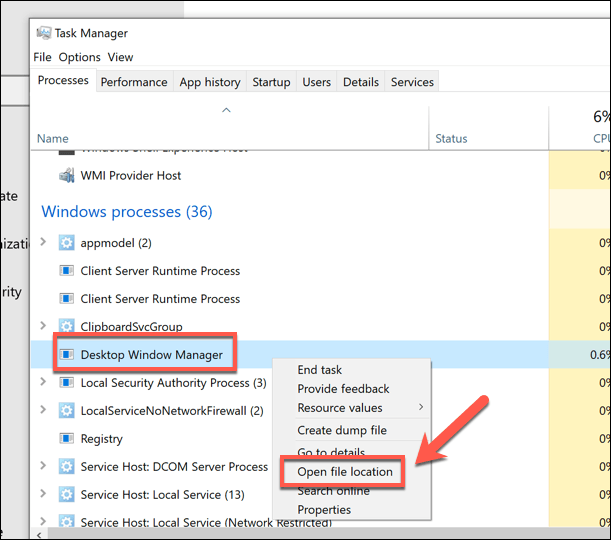
The legitimate Desktop Window Manager file is always located in a specific system folder. To check yours:
- Open Task Manager (Ctrl + Shift + Esc).
- Right-click on Desktop Window Manager.
- Select Open file location.
The legitimate file should be located inC:WindowsSystem32. If the file is located anywhere else—such as yourDownloadsfolder,Tempfolder, orUsersdirectory—it is almost certainly malware.
Checking the Digital Signature
Another way to verify the authenticity of the process is to check its digital signature.
- In the file location (
C:WindowsSystem32), right-clickdwm.exe. - Select Properties and go to the Digital Signatures tab.
- The “Name of signer” should be Microsoft Windows.
If the signature is missing or belongs to an unknown entity, your system security has likely been compromised.
How Malware Uses Similar Names to Hide
Malware such as trojans, miners, or spyware often use names like dmw.exe, dwm64.exe, or dwn.exe to trick users into thinking they are essential system components. These malicious files might run in the background to mine cryptocurrency using your GPU or to log your keystrokes.
If you find a file named dmw.exe on your system:
- Immediately run a full system scan with a reputable antivirus like Microsoft Defender or Malwarebytes.
- Check your “Startup” tab in Task Manager to see if any unrecognized processes are set to launch when you turn on your computer.
Conclusion
The Desktop Window Manager, or dwm.exe, is an essential component of the modern Windows ecosystem. It transformed the way Windows handles graphics, moving us away from the “ghosting” windows of the past into a world of smooth animations, transparency, and high-definition scaling.
While it is easy to mistake it for a virus—especially if you encounter a typo like “dmw.exe” or notice a sudden spike in memory usage—it is almost always a benign and necessary part of your PC’s operation. By keeping your graphics drivers updated and being vigilant about file locations and digital signatures, you can ensure that your system remains both visually impressive and digitally secure. If you ever see dwm.exe using more resources than it should, remember: it’s usually just the messenger, and the real issue often lies with a driver or a third-party app competing for your GPU’s attention.