
In the modern landscape of computing, we often prioritize high-level specifications like refresh rates, color accuracy, and panel types. Yet, buried deep within the On-Screen Display (OSD) menus of most contemporary monitors is a setting that fundamentally changes how we interact with our hardware: DDC/CI. Standing for Display Data Channel / Command Interface, this protocol is the unsung hero of peripheral ergonomics and efficient workspace management. Understanding what it does—and why you should keep it enabled—is essential for anyone looking to streamline their digital workflow.
Decoding the Protocol: What is DDC/CI?
At its core, DDC/CI is a communication bridge. It stands as a specialized subset of the Display Data Channel (DDC) family, a group of digital communication protocols between a computer display and an associated graphics adapter. While the standard DDC allows a monitor to report its identity and capabilities (such as its native resolution and refresh rate) to the operating system, the “CI” portion—Command Interface—adds a bi-directional layer of control.
The Mechanism of Bi-Directional Communication
Traditional monitors were strictly output devices. You sent a signal to them, and they displayed it. If you wanted to change the brightness, contrast, or input source, you had to reach out and physically press the tactile buttons on the chassis. DDC/CI disrupts this physical limitation by allowing your computer’s operating system to send commands directly to the monitor’s internal controller over the same cable—usually HDMI, DisplayPort, or USB-C—that carries your video signal.
This means your monitor is no longer just a passive screen; it is an intelligent, controllable peripheral. When you adjust a setting in a software application on your PC, the command is packaged into the DDC/CI protocol, sent through the graphics card, and interpreted by the monitor’s firmware to execute the change instantaneously.
The Hardware Prerequisites
For DDC/CI to function, three components must be in alignment:
- The Display: The monitor must have DDC/CI support enabled in its internal OSD firmware.
- The Connection: The physical cable must support the transmission of these data signals. Fortunately, almost all modern DisplayPort and HDMI cables are fully compatible with this standard.
- The Software: You need a bridge application that can translate your mouse clicks into DDC/CI commands, as Windows and macOS do not always expose these controls natively in a user-friendly manner.
The Practical Advantages of Software-Based Control
The most immediate benefit of enabling DDC/CI is the elimination of the “button-fumbling” experience. Manufacturers often bury the most important settings—like brightness or input switching—behind clunky, unintuitive menu systems that require multiple clicks on cheap, stiff physical buttons. By offloading these controls to the desktop, you reclaim your workspace efficiency.
Streamlining Workflow and Multi-Monitor Setups
If you utilize a multi-monitor setup, DDC/CI becomes indispensable. Imagine a three-monitor configuration where you want to sync the brightness levels across all panels. Without DDC/CI, you would have to navigate through three separate OSD menus using three sets of physical buttons. With software-based control, a single slider or command can propagate settings across all connected displays simultaneously.
This is particularly vital for content creators who require color consistency or office professionals who move between high-light and low-light working environments. Being able to dim your displays with a single keyboard shortcut or a mouse click significantly reduces eye strain throughout the day.
Automating Display Behavior
Beyond simple adjustments, DDC/CI enables automation. Advanced users can employ scripts to change monitor settings based on specific criteria. For example, you could write a script that automatically lowers your screen brightness at 6:00 PM every evening, or one that toggles the input source to your game console as soon as you launch a specific gaming application on your PC. This level of automation transforms the monitor from a peripheral into a responsive element of your digital environment.
Security Considerations and Potential Drawbacks
While DDC/CI is a powerful tool, it is not without its controversies. In the past, there have been discussions regarding the security implications of allowing software to talk directly to monitor firmware. Because the monitor is technically a device that receives and executes commands, some high-security environments—such as air-gapped systems or sensitive government facilities—may mandate that DDC/CI be disabled.
The “Ghost in the Machine” Risk
The primary theoretical concern is the possibility of malicious software interacting with the monitor’s firmware via DDC/CI to overwrite internal settings or, in highly specific and theoretical edge cases, potentially compromising the display’s display-output capability. However, for the average consumer, the risk is negligible. Most modern monitor firmware is “read-only” regarding its core OS, meaning that while DDC/CI can adjust brightness or contrast, it cannot fundamentally reprogram the monitor’s core logic or steal data.
Troubleshooting: When DDC/CI Fails
Occasionally, users find that DDC/CI does not work even when the monitor supports it. This is usually due to one of three common issues:
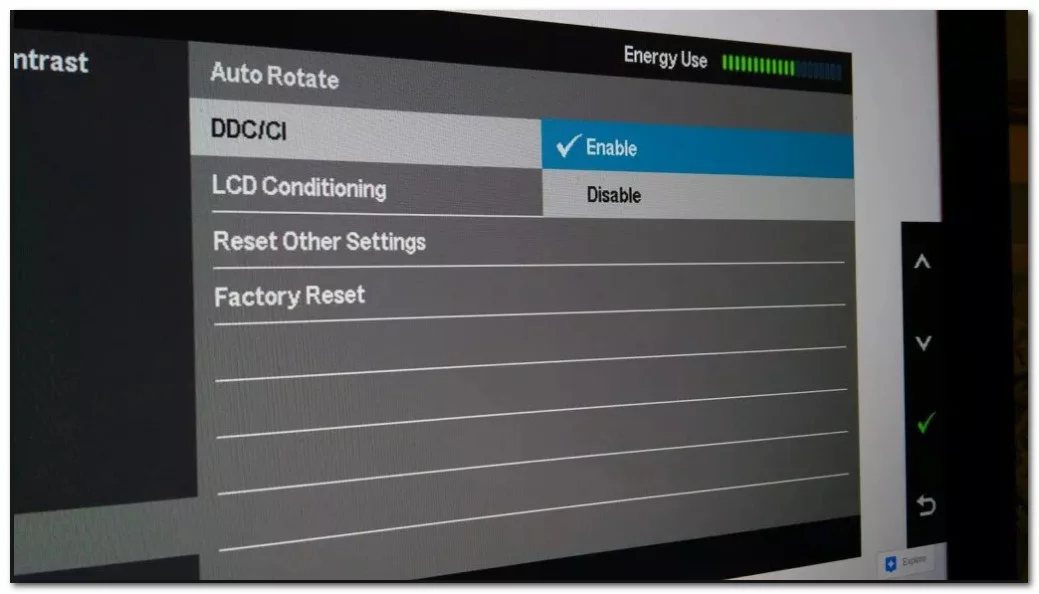
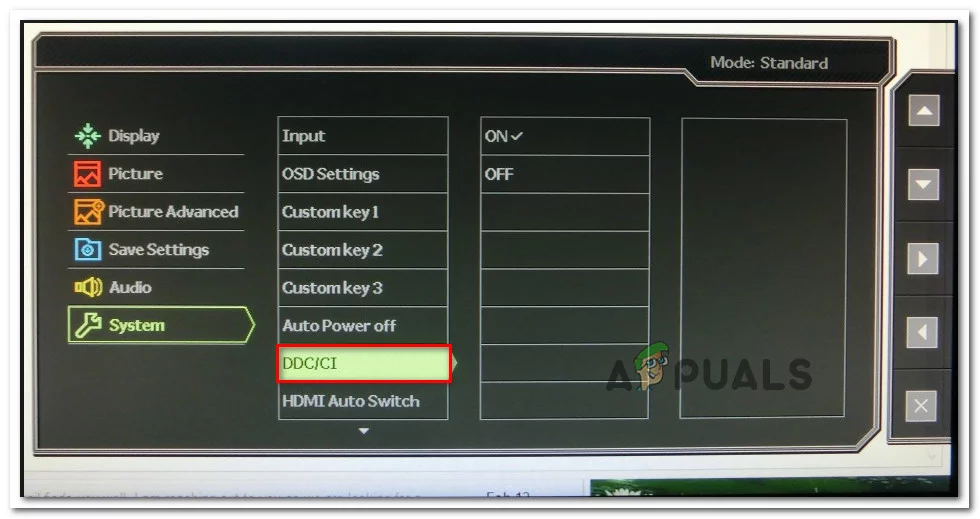
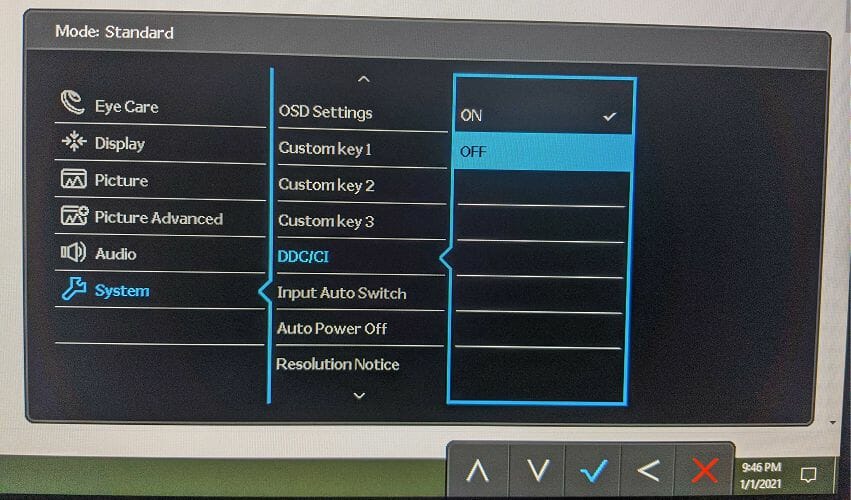
- OSD Locking: Some monitors ship with DDC/CI disabled by default in the OSD settings to prevent accidental interference. You must navigate your monitor’s physical menu to toggle it to “On.”
- GPU Drivers: Outdated graphics drivers can sometimes fail to pass the DDC/CI signals correctly. A clean update of your NVIDIA, AMD, or Intel drivers often resolves the handshake failure.
- Docking Stations and KVMs: Not all USB-C docks or KVM switches are “DDC/CI transparent.” If your signal passes through a cheap adapter or an older KVM switch, the DDC/CI packets might be stripped from the data stream before they reach the monitor.
Future-Proofing Your Desktop Environment
As we move toward a more integrated digital workspace, the importance of DDC/CI is only growing. We are seeing a surge in sophisticated, open-source software tools—such as Monitorian on Windows or Lunar and MonitorControl on macOS—that leverage DDC/CI to offer professional-grade features, such as adaptive brightness that mimics the ambient light sensor behavior of a MacBook Pro on a desktop display.
The Role of USB-C and Daisy-Chaining
With the rise of USB-C and Thunderbolt, the integration between the computer and the monitor is becoming more seamless. DDC/CI is a foundational protocol that allows this integration to flourish. By treating the monitor as a data-rich peripheral, rather than a “dumb” TV, users can ensure their workspace is as ergonomic and efficient as possible.
Final Recommendations for the Enthusiast
If you are looking to optimize your setup, the first step is to dive into your monitor’s OSD menu. Check for an option labeled “DDC/CI,” “Auto Source,” or “Communication Interface,” and ensure it is enabled. Once confirmed, download a reputable third-party utility to regain control over your display’s hardware settings. You will find that the ability to instantly dim your screens for a late-night project, or quickly switch your input source without touching your monitor’s bezel, provides a tactile satisfaction that elevates the entire computing experience.
DDC/CI may be a technical term found in the fine print of a user manual, but it represents the transition from static, clumsy hardware interaction to a fluid, software-defined environment. By embracing these protocols, you effectively bridge the gap between the virtual world of your desktop and the physical reality of your workstation, ensuring that your hardware works as hard—and as intelligently—as you do.
aViewFromTheCave is a participant in the Amazon Services LLC Associates Program, an affiliate advertising program designed to provide a means for sites to earn advertising fees by advertising and linking to Amazon.com. Amazon, the Amazon logo, AmazonSupply, and the AmazonSupply logo are trademarks of Amazon.com, Inc. or its affiliates. As an Amazon Associate we earn affiliate commissions from qualifying purchases.