
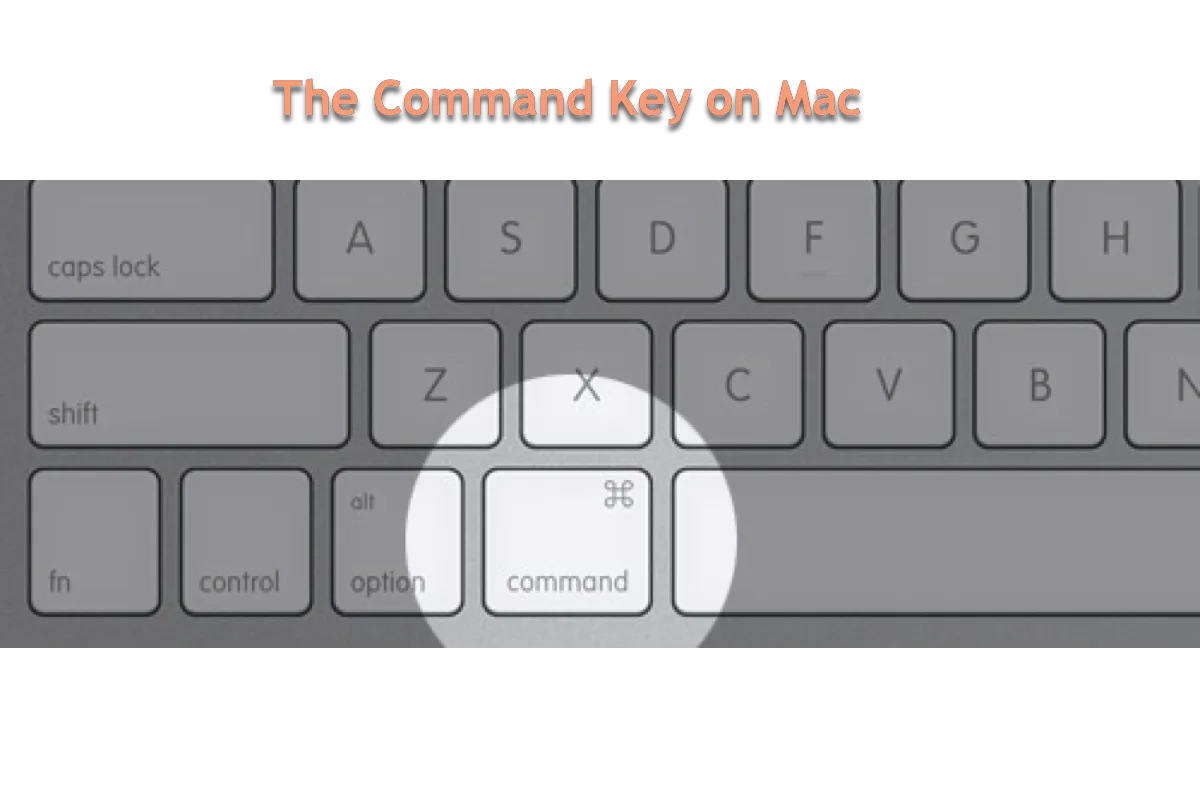
For anyone transitioning from the Windows ecosystem to macOS, or even for long-time Apple users looking to deepen their technical proficiency, the Command key (⌘) represents the heart of the user experience. Labeled with the unique “looped square” symbol, the Command key is the primary modifier key on Apple keyboards, serving a role that is broadly analogous to the Control key on a PC but with significantly deeper integration into the operating system’s philosophy and workflow.
Understanding what the Command key is—and more importantly, how to leverage it—is the difference between fighting with your hardware and achieving a state of “flow.” This guide explores the technical origins, functional applications, and advanced workflows associated with the most important key on your Mac.
The Anatomy and History of the Command Key
The Command key is not just a functional tool; it is a piece of computing history. To understand its role in modern software, one must look at how Apple envisioned the relationship between the user and the graphical user interface (GUI).
The Iconography: The Story of the Looped Square
Originally, the Command key featured the Apple logo. However, Steve Jobs famously felt that putting the logo on every menu shortcut was “overusing” the brand. He tasked designer Susan Kare with finding a replacement. She discovered the looped square symbol (⌘) in a dictionary of international symbols; it is traditionally used in Nordic countries to mark points of interest on maps, such as historic sites or campgrounds. In the context of macOS, it has become synonymous with “action.”
Physical Placement and Ergonomics
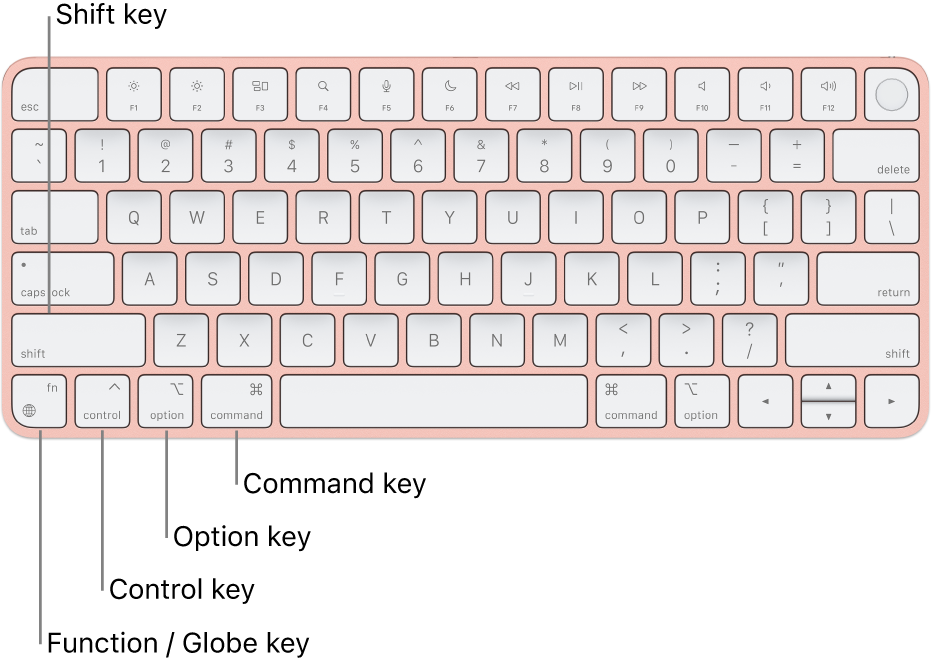
On a standard Mac keyboard, you will find two Command keys, flanking the Space bar. This positioning is intentional. Unlike the Control key on a PC, which often requires a pinky-finger stretch to the corner of the keyboard, the Command key is designed to be hit by the thumb. This ergonomic choice allows the rest of the fingers to stay on the “home row,” making the execution of shortcuts faster and reducing the risk of repetitive strain during long work sessions.
Command vs. Control: A Crucial Distinction
In the Windows environment, the Control (Ctrl) key handles almost all primary shortcuts (Copy, Paste, Save). On a Mac, the Control key exists, but its role is largely secondary or reserved for legacy Unix-based commands and secondary clicking. The Command key is the primary engine for software interaction. When a Mac user wants to execute a command, they almost always reach for ⌘ first.
Essential Command Key Shortcuts for Daily Productivity
The true power of the Command key is revealed through its shortcuts. While there are hundreds of combinations, mastering the core set allows you to navigate macOS with surgical precision. These shortcuts are standardized across almost every professional application, from the Finder to high-end video editing suites.
Universal System Shortcuts
These are the foundational blocks of digital literacy on a Mac. They work in nearly every application, from Safari to Microsoft Word.
- Command + C / V / X: The holy trinity of Copy, Paste, and Cut.
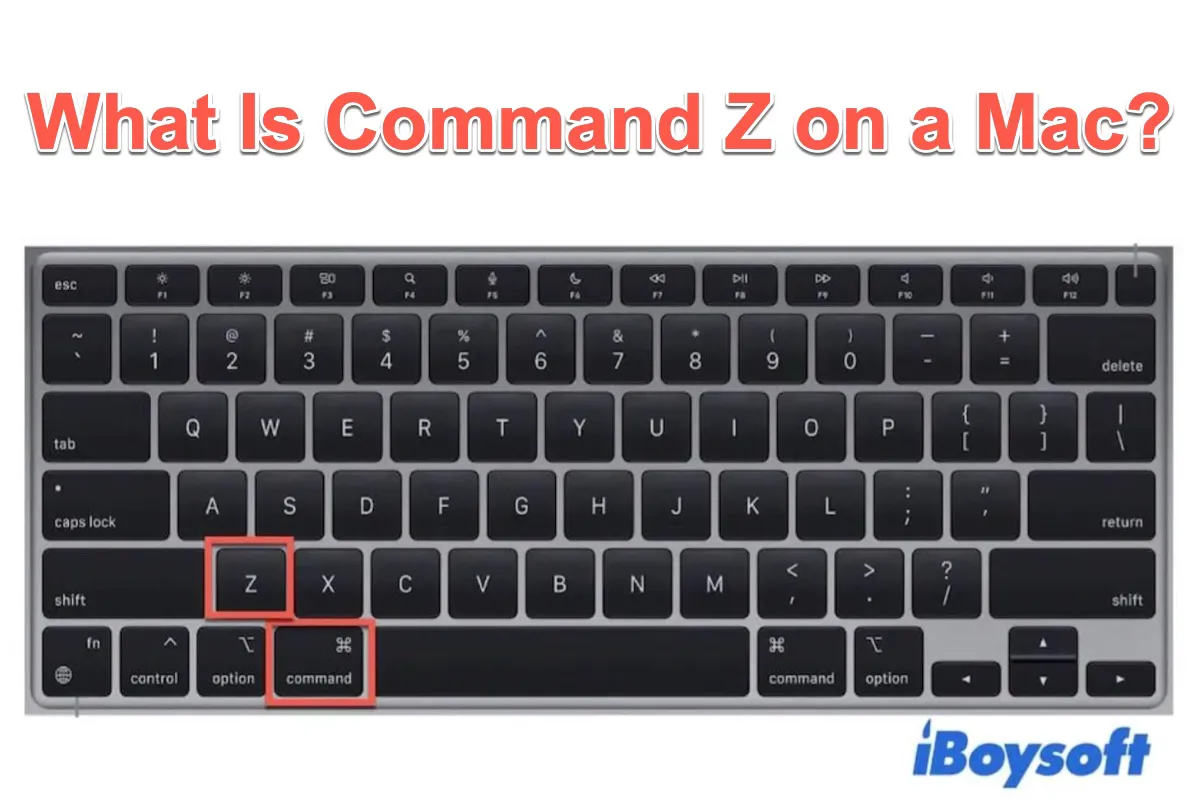
- Command + Z: Undo (and Command + Shift + Z for Redo).
- Command + A: Select All.
- Command + S: Save the current document or file.
- Command + P: Print the current page or document.
- Command + F: Open the “Find” utility to search for text within a page.
Window and Application Management
Managing multiple tasks is where the Command key truly shines. It allows for seamless switching between environments without reaching for the mouse or trackpad.
- Command + Tab: The App Switcher. Holding Command while tapping Tab allows you to cycle through all open applications.
- Command + Space: The shortcut for Spotlight Search. This is perhaps the most powerful tool for any Mac user, allowing you to launch apps, find files, perform calculations, or search the web instantly.
- Command + Q: Quit the active application entirely.
- Command + W: Close the current window or tab without quitting the app.
- Command + N: Open a new window or document in the active application.
Finder-Specific Efficiency
The Finder is the gateway to your file system, and the Command key provides shortcuts that make file organization instantaneous.
- Command + O: Open the selected file or folder.
- Command + Delete: Move the selected item to the Trash.
- Command + Shift + N: Create a new folder.
- Command + I: Get Info. This opens a panel showing file size, permissions, and metadata.
- Command + [ or ]: Navigate backward or forward through your folder history.
Advanced Workflows: The Power User’s Secret Weapon
Beyond the basic shortcuts lies a layer of functionality that transforms the Mac from a simple computer into a highly tuned productivity engine. Power users rely on the Command key to perform complex system actions and streamline creative professional workflows.
Screen Capture and Annotation
macOS has a robust, built-in screen capture system that relies heavily on the Command modifier.
- Command + Shift + 3: Takes a screenshot of the entire screen.
- Command + Shift + 4: Turns the cursor into a crosshair, allowing you to select a specific area to capture.
- Command + Shift + 5: Opens the advanced Screenshot utility, providing options for screen recording, timed captures, and destination settings.
Web Browser Mastery
Whether you use Safari, Chrome, or Firefox, the Command key dictates how you interact with the web.
- Command + L: Immediately highlights the address bar, allowing you to type a new URL or search term.
- Command + T: Opens a new tab.
- Command + Shift + T: Reopens the last closed tab (a lifesaver for accidental closures).
- Command + “+” or “-“: Zooms in or out on the page content.
- Command + Click: Opens a link in a new background tab, allowing you to continue reading the current page without being redirected.
Force Quitting and System Recovery
When an application becomes unresponsive, the Command key is your primary tool for regaining control.
- Command + Option + Esc: Opens the “Force Quit Applications” window. This is the Mac equivalent of Ctrl+Alt+Delete on Windows and is essential for killing frozen processes.
- Command + R (During Startup): On Intel-based Macs, this enters macOS Recovery mode. While the process has changed slightly for Apple Silicon (M1/M2/M3) chips, the Command key remains central to various boot-time modifier combinations for diagnostic testing and disk repair.
Customizing the Command Key and Troubleshooting
No two users work the same way. One of the strengths of macOS is the ability to remap and customize how the Command key functions to suit specific ergonomic needs or software requirements.
Remapping Modifier Keys
If you are a former Windows user and find your thumb constantly reaching for the corner of the keyboard (where the Control key is located on a PC), you can actually swap the functions of the keys. By navigating to System Settings > Keyboard > Keyboard Shortcuts > Modifier Keys, you can tell macOS to treat the Control key as Command and vice-versa. This is particularly useful for users with specific mechanical keyboards that utilize a non-standard layout.
Creating Custom App Shortcuts
macOS allows you to create your own Command-based shortcuts for any menu item in any application. If a program has a function you use frequently but doesn’t have a built-in shortcut, you can go to Keyboard > Keyboard Shortcuts > App Shortcuts and assign a Command-modifier string to that exact menu command name. This level of customization allows users to build a personalized interface that reacts to their specific professional needs.
Command Key Failure and Troubleshooting
Because the Command key is the most frequently used key on the board, it is often the first to show signs of wear. If your Command key stops responding, it is rarely a software issue and usually a hardware one. For users with “Butterfly” keyboards (MacBooks from 2015-2019), dust ingress can cause the key to fail. On newer “Magic Keyboard” models, the scissor mechanism is more robust. If the issue is software-based, it is often due to a “stuck” modifier state, which can usually be resolved by tapping both Command keys simultaneously several times or restarting the HID (Human Interface Device) daemon.
The Philosophical Core of the Mac
At its heart, the Command key is the bridge between human intent and digital execution. It represents Apple’s commitment to a “keyboard-first” productivity model that exists alongside its world-class trackpad gestures. By offloading the primary actions of the OS to a thumb-accessible modifier, macOS enables a faster, more fluid interaction with software than almost any other operating system.
Whether you are a developer using Command to compile code, a designer using it to nudge pixels, or a student using it to organize research, the ⌘ key is your most vital tool. Mastering it is not just about memorizing a list of shortcuts; it is about understanding the language of macOS itself. Once the use of the Command key becomes muscle memory, the hardware effectively disappears, leaving only the user and their creative output.
aViewFromTheCave is a participant in the Amazon Services LLC Associates Program, an affiliate advertising program designed to provide a means for sites to earn advertising fees by advertising and linking to Amazon.com. Amazon, the Amazon logo, AmazonSupply, and the AmazonSupply logo are trademarks of Amazon.com, Inc. or its affiliates. As an Amazon Associate we earn affiliate commissions from qualifying purchases.