
In the modern era of computing, characterized by vibrant icons, intuitive touchscreens, and glass-morphic design, the concept of a “Command Interface” might seem like a relic of a bygone age. To the casual observer, the rows of white text flickering against a stark black background evoke images of 1980s hacking cinema. However, beneath the polished surface of every modern operating system—from the macOS on a designer’s desk to the Linux servers powering the global cloud—lies the Command Line Interface (CLI).
A command interface is a text-based user interface (TUI) used to interact with software and operating systems by typing discrete lines of text (commands) into a terminal or console. Unlike the Graphical User Interface (GUI), which relies on visual metaphors like buttons and folders, the CLI relies on syntax, logic, and direct communication with the system’s core. This article explores the mechanics, advantages, and enduring relevance of the command interface in the contemporary technology landscape.

The Evolution and Definition of the Command Interface
To understand what a command interface is today, one must look at its origins. Before the invention of the mouse or the bitmapped display, humans interacted with computers through physical hardware like teleprinters. The “interface” was literal: you typed a request, and the machine printed the response on a roll of paper.
From Teleprinters to Modern Terminals
In the early days of mainframe computing, the command interface was the only way to operate a machine. Systems like Unix, developed in the late 1960s and early 70s, established the conventions we still use today. As technology evolved, physical terminals were replaced by “terminal emulators”—software applications that mimic the old hardware within a windowed environment. Whether you are using “Terminal” on a Mac, “Command Prompt” or “PowerShell” on Windows, or a “TTY” on Linux, you are utilizing a modern evolution of these foundational text-based systems.
How a CLI Operates: The Shell and the Kernel
The command interface is not a single entity but a layered system. At the heart of the computer is the Kernel, which manages the hardware (CPU, RAM, storage). Because interacting directly with the kernel is complex and dangerous, we use a program called a Shell.
The Shell acts as the command interpreter. It displays a prompt, waits for the user to type a command, interprets that command, and tells the kernel what to do. Common shells include Bash (Bourne Again Shell), Zsh (Z Shell), and PowerShell. When people speak of “working in the command line,” they are typically referring to this interaction with the shell.
Why Command Interfaces Remain Superior for Power Users
If GUIs are more intuitive and easier to learn, why do software engineers, data scientists, and system administrators still prefer the command interface? The answer lies in the distinction between “ease of use” and “efficiency of power.”
Efficiency and Precision in Execution
While a GUI is excellent for discovery—allowing a user to browse menus to find a feature—it is inherently slower for repetitive tasks. In a GUI, moving 500 files from one folder to another based on their file extension requires multiple clicks, dragging, and perhaps manual sorting. In a command interface, a single line of text like mv *.jpg ./images/ completes the task in milliseconds. The precision of text allows users to target specific parameters with a level of granularity that buttons and sliders cannot match.
Automation through Scripting and Batch Processing
Perhaps the greatest strength of the command interface is its “scriptability.” Because commands are just text, they can be saved into a file (a script) and executed as a program. This allows users to automate complex, multi-step workflows. For instance, a developer can write a script that pulls the latest code from a repository, runs security tests, compiles the application, and deploys it to a server—all triggered by a single command. This “set it and forget it” capability is the foundation of modern DevOps and continuous integration.
Resource Management and Remote Accessibility
Command interfaces are incredibly “lightweight.” A GUI requires significant system resources (GPU and RAM) to render windows and animations. In contrast, a CLI uses almost no resources. This makes it the ideal interface for managing remote servers. Through a protocol called SSH (Secure Shell), a developer in London can log into a server in Singapore and manage it as if they were sitting right in front of it, even over a low-bandwidth connection. This is why the vast majority of the world’s cloud infrastructure—AWS, Azure, and Google Cloud—is managed primarily via command interfaces.
Key Components of the Command Interface Environment
To master the command interface, one must understand the syntax and the environment in which it operates. Every interaction follows a logical structure that, once understood, makes the CLI feel like a powerful language rather than a collection of random codes.
The Prompt: Where User Interaction Begins
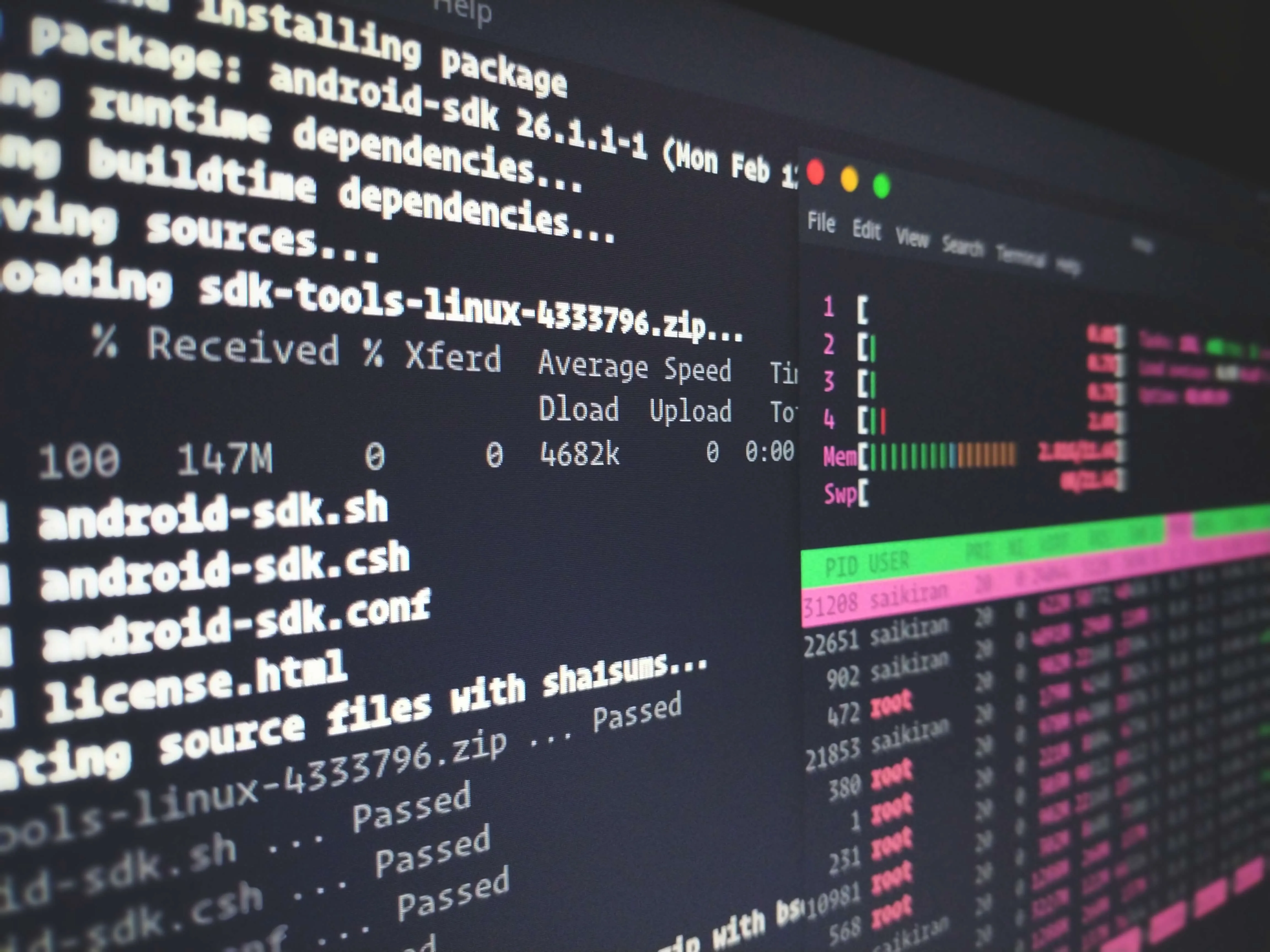
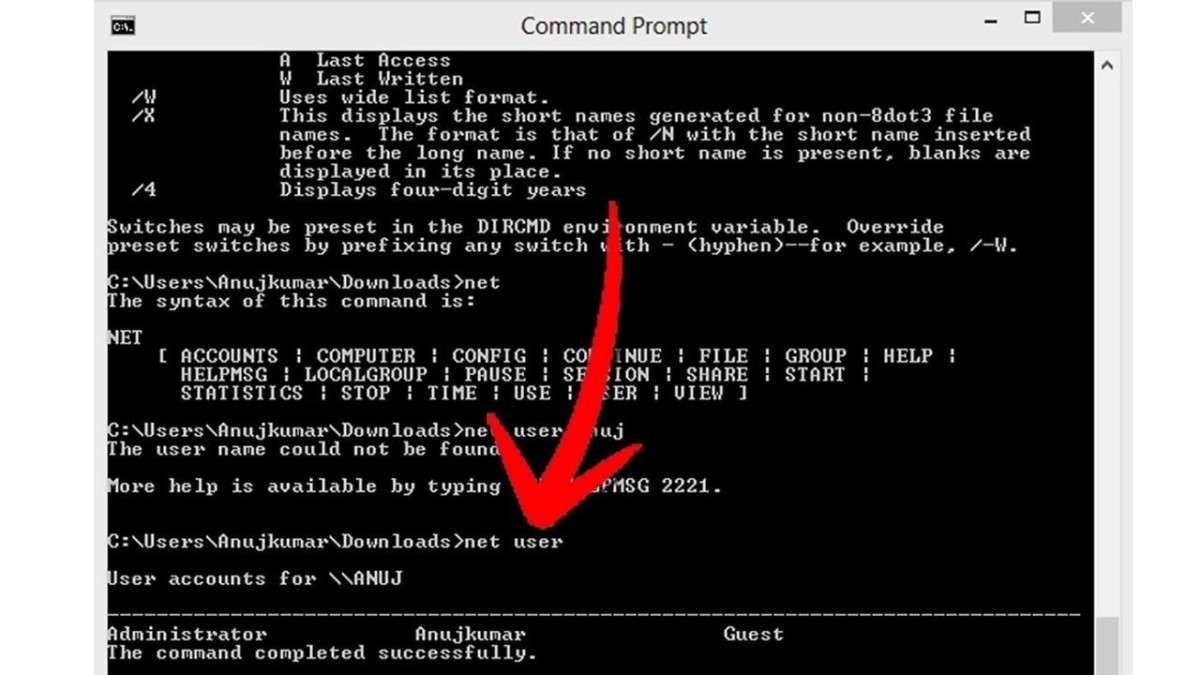
When you open a terminal, you are greeted by the “prompt.” This is a short string of text (often ending in a $ or >) indicating that the system is ready for input. The prompt often provides vital context, such as the current username, the name of the machine, and the current working directory. This ensures the user knows exactly “where” they are in the system’s file structure before they execute a command.
Commands, Arguments, and Flags
A typical command-line instruction consists of three parts:
- The Command: The name of the program you want to run (e.g.,
git,mkdir,python). - Flags (Options): Modifiers that change how the command behaves, usually preceded by a dash (e.g.,
-vfor version,-rfor recursive). - Arguments: The “target” of the command, such as a filename or a URL.
For example, in the command rm -rf ./temp_folder, rm is the command (remove), -rf are the flags (recursive and force), and ./temp_folder is the argument (the folder to be deleted).
Standard Streams: Input, Output, and Error
The command interface operates on a philosophy of “pipes and filters.” Most commands use three standard streams:
- Standard Input (stdin): Where the command gets its data.
- Standard Output (stdout): Where the command sends its results.
- Standard Error (stderr): Where the command sends error messages.
The real power of the CLI comes from “piping” (|), which allows the output of one command to be sent directly as the input to another. This allows users to chain simple tools together to perform incredibly complex data processing tasks.
Comparing CLI and GUI: Finding the Right Tool for the Job
It is a mistake to view the Command Line Interface and the Graphical User Interface as rivals. Instead, they are complementary tools designed for different objectives.
The Visual Accessibility of GUIs
GUIs are designed for the human brain’s affinity for spatial reasoning and visual recognition. They are essential for tasks that are inherently visual—such as video editing, graphic design, or web browsing. A GUI provides immediate visual feedback and has a lower “barrier to entry,” making technology accessible to billions of people who have no interest in learning syntax.
The Steep Learning Curve vs. High Reward of CLI
The command interface has a notoriously steep learning curve. There are no menus to browse; if you don’t know the command, you can’t do the work. However, once a user moves past the initial frustration, the CLI offers a “high ceiling” of productivity. It allows for a flow state where the speed of thought is the only limit to the speed of execution, as the user no longer has to move their hands from the keyboard to the mouse.
Hybrid Workflows in Modern Software Development
Today, most professionals use a hybrid approach. A developer might use a GUI-based Integrated Development Environment (IDE) like Visual Studio Code to write their code, but use an integrated terminal window within that same app to run their compilers, manage version control via Git, and deploy their applications. This marriage of visual feedback and command-line power represents the pinnacle of modern computing efficiency.
The Future of Command Interfaces in the Age of AI and Cloud
As we move further into the decade, the command interface is not fading away; it is evolving. It remains the primary way we interact with the most advanced technologies of our time.
Infrastructure as Code (IaC) and the Command Line
In the world of cloud computing, we no longer set up servers by hand. We use “Infrastructure as Code.” Tools like Terraform and Kubernetes allow engineers to define entire data centers in text files. These files are then executed via the command interface. This ensures that environments are reproducible, scalable, and version-controlled. The CLI is the “steering wheel” for the massive engines of the modern web.
Natural Language Processing (NLP) and the Evolution of “Commanding”
We are currently witnessing a fascinating convergence between the command interface and Artificial Intelligence. Large Language Models (LLMs) like GPT-4 are essentially advanced command interpreters. When you give a “prompt” to an AI, you are engaging in a form of command-line interaction, albeit one that uses natural language instead of rigid syntax.
The future may see “intelligent shells” where a user can type optimize my system's memory usage or set up a local development environment for a React project, and the interface will interpret that intent into a series of traditional commands. While the syntax may become more human-friendly, the underlying logic of the “command interface”—text-based input leading to precise machine action—will remain the fundamental way we exert control over our digital world.