
The term “outbox” is a fundamental concept in the digital realm of email communication, though its precise meaning and manifestation can sometimes be a point of subtle confusion. In essence, an outbox serves as a temporary holding area for emails that have been composed but are awaiting transmission or have encountered a transmission issue. It’s a crucial, albeit often unseen, component of email client functionality, playing a vital role in ensuring the smooth flow of digital correspondence. Understanding the outbox’s purpose and how it operates is key to troubleshooting email delivery problems and appreciating the underlying technology that powers our daily digital interactions.
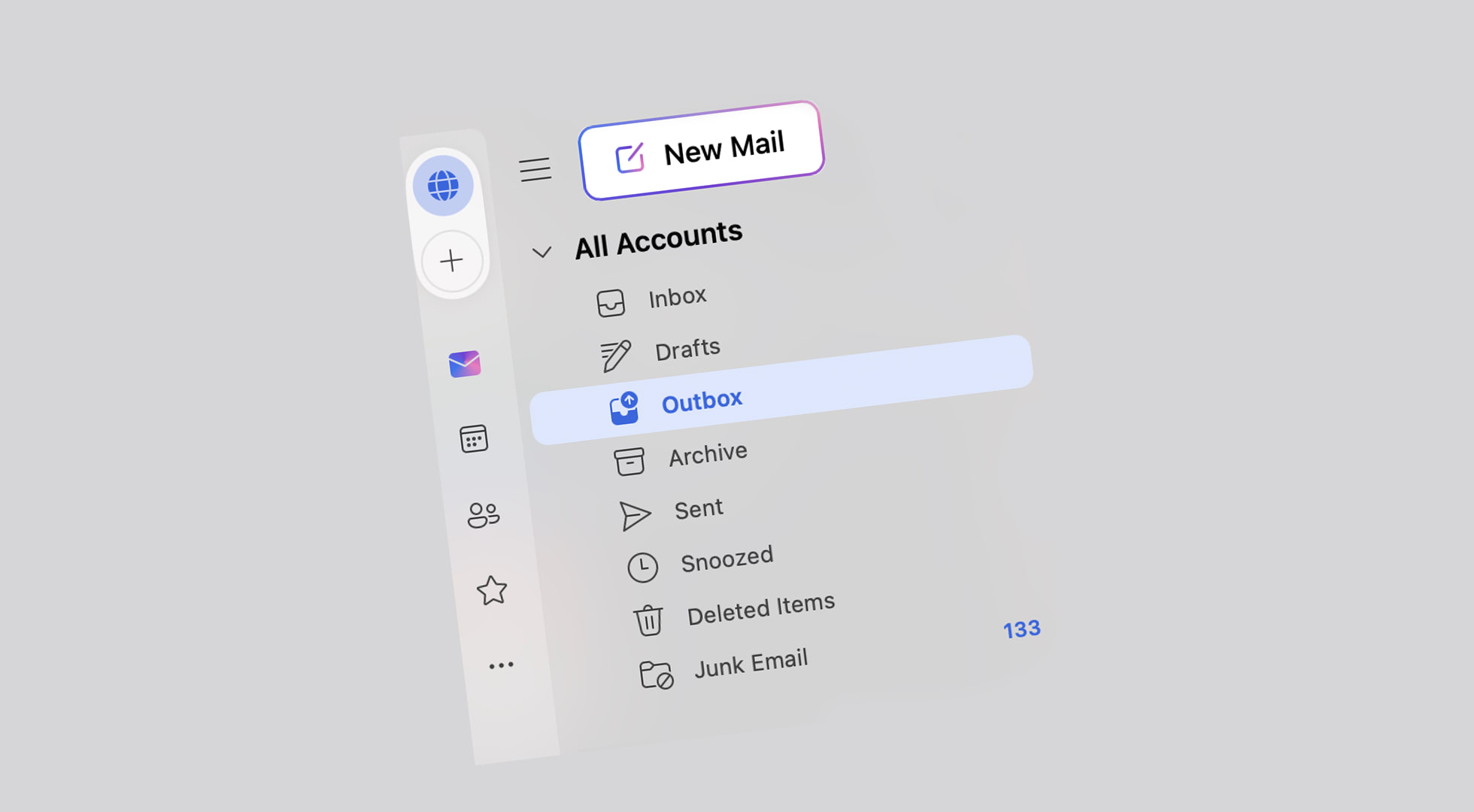
The Outbox: A Digital Waiting Room for Your Emails
At its core, the outbox acts as a staging ground. When you hit the “send” button on an email, it doesn’t instantaneously vanish into the ether and arrive at its destination. Instead, your email client, be it a desktop application like Microsoft Outlook or Apple Mail, or a web-based service like Gmail or Yahoo Mail, takes control. The composed email is temporarily stored in the outbox. This period of residency is usually fleeting, often lasting mere seconds, as the email client initiates the process of sending the message to the outgoing mail server.
The Journey from Compose to Outbox
The process begins the moment you finalize your email and press the send command. Your email client captures the message content, the recipient addresses (To, CC, BCC), the subject line, and any attached files. This data is then packaged into an email message format. Before it can be dispatched, this outgoing email is queued and placed into the outbox. This is a proactive step by the client to manage the outgoing mail queue and ensure that no message is lost in the shuffle of active composition and sending.
Why the Brief Stay?
The outbox’s transient nature is a deliberate design choice. It allows the email client to manage the sending process efficiently. It provides a visual indicator, albeit often a brief one, that the email has been processed by your client and is on its way. In many modern email clients, the outbox is so ephemeral that users might not even notice it. The email quickly moves from the outbox to the “Sent” folder once confirmed as successfully transmitted to the outgoing mail server. However, its existence is critical when sending issues arise.
When the Outbox Becomes a Bottleneck: Understanding Transmission Issues
The outbox is most relevant and observable when there are problems with sending your emails. These issues can stem from various technical factors, and the outbox serves as the first diagnostic point for understanding where the communication breakdown is occurring. If an email remains stuck in the outbox for an extended period, it’s a clear signal that something is preventing its successful transmission.
Network Connectivity Problems
One of the most common reasons for emails to linger in the outbox is a lack of stable internet connectivity. Your email client needs to connect to an outgoing mail server (SMTP server) to send your messages. If your internet connection is down, intermittent, or experiencing severe throttling, the client will be unable to establish or maintain this connection. The email will therefore remain in the outbox, waiting for a viable network pathway to the mail server.
- Troubleshooting Steps:
- Check your internet connection: Ensure you are connected to a stable Wi-Fi network or have a strong cellular data signal. Try browsing a website to confirm your internet is working.
- Restart your router/modem: A simple restart can often resolve temporary network glitches.
- Try sending a test email: Once you believe your connection is stable, try sending a short test email to yourself or a trusted contact to see if it goes through.
Outgoing Mail Server (SMTP) Issues
Email clients rely on specific SMTP servers to relay outgoing messages. These servers are managed by your Internet Service Provider (ISP) or your email provider (e.g., Google for Gmail, Microsoft for Outlook.com). If the SMTP server is temporarily unavailable, overloaded, or misconfigured on your client, emails can get stuck.
-
Server Downtime: Sometimes, email providers experience scheduled maintenance or unexpected outages affecting their servers. In such cases, you have little control other than waiting for them to resolve the issue.
-
Incorrect Server Settings: For desktop email clients, incorrect SMTP server addresses, port numbers, or authentication credentials can prevent sending. This is more common after changing internet providers or email account passwords.
-
Firewall or Antivirus Interference: Security software on your computer or network firewall can sometimes mistakenly block the outgoing mail traffic, trapping emails in the outbox.
-
Troubleshooting Steps:
- Verify SMTP Server Settings: If using a desktop client, navigate to your account settings and double-check the outgoing mail server name, port, and encryption method (SSL/TLS). Consult your email provider’s documentation for the correct settings.
- Temporarily Disable Security Software: As a test, you can try temporarily disabling your antivirus or firewall and attempt to send an email. Remember to re-enable them immediately afterwards. If this resolves the issue, you’ll need to configure your security software to allow your email client’s outgoing traffic.
- Check your Email Provider’s Status Page: Many major email providers have status pages where you can check for known service disruptions.
Large Attachments and Size Limits
Email protocols often have limitations on the size of individual messages, including attachments. If you attempt to send an email with an attachment exceeding the allowed limit (which varies by email provider and mail server), the email client may fail to send it and leave it in the outbox.
- Troubleshooting Steps:
- Compress Attachments: Use file compression tools (like ZIP) to reduce the file size before attaching.
- Use Cloud Storage Services: For large files, it’s best practice to upload them to cloud storage services like Google Drive, Dropbox, or OneDrive and share a link to the file in your email. This is more efficient and avoids exceeding email size limits.
- Break Down Large Emails: If you have multiple large attachments, consider sending them in separate emails.
Account Quotas and Storage Limits
While less common for causing emails to remain in the outbox and more for preventing new emails from being sent or received, exceeding your email account’s storage quota can sometimes lead to unexpected behavior. If your sent items folder is full, or if there are issues with server space allocated to your account, it might indirectly impact the sending process.
- Troubleshooting Steps:
- Check your Mailbox Quota: Log in to your webmail interface and check your storage usage. Delete old, unnecessary emails and attachments, especially from your inbox, sent items, and spam folders, to free up space.
The Outbox in Different Email Clients: A Comparative Look
While the fundamental purpose of the outbox remains consistent, its visibility and management can differ slightly across various email clients. Understanding these nuances can further aid in troubleshooting.
Desktop Email Clients (Outlook, Thunderbird, Apple Mail)
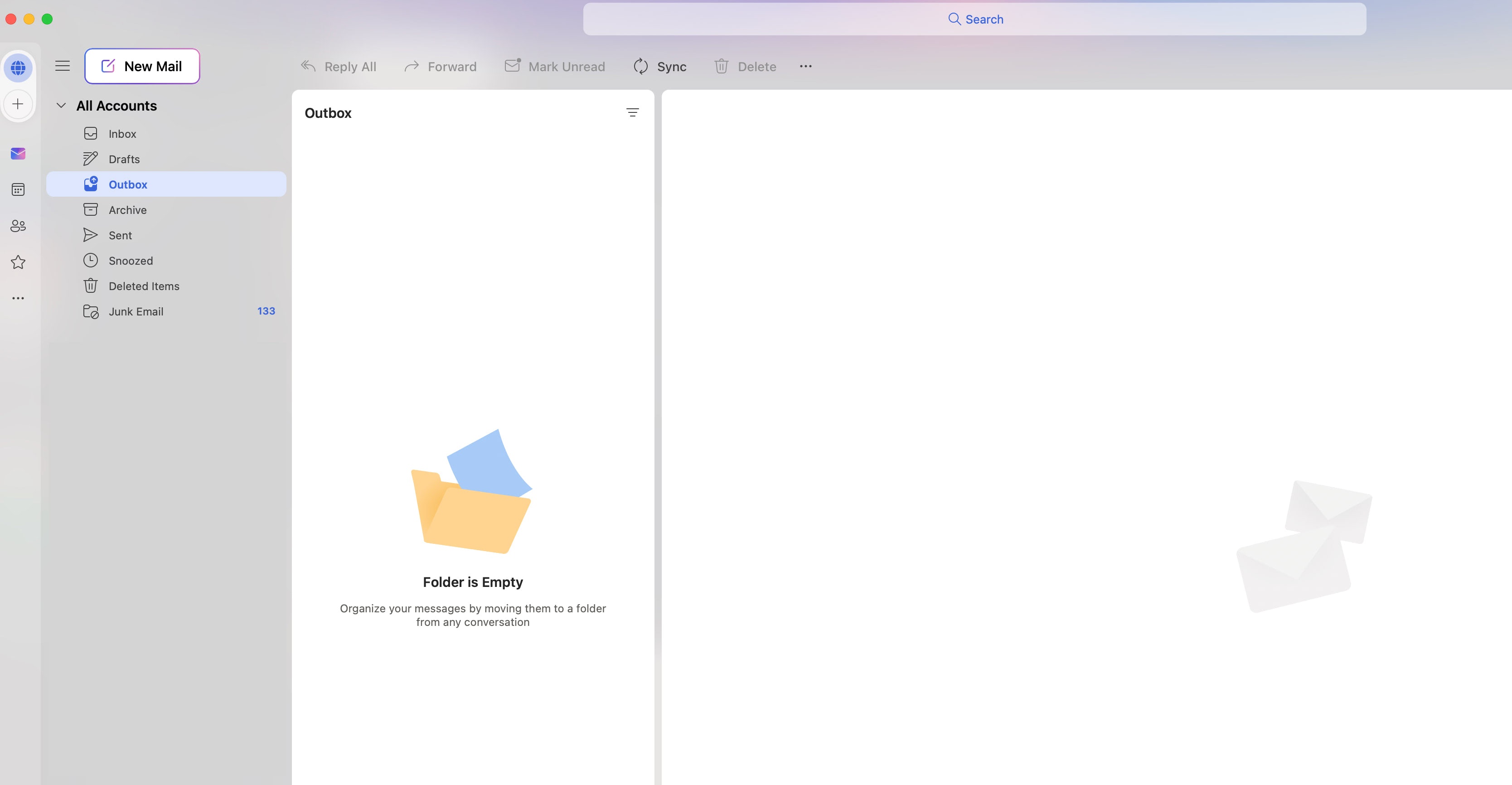
In traditional desktop email clients, the outbox is often more explicitly visible. You might see a dedicated folder labeled “Outbox” in your folder pane. If emails are present in this folder and not moving, it’s a clear indication of a sending issue. These clients typically allow you to manually send/receive all emails or cancel pending emails from the outbox, offering more granular control.
- Common Features:
- Explicit “Outbox” folder.
- Options to “Send/Receive All” or “Cancel” pending messages.
- Detailed error messages can sometimes be found in client logs or status messages.
Webmail Interfaces (Gmail, Yahoo Mail, Outlook.com)
Webmail services generally abstract the outbox from the user. Emails are typically processed very quickly, and the outbox phase is almost imperceptible. If an email fails to send, it might appear briefly in a queue or an error notification might pop up. Gmail, for instance, will often display a “Sending…” message followed by “Message sent” or an error. If it fails, the message might be found in your “Drafts” folder, or you might receive an error notification at the bottom of the screen.
- Common Features:
- Outbox is largely invisible.
- “Sending…” status indicators.
- Error notifications or messages saved in “Drafts.”
- Less direct user control over the sending queue itself.
Mobile Email Applications (iOS Mail, Android Mail, Outlook App)
Mobile email applications behave similarly to their webmail counterparts, often prioritizing speed and a seamless user experience. The outbox is usually not a directly accessible folder. Instead, you’ll typically see a status message upon sending. If an email fails, it will likely be saved as a draft or an error will be displayed prominently.
- Common Features:
- Outbox is typically hidden.
- Status updates like “Sending…” or “Failed.”
- Failure often results in the email being saved to “Drafts.”
- Troubleshooting often involves checking network connectivity on the mobile device.
Beyond the Basics: Advanced Considerations for Email Sending
While the outbox is a relatively straightforward concept, a deeper understanding of email protocols and potential issues can be beneficial for those who rely heavily on email for business or critical communication.
Mail Server Protocols: SMTP and IMAP/POP3
It’s important to distinguish the role of the outbox, which deals with SMTP (Simple Mail Transfer Protocol) for sending emails, from IMAP (Internet Message Access Protocol) and POP3 (Post Office Protocol version 3), which are used for receiving and managing emails on your server. The outbox is solely concerned with the outgoing SMTP process. If your incoming mail isn’t working, the issue lies with IMAP/POP3 configurations, not the outbox.
Email Authentication and Spam Filters
Modern email systems employ sophisticated authentication mechanisms (like SPF, DKIM, and DMARC) and spam filters to combat malicious activity. While your emails in the outbox are awaiting transmission, these underlying technologies are at play once they leave your client and reach the mail servers. If your emails are consistently flagged as spam or rejected by recipient mail servers, it’s not directly a problem with the outbox itself but rather with the content or reputation of your sending domain and IP address.
Offline Sending Capabilities
Some desktop email clients offer robust offline capabilities. You can compose emails while disconnected from the internet, and the client will store them in the outbox. Once your internet connection is restored, the client will automatically attempt to send all emails waiting in the outbox. This feature highlights the outbox’s role as a buffer for asynchronous communication.

Conclusion: The Outbox – A Silent Guardian of Your Digital Messages
In conclusion, the outbox, though often an invisible participant in our daily digital lives, is a critical component of email functionality. It acts as a temporary holding space for outgoing messages, allowing your email client to manage the sending process and providing a crucial diagnostic point when transmission issues arise. Whether it’s a momentary network hiccup, a server-side problem, or an attachment that’s too large, the outbox is where the evidence of these challenges often first appears. By understanding its purpose and the common reasons emails might become stuck, users can more effectively troubleshoot and ensure their digital communications reach their intended destinations. While modern webmail and mobile clients have largely streamlined this process to be nearly imperceptible, the underlying principle of the outbox as a staging area for outgoing mail remains a fundamental aspect of how email technology operates.
aViewFromTheCave is a participant in the Amazon Services LLC Associates Program, an affiliate advertising program designed to provide a means for sites to earn advertising fees by advertising and linking to Amazon.com. Amazon, the Amazon logo, AmazonSupply, and the AmazonSupply logo are trademarks of Amazon.com, Inc. or its affiliates. As an Amazon Associate we earn affiliate commissions from qualifying purchases.