
In the rapidly evolving landscape of personal computing, hardware components that were once considered essential often fade into the background as new technologies emerge. One such component is the optical drive. If you have purchased a laptop in the last five years, there is a high probability that your device does not have a physical slot for a disc. However, for decades, the optical drive was the primary gateway for software installation, media consumption, and data backup.
An optical drive (ODD) is a hardware component that uses laser light or electromagnetic waves within or near the visible light spectrum as part of the process of reading or writing data to or from optical discs. In the context of a laptop, it allows the user to interact with CDs, DVDs, and sometimes Blu-ray discs. While it may seem like a relic of the past, understanding what an optical drive is, how it functions, and why it has largely disappeared is crucial for anyone navigating the current tech market.

The Anatomy and Mechanism of an Optical Drive
To understand why the optical drive was so revolutionary, one must look at the sophisticated engineering housed within that small plastic tray. Unlike hard drives, which use magnetism, or SSDs, which use flash memory, an optical drive relies on optics—the science of light.
How Lasers Read and Write Data
The core of an optical drive is its laser assembly. When you insert a disc, a motor spins it at high speeds while a laser beam is directed at the surface. The surface of an optical disc is covered in “pits” (microscopic indentations) and “lands” (flat areas). As the laser hits these areas, the light reflects differently. A sensor picks up these reflections and translates them into binary code (1s and 0s), which the laptop’s processor then interprets as music, video, or software.
In the case of “writable” drives (CD-R or DVD-RW), the laser operates at a higher power. Instead of just reading reflections, it physically “burns” or alters the chemical layer of the disc to create a pattern that can be read back later. This process gave rise to the common term “burning a CD.”
The Different Formats: CD, DVD, and Blu-ray
Optical drives are categorized by the types of media they can support.
- CD (Compact Disc): The earliest standard, primarily used for audio and small software files (up to 700MB).
- DVD (Digital Versatile Disc): A significant leap in storage, allowing for 4.7GB to 8.5GB of data. This made it the gold standard for movies and large software suites like Microsoft Office or Adobe Creative Suite.
- Blu-ray: Utilizing a blue laser (which has a shorter wavelength than the red laser used for DVDs), these drives can read much more densely packed data. A single-layer Blu-ray can hold 25GB, making it essential for High-Definition (HD) and 4K content.
Internal vs. External Optical Drives
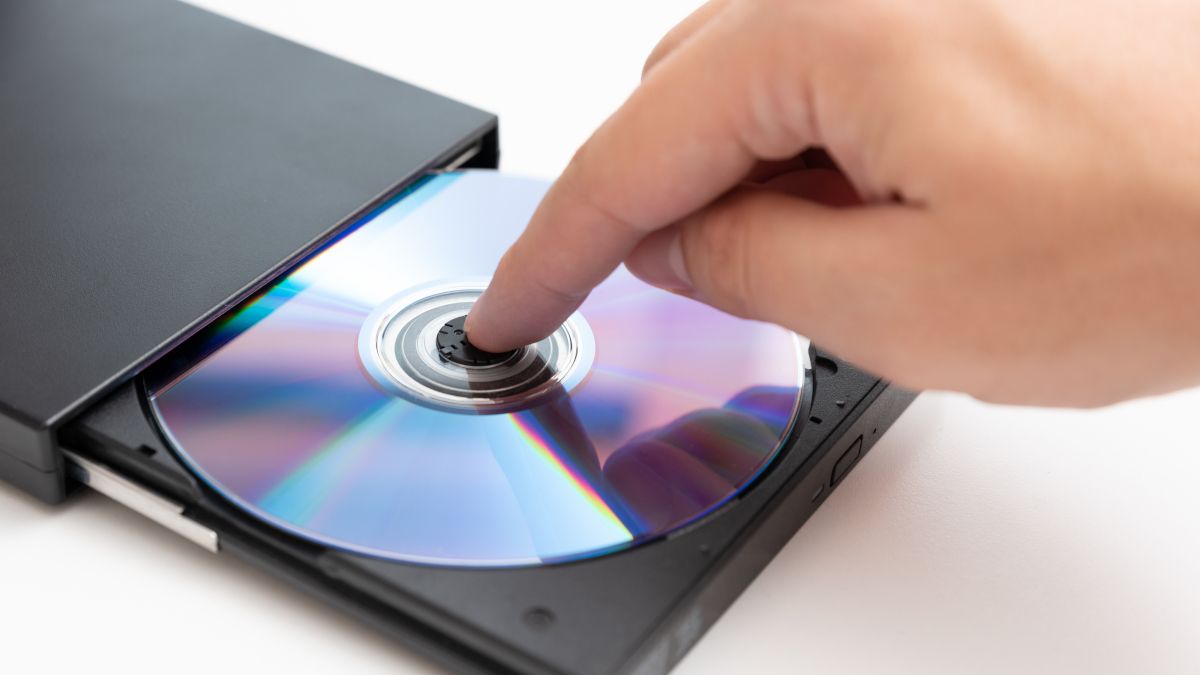
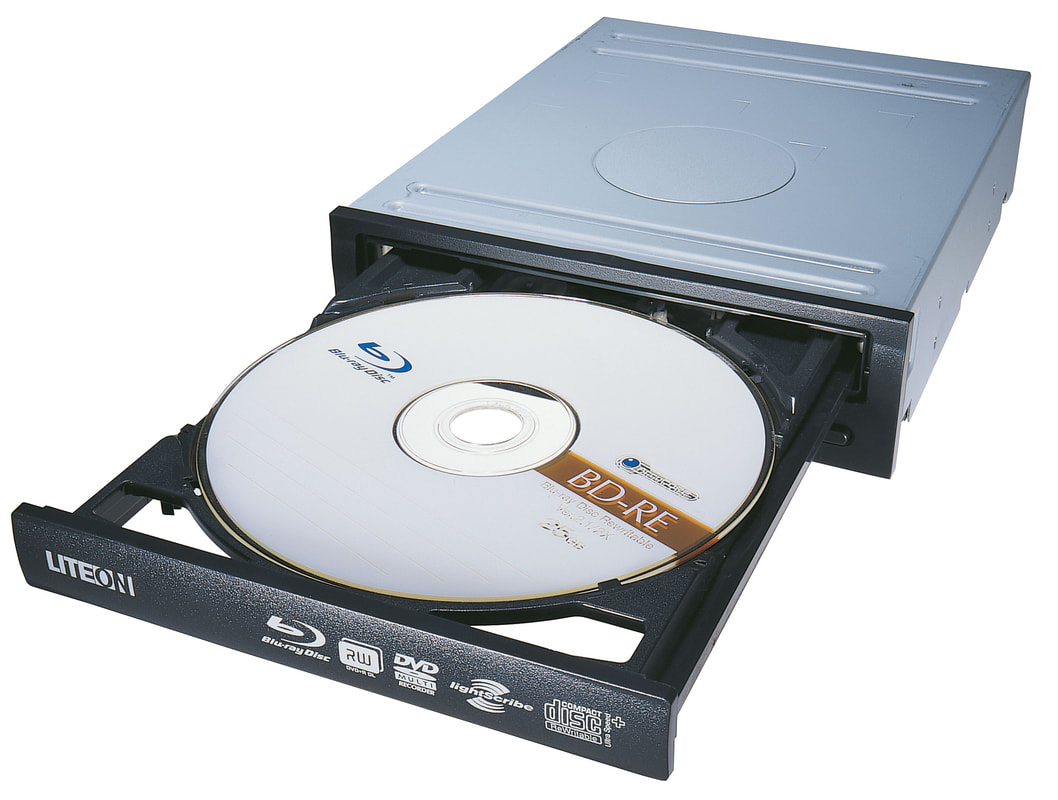
Traditionally, optical drives were “internal,” meaning they were built directly into the laptop chassis. These were usually “tray-load” (where a tray pops out) or “slot-load” (where you slide the disc into a thin opening). Today, most users who need this technology rely on “external” optical drives. These are portable peripherals that connect to a laptop via a USB-A or USB-C port, providing the same functionality without requiring the laptop to be bulky.
The Decline of the Integrated Drive: Why Modern Laptops Dropped the Disc
If you look at modern ultrabooks like the MacBook Air, Dell XPS, or Microsoft Surface, you will notice a common theme: they are incredibly thin. This aesthetic and functional trend is the primary reason the optical drive has vanished from internal laptop designs.
The Pursuit of Thin and Light Form Factors
An internal optical drive is a bulky piece of hardware. It requires a significant amount of physical “Z-height” (thickness) to accommodate the spinning motor, the laser assembly, and the disc itself. As consumers began demanding lighter, more portable laptops, manufacturers had to find components to sacrifice. By removing the optical drive, engineers could reclaim a massive amount of internal space. This space was subsequently used to include larger batteries, more robust cooling systems, or simply to make the device thin enough to fit into a slim briefcase.
The Rise of High-Speed Internet and Streaming Services
The decline of the optical drive coincided almost perfectly with the maturation of the internet. In the early 2000s, if you wanted to watch a movie or install a game, you needed a physical disc because downloading gigabytes of data over a dial-up or early DSL connection was impossible.
With the advent of high-speed broadband, the “need” for physical media evaporated. Services like Netflix and YouTube replaced DVD collections. Platforms like Steam and the Mac App Store replaced software boxes. Cloud storage solutions like Google Drive and Dropbox replaced the need to “burn” data onto a CD for transport. When data moved to the cloud, the hardware required to read physical data became redundant.
Solid-State Storage and the Speed Advantage
Another technical nail in the coffin for optical drives was the shift toward Flash storage and SSDs. Optical discs are slow; the seek time (the time it takes for the laser to find a piece of data on a spinning disc) is sluggish compared to the near-instantaneous speeds of modern NVMe SSDs. As software became more complex and files became larger, the bottleneck created by the slow read speeds of an optical drive became a hindrance to the user experience.
Practical Use Cases for Optical Drives in the Digital Age
Despite their rarity, optical drives are not obsolete. There are several specific “Tech” niches where having access to an optical drive—usually an external one—is not just a luxury, but a necessity.
Preserving High-Fidelity Audio and Physical Media Collections
For audiophiles and cinephiles, streaming often involves a compromise. Services like Spotify or Netflix compress audio and video files to ensure smooth playback over the internet. A physical Blu-ray or a high-quality CD offers a much higher bitrate, providing a superior sensory experience. Many enthusiasts use optical drives to “rip” their physical collections into lossless digital formats (like FLAC for audio) to maintain a local, high-quality media server.
Accessing Legacy Software and Retro Gaming
In many industrial, scientific, and educational fields, legacy software is still used to run specific equipment or access old databases. Often, this software exists only on CD-ROMs. Furthermore, the retro gaming community relies heavily on optical drives to play or digitize classic titles from the 1990s and early 2000s that are not available on digital storefronts.
Cold Storage and Long-Term Data Archiving
One of the most interesting modern uses for optical technology is “cold storage.” Hard drives can fail mechanically, and SSDs can lose data if left unpowered for years. However, high-quality optical media, such as M-DISCs, are designed to last for centuries. For individuals looking to archive family photos or critical legal documents, “burning” that data onto a disc and storing it in a cool, dark place is one of the most reliable ways to ensure it survives for the next generation.
Choosing an External Optical Drive for Modern Laptops
If you find yourself needing to read a disc on a modern laptop, you will need to purchase an external drive. Choosing the right one involves understanding a few key technical specifications.
Connectivity Standards: USB-A vs. USB-C
Most budget external drives still use a USB-A connection. If you have a modern laptop that only has USB-C ports (like a newer MacBook), you will either need a drive with a native USB-C cable or a dongle. It is also worth noting that optical drives require a fair amount of power to spin the disc; some older laptops might require a “Y-cable” that plugs into two USB ports to draw enough current, though this is rare with modern USB 3.0/3.1 ports.
Read/Write Speeds and Buffer Underrun Protection
Speeds are usually denoted by an “X” factor (e.g., 24x for CD, 8x for DVD). This represents how much faster the drive can read/write compared to the original base speed of that format. When looking for a drive, ensure it has “Buffer Underrun Protection.” This technology prevents the “burning” process from failing if the computer momentarily stops sending data to the drive, which used to be a common cause of wasted “coaster” discs in the past.
Software Compatibility and Driver Requirements
Most external optical drives are “Plug and Play,” meaning they work as soon as you plug them in. However, playing commercial DVD or Blu-ray movies on a laptop is not as simple as it once was. Modern operating systems like Windows 10/11 and macOS do not always include native DVD player software due to licensing costs. You may need to download a third-party media player, such as the open-source VLC Media Player, to actually watch movies.
Maintenance and Troubleshooting: Keeping Your Media Accessible
To ensure your optical drive and your discs remain functional, a small amount of technical maintenance is required. Optical tech is sensitive to physical interference.
Cleaning Lens Components and Physical Discs
If a drive stops reading discs, the most common culprit is dust on the laser lens. Specialized “lens cleaning discs” with tiny brushes can be used to sweep away particles. Regarding the discs themselves, always handle them by the edges to avoid fingerprints. If a disc is scratched, it can often be “resurfaced” using a mild abrasive polish, as the data is actually stored deep within the plastic, not on the very surface of the bottom side.
Common Software Glitches and Firmware Updates
Sometimes an optical drive is physically fine but fails to communicate with the OS. This is often due to outdated firmware. Manufacturers occasionally release firmware updates to improve disc compatibility and read speeds. Checking the manufacturer’s website for the latest drivers can solve many “Drive Not Found” errors.
In conclusion, while the internal optical drive has largely vanished from the modern laptop’s silhouette, the technology remains a vital tool for data preservation, high-fidelity media consumption, and legacy support. Whether through an integrated drive on a rugged workstation or a sleek external peripheral, the ability to read and write light-based media continues to hold a specialized, yet significant, place in the world of technology.
aViewFromTheCave is a participant in the Amazon Services LLC Associates Program, an affiliate advertising program designed to provide a means for sites to earn advertising fees by advertising and linking to Amazon.com. Amazon, the Amazon logo, AmazonSupply, and the AmazonSupply logo are trademarks of Amazon.com, Inc. or its affiliates. As an Amazon Associate we earn affiliate commissions from qualifying purchases.