
In the realm of modern computing, the visual experience is often the primary way we interact with our digital environment. From the crisp lines of a high-definition spreadsheet to the immersive textures of a contemporary video game, every pixel displayed on a monitor is the result of a complex handshake between hardware and software. At the center of this interaction lies a critical, yet often overlooked component: the VGA driver.
VGA, which stands for Video Graphics Array, was originally a specific display standard introduced by IBM in 1987. While the hardware technology has evolved exponentially since then, the term “VGA driver” persists as a fundamental concept in how operating systems communicate with graphics hardware. Understanding what a VGA driver is, how it functions, and why it is essential for system stability is crucial for anyone looking to optimize their computer’s performance.
Understanding the Role of the VGA Driver
To understand a VGA driver, one must first understand the concept of a device driver in general. A driver is essentially a translator. Hardware manufacturers build components like graphics cards, but operating systems (like Windows, macOS, or Linux) are designed to be general-purpose. The operating system does not inherently know how to utilize the specific architecture of every graphics chip ever manufactured. The VGA driver acts as the bridge, translating the high-level commands from the operating system—such as “draw a window here”—into the specific low-level machine language that the graphics hardware can execute.
The Translator Between Software and Hardware
When you open a high-resolution image, the software sends data to the operating system. The operating system, in turn, passes this data to the VGA driver. The driver processes this information, taking into account the capabilities of the Video Card (or integrated graphics chip), and tells the hardware exactly which transistors to fire and which memory addresses to access to produce the image on your screen.
Without this driver, the graphics hardware is effectively silent. The operating system might be able to send basic signals to the monitor to show a simple command-line interface, but it will lack the ability to render complex shapes, manage high resolutions, or utilize the hardware acceleration features that make modern computing smooth.
Standard VGA vs. OEM Drivers
A common point of confusion occurs when a user sees “Standard VGA Graphics Adapter” listed in their device manager. This refers to a generic driver provided by the operating system.
When you first install an operating system or boot into “Safe Mode,” the computer uses a standard VGA driver. This is a “one-size-fits-all” software package designed to provide basic functionality to almost any graphics chip. It allows you to see the screen and navigate the interface, but it is severely limited. Standard drivers typically do not support high resolutions, multiple monitors, or 3D acceleration.
OEM (Original Equipment Manufacturer) drivers, on the other hand, are developed by companies like NVIDIA, AMD, or Intel. These drivers are highly optimized for specific hardware architectures. They unlock the full potential of the graphics processor, enabling features like high refresh rates, specialized color profiles, and the advanced math required for modern graphical rendering.
Why Your System Depends on VGA Drivers
The impact of a VGA driver extends far beyond simply making sure the screen turns on. It influences every aspect of the visual and functional experience of using a computer.
Resolution and Visual Clarity
The most immediate benefit of a properly functioning VGA driver is the ability to use the native resolution of your monitor. Modern displays often feature 1440p or 4K resolutions. A generic or outdated driver may cap the output at 800×600 or 1024×768, leading to a blurry, stretched, or pixelated appearance. The driver communicates with the monitor via a protocol (like EDID) to identify the maximum supported resolution and refresh rate, ensuring that the image is as sharp as the hardware allows.
Resource Allocation and GPU Offloading
Modern VGA drivers do more than just display images; they manage how the computer’s resources are spent. In the early days of computing, the Central Processing Unit (CPU) handled almost all calculations. Today, the Graphics Processing Unit (GPU) is a powerhouse of parallel processing.
A sophisticated VGA driver allows the operating system to “offload” tasks to the GPU. This is particularly important for video decoding, web browsing (hardware acceleration), and creative software like Photoshop or Premiere Pro. By efficiently managing these tasks, the driver ensures that the CPU is free to handle system logic, resulting in a faster, more responsive machine.
System Stability and the “Blue Screen” Connection
Because the VGA driver operates at a very low level of the system—often within the kernel mode—its stability is paramount. A corrupt or poorly coded driver is one of the most common causes of system crashes, including the infamous Blue Screen of Death (BSOD) in Windows.
When a driver fails to communicate correctly with the hardware, the operating system may attempt to reset the graphics stack. If this reset fails, the system may freeze or reboot. Manufacturers constantly release driver updates not just for performance, but to patch these stability bugs and ensure compatibility with the latest software updates and security protocols.
How to Identify, Install, and Update VGA Drivers
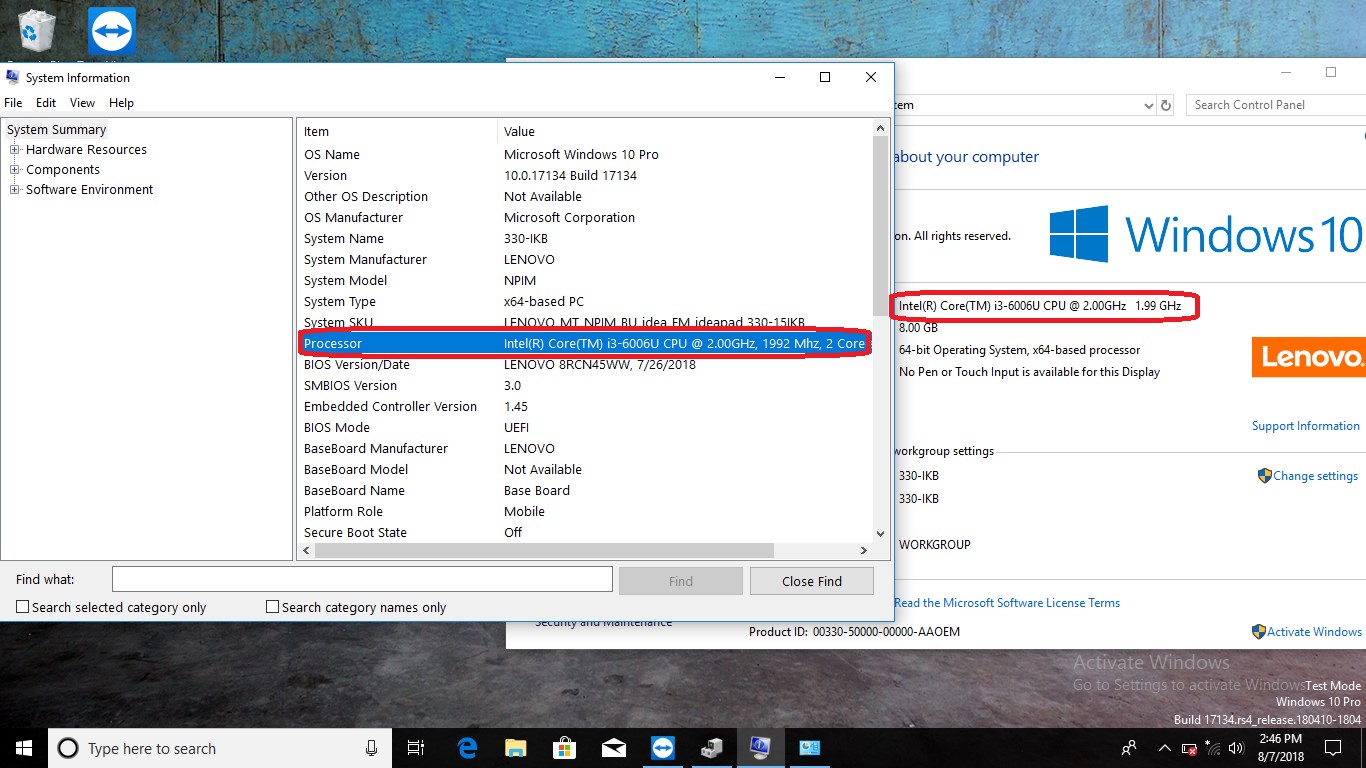
Maintaining your VGA drivers is one of the simplest ways to keep a PC running at peak performance. However, knowing which driver you need and where to get it requires a bit of technical navigation.
Identifying Your Graphics Controller
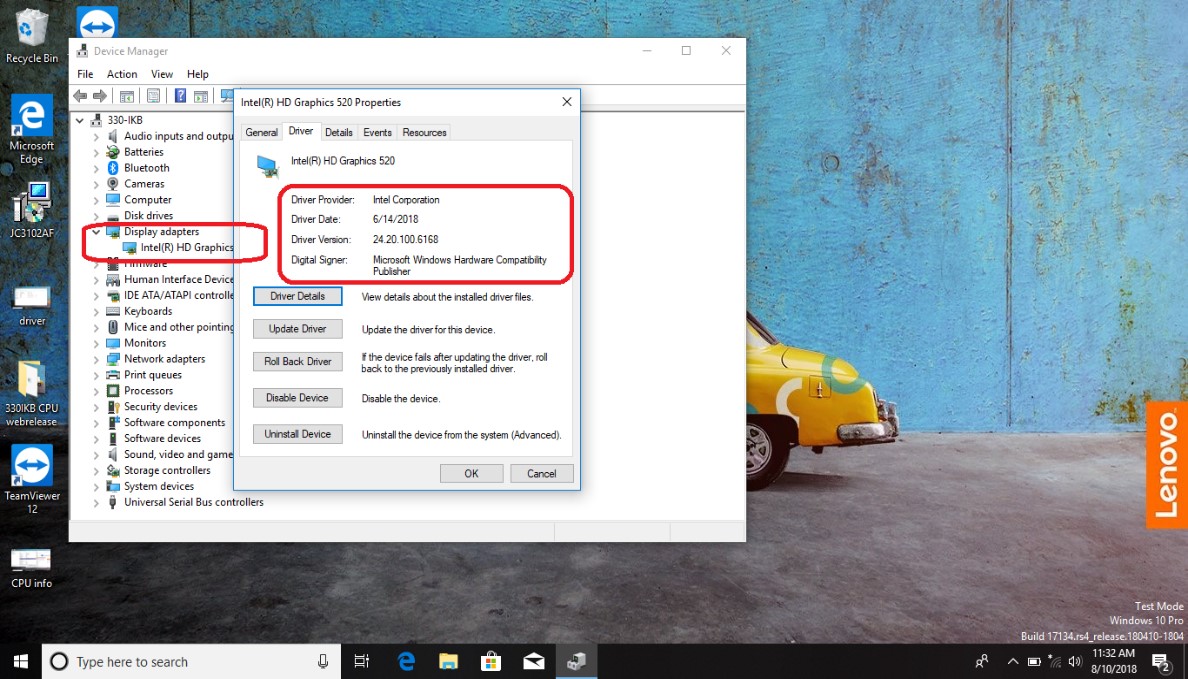
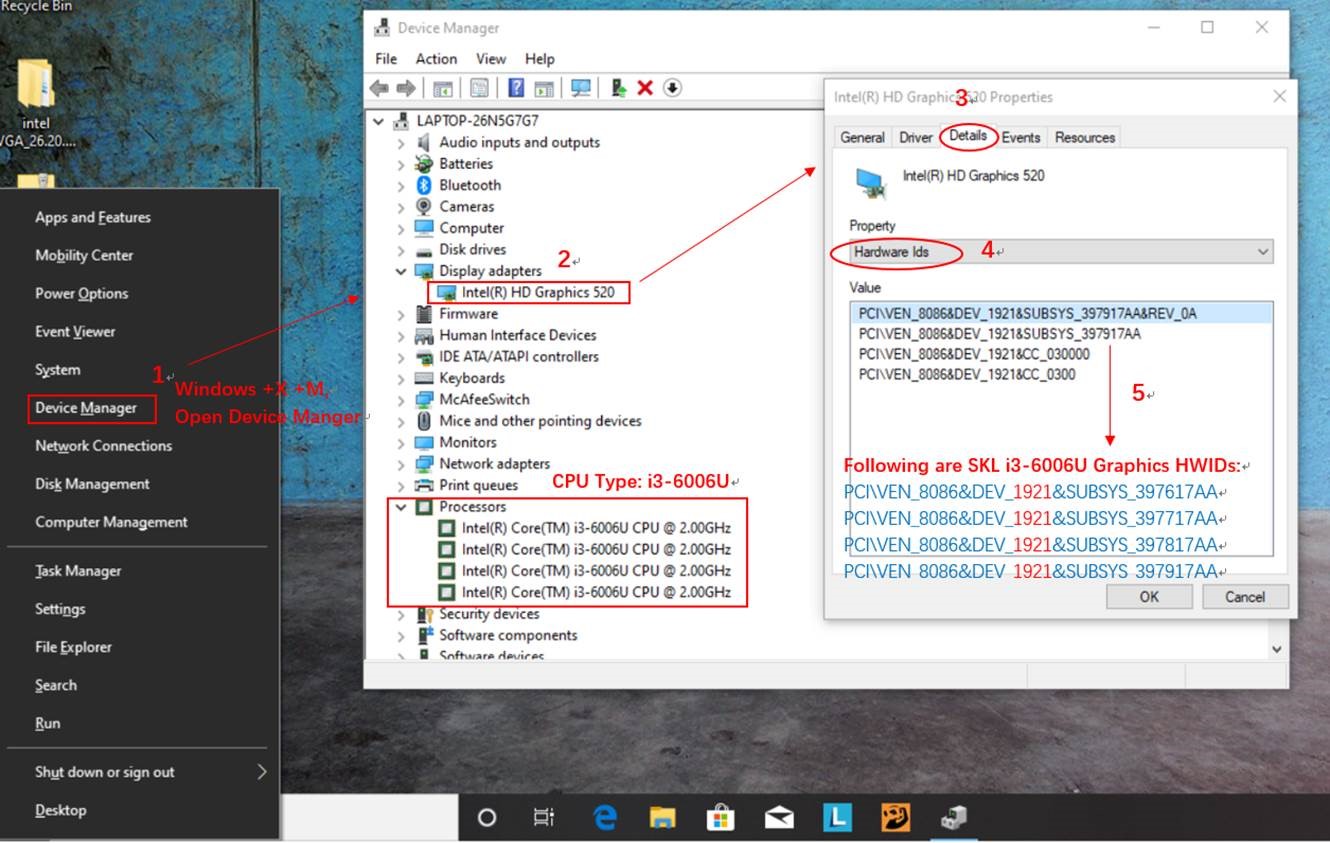
Before you can update or install a driver, you must know what hardware you are using. On a Windows system, this is typically done through the “Device Manager” under the “Display adapters” section. Most computers utilize one of two types of graphics:
-
Integrated Graphics: These are built directly into the CPU (e.g., Intel UHD Graphics or AMD Radeon Graphics).
-
Discrete Graphics: This is a separate video card (e.g., NVIDIA GeForce or AMD Radeon RX series) plugged into the motherboard.
Updating Through Operating System Tools
For most casual users, Windows Update or macOS Software Update handles driver management automatically. These systems download “WHQL” (Windows Hardware Quality Labs) certified drivers that have been tested for stability. While these are reliable, they are often several months behind the latest versions released by the manufacturers. For professional work or gaming, relying solely on OS updates might mean missing out on significant performance gains.
Manual Installation from Manufacturer Websites
The most effective way to ensure you have the correct VGA driver is to download it directly from the source. NVIDIA, AMD, and Intel provide comprehensive portals where users can input their hardware model and operating system to receive the latest driver package.
When installing a new driver, it is often recommended to perform a “clean installation.” This process involves removing the old driver files before installing the new ones, preventing file conflicts that can lead to flickering or performance drops. For users experiencing persistent issues, tools like Display Driver Uninstaller (DDU) are used to completely scrub the system of old driver remnants before a fresh start.
Common Issues Caused by Outdated or Corrupt Drivers
If your computer is acting up, the VGA driver is often a prime suspect. Recognizing the symptoms of driver failure can save hours of unnecessary hardware troubleshooting.
Visual Artifacts and Screen Flickering
Artifacting refers to strange visual glitches—such as lines, dots, or “snow”—appearing on the screen. While this can sometimes indicate that a graphics card is physically dying, it is frequently caused by a driver that is failing to calculate vertex data or textures correctly. Similarly, random screen flickering or the screen momentarily going black and then recovering is a classic sign of a driver timing out and restarting.
Performance Throttling and Low Frame Rates
If you notice that a computer that used to be fast is now lagging when playing video or scrolling through media-heavy websites, the driver may be at fault. Drivers include “profiles” for various applications. If the driver is outdated, it may not recognize a new piece of software and may fail to allocate the necessary GPU power to it, resulting in sluggish performance.
Driver Conflict and Installation Errors
Sometimes, installing a new driver can actually cause problems if the previous version wasn’t fully removed. This can result in “Error 43” in Device Manager, which indicates that the Windows OS has stopped the device because it reported problems. In these cases, rolling back to a previous driver version or performing a deep clean of the driver cache is necessary.
The Evolution of Graphics Drivers in the Era of AI and 4K
As we move further away from the original 1987 VGA standard, the term “VGA driver” is becoming a legacy moniker for what are now high-performance “Display Drivers” or “Graphics Drivers.” The technology has shifted from analog signals to complex digital interfaces.
Beyond Basic Output: DLSS and Ray Tracing
Today’s graphics drivers do more than just translate data; they use artificial intelligence. Modern NVIDIA and AMD drivers incorporate features like DLSS (Deep Learning Super Sampling) and FSR (FidelityFX Super Resolution). These technologies use AI algorithms within the driver to upscale lower-resolution images in real-time, providing high-quality visuals without the massive hardware tax. Furthermore, drivers now manage “Ray Tracing,” a lighting technique that mimics the physical behavior of light, requiring immense computational coordination managed entirely through the driver software.
The Legacy of VGA in a Digital-First World
Even as we transition to 8K displays and VR headsets, the fundamental architecture of the VGA driver remains the bedrock of computer displays. Every time a computer boots, it relies on that legacy VGA compatibility to show the BIOS/UEFI screen before the advanced drivers take over.
In conclusion, the VGA driver is the unsung hero of the digital age. It is a sophisticated piece of software that manages the delicate balance between raw electrical power and the visual elegance of the user interface. Whether you are a professional creative, a casual browser, or a high-end gamer, understanding and maintaining your VGA driver is the key to a stable, efficient, and visually stunning computing experience. Keeping your drivers updated is not just about getting the latest features; it is about ensuring that the primary window through which you view the digital world remains clear and functional.
aViewFromTheCave is a participant in the Amazon Services LLC Associates Program, an affiliate advertising program designed to provide a means for sites to earn advertising fees by advertising and linking to Amazon.com. Amazon, the Amazon logo, AmazonSupply, and the AmazonSupply logo are trademarks of Amazon.com, Inc. or its affiliates. As an Amazon Associate we earn affiliate commissions from qualifying purchases.