
Microsoft Excel stands as an indispensable tool for data management, analysis, and visualization across virtually every industry. While its built-in functions and features are powerful, there often comes a point where users encounter limitations, facing repetitive tasks, complex data manipulations, or the need for highly customized solutions. This is where VBA steps in, transforming Excel from a robust spreadsheet application into a highly customizable and automated powerhouse. Understanding VBA is key to unlocking a deeper level of productivity and control within the Excel environment.
The Core Concept: Understanding VBA
VBA, an acronym for Visual Basic for Applications, is an event-driven programming language developed by Microsoft. It is integrated within most Microsoft Office applications, including Excel, Word, Access, and PowerPoint. For Excel, VBA acts as the underlying language that allows users to write code to automate tasks, create custom functions, and build tailored solutions that go far beyond standard formulas and features.
What VBA Stands For and Its Origins
As mentioned, VBA is Visual Basic for Applications. It is a descendant of Visual Basic, a widely used programming language known for its relatively easy-to-learn syntax and graphical user interface (GUI) development capabilities. The “for Applications” part signifies that it’s designed specifically to extend and customize existing applications, rather than to build standalone applications from scratch (though it can achieve significant functionality within its host environment). Its integration with Office applications dates back to the early 1990s, becoming a cornerstone for power users and developers seeking to automate and personalize their workflow.
How VBA Works with Excel
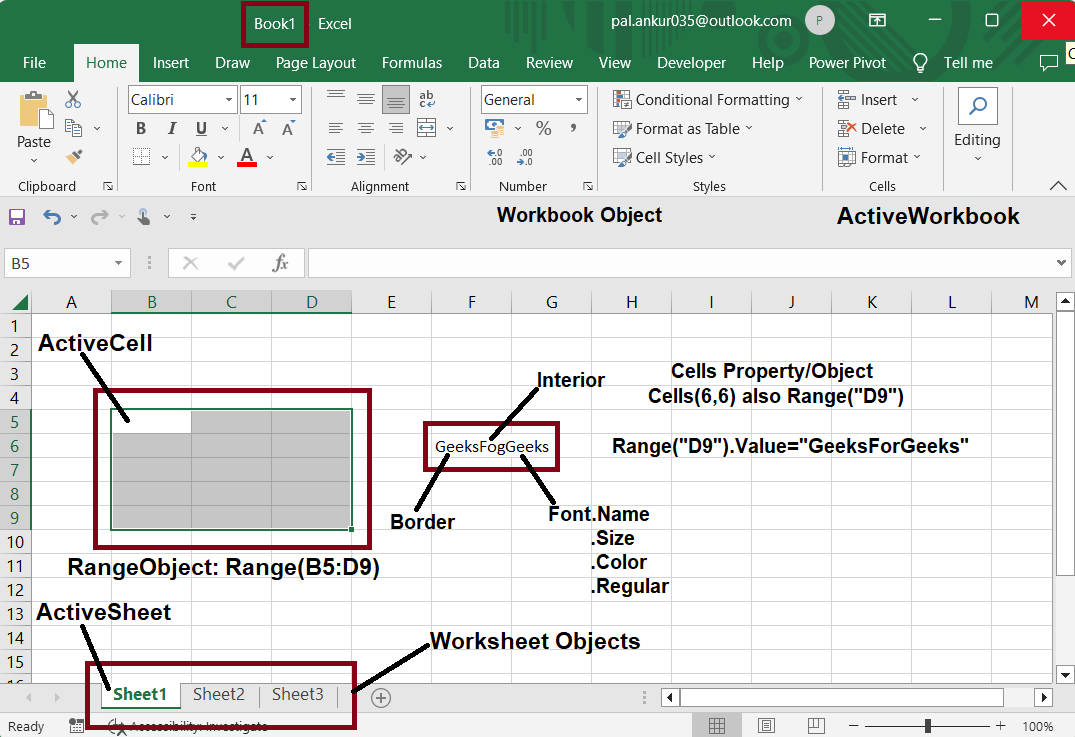
At its heart, VBA interacts with Excel’s Object Model. Think of the Object Model as a hierarchical map of all the components within Excel: the application itself, workbooks, worksheets, ranges, charts, shapes, and so on. Each of these components is an “object” with specific “properties” (e.g., a cell’s value, font color, size) and “methods” (actions it can perform, e.g., activate a sheet, clear contents, sort data).
VBA code manipulates these objects by calling their methods and setting or retrieving their properties. For example, a VBA script can tell Excel to open a specific workbook, navigate to a particular sheet, select a range of cells, apply formatting, perform calculations, and then save the file—all with a few lines of code. This programmatic control is what enables extensive automation and customization.
The VBA Editor (VBE)
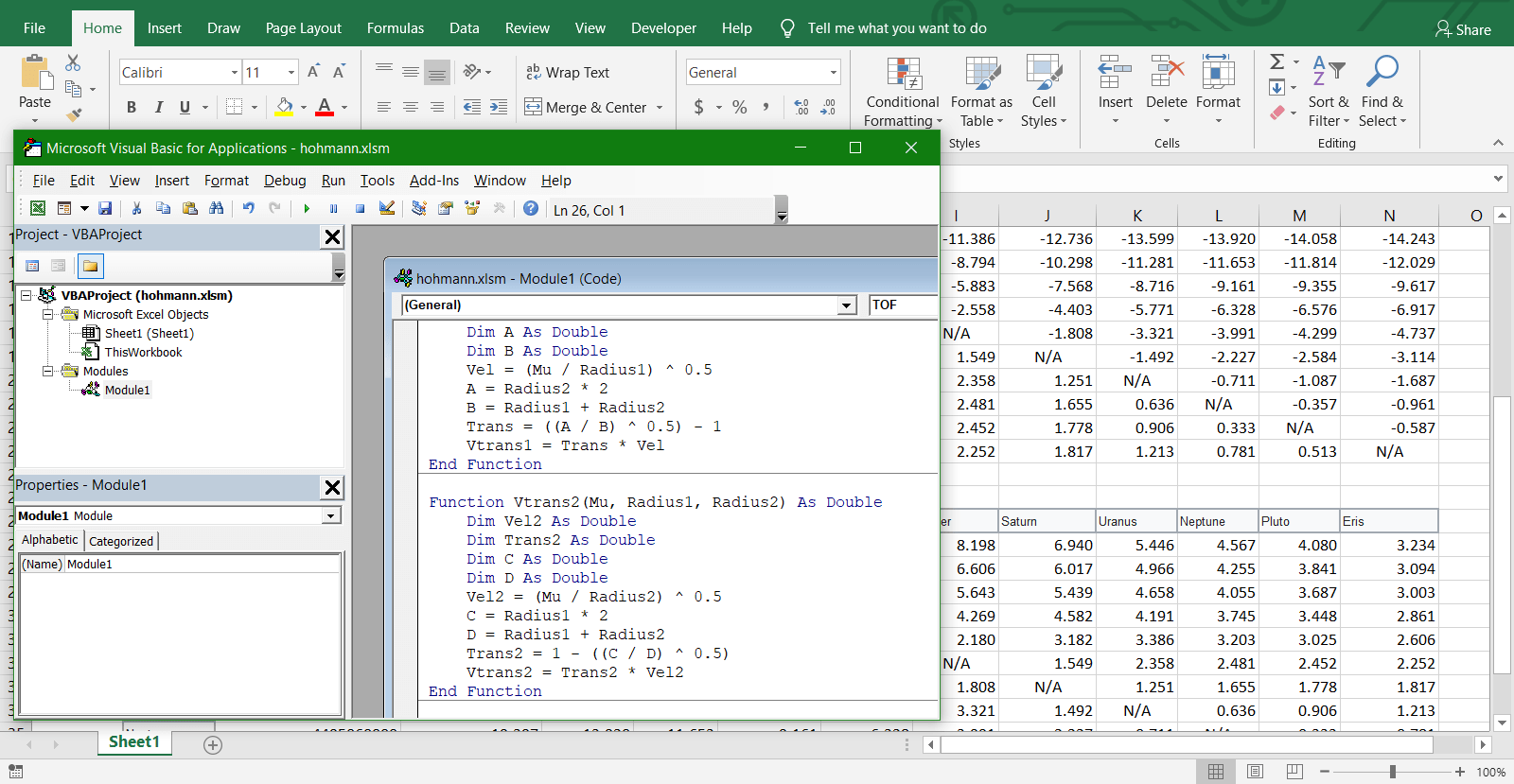
To write, edit, and manage VBA code, users interact with the Visual Basic Editor (VBE). The VBE is an integrated development environment (IDE) that is part of Excel but opens in a separate window. It provides several key components:
- Project Explorer: Displays a hierarchical list of all open workbooks and their associated VBA projects, modules, forms, and class modules.
- Properties Window: Shows the properties of the currently selected object (e.g., a form, a button, a worksheet).
- Code Window: This is where the actual VBA code is written and edited. Each module (a container for code) has its own code window.
- Immediate Window: Allows users to test small snippets of code, debug, or view the values of variables during runtime.
- Locals Window: Displays the values of variables within the current procedure, useful for debugging.
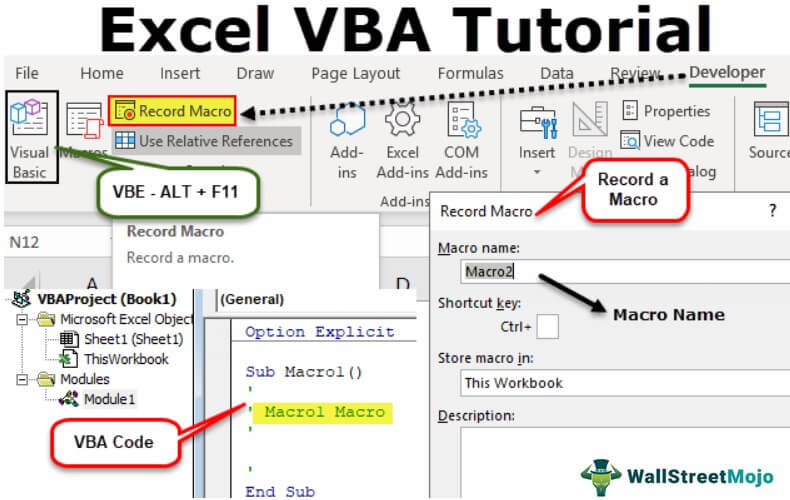
Accessing the VBE is typically done by pressing Alt + F11 or by clicking “Visual Basic” in the Developer tab of the Excel ribbon.
Why Use VBA? Unlocking Excel’s Potential
The real power of VBA lies in its ability to transcend the standard functionality of Excel, allowing users to achieve tasks that would otherwise be impossible, highly time-consuming, or prone to human error. Its benefits extend across various levels of data interaction and process management.
Automation of Repetitive Tasks
Perhaps the most common and immediate benefit of VBA is its capacity for automation. Many tasks performed in Excel are repetitive: copying and pasting data, formatting reports, filtering and sorting large datasets, or generating multiple charts from similar data. Manually performing these tasks can be tedious, inefficient, and error-prone. VBA allows you to write scripts (called macros) that execute these sequences of actions automatically, with a single click or keyboard shortcut. This saves significant time and ensures consistency.
Custom Functions and User-Defined Forms
While Excel offers hundreds of built-in functions, there are often specific calculations or data manipulations that aren’t covered. VBA enables users to create their own custom functions (User-Defined Functions, or UDFs) that can be used directly in worksheet cells, just like SUM or VLOOKUP. These UDFs can encapsulate complex logic or calculations that would otherwise require multiple helper columns or nested formulas.
Beyond functions, VBA also allows the creation of custom user forms. These are interactive dialog boxes with buttons, text boxes, dropdowns, and other controls, providing a more user-friendly interface for data input, querying, or process control than simply interacting with cells on a worksheet.
Enhanced Data Manipulation and Analysis
VBA provides robust capabilities for handling and transforming data. It can iterate through thousands of rows, apply complex conditional logic, cleanse data by removing duplicates or standardizing entries, and combine data from multiple sources. For advanced analysis, VBA can automate the process of running various statistical models, preparing data for pivot tables, or extracting specific insights that require programmatic traversal of data structures. This level of programmatic control is crucial when dealing with large, messy, or highly dynamic datasets.
Integration with Other Applications
A less obvious but equally powerful aspect of VBA is its ability to interact not only with Excel but also with other Office applications and even external programs. For example, you can write a VBA script in Excel to:
- Generate an email in Outlook based on data in a spreadsheet.
- Create a Word document populated with Excel data and charts.
- Update a database in Access.
- Interact with web services or external data sources (via APIs) to pull or push information.
This cross-application functionality transforms Excel from an isolated tool into a central hub for managing and automating workflows across an entire ecosystem of software.
Practical Applications and Use Cases
The theoretical benefits of VBA translate into numerous practical applications across various professional domains. Its flexibility means that almost any recurring Excel-based task can be optimized or entirely automated.
Automating Report Generation
Many businesses require regular reports that summarize sales, inventory, financial data, or project progress. These often involve extracting specific data, applying filters, calculations, formatting, and generating charts. A VBA macro can perform all these steps at the click of a button, ensuring consistency, accuracy, and freeing up significant employee time. For instance, a macro could gather data from several sheets, create a summary pivot table, format it, and then export it as a PDF or email it to stakeholders.
Customizing User Interfaces
For users who frequently interact with specific data entry forms or need streamlined navigation, VBA can transform the Excel interface. This involves creating custom ribbon tabs, buttons, or sophisticated user forms that guide users through a process, validate input, and trigger specific actions. Imagine a data entry form where users select from dropdowns, input numbers, and hit “Save,” with VBA handling all the backend data placement, validation, and storage.
Advanced Data Validation and Cleansing
Maintaining data integrity is critical. While Excel’s built-in data validation is useful, VBA allows for much more complex and dynamic validation rules. For example, you could write code that checks if a value exists in another sheet, cross-references multiple conditions, or enforces business logic that changes based on other inputs. Furthermore, VBA is excellent for data cleansing tasks, such as removing leading/trailing spaces, standardizing text formats (e.g., proper case), identifying and fixing common input errors, or splitting/merging text strings.
Building Interactive Dashboards
While Excel’s native charting and conditional formatting features are good for dashboards, VBA can enhance interactivity and dynamism. Macros can dynamically change chart data sources based on user selections, update multiple dashboard components simultaneously, or drill down into details from a high-level summary. This allows for highly responsive and personalized data exploration without requiring complex formulas or external tools.
Getting Started with VBA
Embarking on the VBA journey doesn’t require prior programming experience, though a logical mindset helps. Excel provides tools to ease beginners into macro creation, serving as a foundation for more advanced coding.
Enabling the Developer Tab
The first step is to enable the Developer tab in the Excel ribbon, as it contains the essential tools for VBA development. By default, this tab is hidden. To enable it:
- Go to
File > Options. - Select
Customize Ribbon. - In the right pane, check the
Developerbox. - Click
OK.
Once enabled, you’ll see a new tab on your Excel ribbon dedicated to macros, add-ins, and the Visual Basic Editor.
Recording Macros: Your First Step
Excel’s Macro Recorder is an invaluable tool for beginners. It records your actions in Excel (e.g., typing text, formatting cells, inserting formulas) and translates them into VBA code. This is an excellent way to see how common Excel operations are represented in VBA syntax. To record a macro:
- Go to the
Developertab. - Click
Record Macro. - Give it a name, an optional shortcut key, and choose where to store it.
- Perform the actions you want to automate.
- Click
Stop Recording.
You can then open the VBE (Alt + F11), navigate to the module where your macro was stored, and examine the generated code. While recorded macros are often verbose and inefficient, they provide a starting point for understanding syntax and object manipulation, which can then be refined manually.
Basic Syntax and Objects
Learning VBA involves understanding its basic syntax and how to interact with Excel’s objects. Key concepts include:
- Subroutines (Subs): Blocks of code that perform actions (e.g.,
Sub MyMacro() ... End Sub). - Functions: Blocks of code that return a value (e.g.,
Function MySum(a, b) ... End Function). - Variables: Placeholders for storing data (e.g.,
Dim i As Integer,Dim ws As Worksheet). - Control Structures:
If...Then...Elsefor conditional logic,For...NextandDo Whileloops for repetition. - Object References: Referring to specific Excel objects like
Worksheets("Sheet1").Range("A1")orActiveWorkbook. - Properties and Methods: Manipulating objects (e.g.,
Range("A1").Value = "Hello"(property),Worksheets("Sheet2").Activate(method)).
Numerous online resources, tutorials, and books are available to guide learners through these fundamentals.
Debugging and Error Handling
Even experienced programmers write code with bugs. The VBE offers powerful debugging tools:
- Breakpoints: Stopping code execution at specific lines to inspect variables.
- Step Into/Over/Out: Executing code line by line to follow its flow.
- Immediate Window: Querying variable values or executing code snippets during a break.
- Error Handling: Using
On Error Resume NextorOn Error GoTo ErrorHandlerstatements to gracefully manage unexpected errors during runtime, preventing macros from crashing. Mastering these techniques is crucial for writing robust and reliable VBA solutions.
Best Practices and Future Considerations
As with any programming endeavor, adhering to best practices ensures maintainability, efficiency, and security of VBA projects.
Code Documentation and Readability
Well-documented code is easier to understand, debug, and modify by both the original author and others. Use comments (lines starting with ') to explain complex logic, variable purposes, and procedure functions. Consistent indentation, meaningful variable names, and breaking down large tasks into smaller, modular subroutines also significantly improve readability and maintainability.
Security Implications
Macros, by their nature, can execute commands on your computer. Malicious macros embedded in Excel files can pose security risks. Excel employs security measures that typically disable macros by default, prompting users to enable them. It’s crucial to exercise caution and only enable macros from trusted sources. For developers, understanding these security settings and signing macros can help reassure users about the safety of their work.
Performance Optimization
Inefficient VBA code can slow down large Excel workbooks. Key optimization techniques include:
- Turning off ScreenUpdating: Disabling screen refreshes (
Application.ScreenUpdating = False) while a macro runs can dramatically speed up operations. - Disabling Events: Temporarily turning off event triggers (
Application.EnableEvents = False) can prevent unwanted macro executions. - Working with Arrays: Instead of interacting with cells one by one, load data into a VBA array, process it, and then write the results back to the sheet in a single operation.
- Avoiding
SelectandActivate: Directly referencing objects (e.g.,Worksheets("Sheet1").Range("A1").Value) is faster than selecting them first.
When to Consider Alternatives (Power Query, Python, etc.)
While VBA is immensely powerful, it’s essential to recognize its limitations and when other tools might be more suitable. For complex data extraction and transformation (ETL) tasks, Excel’s built-in Power Query (Get & Transform Data) often offers a more visual, robust, and performant solution, especially for connecting to external databases or web services. For highly advanced statistical analysis, machine learning, or processing extremely large datasets, external programming languages like Python (with libraries like Pandas and NumPy) or R are often preferred due to their extensive libraries and superior performance. VBA remains excellent for task automation and customization within the Excel environment, but a modern tech professional should be aware of the broader ecosystem of data tools.
In conclusion, VBA in Excel is not just a feature; it’s a gateway to unparalleled productivity and customization. By understanding its principles, leveraging its capabilities, and adhering to best practices, users can transform their Excel experience, automate tedious tasks, and build sophisticated solutions tailored precisely to their needs.
aViewFromTheCave is a participant in the Amazon Services LLC Associates Program, an affiliate advertising program designed to provide a means for sites to earn advertising fees by advertising and linking to Amazon.com. Amazon, the Amazon logo, AmazonSupply, and the AmazonSupply logo are trademarks of Amazon.com, Inc. or its affiliates. As an Amazon Associate we earn affiliate commissions from qualifying purchases.