
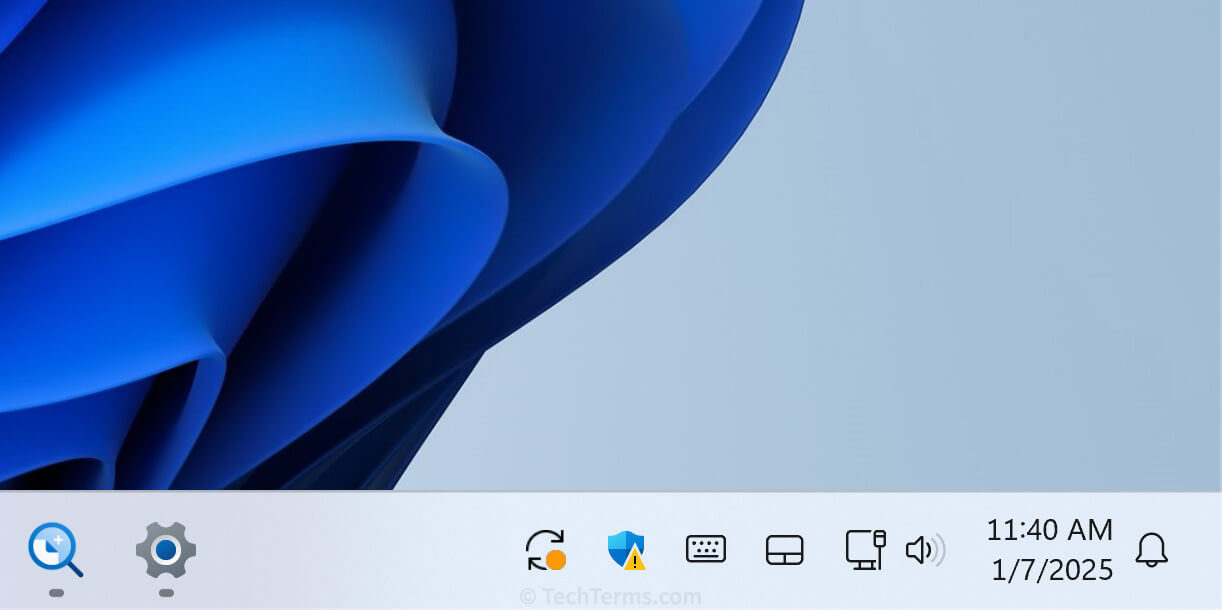
In the world of personal computing, we often interact with various interface elements without ever knowing their official names. We click the “Start” button, we navigate the “Desktop,” and we use the “Taskbar.” However, tucked away in the corner of your screen is a vital piece of real estate that handles everything from your internet connection to your antivirus software. Known colloquially as the “systray” or more formally as the “Notification Area,” this small strip of icons is a powerhouse of system functionality.
Understanding what the systray is, how it functions, and how to manage it is essential for anyone looking to optimize their digital workflow and maintain system health. In this comprehensive guide, we will dive deep into the technical architecture of the systray, its historical evolution, and the best practices for managing it in modern operating systems.

1. Understanding the System Tray: Definitions and Origins
To the average user, the systray is simply “the place where the clock is.” To a power user or a developer, it is a sophisticated interface for background processes. While the term “systray” is the most common way people refer to this area, there is actually a bit of a linguistic debate behind it.
The Difference Between the Taskbar and the Systray
The Taskbar is the long horizontal bar typically located at the bottom of the screen in Windows. Its primary purpose is to host the Start menu and show which applications are currently open and active in the foreground.
The systray, however, is a specific sub-section of the Taskbar, usually located on the far right (near the clock). While the Taskbar manages active windows, the systray manages background processes. These are applications that are “running” but do not necessarily need an open window to function. Examples include your battery monitor, volume control, and cloud syncing services like OneDrive or Dropbox.
A Brief History of the Windows Notification Area
The term “systray” originated from an early internal build of Windows 95. The original intent was to house a “System Tray” application (systray.exe) that would hold specific system icons. However, Microsoft eventually rebranded the area as the “Notification Area.”
Despite the official name change decades ago, the term “systray” stuck in the tech lexicon. Throughout the versions of Windows—from the blocky icons of Windows 98 to the glass-like transparency of Windows 7 and the centered minimalism of Windows 11—the systray has remained a constant. Its role has expanded from merely showing the time to acting as a nerve center for system security, connectivity, and peripheral management.
2. Core Functions and Features of the Systray
The systray serves as a communication bridge between the user and the operating system’s background layer. It provides “at-a-glance” information that doesn’t require the user to stop what they are doing in the foreground.
Real-time Background Processes
The primary function of the systray is to provide a home for apps that need to run constantly. If every background app—like your mouse driver software, your VPN, or your Slack messenger—stayed open on your main Taskbar, the space would become cluttered and unusable. The systray allows these programs to minimize into a small icon, freeing up screen real estate while remaining active.
When you “close” certain applications, they don’t actually quit; they “minimize to tray.” This ensures they can continue to perform tasks like checking for new emails or syncing files to the cloud without being in your way.
System Status Indicators and Notifications
Beyond third-party apps, the systray is where the operating system communicates its “health” to you. This includes:
- Network Status: Whether you are connected via Wi-Fi or Ethernet.
- Power Management: Battery levels for laptops and power mode settings.
- Audio Control: Current volume levels and output device selection.
- Security Alerts: Windows Defender notifications or firewall status.
The “Notification” part of the name comes from the small pop-up bubbles (toasts) that appear above the tray. Whether it’s an update ready to install or a notification that a USB drive has been safely removed, the systray is the source of these alerts.
Quick Access Shortcuts
Many systray icons are more than just static images; they are interactive menus. Right-clicking a systray icon typically reveals a context menu that allows you to perform quick actions without opening the full application. For instance, right-clicking the Steam icon allows you to jump directly into a game, while right-clicking a VPN icon allows you to connect or disconnect instantly.
3. Managing and Customizing Your Systray for Maximum Productivity
As you install more software, the systray can become crowded. A cluttered systray isn’t just a visual nuisance; it can actually lead to decreased system performance. Learning how to curate this area is a vital skill for digital efficiency.
How to Show or Hide Icons
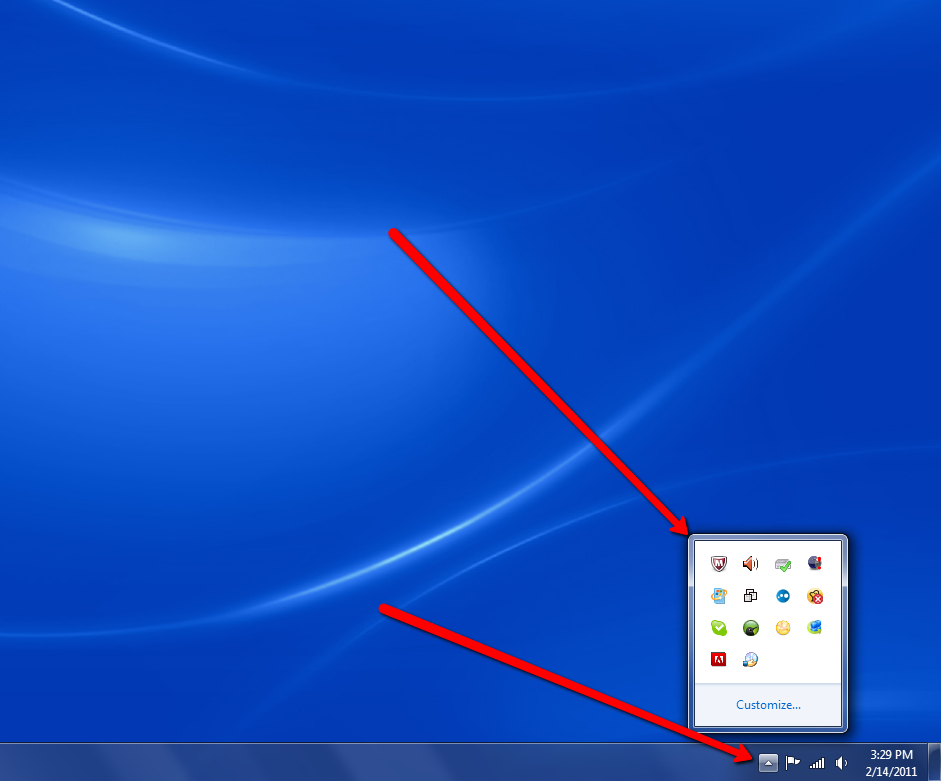
In modern versions of Windows, the OS tries to help you by hiding “inactive” icons behind a small upward-pointing arrow (the overflow menu). However, you might want certain icons—like your hardware temperature monitor or your work chat—to be visible at all times.
To customize this, you can navigate to Settings > Personalization > Taskbar. Here, you can toggle which icons appear in the corner and which stay hidden in the overflow menu. Dragging and dropping icons between the main tray and the overflow menu is also a quick way to organize your view on the fly.
Managing Background Apps to Improve Performance
Every icon in your systray represents a process that is consuming RAM and CPU cycles. If your computer feels sluggish or takes a long time to boot up, your systray might be the culprit.
By using the Task Manager (Ctrl+Shift+Esc) and navigating to the “Startup” tab, you can see which applications are authorized to start automatically and place themselves in the systray. Disabling unnecessary startup items—such as game launchers or update checkers for apps you rarely use—can significantly speed up your PC. Remember: if you don’t need it running in the background, it shouldn’t be in your systray.
Customizing Notification Settings
The “Notification Area” can sometimes become too loud. If you find yourself distracted by constant pings and pop-ups, you can utilize “Focus Assist” (or “Do Not Disturb” in Windows 11). This feature allows you to silence systray notifications during specific hours or while you are playing a game or giving a presentation. You can also go into the Windows Notification settings to granularly choose which apps are allowed to send you alerts.
4. The Evolution of the Systray in Modern Computing
The concept of a “status area” is not unique to Windows. As design philosophies have shifted toward minimalism and mobile-first interfaces, the systray has undergone significant changes.
Windows 11 and the New Taskbar Design
Windows 11 introduced the most radical change to the systray in years. The icons are now part of a more unified “Quick Settings” panel. When you click on the Wi-Fi, Volume, or Battery icons, they are treated as a single button that opens a combined menu. This design mimics mobile operating systems like iOS and Android, providing a cleaner look while grouping related system functions together.
Systray Equivalents on macOS and Linux
While “systray” is a Windows term, other operating systems use similar concepts:
- macOS: The “Menu Bar” (top right) serves a similar purpose. Icons for Wi-Fi, Spotlight, and third-party apps live here. Unlike Windows, the macOS Menu Bar is at the top of the screen and is always visible unless an app is in full-screen mode.
- Linux (GNOME/KDE): Most Linux desktop environments feature a “System Tray” or “Status Notifier.” KDE Plasma, in particular, offers deep customization of the tray, allowing users to widgetize almost any system function.
The Future of Subtle UI in Operating Systems
As we move toward more immersive computing experiences, the systray is evolving from a list of icons into a proactive AI-driven assistant. Future iterations of operating systems may use AI to hide icons you don’t use often and highlight ones that require immediate attention (such as a security breach or a critical battery level).
The goal of modern UI design is to reduce “cognitive load.” This means the systray of the future will likely be even more invisible, only appearing when it has something truly important to say, or when the user specifically looks for it.
Conclusion
The systray may be small, but it is one of the most functional components of the modern desktop experience. It acts as a silent guardian of our system’s background processes, providing a vital link between the software running under the hood and the user sitting at the desk.
By understanding how to manage your systray, you gain control over your computer’s resources and your own digital focus. Whether you are disabling unnecessary startup apps to boost speed or pinning your most-used tools for quick access, the notification area is a tool that, when mastered, makes for a much smoother and more professional computing experience. Next time you glance at that little clock in the corner, remember that there is a whole world of system management living right beside it.
aViewFromTheCave is a participant in the Amazon Services LLC Associates Program, an affiliate advertising program designed to provide a means for sites to earn advertising fees by advertising and linking to Amazon.com. Amazon, the Amazon logo, AmazonSupply, and the AmazonSupply logo are trademarks of Amazon.com, Inc. or its affiliates. As an Amazon Associate we earn affiliate commissions from qualifying purchases.