
In the modern digital landscape, we spend the majority of our waking hours staring at screens. Whether it is the smartphone in our pocket, the monitor at our workstation, or the television in our living room, the quality of these displays dictates our visual comfort, productivity, and immersion. Central to this quality is a metric often cited in spec sheets but frequently misunderstood: PPI, or Pixels Per Inch.
Determining what constitutes a “good” PPI is not a one-size-fits-all calculation. It is a nuanced equation that involves screen size, viewing distance, and the specific tasks being performed. Understanding PPI is essential for anyone looking to invest in new hardware, from creative professionals needing color-accurate precision to gamers seeking fluid immersion.
Decoding PPI: The Science of Sharpness
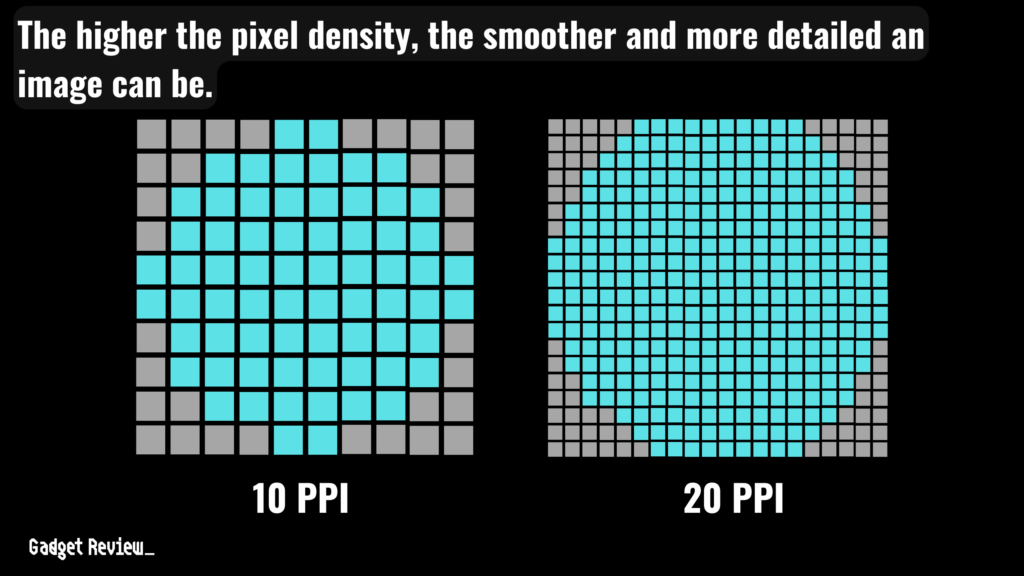
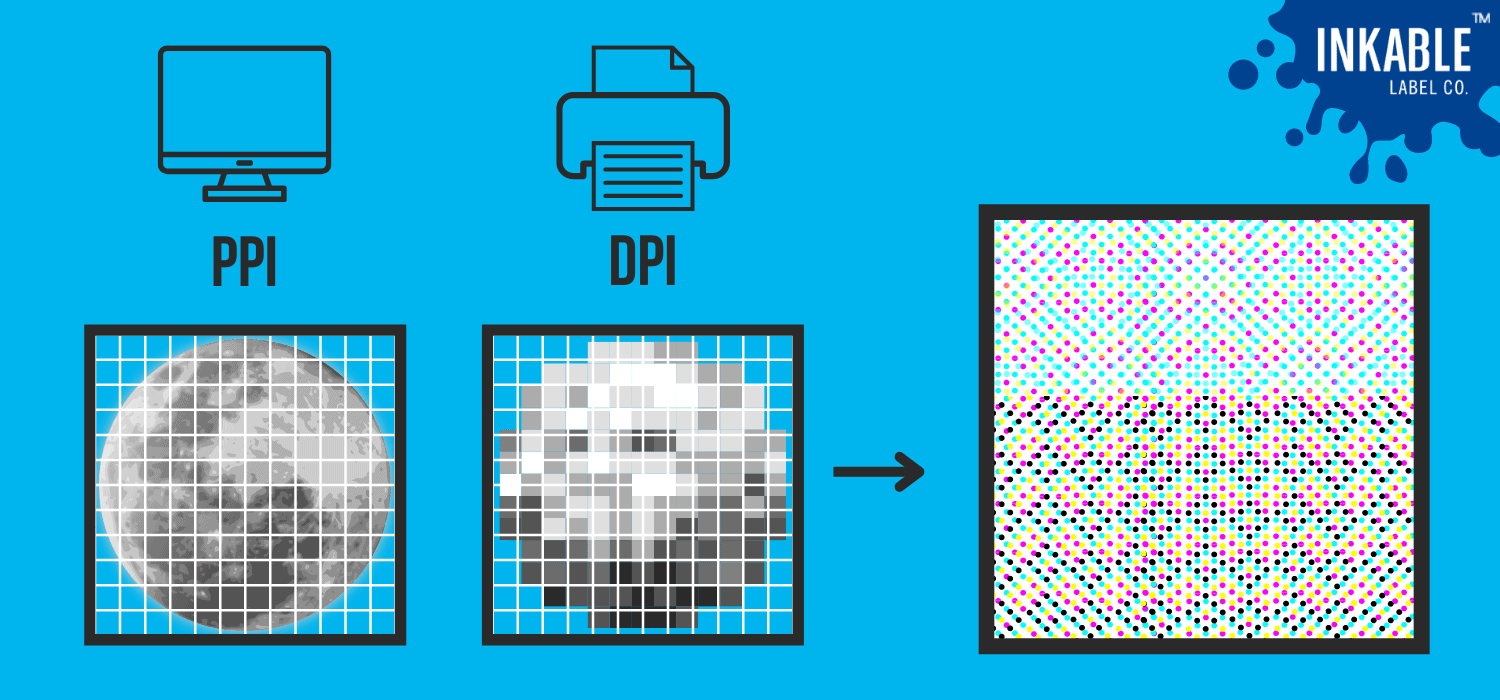
At its core, PPI is a measurement of pixel density. It tells you how many individual pixels are packed into one linear inch of a digital display. The higher the PPI, the more information is condensed into a physical space, resulting in smoother lines, sharper text, and more realistic images.
PPI vs. Resolution: Clearing the Confusion
A common misconception in the tech world is that resolution and PPI are interchangeable. While they are inextricably linked, they represent different concepts. Resolution refers to the total number of pixels on a screen—for example, a standard Full HD display has a resolution of 1920 x 1080, totaling roughly 2.1 million pixels.
PPI, however, is a measurement of how those pixels are distributed across a physical area. If you take that 1080p resolution and stretch it across a 50-inch television, the PPI will be very low, resulting in visible pixels and “blocky” images. If you take that same 1080p resolution and put it on a 6-inch smartphone screen, the PPI becomes incredibly high, creating a nearly life-like image. Therefore, resolution tells you the quantity of pixels, while PPI tells you the quality of the density.
The Formula for Density
To calculate PPI, hardware engineers use the Pythagorean theorem to find the diagonal resolution in pixels and then divide that by the diagonal screen size in inches. The formula is:
PPI = √ (Width Pixels² + Height Pixels²) / Diagonal Screen Size
For a standard 24-inch 1080p monitor, this results in roughly 92 PPI. For a 27-inch 4K monitor, the density jumps to approximately 163 PPI. This jump in density is what creates the “wow” factor when upgrading displays, as the human eye can no longer distinguish individual pixels, making digital content appear as smooth as printed paper.
What Defines a “Good” PPI for Your Device?
A “good” PPI is relative to how the device is used. Because our eyes interact with a phone differently than a desktop monitor, the standards for what is considered sharp vary significantly across categories.
Desktop Monitors: The 110 PPI Sweet Spot
For desktop computing, where the user typically sits about 20 to 30 inches away from the screen, the consensus among tech enthusiasts and professionals is that a PPI between 100 and 120 is the “sweet spot.”
At approximately 110 PPI, text is crisp enough to read for hours without eye strain, and UI elements like icons and taskbars appear at a natural size without needing significant software scaling. This is why a 27-inch monitor with a 1440p (QHD) resolution is widely considered the gold standard for office work and general use; it hits roughly 108 PPI.
If you drop below 90 PPI—such as using a 27-inch monitor with only 1080p resolution (81 PPI)—you begin to see “pixelation.” Curves on letters look jagged, and fine details in photos become blurred. Conversely, going above 160 PPI on a desktop (like a 27-inch 4K monitor) offers incredible clarity but often requires “scaling” the interface to 150% or 200% so that icons and text are not too small to see.
Laptops: Portability Meets Precision
Laptops are generally viewed from a closer distance than desktop monitors (often 15 to 20 inches). Consequently, they require a higher PPI to maintain the same perceived sharpness. Most modern high-end laptops aim for a PPI between 160 and 220.
Apple’s MacBook Pro line, featuring “Retina” displays, typically hovers around 220 to 250 PPI. At this density, even from a close distance, the human eye cannot distinguish individual pixels. For Windows users, a 15-inch laptop with a 4K screen reaches nearly 280 PPI, which is exceptionally sharp but can be taxing on battery life and system resources. For most users, a 13-inch or 14-inch laptop with a resolution of 2560 x 1600 provides a perfect balance of density and performance.
Smartphones: The Retina Revolution
Smartphones are held the closest to our eyes, often just 10 to 12 inches away. Because of this, they require the highest PPI of any consumer device. Most flagship smartphones today feature densities between 400 and 500 PPI.
While some manufacturers have pushed boundaries with 4K displays on phones (reaching over 800 PPI), the benefits are largely negligible due to the limits of human biology. Once you surpass the 400 PPI mark on a handheld device, the image appears perfectly continuous. Higher densities primarily serve to improve the experience for mobile VR or to provide marketing differentiation rather than tangible visual improvements for daily scrolling.
The Role of Viewing Distance in Perceived Clarity
The most important factor in determining if a PPI is “good” is viewing distance. This is why a 65-inch 4K television with only 68 PPI can look stunningly sharp, while a smartphone with 68 PPI would look like a mosaic of colored squares.
The “Retina” Concept Explained
The term “Retina Display,” popularized by Apple, is not a specific technical resolution but rather a relationship between pixel density and viewing distance. A display qualifies as “Retina” when the pixels are so small and the viewer is far enough away that the individual pixels cannot be resolved by the human eye.
The standard human eye with 20/20 vision can resolve details at about one arcminute. If a screen’s pixels are smaller than one arcminute at a given distance, the screen appears perfectly smooth. This means that as you move further away from a screen, the required PPI for a “perfect” image drops.
Why TVs Can Get Away With Lower PPI
This biological reality is why 4K televisions are so effective. Despite their massive physical size, we typically sit 6 to 10 feet away from them. At that distance, a 4K resolution provides enough density that the screen looks like a window into another world. Even a 1080p TV looks “good” if you sit far enough back. Problems only arise when users sit too close to a large, low-resolution screen—a common issue in modern “small room” gaming setups where a large TV is used as a monitor.
Practical Considerations: Performance, Scaling, and Productivity
While higher PPI is generally better for visual fidelity, it comes with practical trade-offs that buyers must consider. High-density displays demand more from your hardware and require your operating system to handle “scaling” effectively.
The Impact on GPU Performance
Pixels are not free. Every additional pixel requires your Graphics Processing Unit (GPU) to calculate color, lighting, and motion. Moving from a standard 1080p monitor (2.1 million pixels) to a 4K monitor (8.3 million pixels) quadruples the workload on your computer.
For creative professionals doing static work like photo editing or coding, this isn’t an issue. However, for gamers or video editors, a very high PPI can lead to lower frame rates or stuttering performance if the GPU isn’t powerful enough to drive those extra millions of pixels. This is why many competitive gamers prefer 24-inch 1080p monitors; they sacrifice PPI for the sake of extreme frame rates and lower latency.
OS Scaling: Windows vs. macOS
Another hurdle for high PPI displays is software scaling. If a screen has a high PPI, a 12-point font will physically look much smaller than it would on a low PPI screen. To fix this, operating systems use scaling to make UI elements larger.
MacOS is widely praised for its “integer scaling,” which handles high PPI displays gracefully, making everything look sharp and proportional. Windows has improved significantly with “DirectWrite” and improved DPI awareness, but some legacy applications still look “blurry” or “tiny” on high PPI screens. Before choosing a 4K monitor for a laptop setup, ensure your primary software applications support high-DPI scaling.
Specialized Use Cases: When Every Pixel Counts
Finally, the definition of a “good” PPI depends on what you are actually doing on the screen. Different industries have different thresholds for what is acceptable.
Content Creation and Graphic Design
For photographers, designers, and video editors, high PPI is non-negotiable. When retouching a photo, a high PPI allows the professional to see fine grain, noise, and focus accuracy without constantly zooming in and out. For these users, a PPI of 160 or higher is ideal. This is why the 5K iMac and the Studio Display (218 PPI) are so popular in creative circles—they allow for a 4K video preview at 100% scale while still leaving room for the software interface.
Virtual Reality and the PPD Metric
In the realm of Virtual Reality (VR), PPI takes on a new level of importance. Because the screens are magnified by lenses and placed an inch from the eye, even 500 PPI can result in the “Screen Door Effect,” where you see the black gaps between pixels.
In VR, the industry is moving toward “PPD” (Pixels Per Degree) as a better metric. To achieve a “good” experience that mimics reality, VR headsets need much higher density than smartphones. This push for higher PPI in VR is currently driving innovation in Micro-OLED and Mini-LED technologies, which aim to pack thousands of pixels into areas smaller than a postage stamp.
Ultimately, a “good” PPI is the one that makes your content look clear without forcing you to squint or taxing your hardware beyond its limits. For most desktop users, aiming for 110 PPI is the smartest choice for balance. For those on the go, 220 PPI offers that elusive “printed” look. By matching your PPI to your viewing distance and your hardware’s capabilities, you ensure a visual experience that is both comfortable and cutting-edge.
aViewFromTheCave is a participant in the Amazon Services LLC Associates Program, an affiliate advertising program designed to provide a means for sites to earn advertising fees by advertising and linking to Amazon.com. Amazon, the Amazon logo, AmazonSupply, and the AmazonSupply logo are trademarks of Amazon.com, Inc. or its affiliates. As an Amazon Associate we earn affiliate commissions from qualifying purchases.