
In the landscape of modern computing, we often interact with sleek operating systems, intuitive applications, and high-speed internet browsers. However, beneath the surface of every desktop, laptop, and server lies a fundamental layer of software that acts as the “DNA” of the machine. This is the BIOS. To the average user, a BIOS file might seem like an obscure technical artifact, but it is the critical link that allows hardware and software to communicate. Understanding what a BIOS file is, how it functions, and why it is vital for system stability is essential for anyone looking to master the technical nuances of their hardware.
Understanding the Basics: What is a BIOS File?
At its core, BIOS stands for Basic Input/Output System. It is a type of firmware—software that is “hard-coded” into a hardware device—stored on a small non-volatile memory chip on the computer’s motherboard. While the operating system (OS) lives on your hard drive or SSD, the BIOS is the first thing that “wakes up” when you press the power button.
The Definition and Origin of BIOS
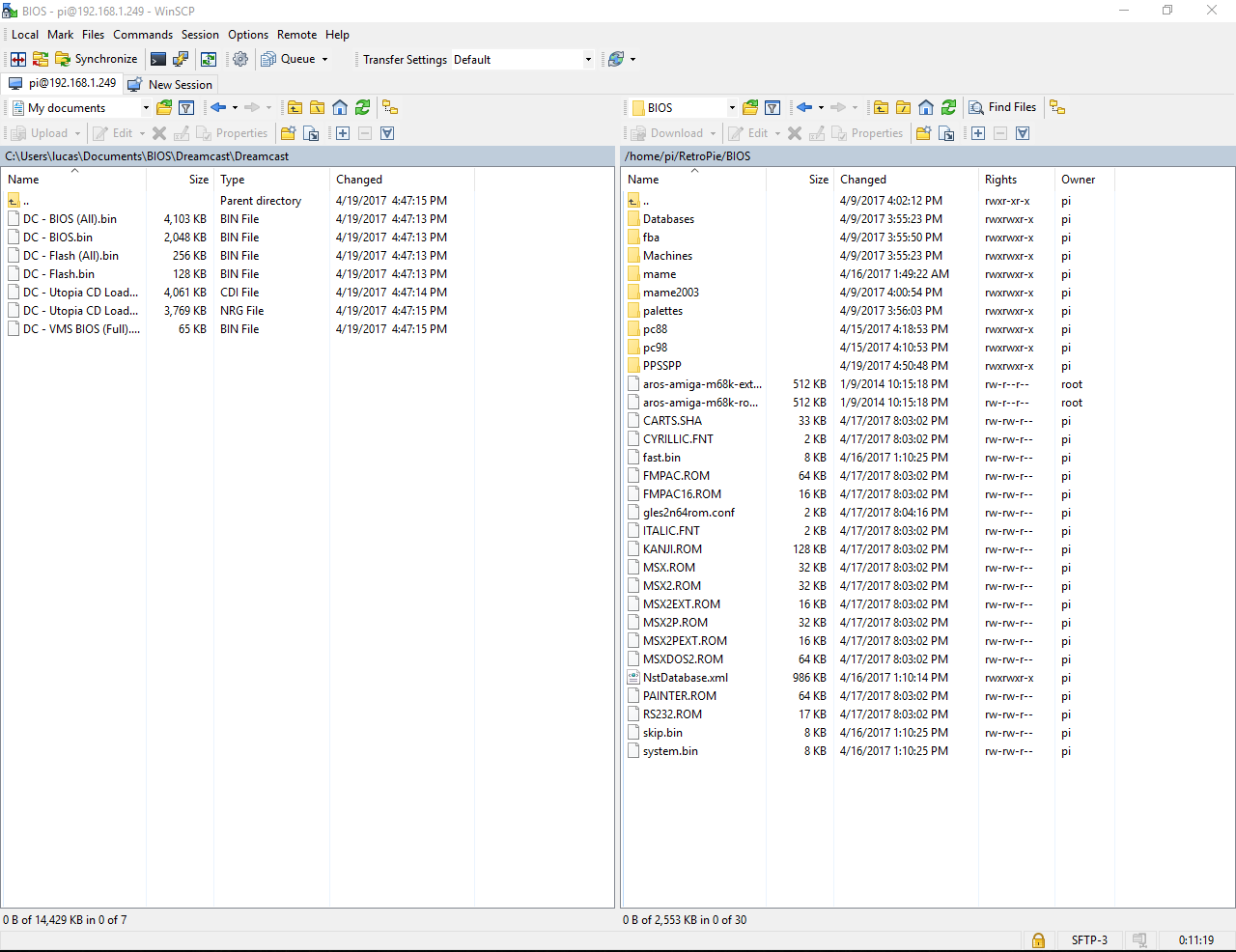
The term BIOS was first coined by computer scientist Gary Kildall in 1975. In the early days of computing, the BIOS was responsible for handling the minute details of hardware interaction so that software developers didn’t have to write custom code for every specific piece of hardware. Today, a BIOS file refers to the specific binary image that contains the instructions needed to initialize the system. When you download a BIOS update from a manufacturer like ASUS, MSI, or Dell, you are downloading a BIOS file that will be written (or “flashed”) onto the motherboard’s firmware chip.
How BIOS Bridges Hardware and Software
Think of the BIOS as the conductor of an orchestra. Before the musicians (the CPU, RAM, and GPU) can play the symphony (the Operating System), the conductor must ensure everyone is present, tuned, and ready to perform. The BIOS identifies, tests, and initializes system devices such as the video display card, keyboard and mouse, hard disk drive, and other hardware. It provides a standardized environment so the Operating System can take over and communicate with the hardware without needing to know the granular electrical specifics of the motherboard.
The Boot Sequence: A Step-by-Step Overview
When a computer is powered on, the BIOS initiates a process known as the Power-On Self-Test (POST). During this phase, the BIOS file executes a series of diagnostic routines. If the BIOS detects a fatal error—such as a missing RAM module or a failed CPU fan—it will halt the boot process and often emit a series of “beep codes” to alert the user. If the POST is successful, the BIOS looks for a “boot loader” on a storage device (like a USB drive or SSD) and hands off control of the system to the Operating System.
Legacy BIOS vs. UEFI: The Evolution of System Firmware
For decades, the traditional BIOS served the industry well. However, as hardware capabilities expanded, the limitations of the original BIOS architecture became apparent. This led to the development of UEFI (Unified Extensible Firmware Interface), which is the modern successor to the legacy BIOS.
The Limitations of Legacy BIOS
The original BIOS was designed for 16-bit processors and could only access 1 MB of memory. This restricted the complexity of the interface and the speed of the boot process. Furthermore, legacy BIOS was limited to the Master Boot Record (MBR) partitioning scheme, which meant it could not natively boot from hard drives larger than 2.2 terabytes. As the tech industry moved toward massive storage and 64-bit architecture, the old BIOS files became a bottleneck.
UEFI: Modernizing the Startup Process
Most modern computers sold in the last decade technically use UEFI, though many people—and even some manufacturers—still refer to it as “the BIOS” out of habit. UEFI is essentially a tiny operating system that runs on top of the hardware. It supports 32-bit and 64-bit modes, allowing for much more sophisticated graphical user interfaces (GUIs) that support mouse input, high-resolution icons, and even internet connectivity for remote diagnostics.
Key Differences: Speed, Security, and Storage
UEFI offers several technical advantages over the legacy BIOS file system. One of the most significant is Secure Boot, a security standard that ensures the device boots using only software that is trusted by the Original Equipment Manufacturer (OEM). Additionally, UEFI uses the GUID Partition Table (GPT), which supports disks up to 9.4 zettabytes. Because UEFI can initialize hardware components in parallel rather than one by one, it also facilitates significantly faster boot times compared to its predecessor.
The Practical Side: Managing and Flashing BIOS Files
For many enthusiasts and IT professionals, interacting with BIOS files is synonymous with “flashing.” Flashing a BIOS is the process of updating the firmware to a newer version to improve performance, add features, or patch security vulnerabilities.
Why You Might Need to Update (Flash) Your BIOS
In the tech world, the general rule is: “If it isn’t broken, don’t fix it.” However, there are specific scenarios where updating your BIOS file is necessary.
- CPU Compatibility: If you purchase a new processor that was released after your motherboard was manufactured, a BIOS update is often required for the board to recognize the chip.
- Stability Improvements: Manufacturers often release BIOS updates to fix bugs related to RAM overclocking, power management, or system crashes.
- Security Patches: Vulnerabilities like Spectre and Meltdown required firmware-level fixes that could only be delivered via BIOS updates.
The Risks of BIOS Updates: Precautions to Take
Updating a BIOS file is a high-stakes operation. Unlike a standard software update, a failure during a BIOS flash can “brick” your motherboard, rendering the computer useless. This usually happens if power is lost during the update process or if the wrong BIOS file is used. Modern motherboards often include a “Dual BIOS” feature or a “USB BIOS Flashback” button to recover from such disasters, but caution remains paramount.
A General Guide to Performing a BIOS Update
To update, you typically download the specific BIOS file from the manufacturer’s support website. You then place this file on a FAT32-formatted USB drive. After rebooting into the BIOS/UEFI interface, you use a built-in utility (like “EZ Flash” or “M-Flash”) to select the file and begin the rewrite process. It is vital to never turn off the computer until the screen explicitly states that the update is complete.
BIOS Files in Modern Tech Ecosystems: Emulation and Virtualization
Beyond the realm of PC hardware, the term “BIOS file” is frequently encountered in the world of software emulation and virtual machines. In these contexts, the BIOS file serves as a digital blueprint of a specific piece of hardware.
The Role of BIOS in Console Emulation
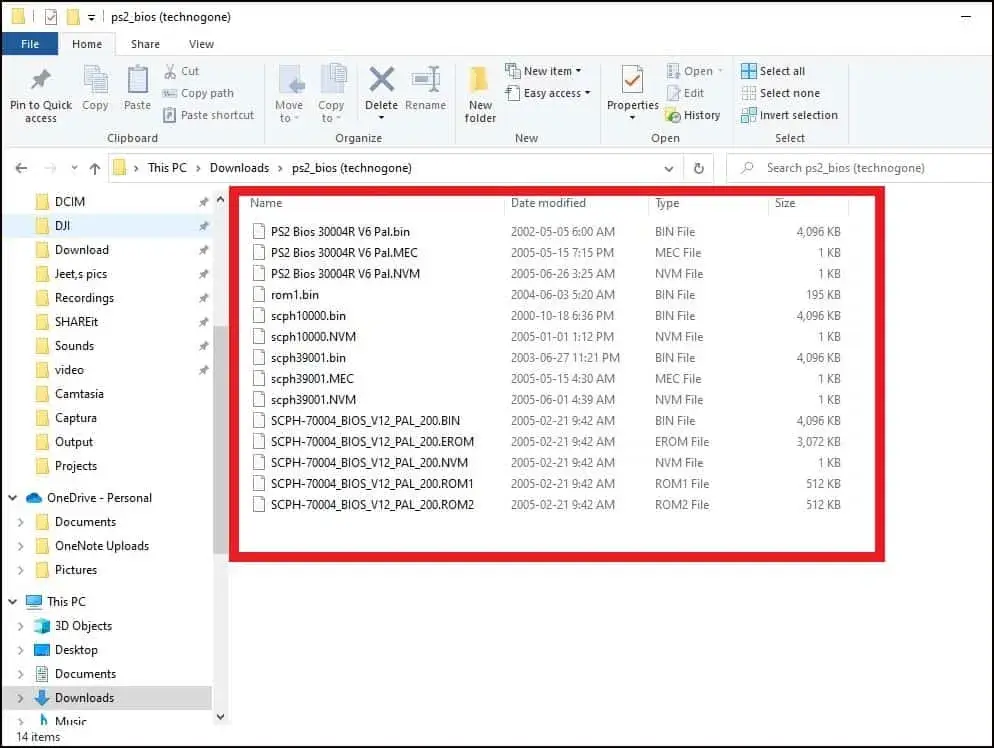
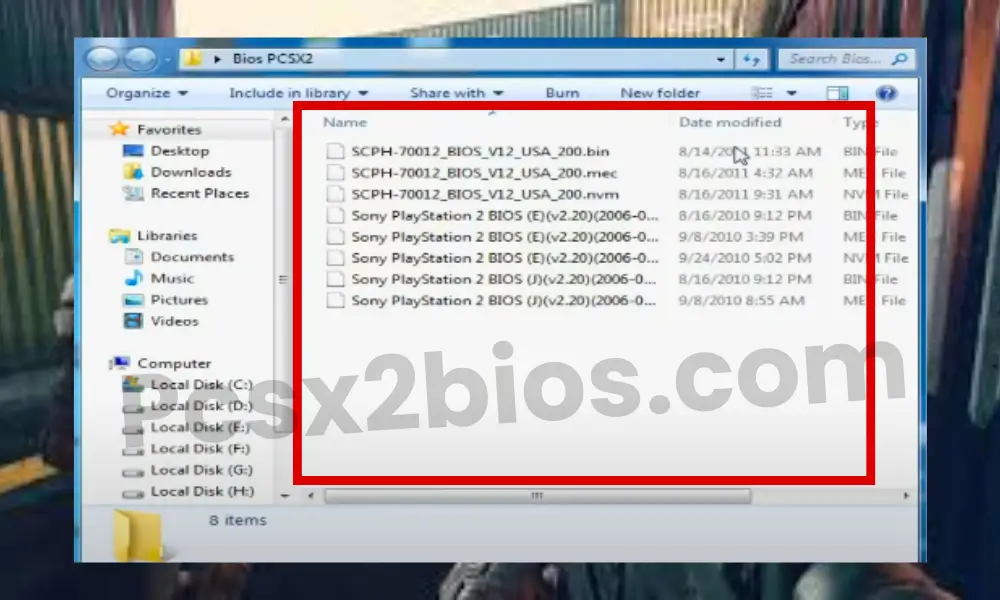
If you are using an emulator to play classic games from consoles like the PlayStation 2 or Sega Saturn, the software requires a BIOS file dumped from the original hardware. Because the emulator mimics the hardware environment, it needs the actual firmware (the BIOS) to understand how to execute the game’s code. Without the correct BIOS file, the emulator is like a car without an engine; it has the frame and the wheels, but no way to actually start.
Virtual Machines and Hardware Abstraction
In professional IT environments, virtualization software like VMware or VirtualBox uses virtual BIOS files to manage guest operating systems. When you create a Virtual Machine (VM), the software provides a “Virtual BIOS” that mimics the behavior of a physical motherboard. This allows the guest OS to believe it is running on real hardware, providing the necessary hooks for the OS to manage virtualized memory, CPU cores, and network adapters.
Legal and Ethical Considerations of BIOS Files
It is important to note the legal nuances surrounding BIOS files in emulation. Because BIOS code is copyrighted by the original manufacturer (like Sony or Nintendo), distributing these files online is generally considered copyright infringement. Most tech-literate users recommend “dumping” the BIOS from your own legally owned hardware to stay within the bounds of fair use, highlighting the proprietary nature of this essential firmware.
Securing the Foundation: BIOS Protection and Digital Integrity
As cyber threats become more sophisticated, hackers have shifted their focus from the operating system level down to the firmware level. A compromised BIOS file is one of the most dangerous security threats because it can persist even if you wipe your hard drive or reinstall your OS.
Firmware-Level Attacks and Vulnerabilities
“Rootkits” that target the BIOS are notoriously difficult to detect. Because the BIOS starts before the antivirus software, a malicious BIOS file can hide its presence and maintain control over the system’s lowest levels. This has led to an increased focus on “Firmware Security” within the tech industry, resulting in technologies like Intel Boot Guard and AMD Hardware-Validated Boot.
Secure Boot and Modern Defense Mechanisms
Secure Boot is a feature of UEFI that prevents unsigned or unauthorized code from running during the boot process. By checking the digital signature of the BIOS file and the OS loader, Secure Boot ensures that no malware has tampered with the startup sequence. While some Linux users and enthusiasts find Secure Boot restrictive, it remains a cornerstone of modern digital security for preventing “bootkits.”
The Future of Firmware: Beyond the BIOS
As we look toward the future, the concept of the BIOS file continues to evolve. We are seeing the rise of Coreboot and LinuxBoot, open-source firmware projects that aim to replace proprietary BIOS/UEFI with faster, more transparent alternatives. These projects are gaining traction in the server and “open-hardware” spaces, promising a future where the foundation of our computing devices is as customizable and secure as the software we run on top of them.
In conclusion, a BIOS file is far more than a simple document; it is the fundamental set of instructions that breathes life into silicon and copper. From the initial POST to the advanced security features of UEFI, the BIOS remains the most critical—yet often overlooked—component of our digital lives. Whether you are a gamer looking for the perfect emulation setup, a builder assembling a high-end workstation, or a security professional hardening a network, a deep understanding of the BIOS is an indispensable tool in your technical arsenal.
aViewFromTheCave is a participant in the Amazon Services LLC Associates Program, an affiliate advertising program designed to provide a means for sites to earn advertising fees by advertising and linking to Amazon.com. Amazon, the Amazon logo, AmazonSupply, and the AmazonSupply logo are trademarks of Amazon.com, Inc. or its affiliates. As an Amazon Associate we earn affiliate commissions from qualifying purchases.