
In the modern digital landscape, the security of our personal devices and corporate networks rests on a hierarchy of access. At the pinnacle of this hierarchy sits the administrator password. Often referred to as the “master key” to an operating system, the administrator password is a credential that grants a user total control over a computer’s configuration, software, and underlying security settings. Understanding what an administrator password is, how it functions across different platforms, and why it is the most critical line of defense in cybersecurity is essential for any user navigating the digital world.

Understanding Administrative Privileges and System Access
An administrator password is more than just a sequence of characters used to log in; it is an authentication factor that triggers a specific set of permissions within an operating system. When a user enters an administrator password, the system verifies their identity and elevates their status, allowing them to perform actions that could fundamentally alter the device’s operation.
The Difference Between Standard and Administrative Users
Operating systems, such as Windows, macOS, and Linux, distinguish between different types of user accounts to maintain stability and security. A “Standard User” account is designed for everyday tasks—browsing the web, checking email, and using productivity software. Standard users are restricted from making changes that affect other users or the core security of the machine.
In contrast, an “Administrator” account has the authority to modify system-wide settings. This includes installing or uninstalling software, changing hardware drivers, creating new user accounts, and accessing all files on the hard drive, even those belonging to other users. The administrator password is the gatekeeper for these high-level privileges. Without it, the system remains in a “locked-down” state, preventing unauthorized or accidental changes that could lead to system failure or data breaches.
How Administrative Permissions Work Under the Hood
When you enter an administrator password, the operating system’s kernel—the core part of the software that manages hardware and system resources—issues a “security token.” This token tells the system that the current session has “elevated” rights. This mechanism is designed to prevent malicious software from making changes in the background. Even if a user is logged in as an administrator, modern systems often use a “least privilege” model where the user operates with standard rights until a specific administrative action is requested, at which point the system prompts for the password. This is known as User Account Control (UAC) in Windows or a “sudo” request in Linux.
The Role of Administrator Passwords Across Different Platforms
While the concept of the administrator password remains consistent, the way it is implemented and labeled varies significantly depending on the operating system. Each platform has its own architecture for handling privileged access.
Windows: The Local Admin and User Account Control (UAC)
In the Windows ecosystem, there are typically two types of administrator accounts: the local administrator and the domain administrator (used in business environments). For the average home user, the first account created during the setup process is a local administrator account.
Windows utilizes a feature called User Account Control (UAC). When you attempt to run a program that requires system-level changes, the screen dims, and a prompt appears. If you are logged in as a standard user, Windows will ask for the administrator password. If you are already an admin, it may simply ask for a confirmation click. This barrier ensures that no software can gain administrative control without the user’s explicit knowledge and consent.
macOS: The Power of the “Admin” Account
Apple’s macOS follows a similar logic but integrates it deeply into the Unix-based architecture of the system. On a Mac, the administrator password is required to unlock the “System Settings” (formerly System Preferences), install applications into the “Applications” folder, and manage other user profiles.
macOS is known for its “Secure Enclave” and tight hardware-software integration. When a Mac prompts for an administrator password, it is often tied to the user’s login password. In newer models, this can be bypassed via Touch ID or Apple Watch authentication, but the underlying “secret” remains the administrator password. Mac systems are also unique in how they handle the “root” user—a superuser account that is disabled by default to prevent catastrophic system changes.
Linux and Unix-based Systems: The “Root” User and Sudo
In the world of Linux and Unix, the administrative user is traditionally called “root.” The root user has absolute power over the system, with the ability to delete any file or terminate any process. Because this power is so dangerous, most Linux distributions (like Ubuntu or Fedora) do not encourage logging in as root.
Instead, Linux uses a command called sudo (SuperUser Do). When a user needs to perform a task like updating the system or installing a package via the terminal, they prefix their command with sudo. The system then asks for the user’s own password. If that user is on the “sudoers” list, the command is executed with administrative privileges for a brief window of time. This approach minimizes the risk of leaving a high-privilege session open indefinitely.
Why Digital Security Hinges on Your Admin Credentials
The administrator password is the primary target for cybercriminals. If an attacker gains access to this password, they essentially own the device. This “elevation of privilege” is a critical stage in almost every major cyberattack, from individual identity theft to massive corporate ransomware deployments.
Protecting Against Malware and Unauthorized Installations

Most malware—including viruses, spyware, and keyloggers—needs administrative access to embed itself deep within the operating system. Without the administrator password, malware is often confined to the user’s personal folders, where it can do less damage and is easier to remove.
By keeping the administrator password secure and not using it for daily browsing, users create a “sandbox” effect. If a user accidentally downloads a malicious file, the operating system will block the file from installing its core components because it lacks the necessary administrative “handshake.”
The Risks of Shared Admin Access in Corporate Environments
In a professional setting, the management of administrator passwords becomes much more complex. Often, IT departments use a single administrator password for an entire fleet of computers. This is a significant security risk; if one machine is compromised, the entire network is vulnerable.
Modern IT infrastructure now utilizes “Privileged Access Management” (PAM) tools. These tools ensure that administrator passwords are rotated frequently and that “Just-in-Time” access is granted only when necessary. This limits the “blast radius” of a potential credential leak.
Multi-Factor Authentication (MFA) as a Secondary Layer
Because passwords can be stolen through phishing or brute-force attacks, the administrator password is increasingly being paired with Multi-Factor Authentication (MFA). MFA requires a second form of verification, such as a code from a mobile app or a physical security key (like a YubiKey), before administrative access is granted. This ensures that even if an attacker discovers the administrator password, they cannot gain control of the system without the physical secondary device.
Best Practices for Managing and Securing Administrator Passwords
Given the immense power associated with the administrator password, users and IT professionals must follow strict protocols to ensure its integrity.
Creating Robust, Complex Passwords
An administrator password should never be simple or easy to guess. It should avoid common words, birthdays, or sequential numbers. The current industry standard for a strong password is a “passphrase”—a long string of random words that is easy for a human to remember but nearly impossible for a computer to crack through brute force. For example, “Correct-Horse-Battery-Staple” is significantly more secure than a short, complex-looking password like “P@ssw0rd1!”.
Using Password Managers for Enterprise-Grade Security
Memory is a poor tool for security. Password managers like 1Password, Bitwarden, or KeePass allow users to store highly complex, unique administrator passwords in an encrypted vault. This removes the temptation to reuse the same password across multiple systems, which is one of the most common causes of security failures. For businesses, Local Administrator Password Solution (LAPS) tools can automatically generate and store unique admin passwords for every workstation on a domain.
Implementing the Principle of Least Privilege (PoLP)
One of the most effective ways to secure a system is to simply not use the administrator password unless absolutely necessary. This is known as the Principle of Least Privilege (PoLP). Users should perform their daily work on a Standard User account and only provide the administrator password when prompted for a specific, trusted task. This habit ensures that the “master key” is only out of the “safe” when it is actively being used, reducing the window of opportunity for attackers.
Troubleshooting and Recovery: What to Do When You Lose Access
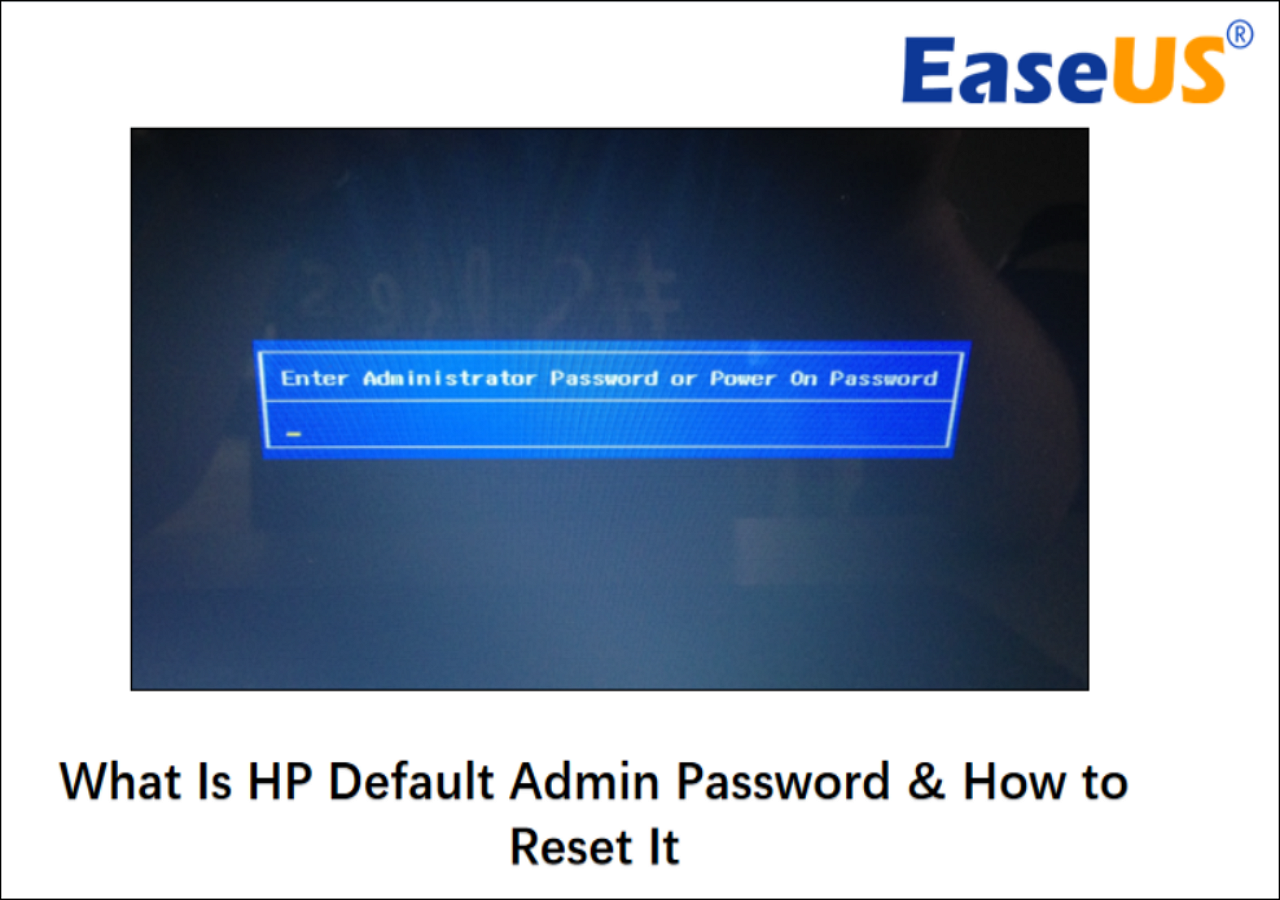
Losing an administrator password can be a catastrophic event, as it can lock a user out of their own hardware and data. However, modern operating systems have built-in safety nets for recovery.
Recovery Methods for Windows and macOS
On Windows, if the administrator account is linked to a Microsoft account, the password can be reset through the Microsoft website using a secondary email or phone number. For local-only accounts, recovery often involves using a pre-created “Password Reset Disk” or utilizing built-in recovery environments, though these methods have become more restricted in recent years to enhance security.
On macOS, if a user forgets their admin password, they can often reset it using their Apple ID, provided the feature was enabled during setup. Alternatively, macOS Recovery mode allows users to reset passwords through the terminal or via FileVault recovery keys—a 24-character code generated when disk encryption is first turned on.
The Importance of Emergency Backup Accounts
A common recommendation for power users and IT admins is to create a “Break Glass” account. This is a secondary administrator account with a highly complex password that is written down and stored in a physically secure location, such as a fireproof safe. If the primary administrator password is lost or the account becomes corrupted, the “Break Glass” account provides a way back into the system without having to wipe the hard drive and start from scratch.
The administrator password remains the most powerful tool in a user’s digital arsenal. It represents the ultimate authority over a device, serving as both a gateway for innovation and a primary target for exploitation. By understanding its role and implementing rigorous security practices, users can ensure that this master key remains in the right hands, protecting the integrity of their data and the stability of their digital lives.
aViewFromTheCave is a participant in the Amazon Services LLC Associates Program, an affiliate advertising program designed to provide a means for sites to earn advertising fees by advertising and linking to Amazon.com. Amazon, the Amazon logo, AmazonSupply, and the AmazonSupply logo are trademarks of Amazon.com, Inc. or its affiliates. As an Amazon Associate we earn affiliate commissions from qualifying purchases.