
In the realm of digital document processing, software development, and user interface design, the term “1” margins” (one-inch margins) represents more than just a measurement. It is a fundamental standard that balances aesthetic proportions with functional utility. Whether you are formatting a high-stakes legal brief in Microsoft Word, styling a landing page via CSS, or preparing a technical manuscript for digital publication, understanding the mechanics and implications of the one-inch margin is essential for any tech-proficient professional.
This guide explores the technical evolution of the 1″ margin, its implementation across various software platforms, and its critical role in the “Box Model” of modern web development.
The Evolution of the One-Inch Standard in Word Processing
The concept of a one-inch margin did not emerge arbitrarily. It is the result of decades of transition from mechanical typesetting to the sophisticated word-processing software we use today. Understanding this history helps clarify why “1-inch” remains the default setting in almost every major productivity suite.
From Typewriters to Microsoft Word
In the era of mechanical typewriters, margins were set manually using physical “stops.” Users had to account for the physical limitations of the machine, such as the carriage return and the “dead zone” where the type bars could not reach the edge of the paper. When the tech industry shifted toward word processing in the late 1970s and early 1980s, software like WordStar and WordPerfect began to standardize these physical constraints into digital parameters.
As Microsoft Word rose to dominance, it solidified the “Normal” template. For many years, the default was actually 1.25 inches for the left and right margins, intended to give documents a more spacious, “book-like” feel. However, to optimize screen real estate and align with international printing standards (like A4 and US Letter), the tech industry eventually converged on the universal 1″ margin on all four sides.
Why 1-Inch Became the Industry Default
The 1″ margin serves a dual purpose: hardware compatibility and cognitive ergonomics. From a hardware perspective, most consumer-grade printers require a “non-printable area” to grip the paper as it moves through the rollers. A one-inch buffer ensures that no text is cut off during the mechanical printing process.
From a cognitive perspective, a 1″ margin provides the ideal “line length” for readability. Technical studies in typography suggest that the human eye struggles to track lines of text that are too wide. By constraining the text block with one-inch margins on a standard 8.5″ x 11″ page, the resulting 6.5″ text width yields approximately 65–75 characters per line—the “sweet spot” for reading comprehension and speed.
Implementing 1″ Margins Across Major Software Platforms
For tech users, knowing how to manipulate margins is a basic yet vital skill. Different software ecosystems handle these measurements through various menus and units of measurement.
Microsoft Word and Google Docs Configuration
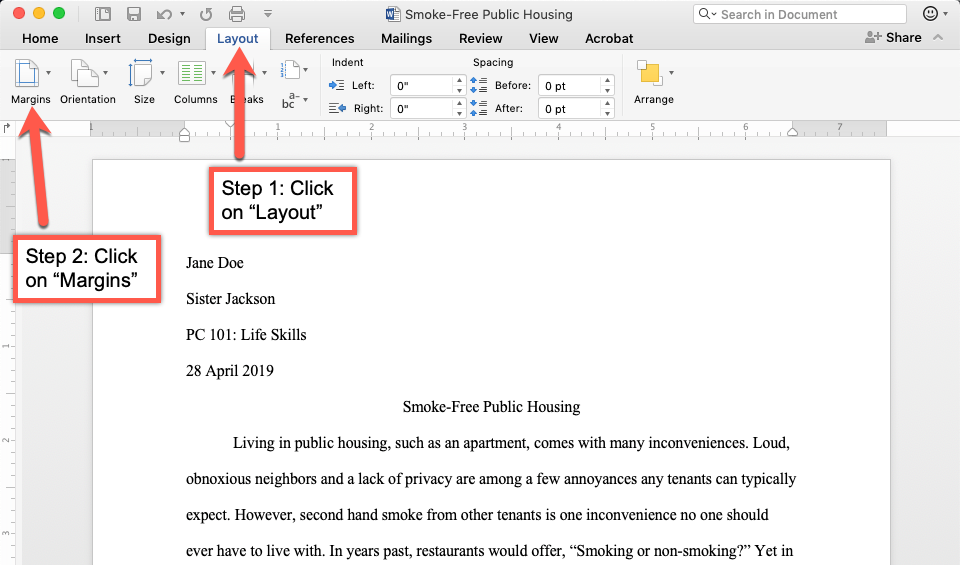
In Microsoft Word, the margin settings are found under the Layout tab in the Ribbon. Users can select “Normal,” which is the predefined 1″ top, bottom, left, and right setting. For power users, the “Custom Margins” dialog allows for the adjustment of the “Gutter”—an extra space added to the left margin to accommodate for document binding or three-hole punching without encroaching on the 1” visual margin.
Google Docs follows a similar logic but keeps its interface leaner. Users navigate to File > Page setup to verify their margins. In a cloud-native environment, these margins are rendered in real-time using CSS-like properties in the browser, ensuring that the “What You See Is What You Get” (WYSIWYG) experience remains consistent across different operating systems and screen resolutions.
PDF Formatting and Print Readiness
When dealing with PDF (Portable Document Format) technology, margins become “baked in” to the document’s coordinate system. Unlike a Word document, where text can reflow if margins are changed, a PDF views the 1″ margin as a fixed set of coordinates. Technical professionals using Adobe Acrobat or LaTeX must be precise; if a document is intended for professional digital distribution, the 1″ margin ensures that the content remains centered across various PDF viewers and mobile devices, preventing “content drift.”
The Technical Mechanics of Margins in Web Development (CSS)

In the world of web technology and software engineering, “margins” take on a more complex meaning. While word processors treat margins as a page-level setting, web developers use margins to define the space between elements.
The Box Model: Padding vs. Margins
Every element on a webpage—be it a button, a text block, or an image—is viewed by the browser as a “box.” The CSS Box Model consists of four parts: Content, Padding, Border, and Margin.
- Margin: This is the outermost layer. It creates space around the element, separating it from its neighbors. If a developer sets
margin: 1in;in their CSS, they are telling the browser to maintain exactly one inch of distance between that element’s border and the surrounding components. - Padding: This is the space inside the element, between the content and the border.
Understanding this distinction is critical for digital security and interface integrity. Improper margin handling can lead to “layout shifting,” a phenomenon where elements jump around as a page loads, which not only ruins user experience but can also be exploited for “clickjacking” (tricking a user into clicking something they didn’t intend to).
Absolute vs. Relative Units (in, px, em)
In professional web tech, using an absolute unit like 1in for margins is rare but possible. Most modern layouts use relative units like rem or vh. However, when creating “Print Stylesheets” (CSS specifically designed for when a user hits Ctrl+P), developers frequently use margin: 1in;.
The technical challenge lies in how browsers translate an “inch” to pixels. By standard definition, 1 inch equals 96 pixels (96px) in most digital display environments. However, on high-density displays (Retina displays), the software must perform “pixel doubling” to ensure that a 1″ margin on the screen physically measures an inch if you were to hold a ruler up to the monitor.
Visual Hierarchy and UX: The Role of 1-Inch Spacing
In User Experience (UX) design, margins are referred to as “white space” or “negative space.” The 1″ margin isn’t just a border; it’s a tool for directing user attention.
Readability and Cognitive Load
A screen or page packed with data from edge to edge creates high “cognitive load.” This means the brain has to work harder to parse information. Tech giants like Apple and Google emphasize the use of generous margins in their design languages (Human Interface Guidelines and Material Design, respectively). By maintaining a standard 1″ margin (or its digital equivalent in padding), developers create a “breathing room” that allows the user’s eye to rest and focus on the core content. This is especially vital in SaaS (Software as a Service) dashboards where data density is high.
Accessibility Standards in Digital Documents
For users with visual impairments or cognitive disabilities, margins are an accessibility requirement. The Web Content Accessibility Guidelines (WCAG) suggest that proper spacing makes it easier for users with low vision to track lines of text. A consistent 1″ margin helps screen magnifiers focus on the central content without the distraction of peripheral elements, ensuring that technology remains inclusive.
Troubleshooting Common Margin Alignment Issues
Even with standardized software, technical errors regarding margins are common. These issues often stem from a disconnect between software settings and hardware capabilities.
Gutter Settings and Binding Offset
A common technical mistake is failing to distinguish between a “margin” and a “gutter.” If you are preparing a 100-page technical manual for a spiral binding, a standard 1″ margin on both sides will result in the text being swallowed by the binding on the left side of even pages and the right side of odd pages. Modern word-processing software solves this through “Mirror Margins.” This setting allows the software to treat the “Inside” and “Outside” of the page differently, ensuring that the 1″ visual margin is preserved even after the physical binding is applied.
Non-Printable Areas in Modern Hardware
Sometimes, despite setting a 1″ margin in software, the printer may “clip” the edges or report an error. This usually occurs because the printer driver (the software that communicates between the OS and the hardware) has a different “hard margin” than the document. Technical troubleshooting involves checking the “Printable Area” in the printer properties. In the tech industry, the move toward “Borderless Printing” has mitigated this, but for standard office hardware, the 1″ margin remains the safest “fail-safe” for document integrity.

Conclusion
The “1 inch margin” is a cornerstone of digital and physical formatting. It represents a bridge between the analog past of typewriters and the digital future of responsive web design. For the tech-savvy professional, mastering this measurement is not merely about following a rule; it is about optimizing software for readability, ensuring hardware compatibility, and applying the principles of the CSS Box Model to create clean, accessible, and professional digital environments. Whether you are coding a CSS layout or finalizing a technical report, the 1″ margin is your primary tool for creating structure in a world of digital information.
aViewFromTheCave is a participant in the Amazon Services LLC Associates Program, an affiliate advertising program designed to provide a means for sites to earn advertising fees by advertising and linking to Amazon.com. Amazon, the Amazon logo, AmazonSupply, and the AmazonSupply logo are trademarks of Amazon.com, Inc. or its affiliates. As an Amazon Associate we earn affiliate commissions from qualifying purchases.