
Choosing the right Integrated Development Environment (IDE) is a cornerstone decision for any developer embarking on the journey of creating Mac desktop applications. The IDE is more than just a code editor; it’s a comprehensive workbench that streamlines the entire development lifecycle, from writing and debugging code to managing project dependencies and deploying applications. For the macOS ecosystem, this choice carries particular weight, as developers often seek tools that not only facilitate efficient coding but also integrate seamlessly with Apple’s frameworks and tools. This article delves into the landscape of IDEs for Mac desktop application development, exploring the leading contenders and helping you navigate the decision-making process.
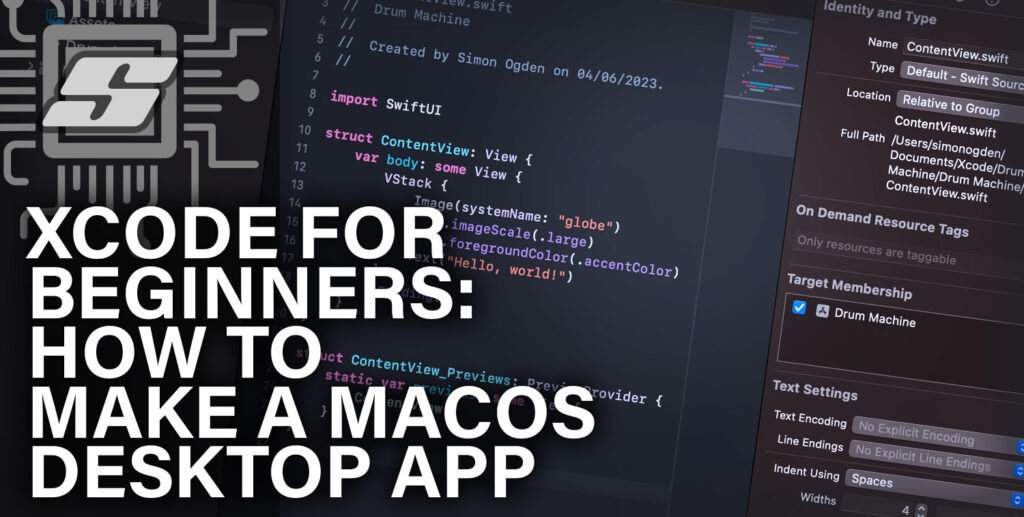
The Essential Toolkit for Mac Development
Developing for macOS involves leveraging Apple’s robust frameworks and specific programming languages. While general-purpose IDEs can certainly be adapted, those with built-in support for Apple’s technologies offer a significant advantage. This section explores the foundational elements that make an IDE suitable for Mac desktop development.
Understanding macOS Development Frameworks
At the heart of Mac desktop applications lie Apple’s powerful frameworks. For native applications, AppKit is the primary framework, providing the building blocks for user interfaces, event handling, and application logic. It’s deeply intertwined with Objective-C and, more recently, Swift, Apple’s modern, safe, and performant programming language. Developers need an IDE that can expertly handle the intricacies of these languages, including their syntax, object-oriented paradigms, and memory management.
Beyond AppKit, developers might also engage with SwiftUI, Apple’s declarative UI framework. SwiftUI offers a more modern and concise way to build user interfaces across all Apple platforms, including macOS. An IDE that provides excellent support for SwiftUI, including live previews and intuitive code completion, can drastically accelerate UI development.
For developers looking for cross-platform solutions or those with experience in other languages, frameworks like Electron (using web technologies like HTML, CSS, and JavaScript) or Qt (using C++) are also viable options for building Mac desktop applications. The IDE choice will then shift to accommodate these technologies.
Key Features of a Mac Development IDE
When evaluating IDEs for Mac desktop development, several key features stand out as critical for productivity and efficiency:
- Code Editor: Beyond basic text editing, a good IDE offers syntax highlighting, intelligent code completion (IntelliSense), code refactoring tools, and the ability to navigate code structure easily. For Swift and Objective-C, this means understanding their specific syntax, keywords, and API calls.
- Debugger: A robust debugger is non-negotiable. It allows developers to step through code line by line, inspect variables, set breakpoints, and analyze the program’s execution flow to identify and fix bugs. Advanced debugging features, such as conditional breakpoints and memory analysis, are particularly valuable.
- Project Management: IDEs help organize project files, manage dependencies (like Swift Package Manager or CocoaPods), and facilitate build processes. This includes compiling code, linking libraries, and generating application bundles.
- UI Design Tools: For Mac applications, visual interface builders are a significant boon. These tools allow developers to drag and drop UI elements, set their properties, and design the layout of windows and controls without writing extensive boilerplate code. Integration with Interface Builder (Xcode’s visual editor) or live previews for SwiftUI are prime examples.
- Version Control Integration: Seamless integration with version control systems like Git is essential for collaboration and tracking changes. Features like commit, push, pull, and branch management directly within the IDE can streamline workflows.
- Build Automation and Testing: The IDE should facilitate the build process, allowing for easy compilation and packaging of the application. Support for unit testing frameworks and running tests directly from the IDE enhances code quality and reliability.
- Performance Profiling: Tools that help analyze an application’s performance, identify memory leaks, and optimize CPU usage are invaluable for creating efficient and responsive desktop applications.
The Dominant Player: Xcode
When it comes to native Mac desktop application development, Xcode stands as the undisputed heavyweight champion. Developed by Apple itself, it is the officially sanctioned and most comprehensive IDE for building applications for macOS, iOS, iPadOS, watchOS, and tvOS. Its deep integration with Apple’s development ecosystem makes it an indispensable tool for many.
Deep Dive into Xcode’s Capabilities
Xcode is a free, full-featured IDE that comes packed with everything a developer needs to bring their Mac application ideas to life.
- Swift and Objective-C First-Class Support: Xcode offers unparalleled support for Swift and Objective-C. Its code editor provides exceptional code completion, syntax checking, and refactoring capabilities tailored to these languages. The compiler is highly optimized for Apple’s platforms, ensuring efficient execution.
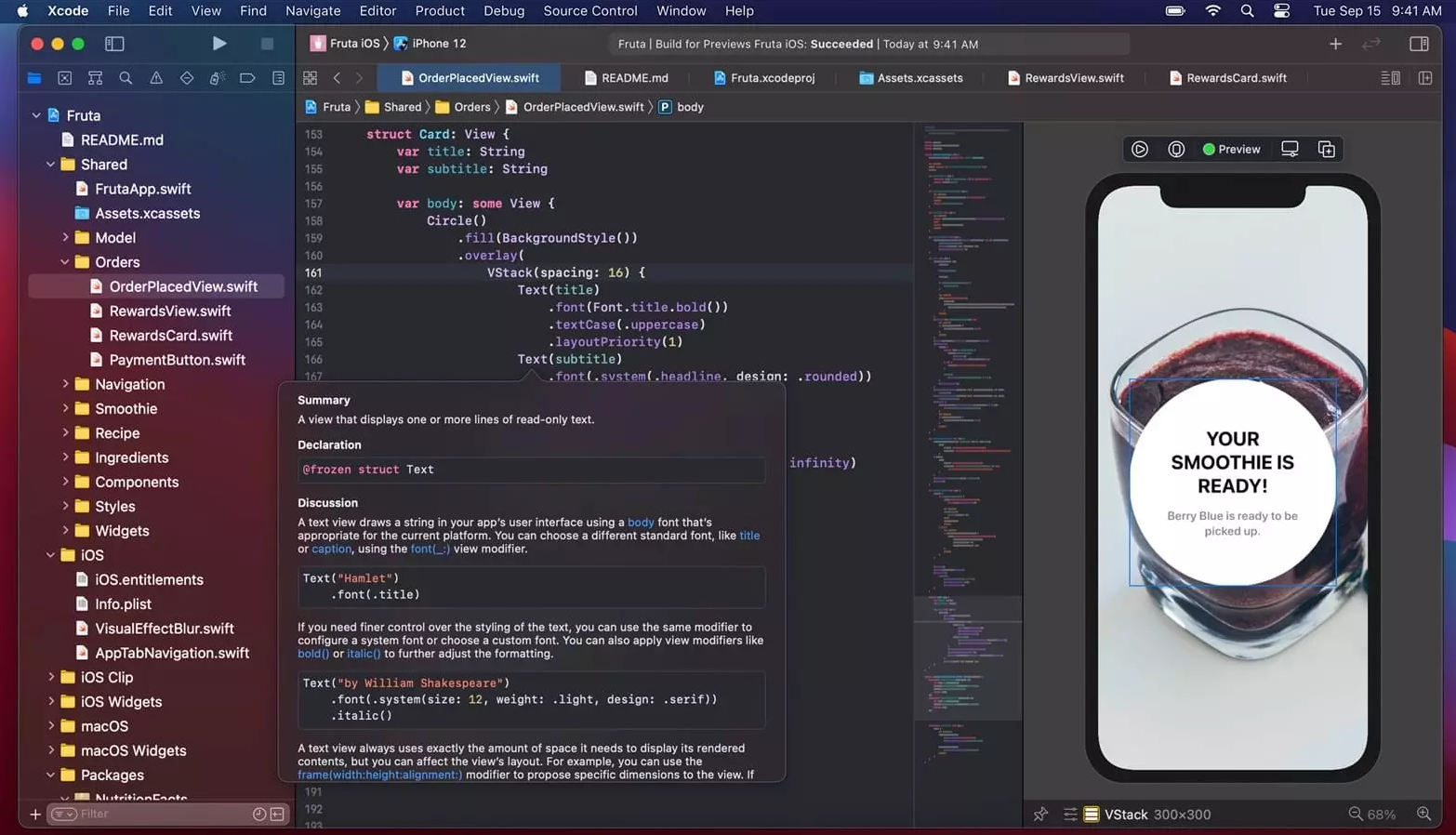
- Interface Builder: Xcode’s integrated Interface Builder is a visual design tool that allows developers to create user interfaces for their applications by dragging and dropping UI elements onto canvases. This significantly speeds up the process of designing windows, buttons, menus, and other visual components. It works seamlessly with both AppKit and SwiftUI.
- Powerful Debugging and Instruments: Xcode’s debugger is robust, offering features like breakpoints, variable inspection, and thread analysis. Furthermore, the Instruments suite, bundled with Xcode, provides advanced profiling tools for analyzing performance, memory usage, energy consumption, and more. This is crucial for optimizing Mac applications.
- SwiftUI Previews and Live Updates: For developers embracing SwiftUI, Xcode offers live previews that render the UI in real-time as you write code. This allows for rapid iteration and immediate visual feedback, dramatically improving the UI development experience.
- Asset Catalogs and Storyboards: Xcode simplifies asset management with asset catalogs, which organize images and other resources efficiently. Storyboards, while more prevalent in iOS development, can also be used for macOS application structure, providing a visual overview of an app’s flow.
- Simulator and Device Testing: Xcode includes a powerful simulator that emulates various Mac hardware configurations, allowing developers to test their applications without needing a physical device. Direct connection to physical Macs for testing is also readily supported.
- Source Control Management: Xcode offers built-in Git integration, allowing developers to manage their repositories directly within the IDE. This includes committing, pushing, pulling, and resolving merge conflicts.
When Xcode Might Not Be the Ideal Choice
Despite its dominance, Xcode isn’t always the perfect fit for every Mac desktop development scenario.
- Cross-Platform Development: If your primary goal is to build applications that run seamlessly on both macOS and Windows with a single codebase, Xcode’s focus on Apple platforms can be a limitation. While it can build Mac apps, it doesn’t inherently support building for other operating systems within the same project structure.
- Web Technologies for Desktop: For developers who prefer to leverage their web development skills (HTML, CSS, JavaScript) to build desktop applications, Xcode’s primary focus on native languages can be a barrier. While it’s possible to integrate web views, it’s not the native environment for frameworks like Electron.
- Learning Curve and Resource Intensity: Xcode can be resource-intensive, requiring a significant amount of disk space and processing power. For developers on older hardware or those new to the macOS development environment, the learning curve can also be steep due to the sheer breadth of its features.
- Licensing and Vendor Lock-in Concerns: While free to download and use, Xcode is proprietary software from Apple. Developers who prefer open-source solutions or are wary of platform-specific dependencies might look for alternatives.
Alternative IDEs and Their Niches
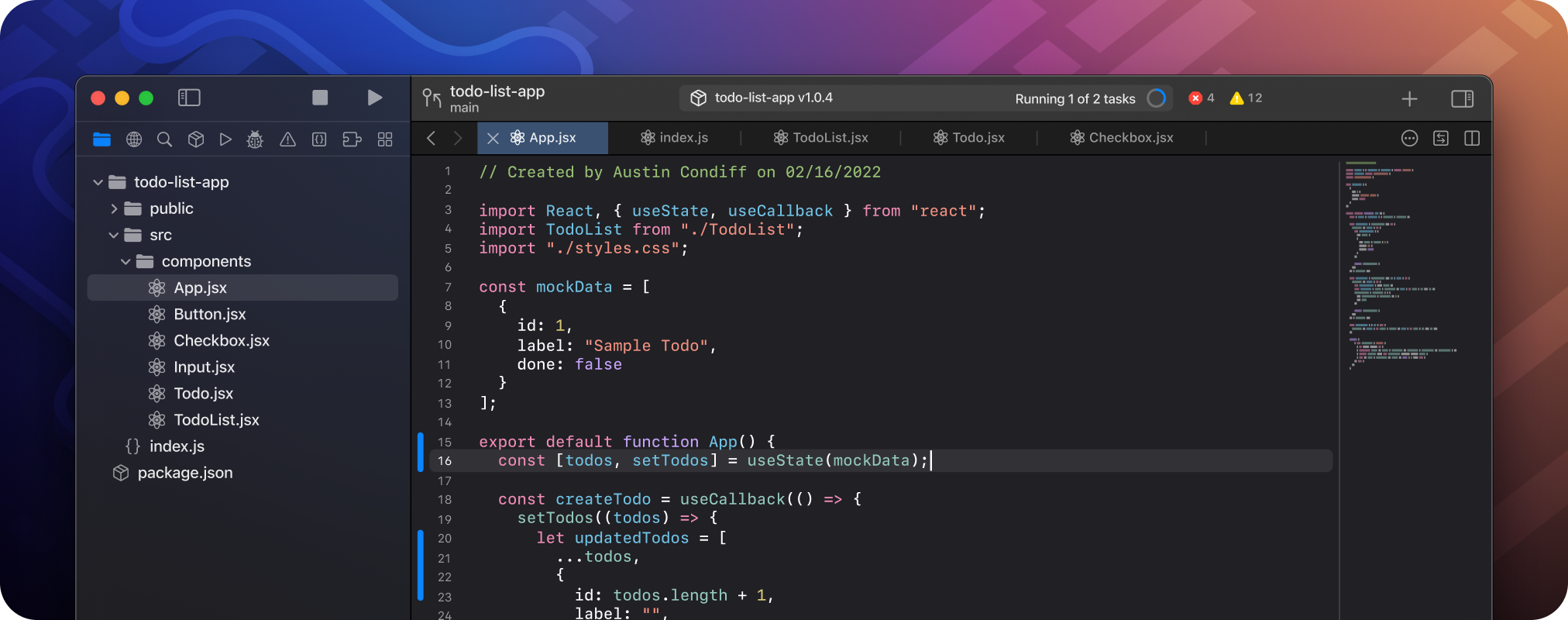
While Xcode reigns supreme for native macOS development, a vibrant ecosystem of alternative IDEs caters to specific needs, particularly in cross-platform development and for developers who favor different programming languages or workflows.
Leveraging Web Technologies: Electron and VS Code
For developers who want to build desktop applications using web technologies like HTML, CSS, and JavaScript, Electron is a popular framework. Electron allows you to build cross-platform desktop apps with Node.js and Chromium. The de facto standard IDE for Electron development, and indeed for many web-related projects, is Visual Studio Code (VS Code).
- Visual Studio Code (VS Code): Developed by Microsoft, VS Code is a free, open-source, and highly extensible code editor that has gained immense popularity. Its lightweight nature, excellent performance, and vast marketplace of extensions make it a compelling choice for various development tasks, including Electron apps.
- Extensions for Electron: The VS Code extension marketplace offers numerous extensions that specifically enhance the Electron development experience. These include linters for JavaScript and HTML, debugging extensions for Node.js and Chromium, and live-reload capabilities that automatically refresh your application as you make changes.
- Cross-Platform Simplicity: With VS Code and Electron, you write your application logic once using web technologies, and it can then be packaged and deployed as a desktop application for macOS, Windows, and Linux, significantly reducing development time and effort for multi-platform deployment.
- JavaScript/TypeScript Focus: If your team is already proficient in JavaScript or TypeScript, VS Code provides a familiar and productive environment for building desktop applications without needing to learn Swift or Objective-C.
C++ and Cross-Platform Powerhouses: Qt Creator
For developers working with C++ and seeking a robust framework for cross-platform application development, Qt Creator is an outstanding option. Qt is a comprehensive C++ framework for developing applications that run on multiple operating systems, including macOS, Windows, Linux, Android, and iOS.
- Qt Creator’s Strengths: Qt Creator is an IDE designed specifically for Qt development. It offers:
- Integrated UI Designer: Qt Designer, embedded within Qt Creator, allows for visual design of user interfaces using Qt’s extensive widget set.
- C++ Tooling: Excellent C++ code editing, debugging, and refactoring capabilities.
- Build System Integration: Seamless integration with qmake and CMake, the build systems commonly used with Qt.
- Cross-Platform Deployment: Facilitates the creation of applications that can be compiled and run on various platforms from a single codebase.
- When to Consider Qt Creator: If your Mac desktop application requires high performance, complex graphical elements, or needs to be deployed across a wide range of desktop and mobile platforms, and your team has C++ expertise, Qt Creator is a strong contender.
Other Notable Mentions
While Xcode, VS Code, and Qt Creator represent major categories, other IDEs can also be relevant depending on specific project requirements or developer preferences:
- AppCode (JetBrains): A commercial IDE from JetBrains, AppCode used to be a popular alternative to Xcode, offering excellent Swift and Objective-C support with a focus on code quality and refactoring. However, with the continued evolution of Xcode and JetBrains’ own evolving strategy, its relevance has shifted. It’s worth noting for its historical significance and advanced refactoring capabilities.
- Atom (GitHub, now sunsetted): While Atom has been sunsetted by GitHub, it was a popular hackable text editor that, with the right plugins, could be used for various development tasks, including some forms of desktop application development. Its extensibility made it a flexible choice for those who enjoyed customizing their tools.
Making the Right Choice for Your Project
The decision of which IDE to use for Mac desktop application development hinges on several critical factors. There’s no one-size-fits-all answer, and understanding your project’s specific needs, your team’s existing skillset, and your long-term goals is paramount.
Evaluating Your Project Requirements
Before settling on an IDE, ask yourself these key questions:
- Native vs. Cross-Platform: Is the primary requirement a deeply integrated, performant native Mac application, or is it essential for the application to run on other operating systems with minimal code changes?
- Target Languages and Frameworks: What programming languages and frameworks are you most comfortable with or most suited for the task? Are you targeting AppKit/SwiftUI with Swift/Objective-C, or web technologies with Electron, or C++ with Qt?
- Performance and Resource Needs: Does your application demand high performance, low-level system access, or extensive graphical capabilities?
- Team Expertise: What are the existing skills of your development team? Leveraging their familiarity with certain languages and tools will lead to faster development cycles.
- Budget and Licensing: Are you looking for a free, open-source solution, or are you willing to invest in a commercial IDE with advanced features and dedicated support?
The Dominance of Xcode for Native Mac Apps
For developers focused exclusively on creating native macOS applications and aiming to leverage the full power of Apple’s hardware and software ecosystem, Xcode remains the most logical and efficient choice. Its deep integration, comprehensive feature set, and direct support from Apple make it the industry standard for this purpose. If your goal is a polished, performant, and deeply integrated Mac experience, investing time in mastering Xcode will likely yield the best results.
Embracing Alternatives for Specific Use Cases
However, if your project leans towards:
- Cross-platform compatibility with a single codebase: VS Code with Electron is an excellent option, allowing you to use web technologies.
- High-performance, multi-platform C++ applications: Qt Creator offers a robust framework and IDE for this purpose.
Ultimately, the best IDE is the one that empowers you and your team to build high-quality Mac desktop applications efficiently and effectively. By carefully considering your project’s unique demands and the strengths of each IDE, you can make an informed decision that sets you on the path to successful development.
aViewFromTheCave is a participant in the Amazon Services LLC Associates Program, an affiliate advertising program designed to provide a means for sites to earn advertising fees by advertising and linking to Amazon.com. Amazon, the Amazon logo, AmazonSupply, and the AmazonSupply logo are trademarks of Amazon.com, Inc. or its affiliates. As an Amazon Associate we earn affiliate commissions from qualifying purchases.