
Your Apple ID is the central nervous system of your digital life within the Apple ecosystem. It serves as the bridge between your hardware—iPhone, iPad, Mac, and Apple Watch—and the suite of services that make these devices functional, including iCloud, the App Store, iMessage, and Find My. Because it is so deeply integrated, signing out is rarely a simple “log out” action; it is a profound disconnection of your data from your local device. Understanding the ripple effect of this action is essential for anyone troubleshooting a device, preparing for a trade-in, or managing security concerns.

The Immediate De-synchronization of iCloud Services
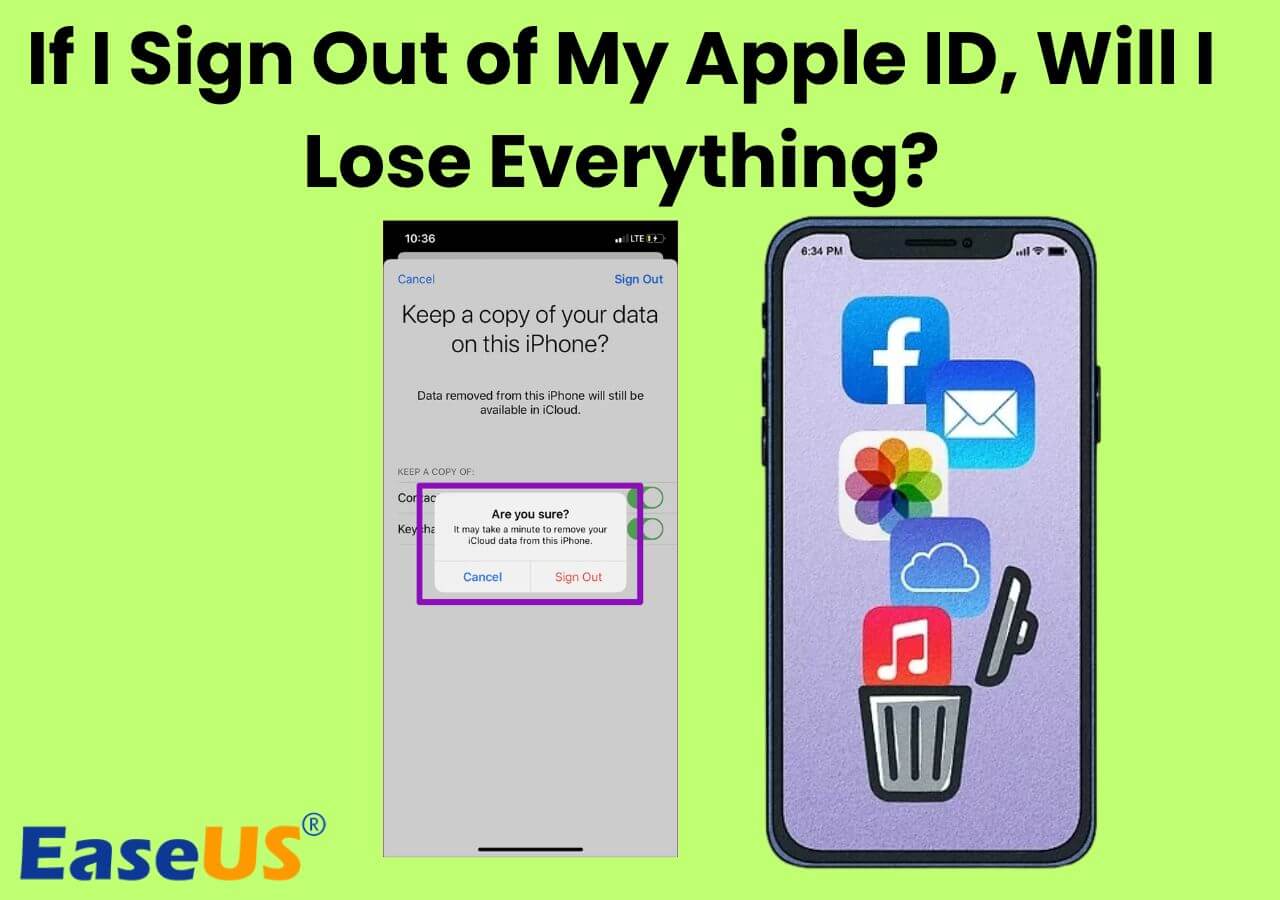
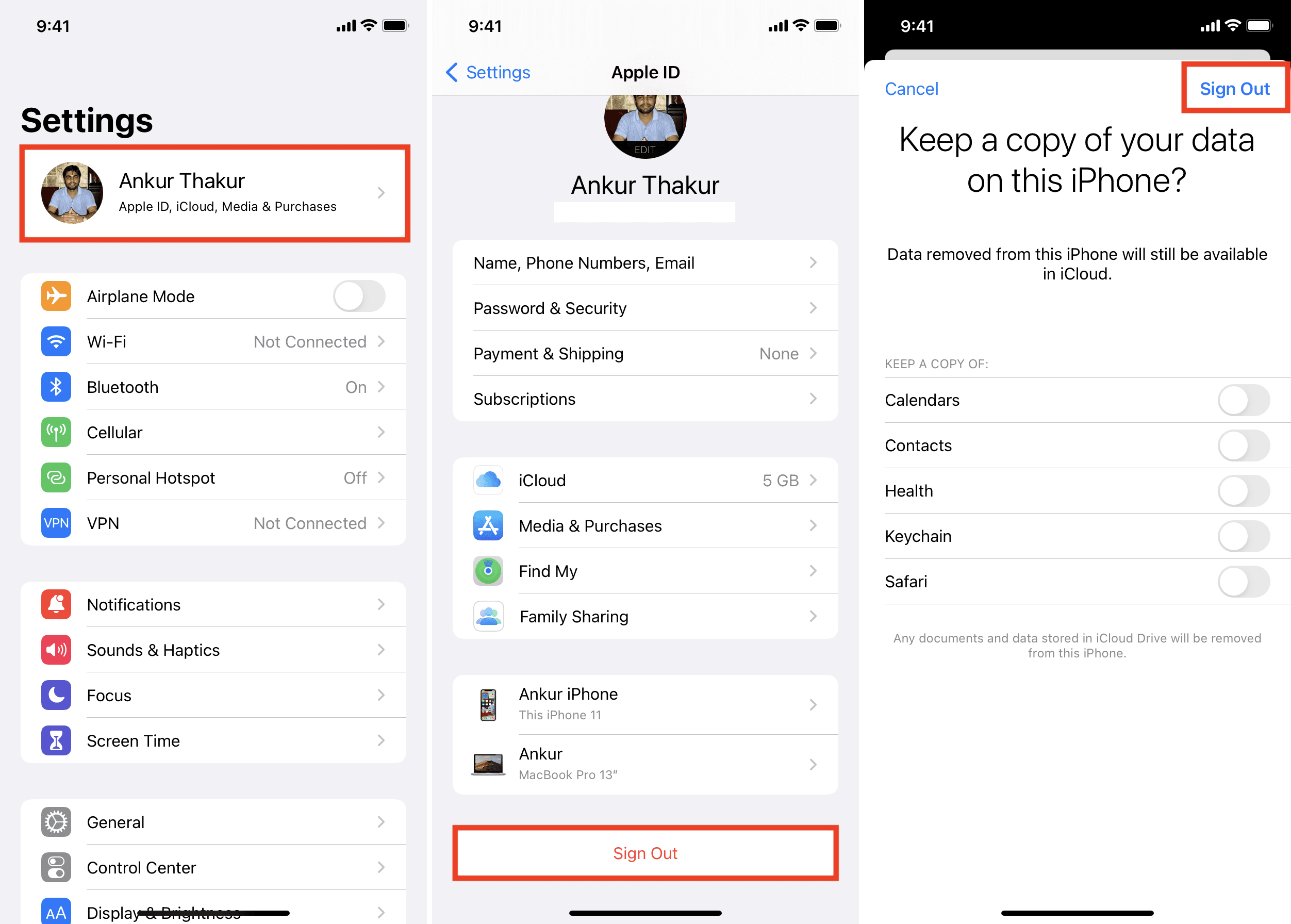
When you choose to sign out of your Apple ID, the most immediate impact is the cessation of synchronization between your local device and the cloud. The operating system will prompt you to decide which data you want to keep on the device and which you want to remove. It is a critical juncture that determines the state of your local storage.
iCloud Drive and File Access
If you use iCloud Drive to sync documents, PDFs, and project files, signing out severs the link to these servers. If you do not choose to “Keep a Copy” of this data on your device, the local files will be removed. While the files remain safe and sound in the cloud, they will no longer be accessible through the Files app or Finder until you sign back in. This can lead to a sudden “missing data” panic, though rest assured that your files are merely hidden behind the login wall.
iCloud Photos and the Optimized Storage Dilemma
Perhaps the most sensitive area of synchronization is iCloud Photos. Many users rely on “Optimize iPhone Storage,” which keeps high-resolution originals in the cloud while storing smaller, device-sized thumbnails locally. When you sign out, these thumbnails are stripped away. Unless you have explicitly downloaded full-resolution versions to your device beforehand, signing out essentially erases your local photo library. Re-signing in will trigger a re-indexing and re-downloading process that can take hours or even days, depending on the size of your library and your internet speed.
iCloud Keychain and Passwords
Your saved passwords, Wi-Fi credentials, and credit card information stored in iCloud Keychain are encrypted and synchronized across your devices. Signing out removes this local vault. While your passwords are not deleted from your Apple account, they become inaccessible on the specific device. This can be particularly jarring if you rely on Apple’s autofill features for daily logins, as your device will revert to a “blank slate” state regarding web and app authentication.
Impact on System-Wide Features and Security
Beyond the storage of files and photos, signing out affects the core utility and security protocols of your hardware. Apple’s “walled garden” is built on the assumption that you are logged in, and removing that credential disables several high-level features.
Find My and the Activation Lock
One of the most vital security features provided by an Apple ID is Activation Lock. This mechanism is tied directly to your account, not just the device hardware. When you sign out of iCloud on an iPhone or iPad, the Find My service is disabled, and the Activation Lock is lifted. This is a necessary step if you are selling or gifting your device, as it allows a new user to register the hardware to their own account. However, if you are signing out for troubleshooting purposes, be aware that you are effectively lowering your device’s security barrier. Without Find My enabled, tracking a lost or stolen device becomes impossible.
Messages, FaceTime, and Communication
The Apple ecosystem routes your communication through your Apple ID and associated phone numbers. When you sign out, iMessage and FaceTime are effectively deactivated. You will stop receiving iMessages sent to your Apple ID email address, and your ability to initiate or receive FaceTime calls will cease. This is often the primary reason users encounter “connectivity” issues after a misguided sign-out. The device reverts to a basic cellular state, losing the seamless cross-device communication continuity that defines the Apple experience.
Continuity and Handoff
Features like Handoff, Universal Clipboard, and Sidecar rely on a proximity-based handshake between devices authenticated with the same Apple ID. Once you sign out, your device becomes an island. It will no longer be able to copy text on your Mac and paste it on your iPhone, nor will it be able to accept phone calls on your iPad. If your workflow depends on the fluidity of moving between Apple devices, signing out will create a significant friction point in your daily productivity.
Considerations for Re-authentication and Data Recovery
Signing out is not a permanent state, but re-signing in carries its own set of requirements and technical hurdles. It is not always as simple as typing in your password and moving on.
The Re-indexing and Synchronization Delay
When you sign back into an Apple ID, the system does not instantly mirror the cloud state. It must first authenticate the device, re-establish secure tokens, and perform a handshake with the iCloud servers. Following this, the device must re-index your data. If you have a large iCloud Photo library or extensive iCloud Drive folders, the device may consume significant battery and background resources to download metadata and prepare your files for local access. Users often mistake this intense background activity for a device bug, when it is simply the cost of restoring the ecosystem integration.
App Store and Purchase History
While your apps remain installed on the device even after signing out of iCloud, the “ownership” link is temporarily severed. You may find that certain apps refuse to launch if they require a persistent check with the App Store to verify licenses. Furthermore, you will not be able to update these apps or download new purchases until you re-authenticate. Signing out of your Apple ID often resets your preferences for app downloads, meaning you may have to re-enter your password or use FaceID to authorize even free downloads once you return to the fold.
The Necessity of Local Backups
Given the potential for data loss—or at the very least, data inaccessibility—during a sign-out event, the importance of a secondary backup cannot be overstated. Relying solely on iCloud synchronization as your “backup” is a risky strategy. Before signing out of an Apple ID, it is best practice to perform a full local backup to a computer (via Finder on macOS or iTunes/Devices on Windows). This provides a fail-safe. If the re-sync process fails or if you accidentally delete files during the sign-out process, the local backup acts as a safety net that is independent of your cloud status.
Troubleshooting and “Clean Slate” Strategy
Sometimes, signing out is the correct technical move. If you are experiencing persistent “ghost” errors—such as stuck iCloud syncs, iMessage activation failures, or system-wide glitches—signing out and back in can act as a “soft reset” of your account’s relationship with the device. By clearing the local cache of your Apple ID credentials, you force the device to re-fetch settings and permissions from Apple’s servers. When taking this approach, ensure you have a reliable internet connection and sufficient time to allow the re-syncing process to complete without interruption.
Ultimately, signing out of an Apple ID is a powerful action that effectively “unpacks” your digital life from the hardware. It is a functional necessity for device transfers and a diagnostic tool for complex errors, but it should be approached with caution. By understanding that your device is essentially a guest interface for your iCloud data, you can navigate the sign-out process with confidence, ensuring that your digital assets remain secure and accessible even when the connection is temporarily severed.
aViewFromTheCave is a participant in the Amazon Services LLC Associates Program, an affiliate advertising program designed to provide a means for sites to earn advertising fees by advertising and linking to Amazon.com. Amazon, the Amazon logo, AmazonSupply, and the AmazonSupply logo are trademarks of Amazon.com, Inc. or its affiliates. As an Amazon Associate we earn affiliate commissions from qualifying purchases.