
The heart sinks, a cold dread washes over you. One moment, your meticulously organized collection of digital breadcrumbs – those vital links to your research, client portals, design inspiration, financial tools, and personal passions – were right there. The next? Gone. Or perhaps fragmented, duplicated, or stubbornly refusing to sync. The question screams in your mind: “What happened to my bookmarks in Chrome?”
This isn’t just a minor inconvenience; it’s a digital emergency. In our increasingly interconnected world, bookmarks are more than mere shortcuts; they are foundational elements of our digital workflow, repositories of invaluable information, and silent facilitators of our productivity. For tech enthusiasts, they represent a curated library of knowledge. For professionals building a personal brand, they’re the essential links to industry insights and portfolio elements. For those navigating the world of online income and personal finance, they are direct pathways to financial dashboards, investment platforms, and critical business resources. When they vanish, the ripple effect can touch every aspect of our digital lives, impacting our efficiency, our brand, and even our bottom line. This comprehensive guide will delve into the common culprits behind bookmark disappearances, walk you through effective recovery strategies, and, crucially, equip you with the knowledge to fortify your digital future, ensuring your bookmarks remain a steadfast ally, not a source of frustration.

The Digital Disappearance Act: Common Causes Behind Lost Bookmarks
The sudden vanishing of Chrome bookmarks can feel like a digital magic trick gone wrong, leaving users bewildered and frustrated. While the outcome is always the same – missing links – the reasons behind this digital disappearing act are varied, ranging from simple oversight to complex software issues. Understanding these root causes is the first step towards effective recovery and, more importantly, prevention.
User Error and Profile Confusion
Often, the simplest explanations are the correct ones. What appears to be a mysterious loss of bookmarks can frequently be traced back to actions taken inadvertently by the user or confusion arising from Chrome’s multi-profile environment.
- Accidental Deletion: In the rush of a browsing session, a misclick can lead to the deletion of a single bookmark, an entire folder, or even the accidental removal of the bookmark bar itself. While Chrome usually offers a brief undo option, many users miss this fleeting opportunity.
- Logging into the Wrong Google Account: Chrome deeply integrates with Google accounts for synchronization. If you’ve signed into Chrome with a different Google account than the one typically associated with your primary bookmarks, you’ll see the bookmarks tied to that current account, leading to the mistaken impression that your original bookmarks are gone. This is particularly common on shared computers or when managing multiple online identities.
- Switching Chrome Profiles: Beyond Google accounts, Chrome allows for distinct user profiles on a single browser installation. Each profile maintains its own settings, history, and, critically, bookmarks. If you’ve switched to a different Chrome profile, you won’t see the bookmarks from your usual profile, even if both profiles are associated with the same Google account or none at all.
- Guest Mode Browsing: Using Chrome’s Guest mode means you’re operating in a temporary, sandboxed environment that doesn’t save any browsing data, including bookmarks. If you thought you were logged into your profile but were actually in Guest mode, any bookmarks added during that session will be lost upon closing the window.
Sync Shenanigans and Software Glitches
Chrome’s synchronization feature is a powerful tool designed to keep your browsing experience consistent across devices. However, when sync encounters issues, it can become a primary culprit for bookmark problems. Software glitches within Chrome itself or related system interactions can also throw a wrench into the works.
- Chrome Sync Paused or Disabled: For bookmarks to sync, the feature must be actively enabled and running. Sometimes, sync can be paused by the user, or it might encounter a temporary error that effectively disables it. If you’ve recently reset your Google password, Chrome may also pause sync and require you to re-authenticate. If sync isn’t active, changes made on one device won’t propagate, and newly added bookmarks might not appear elsewhere.
- Internet Connectivity Issues During Sync: While not directly causing loss, intermittent or unstable internet connections can prevent sync from completing properly, leading to discrepancies between your local bookmarks and the cloud version.
- Corrupted Chrome User Profile: The Chrome user profile stores all your personal browser data, including bookmarks, extensions, and settings. This profile can become corrupted due to various reasons – sudden shutdowns, software conflicts, or disk errors. A corrupted profile often manifests as strange browser behavior, including missing bookmarks, and may necessitate creating a new profile.
- Browser Updates Gone Wrong: While Chrome updates are generally seamless, rare instances of bugs in a new version can lead to temporary data display issues or, in extreme cases, data loss. Similarly, an incomplete or interrupted update process can leave the browser in an unstable state.
- Interference from Browser Extensions: Certain extensions, especially those that manage or modify bookmarks, can sometimes conflict with Chrome’s native bookmark system, leading to unexpected behavior or loss.
The Unseen Threats: Malware and System Anomalies
Less common but potentially more severe are external threats or underlying system problems that can compromise your browser data, including your precious bookmarks.
- Malware and Viruses: Malicious software can target browser data, either to steal information or simply to disrupt system functionality. Some malware is designed to modify browser settings, delete files, or corrupt profiles, directly impacting your bookmarks. This is a significant digital security concern that touches upon the “Tech” aspect of our website, emphasizing the importance of robust cybersecurity practices.
- System Crashes or Disk Errors: A sudden system crash, power outage, or underlying hard drive issues can interrupt Chrome’s operation mid-write, potentially corrupting essential data files, including those that store your bookmarks. While Chrome usually tries to recover, severe file system damage can lead to permanent data loss.
- Overzealous Cleaning Software: Some third-party “cleaner” or “optimizer” software can, if configured incorrectly or poorly designed, aggressively delete files they deem unnecessary, inadvertently wiping out important browser data like cached files and potentially even bookmark backups.
Understanding these varied causes is crucial for not just recovering your bookmarks but also for implementing robust preventative strategies that safeguard your digital assets against future disappearances.
Retrieving Your Digital Breadcrumbs: Step-by-Step Recovery Strategies
The initial panic subsides as you transition from “What happened?” to “How do I get them back?” Fortunately, Chrome and your operating system offer several avenues for recovering lost bookmarks. The key is to act systematically and understand the different layers of backup and recovery available. These strategies are vital for regaining productivity and protecting your curated digital resources, a critical aspect for both personal brand building and efficient business operations.
The First Line of Defense: Chrome’s Built-in Features
Start with Chrome’s native capabilities, as these are often the quickest and most effective solutions for common bookmark issues.
-
1. Check Chrome Sync Status:
- Purpose: To verify if your bookmarks are stored in the cloud and if sync is active.
- Steps:
- Open Chrome and click on your profile icon (usually in the top-right corner).
- Click “Sync is on” or “Sync and Google services.”
- Look under “Sync” to ensure “Bookmarks” is toggled on. If sync is paused, it will prompt you to re-authenticate. Do so.
- If bookmarks are off, turn them on. If they were already on, try toggling them off and on again to force a resync.
- Also, visit
chrome://sync-internalsin your browser. This page provides detailed information about your sync status. Look for “Types synced” and ensure “Bookmarks” is listed. Check for any errors under “Sync Node Browser” or “Notifications.”
- Outcome: If sync is active and working, your bookmarks should reappear, pulling from your Google account’s cloud backup. This is often the fix for bookmarks missing across devices.
-
2. Look for Bookmarks.bak: The Local Safety Net:
- Purpose: Chrome automatically creates a local backup file of your bookmarks each time you open the browser.
- Steps:
- Close all Chrome windows immediately. This prevents Chrome from overwriting the backup file with your current (missing) state.
- Navigate to your Chrome user data directory:
- Windows:
C:Users<YourUsername>AppDataLocalGoogleChromeUser DataDefault(replaceDefaultwith your profile name if you have multiple, e.g.,Profile 1). - macOS:
~/Library/Application Support/Google/Chrome/Default - Linux:
~/.config/google-chrome/Default
- Windows:
- In this folder, you should find two files:
Bookmarks(your current bookmarks) andBookmarks.bak(your last backup). - Rename the
Bookmarksfile to something likeBookmarks.old. - Rename
Bookmarks.baktoBookmarks. - Open Chrome. Your bookmarks from the last backup should now be present.
- Outcome: Recovers bookmarks to the state they were in when Chrome last successfully backed them up, potentially restoring many or all of your lost links.
-
3. Undo Accidental Deletion: The Immediate Ctrl+Z:
- Purpose: For very recent, accidental deletions within the bookmark manager.
- Steps:
- If you just deleted a bookmark or folder within the Bookmark Manager window (Ctrl+Shift+O or Cmd+Option+B), immediately press
Ctrl+Z(Windows/Linux) orCmd+Z(macOS).
- If you just deleted a bookmark or folder within the Bookmark Manager window (Ctrl+Shift+O or Cmd+Option+B), immediately press
- Outcome: Restores the last action. This is a very short window of opportunity.
-
4. Switch Chrome Profiles: Are you in the right ‘digital home’?
- Purpose: To ensure you’re viewing the bookmarks associated with the correct user profile.
- Steps:
- Click on your profile icon in the top-right corner of Chrome.
- Look for “Other profiles” or a list of profiles. Click on each one to see if your missing bookmarks appear.
- If you see “Guest” or “Add person,” you might have been browsing in guest mode or a new, empty profile.
- Outcome: Often reveals that your bookmarks were never lost, just associated with a different profile.
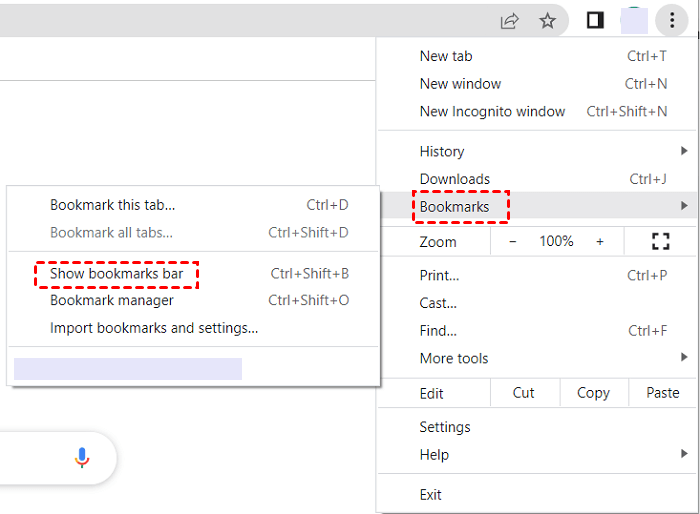
Beyond the Browser: Advanced Recovery and Data Integrity
If Chrome’s internal tools don’t yield results, you might need to broaden your scope to operating system-level recovery options.
-
1. System Restore Points (Windows Only):
- Purpose: To roll back your entire system to a previous state, which might include your Chrome profile and its bookmarks.
- Steps:
- Search for “Create a restore point” in the Windows search bar and open it.
- Click “System Restore…” and follow the prompts to choose a restore point from before your bookmarks disappeared.
- Caution: This will revert all system changes (installed programs, drivers, etc.) made since that restore point. Back up critical data before proceeding.
- Outcome: A powerful, but broad, recovery method that can restore entire system states.
-
2. Data Recovery Software (for deeper dives into lost files):
- Purpose: If your
BookmarksorBookmarks.bakfiles were truly deleted from your hard drive (not just corrupted), data recovery software can sometimes retrieve them. - Tools: Recuva (Windows), Disk Drill (macOS/Windows), EaseUS Data Recovery Wizard.
- Steps: Install the software and scan the Chrome user data directory (mentioned above) for deleted files.
- Caution: Success is not guaranteed, especially if the disk space has been overwritten. Stop using your computer as much as possible once you realize files are missing to maximize chances.
- Outcome: Can retrieve files deleted from the file system, offering a chance for complete recovery in dire situations.
- Purpose: If your
-
3. Reinstalling Chrome (as a last resort):
- Purpose: To address deeply corrupted Chrome installations or persistent glitches.
- Steps:
- Uninstall Chrome from your computer. (On Windows, ensure you check the box to delete browsing data.)
- Restart your computer.
- Download and install a fresh copy of Chrome from the official website.
- Sign in with your Google account. If your bookmarks were successfully synced to the cloud, they should reappear.
- Caution: If your bookmarks were not synced to the cloud, this will likely result in permanent loss unless you have a local backup like
Bookmarks.bakthat you can reintroduce before signing in. - Outcome: Provides a fresh start, often resolving persistent issues and restoring cloud-synced data.
These recovery strategies, when applied judiciously, offer a strong possibility of retrieving your lost digital breadcrumbs. However, true digital resilience lies in proactive prevention, ensuring such stressful recovery missions become a rarity rather than a regular occurrence.
Fortifying Your Digital Future: Preventing Bookmark Loss and Enhancing Productivity
While recovering lost bookmarks is a relief, the experience itself is a potent reminder of the fragility of our digital assets. Building a resilient digital workflow means not just knowing how to recover, but how to prevent loss in the first place. This section emphasizes proactive measures that align with sound technological practices, bolster your personal and corporate brand identity by ensuring consistent access to resources, and protect your financial interests by preserving links to critical income streams and financial tools.
Proactive Measures for Bookmark Security
Prevention is always better than cure. By adopting a few simple yet powerful habits, you can significantly reduce the risk of bookmark loss.
-
1. Enable and Verify Chrome Sync: The Ultimate Prevention:
- How: Sign into Chrome with your Google account and ensure “Sync” is turned on for “Bookmarks” (as detailed in the recovery section).
- Why it matters (Tech): Chrome Sync is your primary cloud backup. It encrypts and stores your bookmarks on Google’s servers, making them accessible across all your devices and providing a fail-safe against local data corruption or device failure. It’s the cornerstone of digital resilience for your browsing data.
- Why it matters (Brand/Money): For personal branding, immediate access to your curated research and portfolio links on any device is crucial for presenting a consistent professional image. For online income, losing access to affiliate dashboards or market research due to a lost device could mean missed opportunities, directly impacting your earnings. Sync ensures business continuity.
-
2. Regularly Export Bookmarks: Your Manual Backup:
- How: In Chrome, go to the Bookmark Manager (Ctrl+Shift+O or Cmd+Option+B), click the three-dot menu, and select “Export bookmarks.” Save the HTML file to a secure location (e.g., cloud storage like Google Drive, Dropbox, or an external hard drive).
- Why it matters (Tech): This creates an independent, local backup that is not reliant on Chrome’s internal files or Google’s sync. It’s an excellent “cold storage” option.
- Why it matters (Brand/Money): This acts as an insurance policy. If all else fails, or if you decide to switch browsers entirely, this HTML file is universally readable and can easily import your entire bookmark collection, preserving access to your critical brand resources or financial tools without disruption. Consider this an essential part of your digital asset management strategy.
-
3. Utilize Third-Party Bookmark Managers: Beyond Chrome’s Native Tools:
- How: Explore services like Raindrop.io, Pocket, or Instapaper. These often come as browser extensions and offer more robust categorization, tagging, and search features, along with their own cloud backup systems.
- Why it matters (Tech/Productivity): These tools go beyond simple bookmarking. They allow for deeper organization, often integrate with other apps, and provide a separate, independent platform for storing your links, adding another layer of redundancy.
- Why it matters (Brand/Money): For professionals managing extensive research for content creation, market analysis, or competitive intelligence, these tools can significantly boost productivity. They turn a collection of links into a highly searchable, categorized knowledge base, directly supporting your brand’s expertise and contributing to more efficient financial decision-making by consolidating research.
-
4. Maintain System Backups: A Holistic Approach to Data Safety:
- How: Use your operating system’s built-in backup tools (File History on Windows, Time Machine on macOS) or third-party backup software to regularly back up your entire computer or at least your user profile.
- Why it matters (Tech): This is the ultimate safety net. A full system backup ensures that all your data, including your Chrome user profile folder with its bookmarks, can be restored if your hard drive fails or your system becomes irrecoverable.
- Why it matters (Brand/Money): Data loss of any kind translates to lost time and potential financial setbacks. A comprehensive backup strategy protects not just your bookmarks but all your digital assets – documents, photos, project files – which are often integral to your brand and income streams. It’s an investment in digital security and business continuity.
The Strategic Value of Your Bookmarks: Tech, Brand, and Money Perspectives
Beyond mere prevention, understanding the profound impact of well-managed bookmarks on your professional and financial life elevates them from simple browser features to strategic digital assets.
-
Tech: From a technology standpoint, bookmarks represent a highly personalized, curated knowledge base. For developers, designers, or IT professionals, they are crucial links to documentation, forums, tutorials, and specialized tools. Losing them means rebuilding a significant portion of your operational intelligence. Efficiently organized bookmarks boost productivity, allowing quick access to frequently used software, AI tools, or digital security resources, making you a more effective and adaptable tech user.
-
Brand: For those cultivating a personal brand or managing a corporate identity, bookmarks are essential for maintaining a competitive edge and consistent presence.
- Personal Branding: Your bookmarks might contain links to your portfolio, articles you’ve written, industry thought leaders, design inspirations, or marketing resources. Losing these means a disruption to your creative process, your research flow, and your ability to quickly showcase your work or access critical resources that support your professional narrative. A well-organized bookmark collection reflects a professional who values efficiency and access to information, indirectly enhancing your brand perception.
- Corporate Identity: For businesses, bookmarks can point to internal dashboards, client relationship management (CRM) systems, competitor analysis, marketing campaign trackers, or branding guidelines. The collective loss of such access across a team could significantly hinder operations, impact client services, and subtly damage the perception of organizational efficiency and reliability – core elements of a strong corporate identity.
-
Money: The connection between bookmarks and financial well-being is often overlooked but deeply significant, touching upon personal finance, online income, and business finance.
- Online Income & Side Hustles: Bookmarks are often gateways to affiliate marketing dashboards, e-commerce platforms, freelance job boards, online course creation tools, or cryptocurrency exchanges. Losing them can mean lost productivity, difficulty accessing earnings, or missed critical market movements, directly impacting your income. The time spent recovering these links is time not spent generating revenue.
- Personal & Business Finance: Links to online banking portals, investment accounts, budgeting software, invoicing systems, tax preparation sites, or critical financial news sources are stored in bookmarks. A sudden loss can create significant stress, delay important transactions, or even lead to financial oversight. For businesses, uninterrupted access to financial tools is paramount for cash flow management, payroll, and compliance, making bookmarks a critical operational asset. The “opportunity cost” of lost time and access directly translates into a monetary impact.
By recognizing bookmarks not just as browser features but as integral components of your technological toolkit, personal brand, and financial infrastructure, you shift from reactive troubleshooting to proactive, strategic management. This holistic perspective ensures that your digital breadcrumbs remain secure, accessible, and continuously contribute to your productivity and success.
Conclusion
The abrupt disappearance of bookmarks in Chrome is more than a momentary annoyance; it’s a stark reminder of our deep reliance on digital tools and the critical value of our curated online resources. As we’ve explored, these digital breadcrumbs are not just shortcuts; they are the arteries of our tech workflows, the research backbones of our personal brands, and the access points to our financial engines. Whether due to an innocent misclick, a sync hiccup, or a more serious system anomaly, understanding “what happened to my bookmarks in Chrome” is the first step toward regaining control.
We’ve delved into the common culprits, from user error and profile confusion to sync inconsistencies and the more insidious threats of malware. More importantly, we’ve armed ourselves with a systematic approach to recovery, starting with Chrome’s built-in Bookmarks.bak file and extending to advanced data recovery techniques. But the true lesson lies in fortification. By consistently enabling Chrome Sync, regularly exporting bookmarks, considering dedicated bookmark managers, and maintaining comprehensive system backups, we transcend mere troubleshooting. We build a robust digital fortress, safeguarding our invaluable links against future disappearances.
In a world where technology underpins every facet of our lives, from professional endeavors to personal finance, organized and accessible bookmarks are no longer a luxury but a necessity. They are an investment in our productivity, a foundation for our digital identity, and a pathway to sustained success. By adopting these proactive measures, we transform the stress of potential loss into the confidence of digital resilience, ensuring that our carefully gathered digital assets continue to serve us, empowering our journey through the ever-evolving digital landscape.
aViewFromTheCave is a participant in the Amazon Services LLC Associates Program, an affiliate advertising program designed to provide a means for sites to earn advertising fees by advertising and linking to Amazon.com. Amazon, the Amazon logo, AmazonSupply, and the AmazonSupply logo are trademarks of Amazon.com, Inc. or its affiliates. As an Amazon Associate we earn affiliate commissions from qualifying purchases.