
The perception of MacBooks as purely productivity machines, devoid of gaming capabilities, is a lingering misconception. While historically the Mac gaming scene might have been less robust than its Windows counterpart, the landscape has dramatically shifted. Today, MacBooks, from sleek Air models to powerful Pro configurations, offer a surprisingly diverse and enjoyable gaming experience. This comprehensive guide will navigate you through the world of gaming on your MacBook, exploring the types of games available, the platforms you can access them from, and how to optimize your experience. Whether you’re a casual gamer looking for a quick diversion or a dedicated enthusiast seeking immersive adventures, your MacBook is more capable than you might think.
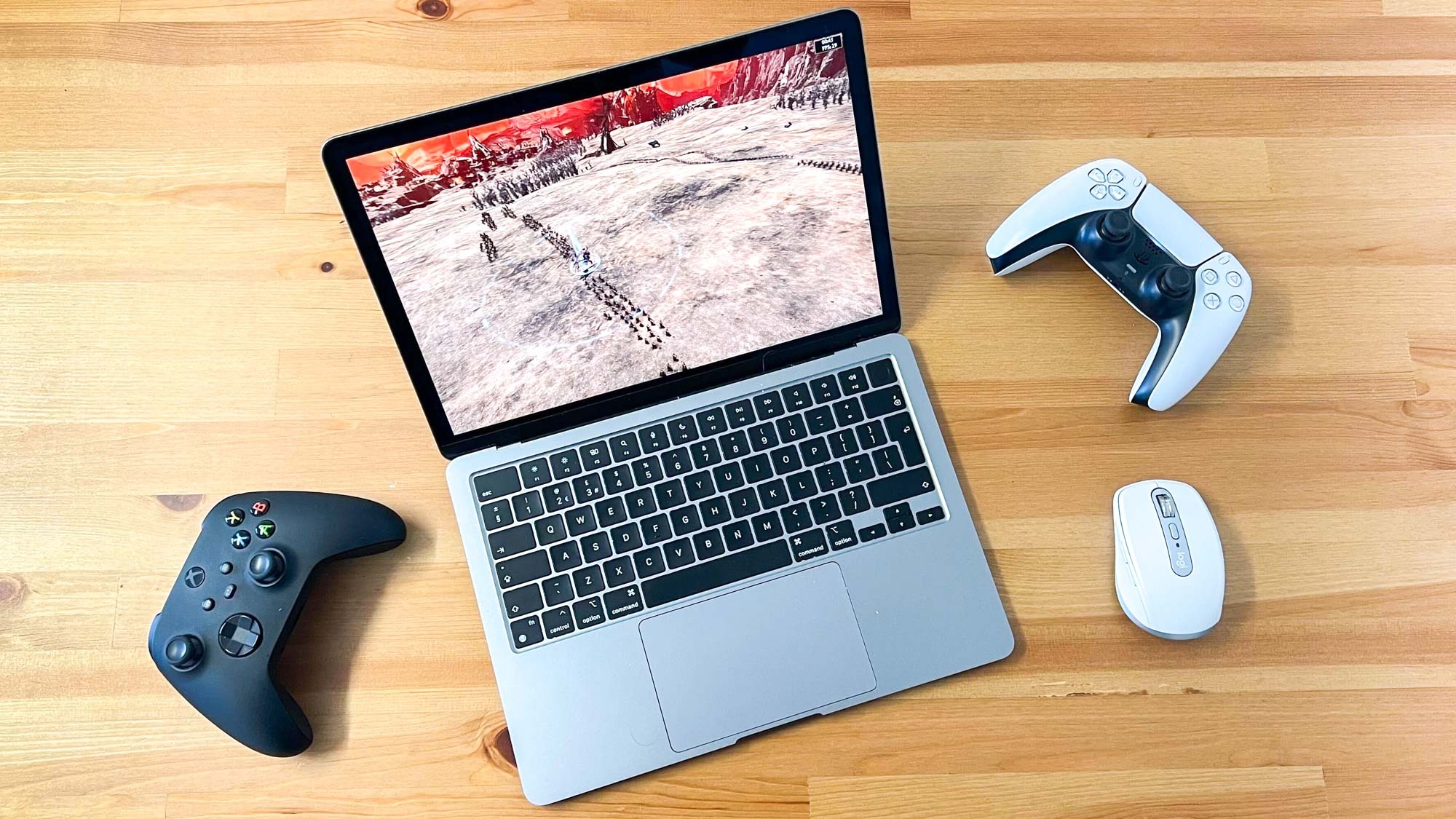
Unlocking the Gaming Potential of Your MacBook
The journey into gaming on a MacBook begins with understanding its inherent capabilities and the various avenues through which you can access games. Modern MacBooks are equipped with powerful processors, integrated graphics that have seen significant improvements, and increasingly, dedicated graphics cards in higher-end models. This hardware forms the foundation for a compelling gaming experience.
Native macOS Gaming: The Growing Library
Apple has been actively fostering a healthier gaming ecosystem on macOS. While the sheer volume of titles might not rival Windows, the selection of games specifically designed and optimized for macOS is steadily growing. These are games you download and install directly onto your MacBook, offering the most seamless experience.
Popular Genres and Titles
The native macOS library spans across numerous genres. You’ll find critically acclaimed indie darlings, robust role-playing games, engaging strategy titles, and even some AAA games that have made the jump.
- Indie Gems: The App Store and platforms like Steam are teeming with innovative indie titles that run exceptionally well on Macs. Think of games like Stardew Valley, Hollow Knight, Disco Elysium, and Undertale. These games often prioritize compelling gameplay and art style over cutting-edge graphics, making them ideal for a wide range of MacBook hardware.
- Strategy and Simulation: Mac has always been a strong platform for strategy and simulation games. Titles such as Civilization VI, XCOM 2, Cities: Skylines, and Football Manager are popular choices for those who enjoy deep, strategic gameplay.
- RPGs and Adventures: While not as extensive as on other platforms, there are still fantastic RPGs and adventure games available. Baldur’s Gate 3 (especially with its Metal optimizations), Divinity: Original Sin 2, and classic ports like Grand Theft Auto V (though with performance considerations) offer deep narratives and engaging worlds.
- Casual and Puzzle Games: For quick bursts of fun, the macOS ecosystem excels in casual and puzzle games. From Minesweeper and Solitaire to modern interpretations like Monument Valley and The Room series, these are readily available and provide excellent stress relief.
Performance Considerations for Native Games
The performance of native macOS games will largely depend on your MacBook’s specifications.
- Integrated Graphics: For MacBooks with only integrated graphics (e.g., M1, M2, M3 chips), you’ll find excellent performance with games that are not graphically demanding. Many indie titles, 2D games, and older titles will run smoothly. For more graphically intensive games, you might need to adjust graphical settings to lower resolutions or quality to achieve playable frame rates.
- Dedicated Graphics: MacBooks Pro models equipped with dedicated AMD Radeon Pro or higher-end Apple Silicon GPUs will offer a significantly more powerful gaming experience, capable of running more demanding AAA titles at higher settings.
- Apple Silicon Optimization: Newer games are increasingly optimized for Apple Silicon (M-series chips), leveraging their unified memory architecture and dedicated Neural Engine. This often results in surprisingly good performance even on models without discrete GPUs. Developers are embracing Metal, Apple’s graphics API, for better performance.
Gaming Through Emulation and Cloud Services
Beyond native titles, your MacBook can also serve as a gateway to a vast universe of games through emulation and cloud streaming services. These methods expand your gaming horizons considerably, allowing you to play titles that might not be directly available on macOS.
Emulation: Reliving Classic Gaming Eras
Emulators are software programs that allow your MacBook to mimic the hardware of other gaming consoles, enabling you to play games designed for those systems. This is a popular route for accessing retro titles.
- Console Emulation: For classic consoles like the Super Nintendo, Sega Genesis, PlayStation 1, and even Nintendo 64, there are robust emulators available for macOS, such as OpenEmu. These often require you to legally obtain ROM files of the games you wish to play.
- Handheld Emulation: Emulating handheld consoles like the Game Boy Advance and Nintendo DS is also well-supported, allowing you to revisit beloved portable gaming experiences.
- Performance of Emulators: The performance of emulators can vary depending on the complexity of the emulated system and the power of your MacBook. Newer Macs with M-series chips generally handle emulation tasks with ease, providing smooth gameplay for most retro titles.
Cloud Gaming: Streaming Your Favorite Titles
Cloud gaming services have revolutionized how we access games, and your MacBook is an excellent device for leveraging this technology. Instead of downloading and running games locally, they are streamed from powerful remote servers to your device.
- How Cloud Gaming Works: You subscribe to a service, launch a game through a web browser or a dedicated app, and the game’s graphics and processing are handled by the cloud provider. Your MacBook only needs to display the video stream and send your input commands back to the server.
- Key Cloud Gaming Platforms:
- GeForce NOW: This is a standout service that allows you to play PC games you already own on platforms like Steam, Epic Games Store, and Ubisoft Connect, provided they are supported. It’s a fantastic way to play graphically intensive PC games on your MacBook without needing powerful local hardware.
- Xbox Cloud Gaming (xCloud): Part of Xbox Game Pass Ultimate, this service allows you to stream a selection of Xbox Game Pass titles directly to your MacBook through a web browser.
- Amazon Luna: Another subscription-based service that offers a rotating library of games.
- Requirements for Cloud Gaming: The primary requirement for cloud gaming is a stable and fast internet connection. A consistent download speed of at least 15-25 Mbps is generally recommended for a smooth experience with minimal latency and visual artifacts. A good Wi-Fi connection or a wired Ethernet connection is crucial.
- Advantages of Cloud Gaming:
- Play AAA Games on Any Hardware: You can play demanding games without worrying about your MacBook’s specifications.
- No Downloads or Installations: Games are ready to play instantly.
- Access Across Devices: Easily switch between playing on your MacBook, tablet, or phone.
- Disadvantages of Cloud Gaming:
- Internet Dependency: No internet, no gaming.
- Data Consumption: Streaming games can consume a significant amount of data.
- Potential Latency: Network issues can lead to input lag, which can be detrimental in fast-paced games.

Optimizing Your MacBook for Gaming
To ensure the best possible gaming experience on your MacBook, a few tweaks and considerations can make a significant difference. These range from basic maintenance to understanding your hardware and software settings.
Hardware and Software Adjustments
Your MacBook’s performance can be fine-tuned for gaming through both hardware utilization and software configurations.
Managing System Resources
When you launch a game, it’s beneficial to ensure that your system is dedicating as many resources as possible to it.
- Closing Unnecessary Applications: Before launching a game, close any applications that you don’t need. This includes web browsers with many tabs open, background productivity apps, and any other resource-hungry software. This frees up RAM and CPU cycles for the game.
- Monitoring Activity Monitor: macOS’s Activity Monitor is a powerful tool. You can use it to identify any background processes that might be consuming excessive resources and quit them if they are not essential.
- Optimizing Storage: Ensure you have sufficient free storage space on your MacBook. Games, especially larger ones, require ample space to install and run smoothly. A cluttered drive can also slow down overall system performance.
Graphics Settings and Performance Tweaks
Within games themselves, and sometimes at the system level, there are settings that can dramatically impact performance.
- In-Game Graphics Options: Almost all games offer a range of graphical settings. Lowering settings like resolution, texture quality, shadow detail, anti-aliasing, and post-processing effects can significantly boost frame rates. Experiment with these settings to find a balance between visual fidelity and smooth gameplay.
- Display Resolution: Running games at your MacBook’s native display resolution will provide the sharpest image, but it can be very demanding. Consider dropping the resolution if you’re struggling to achieve a good frame rate.
- V-Sync (Vertical Synchronization): V-Sync synchronizes your game’s frame rate with your display’s refresh rate to prevent screen tearing. While it can improve visual smoothness, it can also introduce input lag. Experiment with turning V-Sync on and off to see which yields better results for your preferred games.
- Game Mode (for some games): Some games and gaming platforms might offer a “Game Mode” or similar feature that automatically prioritizes system resources for the game.
Keeping Your MacBook Up-to-Date
The macOS ecosystem is constantly evolving, and keeping your system updated is crucial for optimal performance and compatibility, especially with gaming.
macOS and App Updates
Apple regularly releases updates for macOS that include performance enhancements, bug fixes, and improved support for hardware and software.
- Regularly Check for macOS Updates: Go to System Settings (or System Preferences) > General > Software Update to ensure you have the latest version of macOS installed. These updates often include optimizations for graphics and system performance, which can directly benefit gaming.
- Update Game Launchers and Games: Ensure your game launchers (like Steam, Epic Games Store, GOG Galaxy) and the games themselves are updated to their latest versions. Developers frequently release patches that fix bugs, improve performance, and add new features, which can resolve issues you might be experiencing.
- Driver Updates (Less Common on Mac): Unlike Windows, macOS handles driver updates more transparently as part of the operating system. However, for very specific peripherals or advanced configurations, checking the manufacturer’s website for any Mac-specific driver updates is sometimes beneficial.
Exploring External Hardware and Accessories
While your MacBook is capable on its own, certain external additions can enhance your gaming setup.
External Displays and Peripherals
- External Monitors: For a more immersive gaming experience, consider connecting your MacBook to an external gaming monitor. This allows for larger screen real estate and potentially higher refresh rates or resolutions than your MacBook’s built-in display, depending on the monitor. Ensure your MacBook’s ports (e.g., Thunderbolt/USB-C) support the desired display output.
- Gaming Keyboards and Mice: While the built-in keyboard and trackpad are excellent for general use, a dedicated external gaming keyboard and mouse can offer improved responsiveness, customization options (like programmable keys and DPI settings), and a more ergonomic experience for extended gaming sessions.
- Game Controllers: For many games, especially action, racing, or sports titles, a game controller provides a more intuitive and enjoyable control scheme. MacBooks have excellent support for PlayStation (DualShock 4/DualSense) and Xbox controllers, as well as a wide range of third-party USB and Bluetooth controllers.
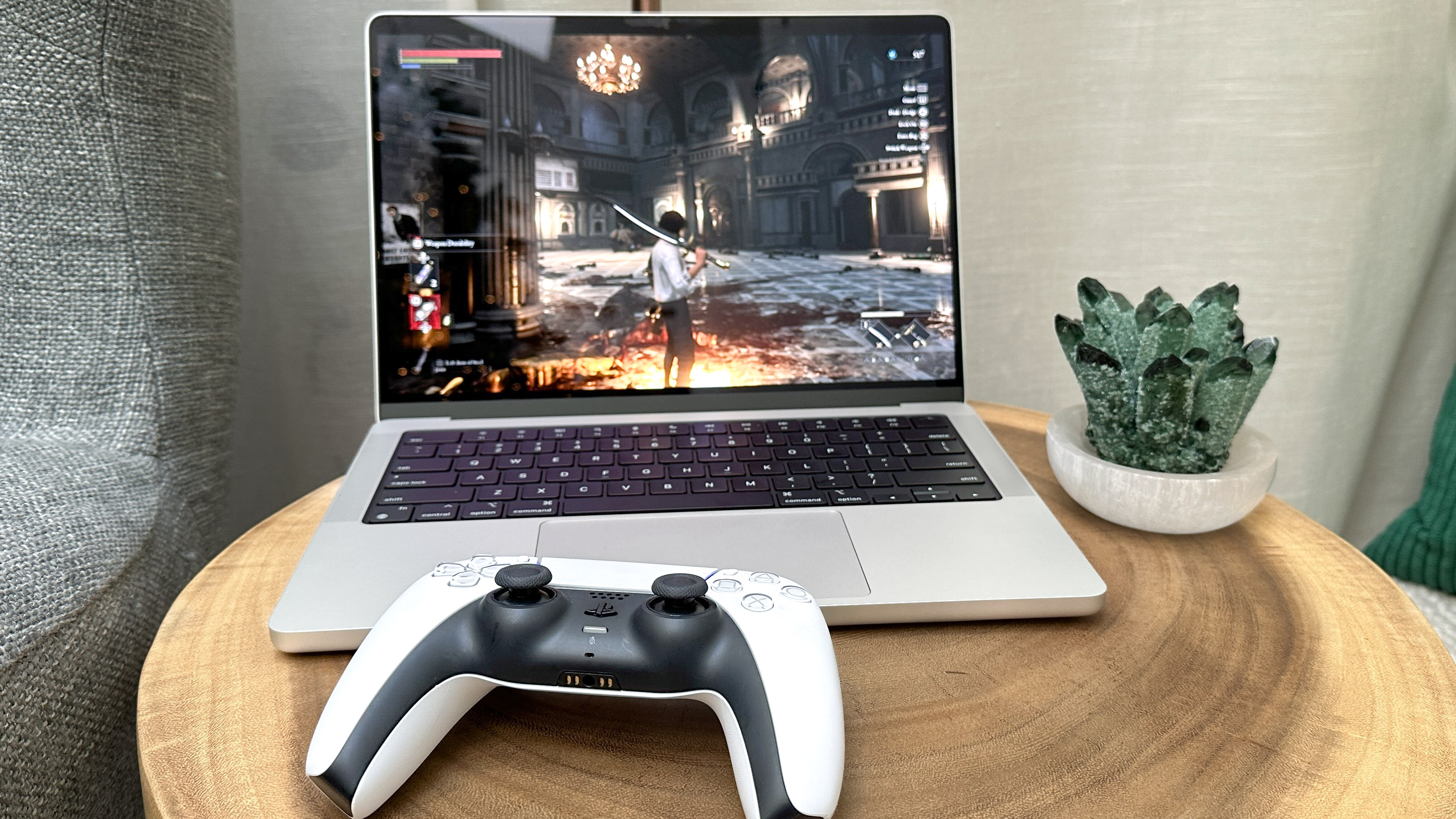
The Evolving Landscape of Mac Gaming
The perception of MacBooks as niche gaming machines is rapidly fading. With Apple’s continued investment in its silicon, its graphics technologies like Metal, and its embrace of the gaming industry, the future looks brighter than ever for gamers on macOS. Developers are increasingly recognizing the potential of the Mac platform, leading to a more robust library of native titles and better optimization for existing ones. Combined with the ever-expanding possibilities of cloud gaming and emulation, your MacBook is no longer just a productivity tool; it’s a versatile portal to a world of interactive entertainment. Whether you’re a seasoned gamer or just curious to explore, the games you can play on your MacBook today are more diverse and accessible than ever before.
aViewFromTheCave is a participant in the Amazon Services LLC Associates Program, an affiliate advertising program designed to provide a means for sites to earn advertising fees by advertising and linking to Amazon.com. Amazon, the Amazon logo, AmazonSupply, and the AmazonSupply logo are trademarks of Amazon.com, Inc. or its affiliates. As an Amazon Associate we earn affiliate commissions from qualifying purchases.