
In the rapidly evolving world of display technology, consumers are often bombarded with an array of acronyms: FHD, UHD, 4K, and the increasingly popular QHD. For many users—ranging from hardcore gamers and creative professionals to office workers seeking a bit more screen real estate—the term “QHD” represents the ultimate “sweet spot.” But what does QHD actually mean in the context of a monitor, and why has it become the benchmark for modern computing?
To understand QHD, we must look beyond the marketing jargon and delve into the technical specifications that define our visual experiences. QHD stands for Quad High Definition. It is a resolution standard that has redefined the expectations of clarity and performance, bridging the gap between the aging 1080p standard and the hardware-intensive 4K resolution.

Understanding the Fundamentals of QHD Resolution
At its core, QHD is a measurement of pixel density and screen real estate. When you see a monitor labeled as QHD, it signifies a specific number of pixels arranged across the panel, which directly affects how sharp images look and how much information can be displayed on the screen at once.
The Math Behind the Pixels: 2560 x 1440
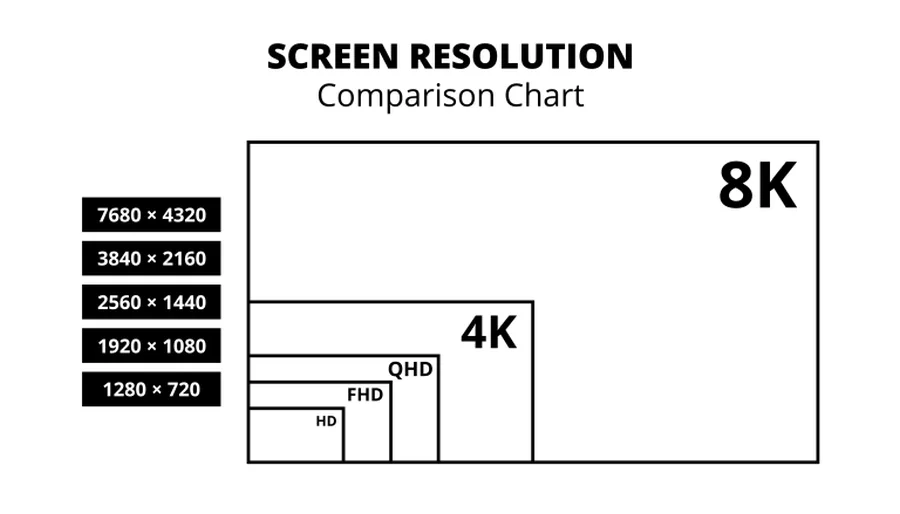
The technical definition of QHD is a resolution of 2560 x 1440 pixels. To understand why it is called “Quad” High Definition, we have to look at the base standard: 720p (1280 x 720). A QHD monitor has exactly four times the total number of pixels found in a 720p HD display.
When you multiply 2560 by 1440, you get a total of 3,686,400 pixels. Compared to the standard Full HD (1080p) resolution, which consists of roughly 2.07 million pixels, QHD offers about 78% more pixels. This significant jump in pixel count is what allows for finer detail in textures, smoother lines in typography, and a generally more immersive visual experience.
The Aspect Ratio Standard: 16:9
Like most modern televisions and monitors, QHD adheres to the 16:9 widescreen aspect ratio. This is the industry standard for high-definition video content and gaming. Because it follows this ratio, QHD monitors are often referred to as “1440p” monitors. The “p” stands for progressive scan, a method of displaying images where every line of the frame is drawn in sequence, resulting in a flicker-free, stable image that is essential for long hours of digital work or play.
QHD in the Resolution Hierarchy: FHD vs. QHD vs. 4K
Choosing a monitor often involves a balancing act between visual fidelity and hardware performance. QHD occupies a unique middle ground in the current hierarchy of display resolutions, offering a significant upgrade over entry-level displays without the extreme hardware demands of ultra-high-definition panels.
The Step Up from Full HD (1080p)
For over a decade, Full HD (1920 x 1080) was the undisputed king of monitors. However, as monitor sizes have increased from 21 inches to 27 inches and beyond, 1080p has begun to show its age. On a larger screen, a 1080p resolution results in lower pixel density, leading to “screen door effects” where individual pixels become visible to the naked eye. Moving to QHD solves this problem. It provides the necessary pixel density to keep images sharp even on 27-inch or 32-inch displays, making it a natural evolution for anyone looking to upgrade their workstation.
The Bridge to 4K Ultra HD
On the other end of the spectrum is 4K (3840 x 2160). While 4K offers unparalleled detail, it comes with a high cost—both financially and in terms of computing power. To run a 4K monitor effectively, especially for gaming or video editing, you need a high-end Graphics Processing Unit (GPU) and significant system memory. QHD serves as the perfect bridge. It offers a noticeable visual improvement over 1080p while remaining much easier for mid-range hardware to drive at high frame rates.
The Importance of Pixel Density (PPI)
Pixel density, measured in Pixels Per Inch (PPI), is arguably more important than the resolution itself. A 27-inch QHD monitor has a PPI of approximately 108-109. This is widely considered the “Goldilocks zone” for desktop computing. At this density, text looks crisp, and UI elements (like icons and taskbars) are perfectly sized without needing significant software scaling. In contrast, 4K on a 27-inch monitor often requires scaling to 150%, which can sometimes lead to blurry icons or compatibility issues with older software.
Why QHD is the Gold Standard for Gaming and Productivity
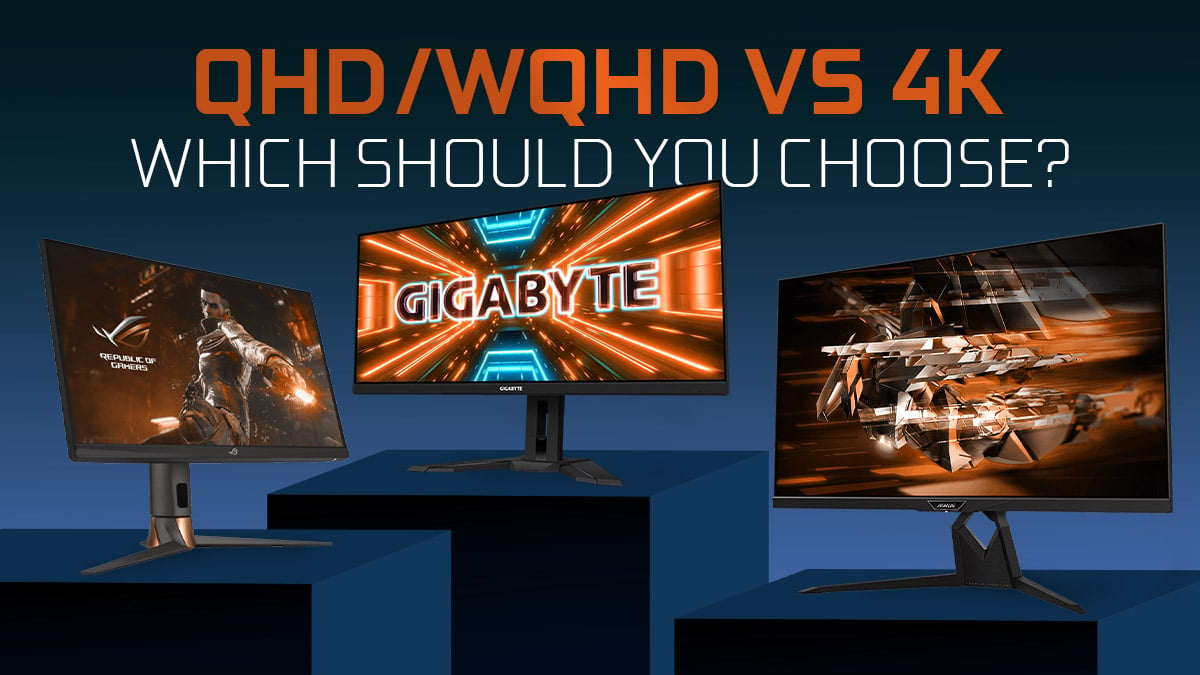
The adoption of QHD hasn’t just been driven by manufacturers; it has been demanded by users who realized that 1440p offers a distinct functional advantage in both professional and recreational contexts.
Enhanced Visual Fidelity in Gaming
For gamers, QHD is often preferred over 4K. The primary reason is the balance between clarity and speed. Most competitive gamers prioritize high refresh rates (144Hz, 165Hz, or 240Hz). Achieving 144 frames per second at 4K resolution requires an elite-tier PC that costs thousands of dollars. However, achieving those same frame rates at QHD is much more attainable with modern mid-to-high-range GPUs. This allows gamers to enjoy incredibly sharp visuals without sacrificing the fluid motion necessary for fast-paced gameplay.
Boosting Productivity with Increased Screen Real Estate
In a professional setting, QHD is a productivity powerhouse. The higher resolution translates directly into more “workspace.” For example, a QHD monitor allows you to have two full-sized web browser windows open side-by-side with minimal overlap. For software developers, accountants, or researchers, this means less time spent “Alt-Tabbing” between applications and more time focusing on the data. The extra vertical space (1440 pixels vs 1080 pixels) is particularly beneficial for reading long documents or scrolling through extensive lines of code.
Content Creation: Precision Without the 4K Price Tag
Graphic designers and video editors benefit immensely from QHD. While 4K is the standard for final exports in film, the editing process itself is often more comfortable on a QHD display. It provides enough detail to see fine adjustments in photo editing software like Adobe Photoshop while leaving enough room for toolbars and timelines. For many creators, a dual-QHD monitor setup is more efficient and ergonomic than a single large 4K display.
Choosing the Right QHD Monitor: Panel Types and Features
Understanding “what QHD means” is only half the battle. When shopping for a QHD monitor, you must also consider the underlying panel technology, as this determines how those 3.6 million pixels actually look in terms of color, contrast, and speed.
IPS vs. VA vs. TN: Which Panel Suits You?
There are three main types of LCD panels used in QHD monitors:
- IPS (In-Plane Switching): The favorite for professionals. IPS panels offer the best color accuracy and the widest viewing angles. If you are doing color-sensitive work or want the best overall image quality, an IPS QHD monitor is the way to go.
- VA (Vertical Alignment): Known for superior contrast ratios. VA panels produce much deeper blacks than IPS, making them excellent for watching movies or playing atmospheric games in dark rooms.
- TN (Twisted Nematic): The budget-friendly choice. TN panels are fast but suffer from poor color reproduction and narrow viewing angles. They are becoming less common in the QHD space as IPS and VA technology becomes more affordable.
Refresh Rates and Response Times
If you are looking at QHD for gaming, you will encounter terms like 144Hz or 1ms response time. The refresh rate determines how many times per second the monitor updates the image. A QHD 144Hz monitor is widely considered the current benchmark for a premium gaming experience. When combined with the 1440p resolution, it provides a level of clarity and smoothness that 1080p simply cannot match.
Connectivity: HDMI 2.0 vs. DisplayPort
To drive a QHD monitor at high refresh rates, you need the right cables. While older HDMI standards might struggle, HDMI 2.0 and DisplayPort 1.2 (or higher) are the standard requirements for QHD. DisplayPort is generally preferred for PC users as it more reliably supports features like G-Sync or FreeSync, which prevent “screen tearing” during gaming.
System Requirements: Is Your Hardware Ready for 1440p?
Before transitioning to a QHD monitor, it is vital to ensure your computer hardware can handle the increased load. Pushing 78% more pixels than 1080p requires more graphical horsepower and system bandwidth.
GPU Demands for Gaming at QHD
For basic office work and web browsing, almost any modern integrated graphics card (like those found in Intel or AMD laptops) can drive a QHD monitor with ease. However, for gaming, the requirements are higher. To play modern AAA titles at QHD with high settings, you generally need a mid-range dedicated graphics card. GPUs like the NVIDIA RTX 3060/4060 series or the AMD Radeon RX 6700/7700 series are designed specifically with 1440p gaming in mind.
VRAM and Bandwidth Considerations
Higher resolutions require more Video RAM (VRAM). When textures are loaded at higher resolutions, they take up more space on the GPU’s memory. For a smooth QHD experience in modern applications, a graphics card with at least 8GB of VRAM is recommended. Furthermore, if you are using a laptop, ensure that your USB-C or Thunderbolt port supports “DisplayPort Alt Mode” to output the full QHD signal to an external monitor.
In conclusion, QHD (2560 x 1440) is far more than just a middle ground; it is the modern standard for anyone who values visual clarity without the extreme overhead of 4K. By offering a significant boost in pixel density and screen real estate, it enhances every aspect of the computing experience—from professional multitasking to high-end gaming. As hardware continues to become more powerful and affordable, QHD is likely to remain the most popular choice for users who want the best possible view of the digital world.
aViewFromTheCave is a participant in the Amazon Services LLC Associates Program, an affiliate advertising program designed to provide a means for sites to earn advertising fees by advertising and linking to Amazon.com. Amazon, the Amazon logo, AmazonSupply, and the AmazonSupply logo are trademarks of Amazon.com, Inc. or its affiliates. As an Amazon Associate we earn affiliate commissions from qualifying purchases.