
The seemingly innocuous message “No Access Point” on your Brother printer can be a source of significant frustration, especially when you’re in the middle of a crucial print job. This error typically signifies a communication breakdown between your printer and the network it’s intended to connect to. In the realm of home and office technology, understanding network connectivity issues is paramount for seamless operation. This article delves into the technical intricacies behind the “No Access Point” error on Brother printers, exploring its common causes, diagnostic steps, and effective solutions, all within the domain of Tech. We will navigate the landscape of wireless networking, IP addressing, and printer configuration to empower you with the knowledge to resolve this common problem.
Understanding the “Access Point” in Printer Networking
At its core, an “access point” in the context of your Brother printer refers to the device that facilitates its connection to your local area network (LAN), and subsequently, to your computers and other devices. Most commonly, this access point is your wireless router. This router acts as the central hub for your home or office Wi-Fi, broadcasting the network signal that your printer, laptops, smartphones, and other wireless devices connect to. When your Brother printer displays “No Access Point,” it means it cannot detect or establish a connection with this designated network hub.
The Role of Wireless Routers
Your wireless router is a sophisticated piece of hardware designed to manage network traffic. It assigns unique IP addresses to each device connected to it, allowing them to communicate with each other and with the internet. For a wireless printer like many Brother models, the router is the gateway to this network. The printer needs to “see” and “talk” to the router to become discoverable by your computer and to receive print commands. The “No Access Point” error suggests this fundamental communication channel is obstructed.
Wired vs. Wireless Connectivity
While this error is most prevalent with wireless Brother printers, it’s worth noting that even wired printers can experience similar connectivity issues, albeit with different error messages. For wired connections, the “access point” is essentially the network switch or router port that the printer’s Ethernet cable is plugged into. However, the “No Access Point” specific phrasing almost invariably points to a problem with Wi-Fi connectivity. This distinction is crucial when troubleshooting, as the underlying causes and solutions will differ significantly.
Common Causes of the “No Access Point” Error
The “No Access Point” error can stem from a variety of technical issues, ranging from simple configuration mistakes to more complex network hardware problems. Identifying the root cause is the first step towards a resolution.
Wi-Fi Signal Strength and Interference
One of the most frequent culprits is a weak or unstable Wi-Fi signal. Your Brother printer, like any wireless device, needs a strong enough signal from your router to maintain a consistent connection.
Distance from the Router
The physical distance between your printer and your wireless router plays a significant role in signal strength. Walls, especially those made of brick or containing metal elements, can also attenuate the Wi-Fi signal. If your printer is located too far from the router, or if there are substantial obstructions in between, the connection might be too weak to establish or maintain, leading to the “No Access Point” error.
Network Congestion and Interference
In busy households or offices, multiple devices simultaneously attempting to connect to the Wi-Fi network can lead to congestion. Furthermore, other electronic devices that emit radio waves, such as microwaves, cordless phones, and even Bluetooth devices, can interfere with your Wi-Fi signal, disrupting communication with your printer. This interference can manifest as intermittent connection drops or a complete inability to find the network.
Incorrect Network Credentials and Configuration
Even with a strong signal, if your printer isn’t properly configured to join your specific Wi-Fi network, it won’t be able to connect. This often involves issues with network names (SSIDs) and passwords.
Incorrect SSID and Password Entry
Every Wi-Fi network has a unique Service Set Identifier (SSID), which is its name. You must ensure that your Brother printer is configured to connect to the exact SSID of your home or office network. Similarly, the Wi-Fi password (also known as the WPA/WPA2 key or passphrase) must be entered precisely as it is, paying close attention to capitalization and any special characters. A single typo in either the SSID or the password will prevent the printer from authenticating with the router and, consequently, displaying the “No Access Point” error.
Network Mode Compatibility
Modern routers often support different Wi-Fi network modes (e.g., 802.11b, g, n, ac, ax). Older printers might not be compatible with the newer, faster modes. If your router is set to a mode that your Brother printer doesn’t support, it might not be able to see or connect to the network. Many routers have a “mixed mode” or “auto” setting to accommodate a range of devices, but sometimes manual adjustment might be necessary.
Troubleshooting the “No Access Point” Error
When faced with the “No Access Point” message on your Brother printer, a systematic troubleshooting approach is key. Start with the simplest solutions and gradually move to more complex ones.
Basic Connectivity Checks
Before diving into advanced settings, it’s essential to rule out the most common and straightforward issues.
Restarting Network Devices
The age-old IT advice of “turn it off and turn it on again” is surprisingly effective. Power cycling your router and modem can often resolve temporary glitches that might be preventing your printer from connecting. Unplug both your modem and router from their power sources, wait for about 30-60 seconds, and then plug them back in. Allow them to fully boot up (this can take a few minutes), and then try reconnecting your printer.
Verifying Printer’s Wi-Fi Status
Most Brother printers have a Wi-Fi status indicator on the control panel or within the printer’s menu. Ensure that the Wi-Fi function on the printer is actually enabled. Sometimes, it might have been accidentally turned off. Navigate through your printer’s settings menu to confirm that the wireless connection is active and ready to scan for networks.
Network Configuration and Reconnection
If basic checks don’t resolve the issue, it’s time to re-examine the printer’s network configuration.
Re-entering Wi-Fi Credentials
This is often the most direct solution for incorrect credentials. On your Brother printer, navigate to the network or Wi-Fi setup wizard. You will likely need to search for your network name (SSID) again and then carefully re-enter your Wi-Fi password. Double-check each character for accuracy. If you’re unsure of your Wi-Fi password, you can usually find it printed on a sticker on your router or by accessing your router’s administration interface through a web browser.
Using Wi-Fi Protected Setup (WPS)
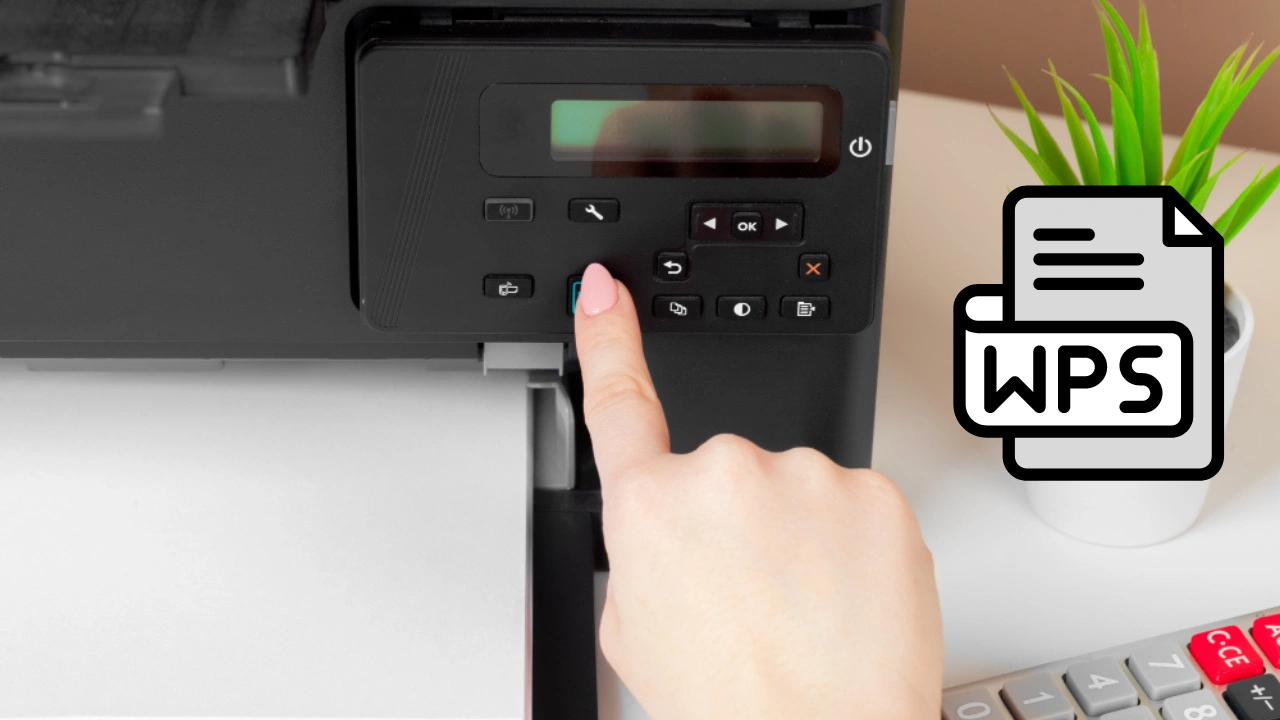
Many modern routers and printers support Wi-Fi Protected Setup (WPS). This feature allows for a simplified connection process, typically by pressing a button on both the router and the printer. If your Brother printer and router support WPS, consult their respective manuals for the specific steps involved in initiating a WPS connection. This can bypass the need for manual SSID and password entry, which is often where errors occur.
Advanced Network Troubleshooting
When the above steps fail, you might need to delve into more advanced network settings, both on your printer and your router.
Checking Router’s Connected Devices List
Access your router’s administration interface (usually via a web browser by typing in the router’s IP address, such as 192.168.1.1 or 192.168.0.1). Look for a section that lists currently connected devices. If your Brother printer appears in this list, it means it has successfully connected to the network, and the issue might be with the driver installation on your computer or a firewall blocking communication. If it’s not listed, the problem lies in the printer’s connection to the router.
IP Address Conflicts and DHCP Settings
Your router typically uses DHCP (Dynamic Host Configuration Protocol) to automatically assign IP addresses to connected devices. If there’s an IP address conflict or a DHCP issue, your printer might not be able to obtain a valid IP address. Within your router’s settings, ensure that DHCP is enabled. If you suspect an IP address conflict, you might consider assigning a static IP address to your printer within the router’s subnet, but this is a more advanced step and should be done with caution to avoid creating further network issues. Consult your Brother printer’s manual for instructions on how to set a static IP address.
Router Firmware Updates and Security Settings
Outdated router firmware can sometimes lead to compatibility issues with newer devices. Check if there are any available firmware updates for your router and install them if necessary. Additionally, some advanced router security settings, such as MAC filtering, might be inadvertently preventing your printer from connecting. Review your router’s security settings and ensure that your printer is not being blocked.
Ensuring Long-Term Connectivity
Once you’ve successfully resolved the “No Access Point” error, it’s wise to implement strategies that promote stable and reliable network connectivity for your Brother printer.
Optimizing Wi-Fi Network Performance
A well-configured and robust Wi-Fi network is the foundation for seamless printer operation.
Router Placement and Channel Selection
Strategically placing your wireless router in a central location within your home or office can significantly improve signal strength to all connected devices, including your printer. Avoid placing it near large metal objects, in enclosed cabinets, or close to other devices that emit radio waves. Most routers also allow you to select the Wi-Fi channel they operate on. If you live in an area with many Wi-Fi networks, neighboring networks might be using the same channel, causing interference. Using a Wi-Fi analyzer app on your smartphone can help identify less congested channels, which you can then configure on your router.
Considering Network Extenders or Mesh Systems
If your home or office is large, or has many dead zones, a single router might not provide adequate coverage. In such scenarios, a Wi-Fi range extender or a mesh Wi-Fi system can be invaluable. Extenders rebroadcast your existing Wi-Fi signal, while mesh systems create a unified network with multiple nodes that provide seamless coverage throughout your entire space. This can eliminate signal weakness issues that might be contributing to the “No Access Point” error.
Maintaining Printer Software and Drivers
Just as your computer needs updated software, your printer also benefits from up-to-date firmware and drivers.
Firmware Updates for the Printer
Brother regularly releases firmware updates for its printers, which can address bugs, improve performance, and enhance compatibility. Periodically check Brother’s support website for your specific printer model to see if any firmware updates are available. Installing these updates can often resolve lingering connectivity issues.

Printer Driver Installation and Updates on Computers
While this article focuses on the printer’s connection to the access point, it’s important to remember that your computer needs the correct printer driver to communicate with the printer once it’s on the network. Ensure that you have the latest drivers installed for your Brother printer on all the computers you use to print from. Outdated or corrupted drivers can sometimes lead to communication problems that might be misinterpreted as network connection issues.
By understanding the technical underpinnings of the “No Access Point” error and systematically working through the troubleshooting steps, you can effectively restore connectivity to your Brother printer. This not only resolves the immediate issue but also enhances your overall understanding of home networking, a critical component of modern digital life.
aViewFromTheCave is a participant in the Amazon Services LLC Associates Program, an affiliate advertising program designed to provide a means for sites to earn advertising fees by advertising and linking to Amazon.com. Amazon, the Amazon logo, AmazonSupply, and the AmazonSupply logo are trademarks of Amazon.com, Inc. or its affiliates. As an Amazon Associate we earn affiliate commissions from qualifying purchases.