
The “tab” is perhaps one of the most ubiquitous yet under-appreciated elements of the modern computing experience. Whether you are browsing the web, writing code, managing a massive financial spreadsheet, or learning a musical instrument via software, the term “tab” appears constantly. However, the meaning of a tab—and the symbols found within it—changes drastically depending on the technical context.
Understanding what a tab “means” is essential for digital literacy, productivity, and navigating the increasingly complex software ecosystems we inhabit daily. This guide explores the multifaceted nature of tabs in the technology sector, from the psychological impact of browser management to the functional necessity of tabs in software development and data architecture.
The Browser Tab: Symbols, Favicons, and Status Indicators
In the context of web browsing, a tab is a navigational element that allows a user to open multiple web pages within a single window. While the concept seems simple, the modern browser tab is a sophisticated interface that communicates a wealth of information through small symbols and behavioral cues.
The Favicon: Branding and Recognition
At the far left of a browser tab, you will almost always find a small icon known as a “favicon” (short for favorite icon). To a technologist or a web developer, the favicon means identity. It is a 16×16 or 32×32 pixel image that allows users to distinguish between multiple open sites at a glance. When you have thirty tabs open and the page titles are truncated, the favicon is the primary navigational anchor. If a tab lacks a favicon, it often signifies a generic local file or a site that hasn’t followed modern web optimization standards.
Activity Indicators: Spinners and Play Buttons
The browser tab is also a status reporter. Have you ever noticed a small rotating circle where the favicon usually sits? This “spinner” means the browser is actively communicating with a server—requesting data, downloading assets, or executing a script.
Furthermore, modern browsers like Chrome, Firefox, and Safari use the tab space to indicate media playback. A small speaker icon means that the tab is currently producing sound. Clicking this icon usually “mutes” the tab. In recent updates, some browsers have added a “Pause/Play” symbol, indicating that the tab is not just an open page, but an active media player.
Security and Privacy Icons
Sometimes, you may see a small padlock or a “Not Secure” warning within the address bar area associated with the active tab. This indicates the status of the SSL/TLS encryption. A locked padlock means the connection is encrypted, whereas an exclamation mark or a “red strike” through a symbol means the data transmitted between you and the site is vulnerable to interception.
Tabs in Integrated Development Environments (IDEs) and Coding
For software engineers and developers, the “tab” represents both a structural unit of code and a way to manage complex file systems. In this niche, the meaning of a tab is a subject of intense technical debate and functional precision.
The Great “Tabs vs. Spaces” Debate
In programming, a “tab” is a specific character (represented by the ASCII code 9) used to indent lines of code. Indentation is crucial because it defines the structure and hierarchy of the logic, especially in languages like Python where indentation is syntactically required.
The “Tabs vs. Spaces” debate is a legendary piece of tech culture. Using a “Tab” character means the developer is allowing the user’s individual IDE settings to determine the width of the indentation. Using “Spaces” means the developer wants the indentation to look exactly the same on every machine. When a developer asks what a tab “means” in a specific codebase, they are often asking about the underlying configuration: is one tab equal to two spaces, four spaces, or eight?
Tabbed Editing: Managing Workflow Complexity
In professional IDEs like Visual Studio Code, IntelliJ, or Sublime Text, tabs represent open files. However, these tabs often have symbolic indicators:
- An “X”: Standard close button.
- A Solid Circle/Dot: This means the file has “unsaved changes.” It is a critical visual cue for developers to ensure their work is committed before closing the environment.
- Italicized Text: In many modern editors, a tab with an italicized title means it is in “Preview Mode.” If you click another file in the sidebar, this tab will be replaced. Double-clicking the tab “pins” it, meaning it will stay open until manually closed.
Symbolism in File Extension Icons
Much like favicons in a browser, tabs in a code editor often feature icons representing the programming language. A “JS” icon means the tab contains JavaScript; a “Py” icon signifies Python. These visual markers allow developers to context-switch rapidly between the logic (backend), the styling (CSS), and the structure (HTML) of a project.
Spreadsheet Tabs: The Backbone of Data Architecture
In the world of data science, accounting, and business intelligence, a “tab” refers to an individual worksheet within a larger workbook (such as in Microsoft Excel or Google Sheets). Here, the tab is a structural necessity for data organization.
Navigating Worksheets in Excel and Google Sheets
When you see multiple tabs at the bottom of a spreadsheet, they mean “different views” or “different datasets” within the same project. A well-organized technical spreadsheet will use tabs to separate raw data from processed reports. For example, “Tab 1” might be “RawDataQ1,” while “Tab 2” is “SummaryPivotTable.”
Color Coding and Logical Grouping
In advanced data management, the color of a tab carries specific technical meaning. Many data analysts use a standardized color-coding system:
- Red Tabs: Often mean “Input Required” or “Critical Data.”
- Green Tabs: Usually mean “Final Output” or “Calculated Results.”
- Grey Tabs: Frequently signify “Reference Data” or “Look-up Tables” that should not be edited.
Understanding these color cues is essential for collaborating on complex technical documents without breaking underlying formulas.
Hidden Tabs and Formula References
In spreadsheet software, a tab can exist without being visible. “Hidden tabs” are often used to store back-end calculations, API keys, or validation lists that the end-user doesn’t need to see. If you see a formula like ='Data Import'!A1, the “!” symbol following the word “Data” tells you that the software is pulling information from a specific tab named “Data Import.” In this context, the tab is a named range or a specific address in the computer’s memory.
Specialized Tech Contexts: Music and Design
Beyond browsers and spreadsheets, “tabs” have specialized meanings in niche technical software, particularly in music technology and User Interface (UI) design.
Guitar Tabs: Digitizing Music Theory
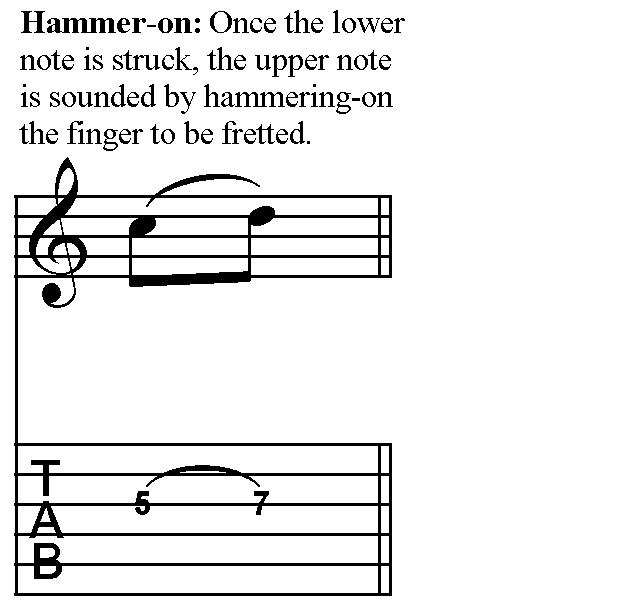
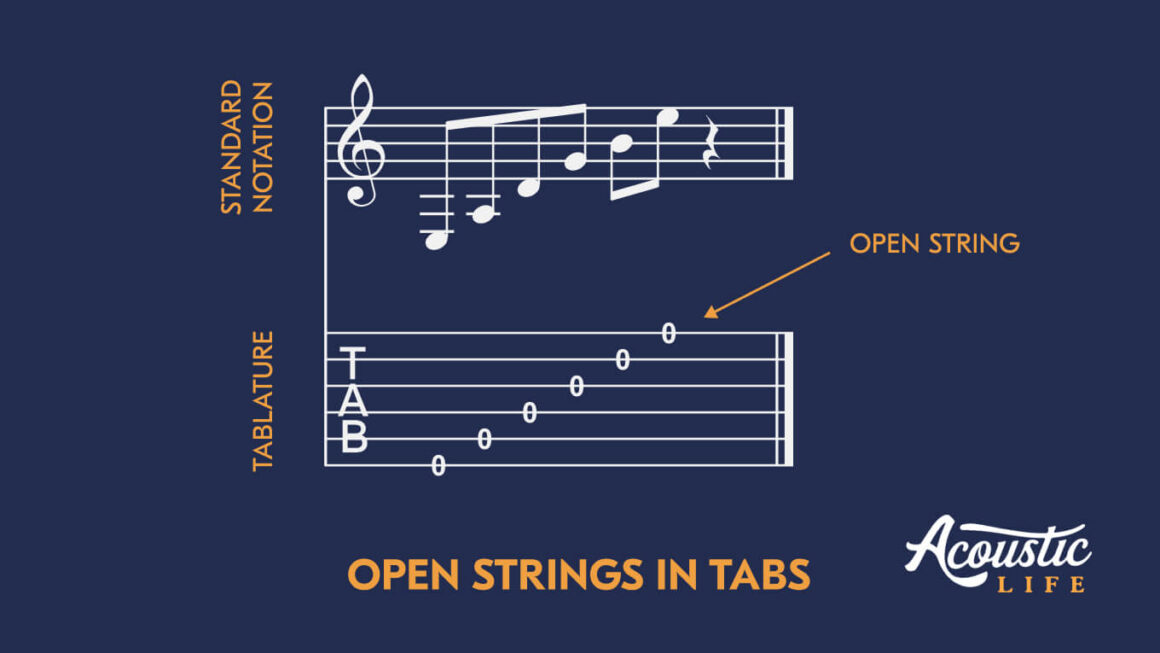
In music software (like Guitar Pro or Ultimate Guitar), a “tab” (short for tablature) is a form of musical notation that tells a player where to place their fingers on an instrument rather than which notes to play. In a digital “tab” file, the lines represent the strings of the guitar, and the numbers represent the frets. For software developers building these tools, “tabbing” means converting audio frequencies or MIDI data into a readable visual matrix for musicians.
Interface Tabs in UI/UX Design
From a Design and Tech perspective, a tab is a specific UI pattern. It “means” a way to compartmentalize information without making the user scroll. In a mobile app, for example, the “Bottom Tab Bar” usually contains the primary destinations of the app (Home, Search, Notifications, Profile).
The “Active” state of a tab in UI design is communicated through “high-light” or “high-contrast” colors. If a tab is highlighted, it means that the current view is the “parent” container for the information being displayed. This is a fundamental principle of “Information Architecture,” ensuring users never feel lost within a digital product.

Conclusion: The Tab as a Universal Technical Tool
The word “tab” originates from the “tabulator” key on old typewriters, which was used to jump to a specific column. Today, its meaning has expanded into a multi-layered concept that defines how we interact with technology.
In a browser, a tab means a window to the world, a status reporter, and a brand identifier.
In coding, it means a structural unit of logic and a placeholder for unsaved progress.
In data management, it represents a logical partition of information and a reference point for complex algorithms.
In UI design, it is the primary method of reducing cognitive load and organizing features.
By understanding what these different tabs mean—and the symbols they contain—you can master your digital environment, improve your technical workflow, and navigate the web with greater precision. Whether it’s a favicon spinning in a browser or a hidden sheet in a workbook, every tab is a small piece of a much larger technical puzzle.
aViewFromTheCave is a participant in the Amazon Services LLC Associates Program, an affiliate advertising program designed to provide a means for sites to earn advertising fees by advertising and linking to Amazon.com. Amazon, the Amazon logo, AmazonSupply, and the AmazonSupply logo are trademarks of Amazon.com, Inc. or its affiliates. As an Amazon Associate we earn affiliate commissions from qualifying purchases.