
The taskbar, a ubiquitous element in graphical user interfaces, serves as a central hub for launching applications, managing running programs, and accessing system functions. While its primary purpose is to enhance user productivity and streamline navigation, its dynamic nature can sometimes lead to unintended consequences, particularly for users who prefer a meticulously organized and stable desktop environment. This is where the “lock the taskbar” feature comes into play. Understanding what it means to lock the taskbar is crucial for users seeking greater control over their operating system’s interface and for preventing accidental alterations that can disrupt workflow.

At its core, locking the taskbar is a setting that prevents any modifications to its position, size, or the icons it contains. It acts as a digital safeguard, ensuring that once you’ve arranged your taskbar to your preference, it remains that way until you consciously decide to unlock it. This functionality is particularly valuable in various scenarios, from maintaining a consistent user experience across multiple workstations to protecting against accidental drag-and-drop actions that might relocate or resize the taskbar, thereby obscuring important screen real estate or disrupting established muscle memory.
Understanding Taskbar Functionality and Customization
Before delving into the specifics of locking the taskbar, it’s essential to grasp the fundamental functionalities and customization options that the taskbar itself offers. This foundational knowledge will provide context for why locking it becomes a desirable feature for many users. The taskbar isn’t merely a static bar; it’s an active component of the operating system designed to facilitate efficient interaction.
The Core Roles of the Taskbar
The taskbar’s primary function is to provide immediate access to frequently used applications and to display currently running programs. This is achieved through a combination of pinned icons and live previews of open windows. Pinned icons are shortcuts that remain on the taskbar even when the application is not running, allowing for one-click launching. Live previews offer a visual representation of open applications, enabling users to quickly switch between them by hovering over their respective icons.
Beyond application management, the taskbar also typically houses the Start button (in Windows) or its equivalent, which serves as the gateway to the operating system’s main menu, settings, and search functionalities. The system tray, often located on the right side of the taskbar, displays notifications, system status icons (like network connectivity, volume control, and battery level), and background application icons. This strategic placement ensures that essential information and controls are always within easy reach.
The Spectrum of Taskbar Customization
Modern operating systems offer a surprisingly broad range of customization options for the taskbar, allowing users to tailor it to their specific needs and aesthetic preferences. These options extend beyond simple icon arrangement and touch upon its behavior and appearance.
Positioning and Alignment
One of the most fundamental customization options is the ability to change the taskbar’s position on the screen. While the default is typically at the bottom, users can often move it to the left, right, or top edge of the display. This flexibility can be beneficial for users with multiple monitors, those who prefer a minimalist interface, or individuals who find a particular position enhances their workflow. Within its position, the alignment of icons can also often be adjusted, typically to the left or center.
Size and Auto-hiding Behavior
The taskbar’s size is another configurable element. Users can often adjust its height (or width, if on the side) to allocate more or less screen real estate to it. This can be useful for displaying more pinned icons or for reclaiming space for active application windows. Complementing this is the “auto-hide” feature. When enabled, the taskbar disappears when not actively being used, only reappearing when the mouse cursor is moved to its edge. This maximizes screen space for applications, making it ideal for users who prioritize a distraction-free viewing experience.
Grouping and Icon Appearance
The taskbar also allows for control over how open application windows are displayed. Users can choose to group similar windows together, which can declutter the taskbar when multiple instances of the same application are open. Conversely, they can opt to show individual windows, which can be helpful for distinguishing between different documents or projects within the same application. Furthermore, the size and style of taskbar icons can sometimes be adjusted, impacting the overall visual density and aesthetic of the bar.
The “Lock the Taskbar” Feature Explained
With the understanding of the taskbar’s inherent flexibility, the “lock the taskbar” feature emerges as a critical control mechanism. It’s designed to prevent the accidental or inadvertent alteration of these customizable elements, providing a sense of stability and predictability to the user interface.
What Locking Entails
When you “lock the taskbar,” you are essentially disabling the interactive features that allow for its modification. This means you will no longer be able to:
- Drag and resize the taskbar: You cannot change its height or width by clicking and dragging its edges.
- Move the taskbar to a different screen edge: It will remain fixed in its current position (bottom, top, left, or right).
- Add or remove pinned icons through drag-and-drop: While you can still pin and unpin applications through their respective context menus, the intuitive drag-and-drop method will be disabled.
- Change the grouping or hiding behavior through direct interaction: These settings, if managed through the taskbar’s context menu, will be inaccessible.
The primary intent of locking the taskbar is to maintain a pre-defined layout. It’s a way to “set it and forget it,” ensuring that your personalized setup remains intact through regular use.
Scenarios Where Locking is Beneficial
The utility of locking the taskbar becomes apparent in several common user scenarios:
Preventing Accidental Modifications
Perhaps the most frequent reason for locking the taskbar is to prevent accidental changes. It’s easy to inadvertently click and drag the taskbar while trying to interact with an icon or window. This can lead to a sudden shift in position or size, which can be disorienting and require time to correct. For users who have spent time perfecting their desktop layout, this is an unwelcome interruption. Locking the taskbar acts as a safety net against such occurrences.
Maintaining a Consistent User Experience
In professional or educational environments, where multiple users might share the same computer or where consistency across many machines is desired, locking the taskbar can be invaluable. It ensures that the interface remains standardized, preventing users from making changes that might deviate from established guidelines or hinder the usability for others. For IT administrators, this is a simple yet effective way to maintain control over the desktop environment.
Optimizing Screen Real Estate for Specific Tasks
Some users prefer a very minimal taskbar, perhaps only displaying a few essential pinned applications and hiding when not in use. However, they might still want to avoid accidental resizing that could unexpectedly expand the taskbar and consume valuable screen space. Locking the taskbar in its desired, perhaps minimized, state ensures that this optimized screen real estate is consistently maintained.
Protecting Against Unwanted Software Behavior
While rare, some less scrupulous software might attempt to alter the taskbar as part of its installation or operation, perhaps to promote its own icons or to obscure other elements. Locking the taskbar can act as a defense against such intrusive actions, ensuring that your interface remains under your control.
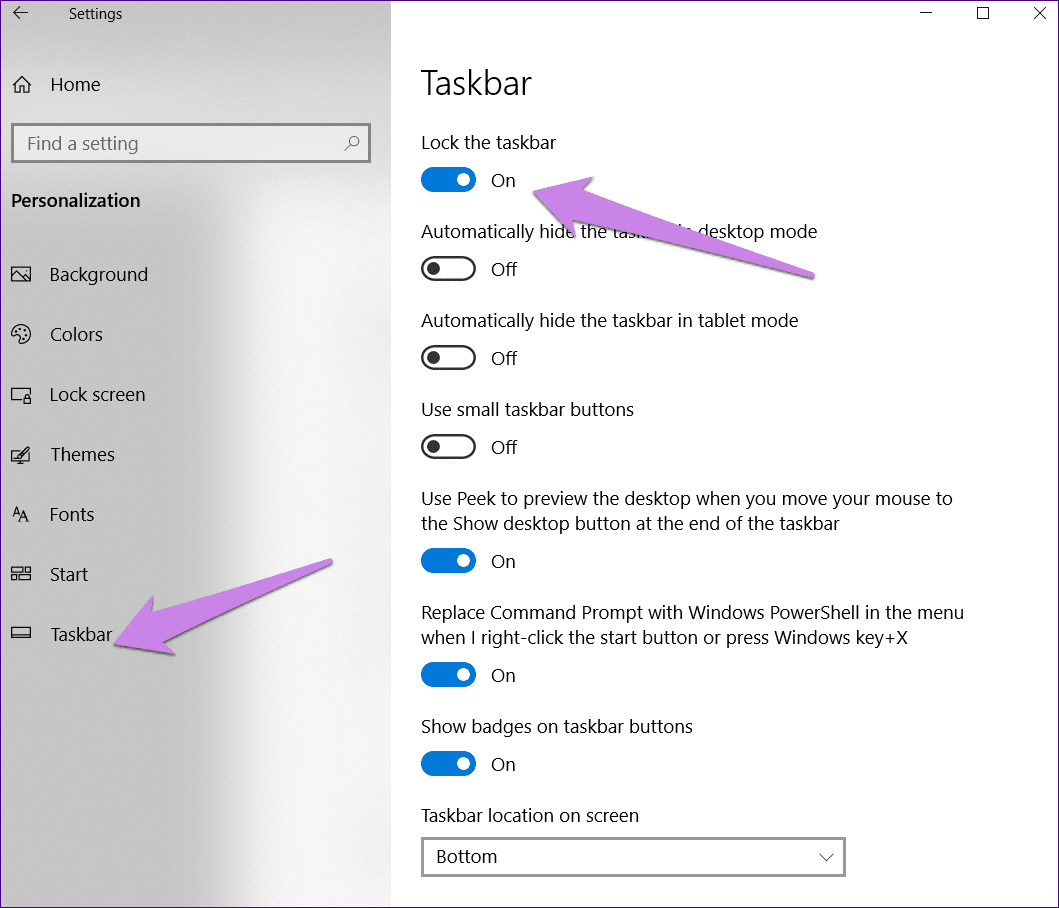
How to Lock and Unlock the Taskbar
The process of locking and unlocking the taskbar is straightforward and typically involves a few simple steps, depending on your operating system. The underlying principle is to access the taskbar’s properties or settings and toggle the lock option.
Locking the Taskbar in Windows
In Windows operating systems, the taskbar is a highly configurable element, and locking it is a readily available option.
Step-by-Step Guide for Windows
- Right-click on an empty space on the taskbar. This is crucial; clicking on an icon might bring up its context menu instead. Ensure you click on an area where there are no icons or system tray elements.
- Locate the “Lock the taskbar” option in the context menu. You will see a list of options. If the taskbar is currently unlocked, this option will have a checkbox next to it, and it will be unchecked.
- Click on “Lock the taskbar.” A checkmark will appear next to the option, indicating that the taskbar is now locked.
To unlock it, simply repeat the same process: right-click on an empty space on the taskbar, and click on “Lock the taskbar” again. The checkmark will disappear, and the taskbar will become fully editable once more.
Variations Across Windows Versions
While the core functionality remains consistent, the exact appearance of the context menu and the availability of certain sub-options might differ slightly between Windows versions (e.g., Windows 10 vs. Windows 11). However, the fundamental right-click method to access the “Lock the taskbar” setting is a reliable constant.
Locking the Taskbar in macOS and Linux (Conceptual Parallels)
While macOS and most Linux distributions do not have a feature explicitly named “Lock the taskbar,” they often incorporate similar mechanisms to achieve the same outcome of interface stability. The concept of preventing unwanted modifications to dock-like elements or panel bars is present, though implemented differently.
macOS Dock Behavior
In macOS, the Dock serves a similar purpose to the Windows taskbar. While there isn’t a direct “lock” function for its position or size in the same way as Windows, its behavior is generally more stable by default. Users can choose to hide the Dock automatically, which achieves a similar effect of maximizing screen space. However, accidental resizing or repositioning is less common due to the macOS interface design. Customization options for the Dock are primarily managed through “System Settings” (or “System Preferences” in older versions) under the “Desktop & Dock” section, allowing users to configure its size, magnification, and placement.
Linux Desktop Environments
Linux, with its diverse array of desktop environments (GNOME, KDE Plasma, XFCE, etc.), offers a wide spectrum of customization. Many of these environments have panels or docks that can be configured and, in some cases, locked. For instance, in KDE Plasma, panels can be set to be unmovable and unresizable. Users typically access these settings through right-clicking on the panel itself and exploring options like “Enter Edit Mode” or similar configurations that allow for locking and unlocking elements. The exact terminology and methods vary significantly between different Linux desktop environments, but the underlying principle of controlling interface stability is present.
Advanced Considerations and Best Practices
Beyond the basic understanding and operation of locking the taskbar, there are several advanced considerations and best practices that can further enhance its utility and ensure a smooth user experience. These often involve understanding the interplay between locking and other customization features, as well as considering long-term usage patterns.
The Synergy Between Locking and Other Taskbar Settings
It’s important to recognize that locking the taskbar doesn’t disable all customization. Instead, it freezes the current state of its primary interactive elements. Settings related to icon grouping, notification area behavior, and auto-hiding are often managed separately.
Auto-hiding and Locking: A Powerful Combination
For users who prioritize maximum screen real estate, combining the auto-hide feature with a locked taskbar can be highly effective. Once you’ve configured the taskbar to auto-hide and then locked it, it will remain hidden until you move your cursor to its designated edge. This ensures that the taskbar is only present when you actively need it, and critically, it prevents accidental resizing or movement while it’s in its hidden state, which could otherwise cause it to reappear unexpectedly or become difficult to access.
Icon Grouping and Notification Area Configuration
While locking prevents direct manipulation of icons on the taskbar, the options for how applications are grouped (e.g., always combine, combine when taskbar is full) or how the notification area is managed (e.g., always show all icons, hide inactive icons) are typically accessed through the taskbar’s properties dialog. These settings can often be adjusted even when the taskbar is locked, as they pertain to the behavior of the taskbar rather than its physical dimensions or position. This allows for a degree of flexibility in managing the information displayed on the taskbar without compromising its fixed layout.
Troubleshooting Common Taskbar Issues
Occasionally, users might encounter issues where they cannot lock or unlock their taskbar as expected. Understanding potential causes and solutions can be helpful.
When “Lock the taskbar” is Greyed Out or Missing
If the “Lock the taskbar” option is greyed out or entirely missing from the right-click context menu, it usually indicates that another setting or a system-level configuration is preventing it. This can sometimes occur if:
- Tablet Mode is enabled (Windows): In tablet mode, the taskbar behaves differently and certain customization options might be restricted. Disabling tablet mode can often resolve this.
- Third-party customization software is interfering: Some applications designed to modify the Windows interface might override native taskbar settings.
- Corrupted user profile: In rare cases, a corrupted user profile can lead to unexpected behavior with system elements like the taskbar.
Restoring Default Taskbar Behavior
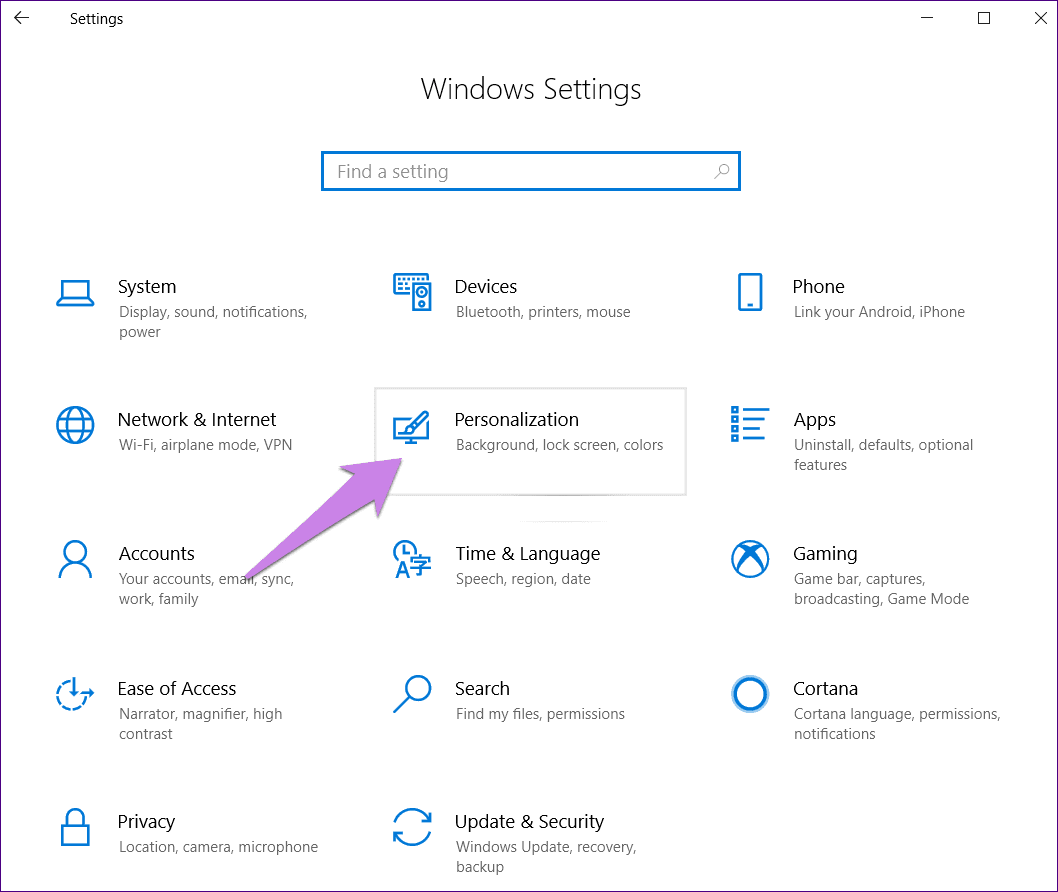
If you’ve made numerous changes and are struggling to achieve a desired state, or if the taskbar is behaving erratically, resetting its settings to default can be a useful troubleshooting step. This typically involves accessing the taskbar properties (often through right-clicking and selecting “Taskbar settings” or “Properties”) and looking for an option to reset to default or manually reconfiguring the settings you desire. While there isn’t always a single “reset taskbar” button, systematically going through the available options can help restore normal functionality.
The Philosophy of Control and User Preference
Ultimately, the “lock the taskbar” feature embodies a philosophy of user control and the recognition of diverse user preferences. While some users thrive on constant tinkering and adaptation, others value stability, predictability, and a consistent environment. The ability to lock the taskbar caters to the latter group, providing a tangible means of asserting control over a fundamental aspect of their digital workspace. It empowers users to create a digital environment that aligns with their working style and minimizes cognitive load associated with unnecessary interface adjustments. By understanding and utilizing this feature, users can cultivate a more comfortable, efficient, and personalized computing experience.
aViewFromTheCave is a participant in the Amazon Services LLC Associates Program, an affiliate advertising program designed to provide a means for sites to earn advertising fees by advertising and linking to Amazon.com. Amazon, the Amazon logo, AmazonSupply, and the AmazonSupply logo are trademarks of Amazon.com, Inc. or its affiliates. As an Amazon Associate we earn affiliate commissions from qualifying purchases.