
In the landscape of modern digital communication, Apple’s iMessage has become the standard for seamless connectivity among iPhone, iPad, and Mac users. Unlike traditional SMS (Short Message Service) which relies on cellular carrier networks, iMessage utilizes Wi-Fi or cellular data to facilitate instant messaging. Within this ecosystem, Apple provides users with real-time status indicators—most notably the “Delivered” and “Read” receipts—that offer transparency regarding the lifecycle of a message. Understanding these indicators is essential for mastering the nuances of digital etiquette and technical troubleshooting.
Deciphering the Status: What “Delivered” Actually Means
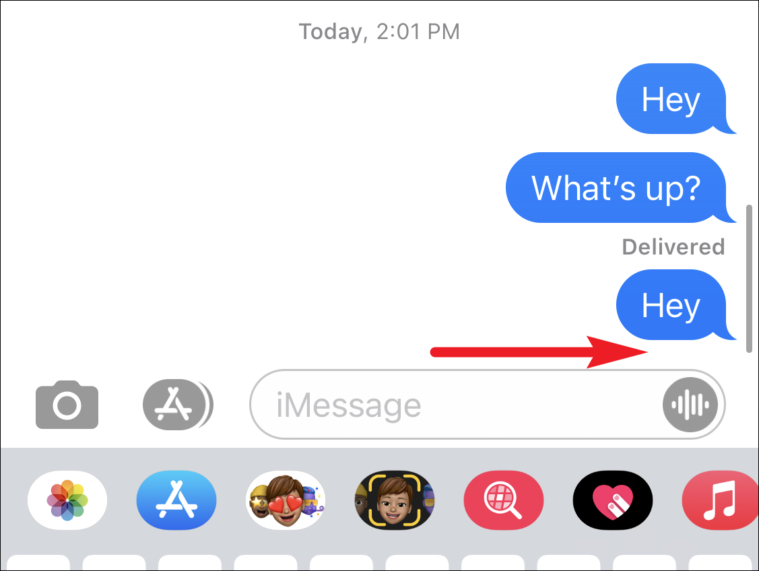
When you send an iMessage, a small grey status appears under the message bubble indicating its current state. Seeing the word “Delivered” is the first milestone in the communication process. It signifies that your message has successfully traveled from your device, through Apple’s proprietary push notification servers (APNs), and has successfully reached the recipient’s device.
The Technical Journey of a Message
To understand why a message is marked as delivered, it helps to visualize the infrastructure. When you tap send, your device encrypts the message end-to-end. It is then routed to Apple’s servers. Once the server identifies the recipient’s registered device, it pushes the data packet forward. The “Delivered” status is essentially a handshake protocol; the recipient’s phone acknowledges receipt of the data packet and notifies the sender’s phone that the message has landed in the local storage of the device.
Differentiating “Delivered” from “Read”
It is common for users to conflate these two statuses, but they hold distinct meanings. “Delivered” indicates technical arrival at the destination. It does not mean the recipient has looked at the screen, unlocked the phone, or opened the conversation thread. In contrast, a “Read” receipt—which only appears if the recipient has that specific privacy setting toggled to “On”—indicates that the recipient has actively opened the conversation while the message was visible on their screen.
Troubleshooting Status Ambiguity: When Messages Are Not “Delivered”
Occasionally, you may notice that a message does not display a status at all, or it remains stagnant without ever showing the “Delivered” tag. This can cause unnecessary anxiety, but it is usually a result of technical variables rather than interpersonal conflict.
Network and Server Latency
iMessage requires a stable data connection. If the sender or the recipient is in an area with poor signal strength, the message may remain in a “sending” state—often represented by a progress bar at the top of the screen. If the connection fails entirely, the message may eventually show an exclamation mark inside a red circle, indicating that it could not be sent. In these instances, the device may offer an option to “Send as Text Message,” which bypasses the iMessage data system and utilizes the standard cellular SMS protocol.
Do Not Disturb and Focus Modes
If a recipient has “Do Not Disturb” or a custom “Focus” mode activated, your iMessage will still be marked as “Delivered” once it reaches their device. However, the recipient will not receive a notification sound or a lock-screen banner. This is a common point of confusion; many assume that because a message is delivered, the person should be available to reply. In reality, Focus modes suppress the alert, but the message still sits waiting for them inside the application.
The “Blocked” Status Paradox
A frequent question regarding iMessage is whether the absence of a “Delivered” status means you have been blocked. If you send a message to a contact and it never changes from the initial sending state, it could indicate that you are blocked. However, it is not definitive proof. A device that is powered off, lacks an internet connection, or has been logged out of iCloud will also fail to show the “Delivered” status. Therefore, the absence of a status should not be taken as an immediate confirmation of being blocked, as it is just as likely to be a hardware or network issue on the recipient’s end.

The Role of Privacy Settings in iMessage
Apple has placed a heavy emphasis on user privacy, which directly impacts how status indicators function. Managing your own “Read” receipts is a feature that allows users to control the visibility of their activity.
Managing Global Read Receipts
By navigating to Settings > Messages, users can toggle “Send Read Receipts” on or off. When this is disabled, your contacts will see “Delivered” when they message you, but they will never see a “Read” status, regardless of how many times you open the chat. This provides a layer of privacy that allows users to read messages in their own time without feeling the social pressure to reply immediately.
Per-Conversation Customization
Apple also allows for granular control. You can enable or disable Read Receipts for specific individual contacts. This is particularly useful for maintaining professional boundaries while keeping receipts active for close family or friends. By tapping the contact name at the top of a conversation and adjusting the “Send Read Receipts” toggle, you maintain control over your digital footprint.
How These Settings Affect the Sender
If you are the sender, it is important to remember that you cannot force the visibility of a read receipt. If the person you are messaging has disabled this feature, you will only ever see “Delivered,” even if the recipient has read the message dozens of times. Understanding this helps manage expectations regarding response times.
Best Practices for Digital Communication
Given the technical nature of iMessage status indicators, adhering to a few best practices can help maintain clear and stress-free communication.
Don’t Rely on Statuses for Urgency
If you have an urgent matter, waiting for a “Read” receipt is not a reliable strategy. Status indicators are software-based and subject to glitches or user-controlled privacy settings. If a message is time-sensitive, a follow-up phone call or an alternative method of contact is always more effective than monitoring the status of an iMessage.
Understanding the “SMS” vs. “iMessage” Distinction
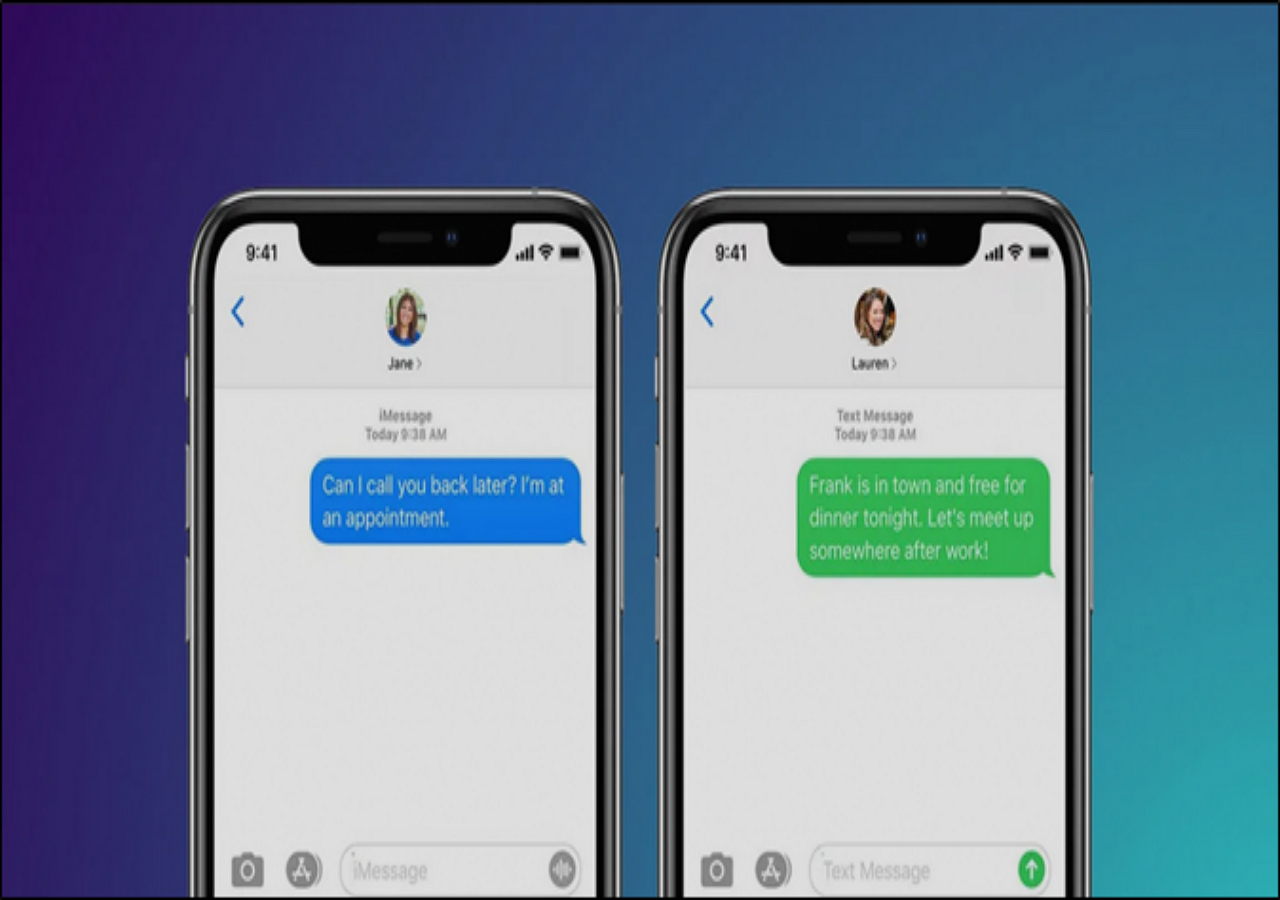
The color of the bubbles is the most important indicator. Blue bubbles denote iMessage, while green bubbles denote SMS/MMS. SMS messages function on carrier protocols and do not support “Delivered” or “Read” receipts in the same way iMessage does. When you see a green bubble, the “Delivered” status will not appear, because the standard SMS protocol does not provide a read-acknowledgment handshake to the sender. Recognizing this difference prevents confusion when interacting with non-Apple users or when your device is forced into SMS fallback mode due to a lack of data.
Troubleshooting Persistent Issues
If you consistently fail to see “Delivered” statuses when you know the recipient has their phone on and active, there may be a software glitch. Common fixes include:
- Toggling iMessage: Turning iMessage off in Settings > Messages, waiting ten seconds, and turning it back on.
- Network Reset: Resetting your network settings to refresh your connection to Apple’s servers.
- Software Updates: Ensuring your iOS is updated to the latest version, as bugs in the messaging framework are frequently patched in firmware releases.
By understanding that “Delivered” is simply a technical confirmation of data transmission, users can better manage their expectations and reduce the unnecessary stress often associated with waiting for a response in the digital age. Communication remains a human endeavor, and while the technology provides helpful signposts, it should not be the sole arbiter of your relationship dynamics or expectations of availability.
aViewFromTheCave is a participant in the Amazon Services LLC Associates Program, an affiliate advertising program designed to provide a means for sites to earn advertising fees by advertising and linking to Amazon.com. Amazon, the Amazon logo, AmazonSupply, and the AmazonSupply logo are trademarks of Amazon.com, Inc. or its affiliates. As an Amazon Associate we earn affiliate commissions from qualifying purchases.