
When you insert a fresh SD card into a high-end DSLR, a Nintendo Switch, or a modern Android smartphone, the device may prompt you with a critical question: “Do you want to format this storage device?” For many users, this prompt is a source of anxiety, often associated with the permanent loss of data. However, in the world of technology and digital storage, formatting is a fundamental maintenance task that ensures your hardware operates at peak efficiency.
To format an SD card means to prepare the storage medium for use by a specific operating system. This process involves deleting all existing data on the card and setting up a new file system, which acts as a digital blueprint for how data is stored, organized, and retrieved. Understanding the mechanics of formatting is essential for anyone who relies on digital storage for photography, videography, or mobile computing.

The Technical Mechanics of Formatting: Beyond Just Erasing
Many users mistake formatting for a simple “delete all” command. While both result in a card that appears empty, the underlying technical processes are vastly different. When you delete a file, the operating system simply marks the space as “available” without actually removing the binary data immediately. Formatting, however, addresses the organizational structure of the entire card.
Understanding File Systems (FAT32, exFAT, and NTFS)
The primary objective of formatting is to establish a file system. Think of a file system as a library’s cataloging method. Without it, the device would see the SD card as a chaotic sea of binary bits with no way to identify where one file ends and another begins.
- FAT32 (File Allocation Table 32): This is the oldest and most widely compatible file system. It is the standard for SD cards with a capacity of 32GB or less. While it works with almost every device—from car stereos to 3D printers—it has a significant limitation: it cannot handle individual files larger than 4GB.
- exFAT (Extended File Allocation Table): Created by Microsoft to succeed FAT32, exFAT is the modern standard for SDXC cards (64GB and larger). it eliminates the 4GB file size limit, making it the go-to choice for 4K video recording and high-resolution photography.
- NTFS (New Technology File System): Primarily used by Windows operating systems for internal hard drives, NTFS is rarely used for SD cards because it is not natively compatible with most cameras or mobile devices.
Quick Format vs. Full Format
When formatting an SD card on a computer, you are often given the choice between a “Quick Format” and a “Full Format.”
A Quick Format merely overwrites the file system table, making the card appear empty to the device while leaving the actual data bits intact on the storage sectors. This is fast and usually sufficient for routine maintenance.
A Full Format goes a step further. It scans every sector of the NAND flash memory for physical defects or “bad blocks” and completely wipes the data. This process is much slower but is highly recommended when dealing with a brand-new card or one that has been exhibiting performance errors.
Why Formatting is Essential for Device Health
Regularly formatting your SD card is not just a housekeeping task; it is a preventative measure against data corruption. Over time, as files are written, deleted, and moved, the file system can become “fragmented” or develop logical errors.
Preventing Data Corruption
SD cards are highly susceptible to corruption if they are removed while a write operation is in progress or if the battery of the device dies during a save. These events can leave “ghost files” or broken directories that eventually lead to the dreaded “Card Error” message. Formatting wipes the slate clean, rebuilding the directory structure from scratch and ensuring that the camera or phone has a stable environment to write new data.
Optimizing Write Speeds
For professional videographers and gamers, speed is everything. A freshly formatted card allows the device to write data in a contiguous fashion. When a card is cluttered with old data fragments, the device’s controller has to work harder to find available blocks of memory, which can slow down write speeds and lead to dropped frames in high-bitrate video recording.
Ensuring Cross-Device Compatibility
Different manufacturers use slightly different variations of file structures. A card formatted in a Sony camera might not perform optimally when placed into a Canon camera, even if both use the same file system. By formatting the card within the specific device you intend to use, you ensure that the device creates the exact folders and metadata files it needs to function correctly.
How to Format an SD Card Across Different Platforms
The process of formatting varies depending on the hardware you are using. To maintain the integrity of your hardware, it is important to follow the correct protocols for each platform.
Formatting in Professional Cameras
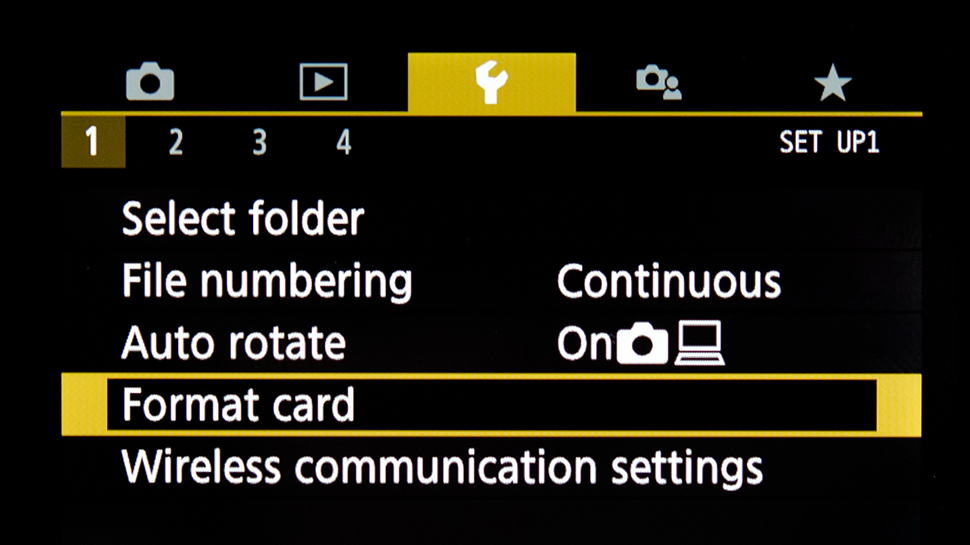
If you are a photographer, the golden rule is to always format your card in-camera rather than on your computer. Cameras have specific directory requirements (such as the DCIM folder). Formatting in-camera ensures that the partition alignment is perfectly calibrated for that specific sensor and processor.
- Insert the card into the camera’s slot.
- Navigate to the “Setup” or “Tools” menu.
- Select “Format” or “Initialize.”
- Confirm the action, keeping in mind that this will erase all images.
Formatting on Windows 11/10
Windows provides a straightforward GUI for formatting external storage, which is useful if you are using the SD card for general file transfers or as a bootable drive for a Raspberry Pi.
- Connect the SD card to your PC using a card reader.
- Open “This PC” in File Explorer.
- Right-click the SD card drive and select “Format.”
- Choose the File System (exFAT is usually recommended for modern cards).
- Click “Start.”
Formatting on macOS (Disk Utility)
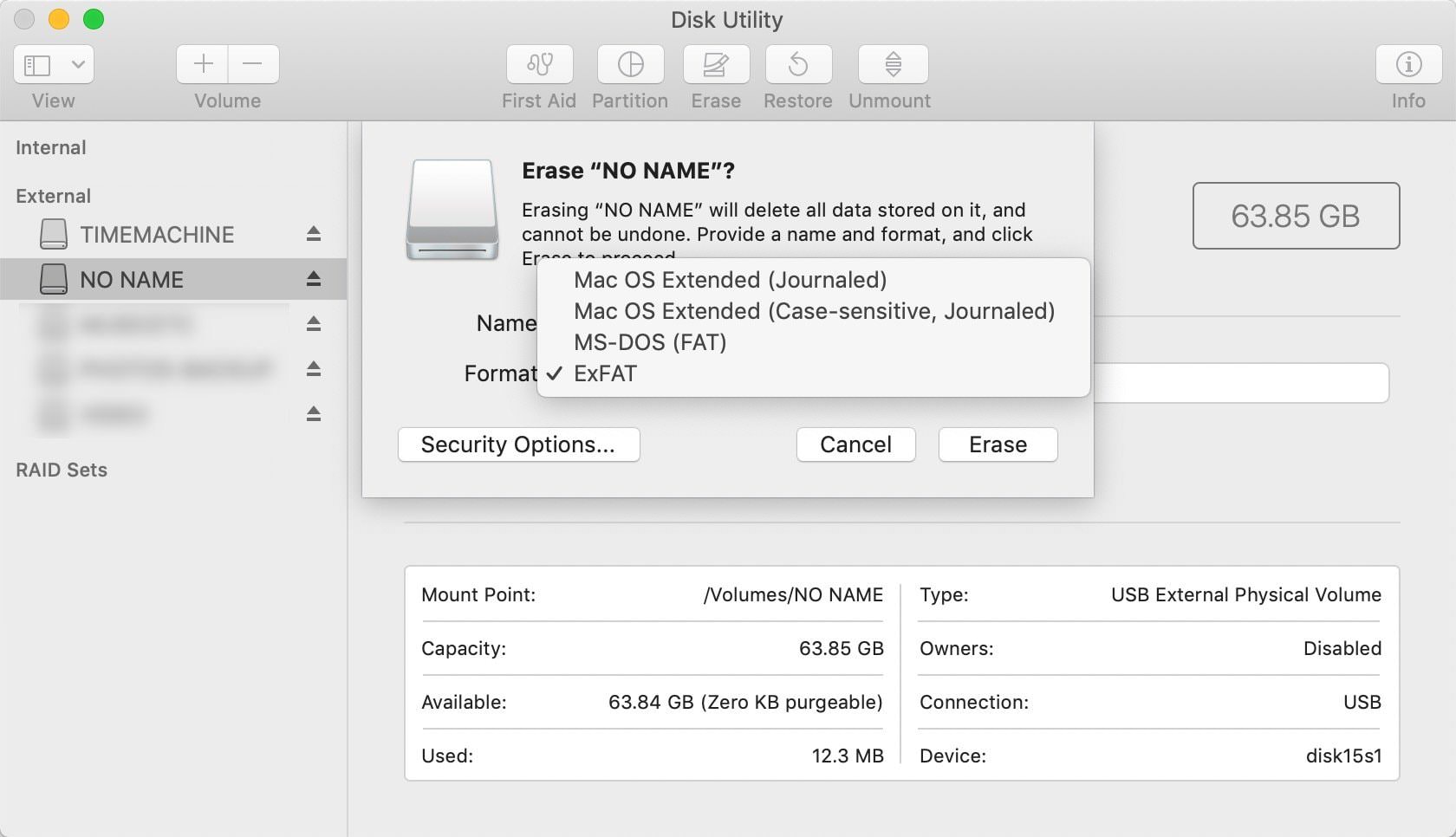
Apple users must use the Disk Utility tool to manage SD cards.
- Open “Disk Utility” via Spotlight search.
- Select the SD card from the external drives list on the left.
- Click the “Erase” button at the top of the window.
- Choose your format (Mac OS Extended for Apple-only use, or exFAT for cross-platform compatibility).
- Click “Erase” to finalize the process.
Digital Security and Data Recovery Considerations
One of the most important things to understand about formatting is its relationship with data security. Because a standard format (Quick Format) does not physically erase the data but only the pointers to that data, specialized software can often recover “lost” files.
Can Formatted Data Be Recovered?
If you accidentally format your SD card, all is not lost. As long as you do not write new data to the card, recovery tools like Recuva or PhotoRec can often reconstruct the files by scanning the raw sectors. However, once you start taking new photos, the device begins overwriting those sectors, making recovery impossible.
Secure Disposal of SD Cards
If you are selling an old camera or giving away a smartphone, a simple format is not enough to protect your privacy. A malicious actor could use recovery software to view your old photos. To truly “wipe” an SD card, you must perform a “Secure Format” or use a third-party utility that writes zeros or random data across the entire capacity of the card. This ensures that no trace of the original data remains.
The Lifespan of an SD Card: Wear Leveling and Formatting
Finally, it is worth noting that SD cards have a finite lifespan. They are built using NAND flash memory, which can only undergo a certain number of “program/erase” cycles before the cells begin to degrade.
While formatting is necessary, doing it excessively (multiple times a day) can theoretically contribute to the wear of the memory cells. However, modern SD card controllers use a technology called “wear leveling,” which distributes data writes evenly across the card to prevent any single area from wearing out prematurely. For the average user, the benefits of a clean, formatted file system far outweigh the negligible wear caused by the formatting process.
In conclusion, formatting an SD card is much more than a simple deletion of files. It is a vital technical procedure that optimizes performance, prevents corruption, and ensures that your storage media and your high-tech gadgets are speaking the same language. By understanding when and how to format, you protect your digital assets and ensure that your technology remains reliable for years to come.
aViewFromTheCave is a participant in the Amazon Services LLC Associates Program, an affiliate advertising program designed to provide a means for sites to earn advertising fees by advertising and linking to Amazon.com. Amazon, the Amazon logo, AmazonSupply, and the AmazonSupply logo are trademarks of Amazon.com, Inc. or its affiliates. As an Amazon Associate we earn affiliate commissions from qualifying purchases.