
In the world of portable storage, the SD card remains a vital tool for expanding the memory of smartphones, cameras, and gaming consoles. However, few things are as frustrating as seeing the notification: “SD Card Unmounted.” To the average user, this message is often cryptic and alarming, suggesting that their photos, videos, and documents have suddenly vanished or that the hardware is broken.
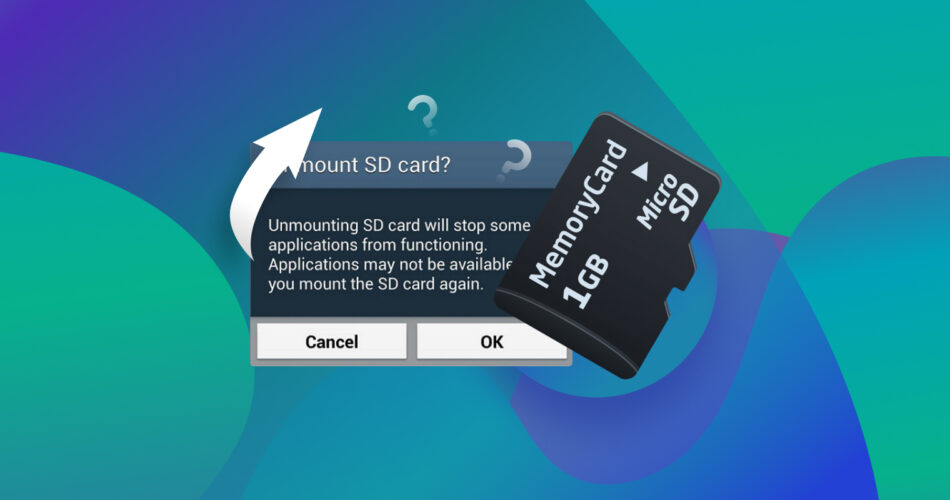
In technical terms, “unmounting” is a specific state of the relationship between an operating system and a storage device. Understanding what it means, why it happens, and how to resolve it is essential for anyone relying on external flash memory in their daily digital life.
The Technical Anatomy of an Unmounted SD Card
To understand what it means for an SD card to be “unmounted,” one must first understand what it means for a device to be “mounted.” In modern computing, whether on Android, Windows, macOS, or Linux, the operating system does not simply see a piece of hardware and immediately start writing to it. Instead, it undergoes a process called mounting.
The Logical Connection vs. The Physical Connection
A physical connection occurs when you slide the SD card into the slot. The pins make contact, and electricity flows. However, the software—the operating system—cannot interact with the storage until it “mounts” the file system. Mounting is the process by which the OS recognizes the file structure (such as FAT32, exFAT, or NTFS), assigns it a mount point (like a drive letter or a folder path), and prepares the read/write heads for operation.
When an SD card is “unmounted,” the physical connection might still exist, but the logical link has been severed. The OS has stopped communicating with the card’s file system. This can happen intentionally (when you manually eject the card) or unintentionally due to a technical error.
The Role of Write-Caching
One of the primary reasons operating systems use a mounting/unmounting system is to manage “write-caching.” To speed up performance, an OS often waits to write data to a card in batches rather than writing every single bit instantly. If you pull a card out while data is still in the cache, the file system can become corrupted. An “unmounted” state ensures that all pending data has been written and that it is safe to remove the hardware.
Why Do SD Cards Suddenly Unmount?
If you haven’t manually selected “Unmount SD Card” in your settings, a sudden unmount notification usually indicates an underlying conflict. These conflicts generally fall into three categories: physical hardware issues, software glitches, or file system corruption.
Physical Connectivity and Wear
The most common cause of a card unmounting itself is a loose physical connection. SD cards rely on tiny gold-plated contact pins. Over time, these pins can accumulate dust, oils from skin, or oxidation. Furthermore, the spring-loaded slots in devices can lose their tension, causing the card to shift slightly. Even a microscopic movement can break the connection for a fraction of a second, leading the OS to report that the card has been unmounted.
Software and Firmware Conflicts
Sometimes, the issue isn’t the card but the device reading it. Background processes in an operating system might crash while trying to index files on the SD card. In Android devices, Media Scanner services often run in the background to find new photos and music. If this service hits a “buggy” file, it might cause the entire mounting service to restart, resulting in a temporary unmount.
File System Fragmentation and Corruption
Every time you save or delete a file, the File Allocation Table (FAT) is updated. If the device loses power or the card is bumped during this update, the table can become “confused.” When the OS encounters a corrupted sector in the file system, it may unmount the card as a protective measure to prevent further data loss.
Comprehensive Troubleshooting Strategies
When faced with an unmounted SD card, the goal is to re-establish the logical connection without losing data. The following steps provide a professional-grade workflow for diagnosing and fixing the issue.
Step 1: Performing a Soft Remount
The first step is always the simplest. On most mobile devices, you can navigate to Settings > Storage. Here, you will often see an option to “Mount SD Card.” If the device recognizes the card’s presence but hasn’t initialized it, this command will re-trigger the mounting process. If this fails, a full system restart is recommended to clear the system cache and reset the hardware drivers.
Step 2: Physical Inspection and Cleaning
If the software won’t mount the card, physical intervention is necessary. Power down the device and remove the SD card. Inspect the gold contacts for any signs of dirt or scratches. A common tech-industry trick is to use a clean pencil eraser to gently rub the gold contacts, followed by a wipe with 90% isopropyl alcohol. This removes oxidation and ensures a clean electrical pathway.
Step 3: Testing on an Alternative Interface
To determine if the fault lies with the card or the device, insert the SD card into a different reader—preferably a PC or a laptop. If the computer recognizes the card and allows you to view files, the issue is likely with your original device’s slot or its internal software. If the computer also fails to recognize it, the card itself likely has a corrupted boot sector.
Data Management and Repair Protocols
If the card remains unmounted or shows up as “unsupported,” the focus must shift to data recovery and file system repair.
Utilizing “Chkdsk” for Logic Repairs
For Windows users, the chkdsk (Check Disk) command is a powerful tool for fixing unmounted cards. By connecting the card to a PC and running the command chkdsk [Drive Letter]: /f in the Command Prompt, the OS will attempt to repair the File Allocation Table. This often fixes the logical errors that prevent a card from mounting on a smartphone or camera.
Understanding File System Compatibility
Sometimes a card unmounts because the device doesn’t support the file system. For example, older devices may support FAT32 but not exFAT. If you have recently formatted your card on a PC and it now shows as unmounted on your gadget, you may have chosen a file system that the gadget’s firmware cannot read. In this case, reformatting to the device’s native standard is the only solution.
When to Format
Formatting is the “nuclear option.” It wipes all data and creates a fresh file system. If your card is frequently unmounting and all repair attempts have failed, formatting the card within the device it will be used in (rather than on a PC) is the best way to ensure long-term compatibility and stability.
Best Practices for Long-term SD Card Health
Preventing “SD card unmounted” errors is significantly easier than fixing them once they occur. Maintaining digital hygiene and hardware care can extend the life of your flash storage by years.
The “Eject” Rule
Never remove an SD card while the device is powered on and the card is still mounted. In Windows, use “Safely Remove Hardware.” On Android, always go to Storage settings and tap “Unmount.” This ensures that the write-cache is empty and the file system is “closed” before the physical connection is broken.
Quality Over Economy
The market is flooded with counterfeit SD cards that claim high capacities (like 1TB) for impossibly low prices. These cards often use “hacked” controllers that report more space than actually exists. When the card fills up past its real capacity, it will crash and unmount, often leading to permanent data loss. Always purchase cards from reputable brands like SanDisk, Samsung, or Kingston, and buy from verified retailers.
Regular Data Redundancy
Flash memory has a finite lifespan. Every “write cycle” (saving a file) slightly wears out the cells. To mitigate the impact of a card eventually failing or unmounting permanently, implement a cloud-backup or physical-redundancy strategy. Treat the SD card as a transit point for your data, not a permanent vault.
By understanding the technical nuances of the mounting process and maintaining a disciplined approach to hardware care, you can transform the “SD Card Unmounted” notification from a catastrophic event into a manageable technical hiccup. Whether it’s a simple cleaning of the contacts or a logical repair of the file system, most unmounting issues are solvable with the right technical approach.
aViewFromTheCave is a participant in the Amazon Services LLC Associates Program, an affiliate advertising program designed to provide a means for sites to earn advertising fees by advertising and linking to Amazon.com. Amazon, the Amazon logo, AmazonSupply, and the AmazonSupply logo are trademarks of Amazon.com, Inc. or its affiliates. As an Amazon Associate we earn affiliate commissions from qualifying purchases.