
The “Hide Alerts” feature on an iPhone is a powerful yet often misunderstood tool designed to manage notifications and maintain focus without completely disabling them. In essence, it allows users to silence incoming alerts for specific apps or conversations temporarily, presenting them in a less intrusive manner when they are not actively being viewed or when the device is locked. This functionality is a key component of Apple’s broader notification management system, aiming to strike a balance between staying informed and avoiding constant digital distractions.
Understanding “Hide Alerts” is crucial for optimizing your iPhone experience. It’s not about missing important information; rather, it’s about controlling how and when you receive that information. Whether you’re in a crucial meeting, deep in concentration, or simply want a more peaceful digital environment, this feature offers a sophisticated way to tailor your notification behavior. This article will delve into the intricacies of “Hide Alerts,” exploring its various manifestations, how to effectively utilize it, and its significance within the broader landscape of digital well-being and productivity on iOS.

Understanding Notification Delivery on iOS
Before diving into the specifics of “Hide Alerts,” it’s beneficial to understand how notifications are generally handled on an iPhone. Apple’s notification system has evolved significantly, offering a range of customization options to suit diverse user needs. The goal is to provide timely updates without overwhelming the user.
The Anatomy of an iPhone Notification
When an app or a service on your iPhone has something to communicate, it generates a notification. These notifications can manifest in several ways, each designed for a different level of urgency and user interaction:
- Banners: These appear at the top of your screen temporarily, often with options to interact (e.g., reply, dismiss). They are the most common form of notification for active app usage.
- Alerts: These are more prominent, requiring explicit user action to dismiss. They can be “Temporary” (similar to banners but may linger longer) or “Persistent” (requiring a tap to clear).
- Badges: These are small red circles with a number indicating the count of unread notifications on an app icon. They are a visual cue that something requires attention within the app.
- Sounds: Many notifications are accompanied by a distinct sound to draw your attention audibly.
- Vibrations: Similar to sounds, vibrations can alert you to incoming notifications, often used in silent environments.
- Lock Screen Display: Notifications can appear on your iPhone’s lock screen, allowing you to see what’s new without unlocking your device.
The system allows for granular control over each of these delivery methods on a per-app basis. You can choose to have an app deliver sound and banners, or simply display a badge, or even no alert at all. This foundational understanding sets the stage for appreciating how “Hide Alerts” fits into this framework.
Scheduled Summary and Its Role
A significant feature related to managing notifications and, by extension, “hiding” them non-intrusively is the Scheduled Summary. Introduced in iOS 15, this feature allows users to group less urgent notifications and have them delivered in a daily summary at a time of their choosing. This is a proactive way to declutter your notification center and reduce interruptions throughout the day.
When an app is added to your Scheduled Summary, its notifications will not appear as immediate banners, sounds, or lock screen alerts. Instead, they are collected and presented in a neat, organized list at your scheduled time. This effectively “hides” these notifications from your immediate view, only surfacing them when you are ready to engage with them. This is particularly useful for apps that generate frequent but non-critical updates, such as social media, news apps, or certain productivity tools.
The Scheduled Summary acts as a form of “hiding alerts” in that it postpones their delivery, making them less disruptive. It’s a user-initiated system that filters out the noise, allowing for greater focus on what truly matters in the moment.
Manifestations of “Hide Alerts” on iPhone
The term “Hide Alerts” on an iPhone isn’t a single, universally labeled switch. Instead, it manifests through several features and settings that collectively achieve the goal of reducing or delaying notification visibility. These features offer different levels of control and are suited for various scenarios.
“Deliver Quietly” and Scheduled Summary Integration
One of the primary ways to “hide alerts” is through the “Deliver Quietly” option available within the notification settings for individual apps. When you choose to “Deliver Quietly” for an app, its notifications will bypass the lock screen, notification center banners, and any associated sounds or vibrations. They will only be visible when you explicitly open the app or view them in the “Missed” section of your Notification Center.
Crucially, “Deliver Quietly” is also the gateway to using the Scheduled Summary for an app. If you enable “Deliver Quietly,” you then have the option to include that app’s notifications in your Scheduled Summary. This means that instead of receiving immediate alerts, the notifications are bundled and delivered at your pre-set time. This is arguably the most direct interpretation of “hiding alerts” – making them appear only when you choose to review them.
How to enable “Deliver Quietly” and integrate with Scheduled Summary:
- Navigate to Settings on your iPhone.
- Tap on Notifications.
- Select the app for which you want to hide alerts.
- Under “Alerts,” you will see options for “Lock Screen,” “Notification Center,” and “Banners.” Below these, you’ll find “Sounds” and “Badges.”
- If you want to deliver notifications quietly, ensure that “Lock Screen,” “Notification Center,” and “Banners” are unchecked for immediate visibility.
- You will then see an option for “Deliver Quietly.” Toggle this on.
- If you wish to include this app in your Scheduled Summary, you will see an option to “Scheduled Summary” and can add it to your desired summary time. If you don’t select “Scheduled Summary,” the notifications will still be delivered quietly, meaning they won’t appear on your lock screen or as banners, but will be accessible in your Notification Center’s “Missed” tab without a scheduled delivery.
This granular control allows users to effectively “hide” notifications that aren’t time-sensitive, thus reducing interruptions and preserving focus.
Focus Modes and Their Impact on Alerts
Focus Modes, a more advanced feature introduced in iOS 15, offer a sophisticated way to manage notifications based on your current activity. While not directly labeled “Hide Alerts,” Focus Modes achieve this by allowing you to specify which apps and people can send you notifications when a particular Focus is active.
When you activate a Focus Mode (e.g., “Work,” “Sleep,” “Driving,” “Do Not Disturb”), your iPhone silences all notifications except those from the apps and contacts you have explicitly allowed. All other notifications are effectively “hidden” from immediate view. They are not displayed as banners, do not make sounds, and do not appear on the lock screen. Instead, they are collected in the Notification Center, often with a subtle indicator that notifications were silenced due to a Focus Mode being active.
How Focus Modes “Hide Alerts”:
- Go to Settings > Focus.
- Choose a pre-set Focus (like “Do Not Disturb”) or create a new one.
- Under “Allowed Notifications,” tap “Apps” and “People.”
- Add the specific apps and contacts that you want to receive notifications from while this Focus is active.
- Any app or contact not on this list will have its notifications silenced – effectively “hidden” – when the Focus Mode is engaged.
Focus Modes provide a dynamic approach to “hiding alerts.” For instance, during a “Work” Focus, notifications from social media apps are silenced. When your “Work” Focus is turned off, these apps will resume their normal notification behavior. This is a powerful tool for maintaining productivity by tailoring your notification environment to specific contexts and activities.
“Hide Notifications” within Specific Apps (e.g., Messages)
Some applications themselves offer built-in options to manage or “hide” notifications for specific conversations or content. The most prominent example is the Messages app.
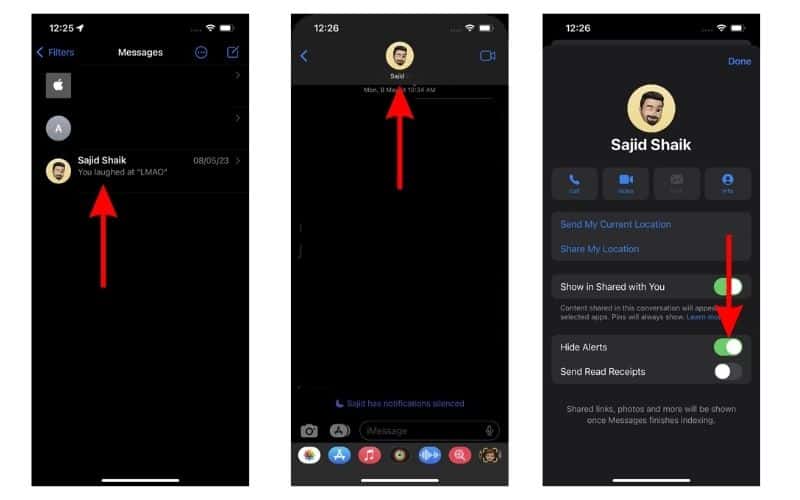
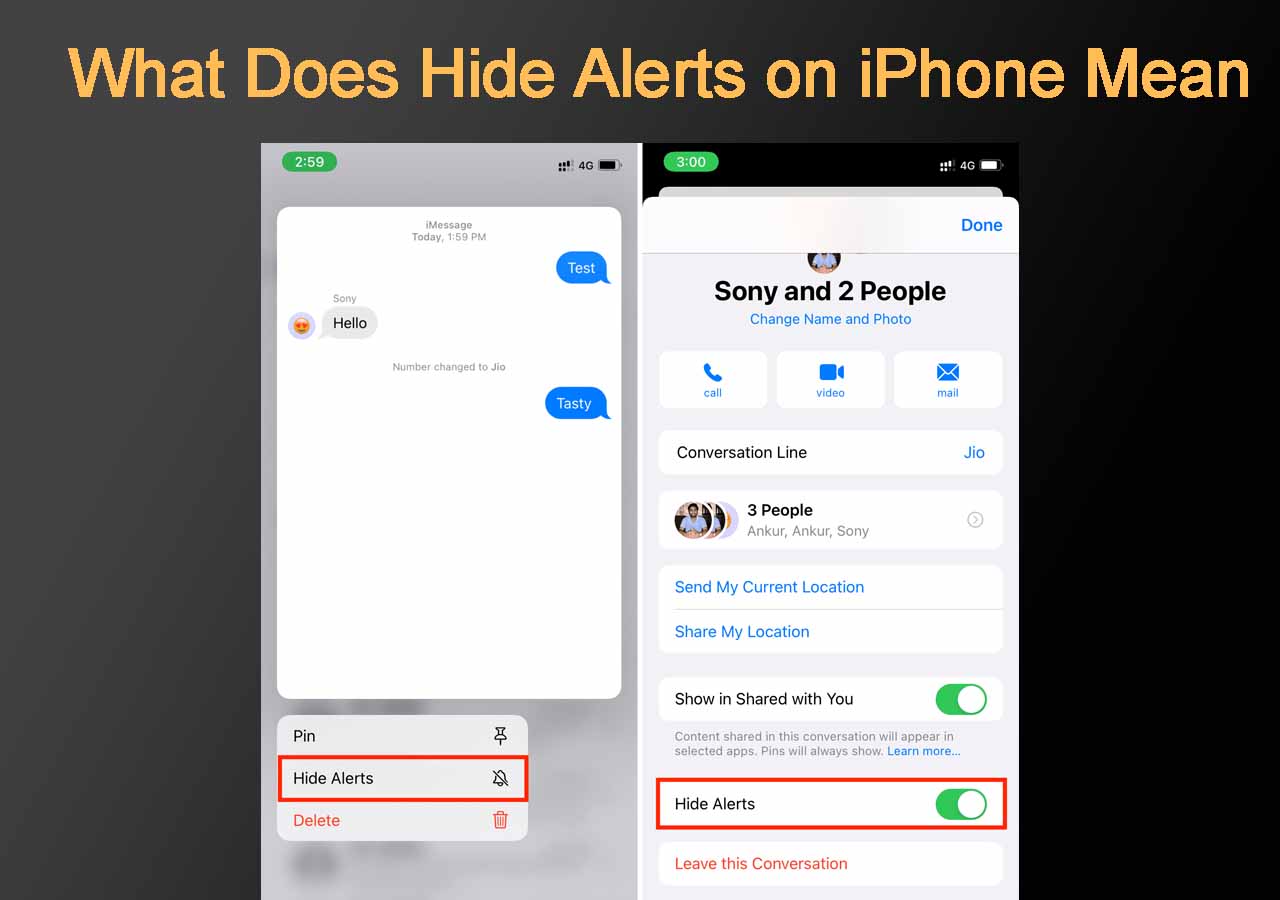
Within the Messages app, you can “hide” alerts for individual conversations. This doesn’t mean you won’t receive messages; rather, it means you won’t get an audible alert or a banner notification for new messages from that specific contact or group. The unread count badge on the Messages app icon will still update, and you can see the new message when you open the app.
How to “Hide Alerts” for a specific iMessage conversation:
- Open the Messages app.
- Tap on the conversation you wish to silence.
- Tap on the contact’s or group’s name at the top of the conversation screen.
- Toggle on Hide Alerts.
This feature is incredibly useful for managing high-volume group chats or conversations that, while you want to be aware of, don’t require an immediate audible interruption. It’s a form of targeted notification muting.
Leveraging “Hide Alerts” for Enhanced Productivity and Well-being
The ability to “hide alerts” on your iPhone is more than just a convenience; it’s a cornerstone of effective digital management. By strategically employing these features, users can reclaim their focus, reduce stress, and cultivate a healthier relationship with their devices.
Minimizing Distractions for Deep Work
In today’s hyper-connected world, distractions are a constant threat to productivity. The incessant ping of notifications can shatter concentration, leading to context switching and reduced efficiency. Features like Scheduled Summary and “Deliver Quietly” are invaluable for professionals, students, and anyone engaged in tasks requiring sustained mental effort.
By directing non-urgent notifications to a Scheduled Summary, users can create dedicated blocks of time for focused work without being pulled away by every incoming alert. “Deliver Quietly” further enhances this by ensuring that even if a notification slips through the cracks of the Scheduled Summary, it won’t manifest as an immediate interruption. This allows for uninterrupted periods of deep work, leading to higher quality output and a greater sense of accomplishment.
Cultivating Digital Well-being
Beyond productivity, “hiding alerts” plays a significant role in fostering digital well-being. Constant notifications can contribute to anxiety, a feeling of being perpetually “on call,” and a diminished capacity for mindfulness. By deliberately choosing when and how to receive information, users can create a more peaceful and intentional digital experience.
Focus Modes are particularly impactful here. Setting up a “Sleep” Focus that silences all but essential notifications ensures uninterrupted rest. A “Personal Time” Focus can help create boundaries, preventing work-related alerts from encroaching on personal life. These measures are not about disconnecting entirely, but about establishing control and making technology serve our needs rather than dictate them. The ability to “hide alerts” empowers users to be more present in their offline lives.
Tailoring Notification Strategies for Different Needs
The beauty of the iPhone’s notification system, including its “hide alerts” functionalities, lies in its adaptability. Users are not forced into a one-size-fits-all approach. Instead, they can tailor their strategies to suit their individual work styles, personal preferences, and daily routines.
For instance, a journalist might use “Deliver Quietly” for news apps but keep immediate alerts on for breaking news alerts from trusted sources. A parent might utilize Focus Modes to silence all but notifications from their child’s school during certain hours. A student might use Scheduled Summary for social media and entertainment apps, ensuring they don’t miss important academic notifications.
The key is to regularly review and adjust notification settings. As your needs and habits evolve, so too should your notification strategy. By understanding the various ways to “hide alerts,” from the simple muting of a conversation to the sophisticated automation of Focus Modes, you can transform your iPhone from a potential source of stress into a powerful tool for focused work and mindful living.
Conclusion: Mastering Your iPhone’s Notification Flow
The phrase “hide alerts” on an iPhone encompasses a suite of features designed to grant users greater control over their digital environment. It’s not about a single button but rather an ecosystem of settings that empower individuals to manage the constant stream of information their devices provide. From the subtle muting of a single conversation in Messages to the broad control offered by Focus Modes and the organized delivery of Scheduled Summary, Apple provides robust tools for those seeking to minimize distractions and enhance their digital well-being.
By understanding the nuances of “Deliver Quietly,” the contextual power of Focus Modes, and the specific options within individual apps, users can move beyond passive reception of notifications to active management. This proactive approach is essential for navigating the complexities of modern life, where striking a balance between staying informed and maintaining focus is paramount. Ultimately, mastering how to “hide alerts” on your iPhone is a critical step towards a more productive, less stressful, and more intentional relationship with your technology.
aViewFromTheCave is a participant in the Amazon Services LLC Associates Program, an affiliate advertising program designed to provide a means for sites to earn advertising fees by advertising and linking to Amazon.com. Amazon, the Amazon logo, AmazonSupply, and the AmazonSupply logo are trademarks of Amazon.com, Inc. or its affiliates. As an Amazon Associate we earn affiliate commissions from qualifying purchases.