
In the modern era of hyper-connectivity, the smartphone has transitioned from a mere communication tool to a pervasive extension of our daily lives. While the benefits of having the world’s information at our fingertips are undeniable, the psychological and physiological costs of constant digital stimulation have become a primary concern for tech developers and consumers alike. Apple’s response to this “always-on” culture was the introduction of Screen Time, a suite of features designed to help users understand and manage their device usage. At the heart of this suite lies “Downtime.”
But what exactly does Downtime mean on an iPhone, and how can it be leveraged to reclaim focus and improve mental well-being? This article explores the technical nuances, configuration strategies, and the broader impact of Downtime on the user experience within the iOS ecosystem.
Understanding the Concept: What is Downtime on iPhone?
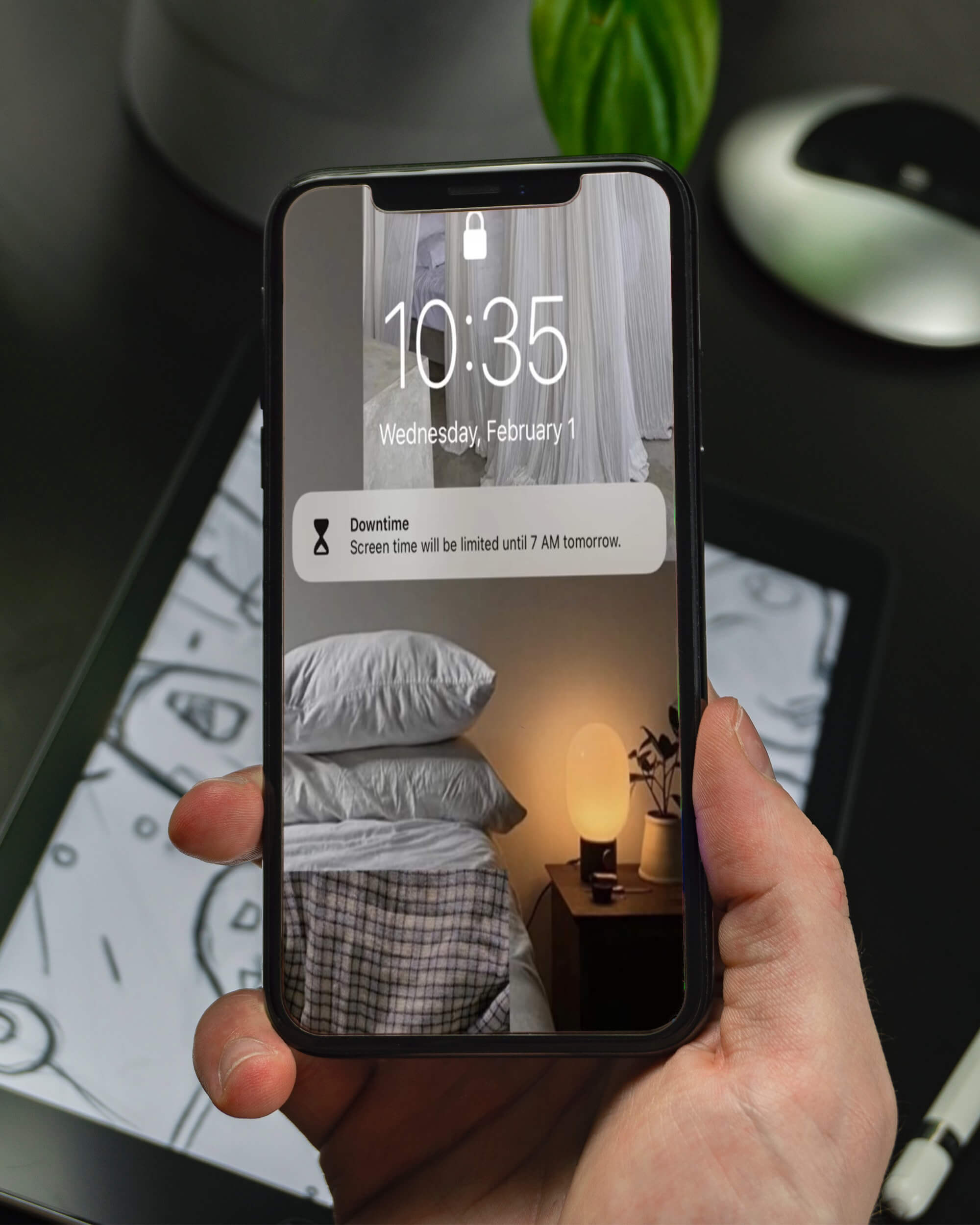
At its most fundamental level, Downtime is a software-level “curfew” for your device. When Downtime is enabled, either manually or on a set schedule, only the phone calls and specific apps that you have chosen to allow remain available. All other apps become dimmed (grayed out) on the Home Screen, and a small hourglass icon appears next to their names. If a user attempts to open a restricted app, they are met with a full-screen overlay stating that the time limit has been reached.
The Core Mechanics of Scheduled Restrictions
Downtime operates within the “Screen Time” settings of iOS and iPadOS. Its primary function is to create a boundary between the user and the distracting allure of social media, games, and non-essential notifications. Unlike a simple “Power Off,” Downtime allows the iPhone to remain functional for emergency purposes while effectively silencing the noise of the digital world.
When you schedule Downtime, you define a start and end time. This is typically used during sleep hours or during deep-work sessions. During this window, the device filters out the vast majority of digital “junk,” forcing the user to be intentional about their interactions with technology.
How Downtime Differs from Do Not Disturb and Focus Modes
It is a common misconception that Downtime is simply another version of “Do Not Disturb” (DND). While both features aim to reduce interruptions, they function on different layers of the operating system:
- Do Not Disturb: Focuses primarily on notifications. It silences incoming calls and alerts but allows the user to browse apps freely if they pick up the phone.
- Downtime: Focuses on app accessibility. It actively prevents you from using software. Even if you pick up your phone to “check one thing,” the grayed-out icons serve as a psychological and technical barrier to mindless scrolling.
- Focus Modes: Introduced in later versions of iOS, Focus Modes are more granular, allowing users to customize Home Screens and notification filters based on activity (e.g., Work, Fitness, Reading). Downtime acts as the “hardest” version of these boundaries, often serving as the final stage of a daily digital wind-down.
The Strategic Implementation of Downtime for Productivity and Health
From a technical perspective, Downtime is a tool for behavior modification. In a world where apps are engineered to maximize “time on device,” Downtime provides a necessary counterweight.
Enhancing Sleep Hygiene through Tech Boundaries
Research in chronobiology suggests that the blue light emitted by screens, combined with the dopamine spikes triggered by social media, can significantly disrupt circadian rhythms. By setting Downtime to begin an hour before sleep, users can facilitate a “digital detox” period.
Because Downtime restricts access to apps like TikTok, Instagram, and X (formerly Twitter), the brain is given a chance to enter a lower state of arousal. Technically, by automating this process, the iPhone removes the “decision fatigue” involved in putting the phone away. The software makes the choice for you, reinforcing healthy habits through rigid system protocols.
Curbing Digital Distractions during Work Hours
While often associated with nighttime use, savvy tech users utilize Downtime as a productivity hack. By setting a “Daytime Downtime” during peak work hours (e.g., 9:00 AM to 12:00 PM), one can transform their iPhone into a minimalist device.
In this scenario, only essential tools—such as the Calendar, Notes, and professional communication apps—remain active. This minimizes the risk of “context switching,” where a quick check of a text message leads to twenty minutes of unproductive browsing. The technical friction introduced by the Downtime overlay is often enough to remind the user to return to their primary task.

A Step-by-Step Tutorial: Configuring Downtime for Maximum Efficacy
Setting up Downtime requires a dive into the iOS Settings menu. To ensure the feature works effectively without becoming a hindrance, it must be configured with precision.
Enabling Downtime on iOS and iPadOS
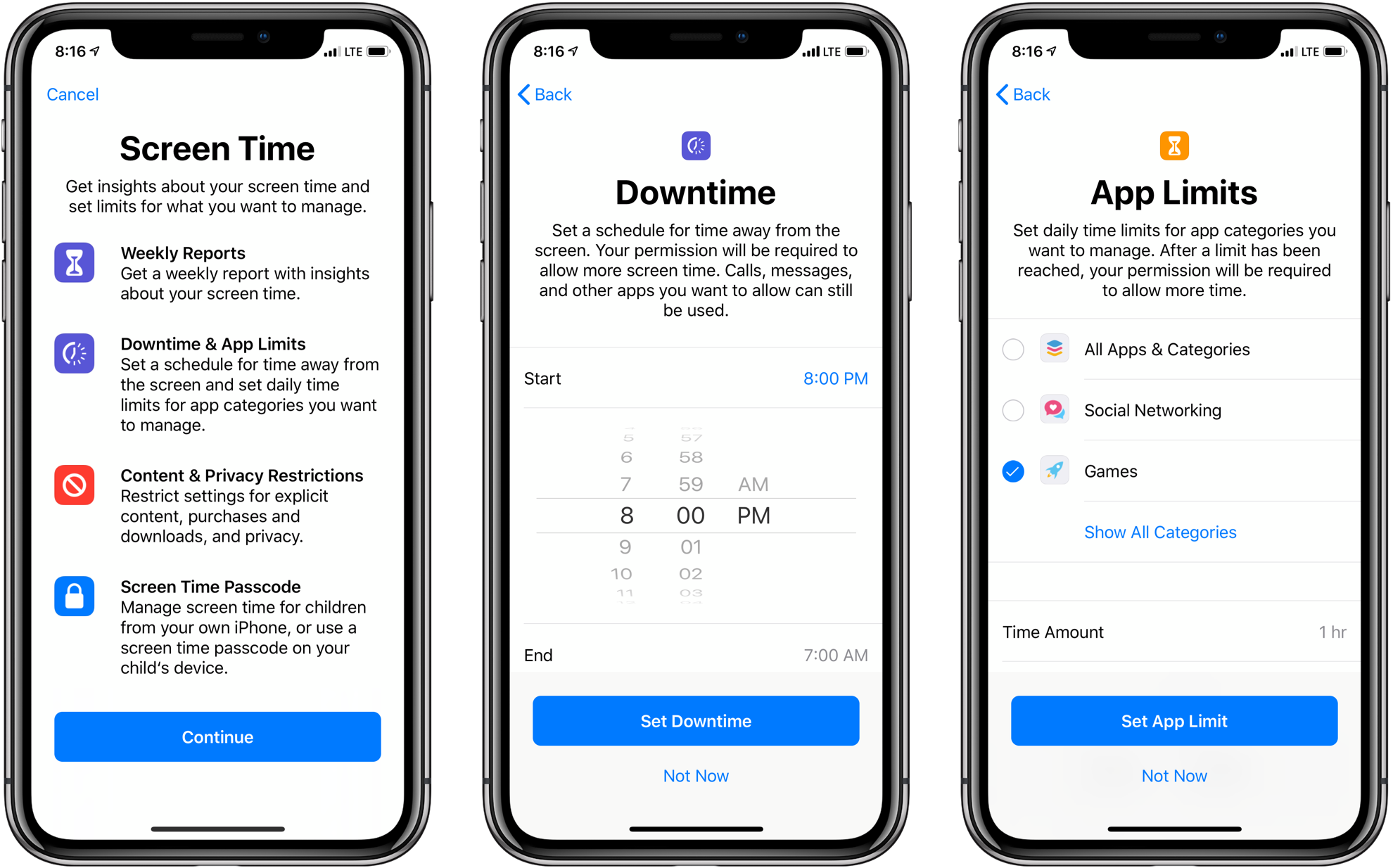
To begin, navigate to Settings > Screen Time. If you haven’t enabled Screen Time yet, you will need to turn it on and follow the prompts. Once inside the Screen Time menu:
- Tap Downtime.
- Toggle Scheduled to the “On” position.
- Choose between “Every Day” or “Customize Days.” The latter is particularly useful for setting different schedules for weekdays and weekends.
- Set your “Start” and “End” times.
Customizing the “Always Allowed” List
The key to a successful Downtime implementation is the “Always Allowed” list. You don’t want to be unable to call an Uber or check your Maps in an emergency.
- Navigate to Settings > Screen Time > Always Allowed.
- Select the apps that should bypass Downtime. Standard recommendations include Phone, Messages, Maps, and perhaps a music or meditation app.
- Note that “Phone” is always allowed by default to ensure safety and emergency reachability.
Using “Block at Downtime” for Strict Enforcement
For those who find themselves reflexively tapping “Ignore Limit” when the Downtime screen appears, there is a more stringent option. If you set a Screen Time Passcode, you can enable the “Block at Downtime” toggle.
With this setting active, the device will not allow you to bypass the restriction easily. You (or a trusted partner) must enter the four-digit passcode to gain extra time. This adds a critical layer of friction that can break the cycle of impulsive device usage.
Downtime as a Tool for Parental Control and Family Management
In the context of the Apple “Family Sharing” ecosystem, Downtime becomes a powerful administrative tool. For parents concerned about their children’s digital habits, Downtime offers a remote management solution that is both effective and transparent.
Managing Screen Time via Family Sharing
Through Family Sharing, a parent can configure Downtime for their child’s device directly from their own iPhone. This means you can set a “bedtime” for a teenager’s iPad without needing to physically hold the device.
The technical integration is seamless: once the scheduled hour hits, the child’s device automatically restricts access. This prevents late-night gaming or social media use, which are often cited as major contributors to sleep deprivation in adolescents.
Teaching Digital Responsibility to the Next Generation
Beyond mere restriction, Downtime serves as a pedagogical tool. When a child sees the hourglass icon, it prompts a conversation about why boundaries are necessary. Children can also use the “Ask For More Time” feature, which sends a notification to the parent’s device. The parent can then approve an additional 15 minutes, an hour, or the rest of the day. This creates a balanced environment where technology is managed through a combination of automated software rules and active parental guidance.
The Future of Digital Wellbeing: Beyond Basic Restrictions
As iOS continues to evolve, we are seeing Downtime integrate more deeply with other system features, reflecting a broader trend in the tech industry toward “humane technology.”
Integrating Focus Modes with Downtime
With the introduction of Focus Filters, Downtime can now be made even more intelligent. For instance, you can set a Focus Mode that not only activates Downtime but also changes your iPhone’s wallpaper to a darker, less stimulating image and hides specific Home Screen pages. This multi-layered approach ensures that the device’s entire UI (User Interface) shifts to support the user’s intent to disconnect.
The Evolution of Apple’s Health-Centric Software
Apple’s commitment to Health is not limited to the Apple Watch or the Health app. Features like Downtime demonstrate that software design is increasingly being viewed through the lens of mental health. By providing users with the tools to “turn off” the noise, Apple is acknowledging the technical responsibility that comes with creating highly addictive, high-engagement hardware.
In conclusion, “Downtime” on the iPhone is much more than a simple timer. It is a sophisticated system designed to restore the balance between our digital and physical lives. By understanding its mechanics—from the basic scheduling to the advanced “Block at Downtime” features—users can transform their devices from sources of constant distraction into tools that respect their time and mental space. Whether used for better sleep, increased professional focus, or responsible parenting, Downtime represents a vital component of modern digital literacy.
aViewFromTheCave is a participant in the Amazon Services LLC Associates Program, an affiliate advertising program designed to provide a means for sites to earn advertising fees by advertising and linking to Amazon.com. Amazon, the Amazon logo, AmazonSupply, and the AmazonSupply logo are trademarks of Amazon.com, Inc. or its affiliates. As an Amazon Associate we earn affiliate commissions from qualifying purchases.