
Navigating the sleek, minimalist interface of an iPhone is designed to be intuitive, yet certain symbols often leave users questioning their device’s activity. Among the most frequent sources of confusion is the small arrow icon that appears in the status bar at the top of the screen. While it may seem like a minor detail, this arrow is a critical component of Apple’s commitment to transparency and user privacy. It serves as a real-time indicator of when and how your geographic location is being accessed by apps and system services.
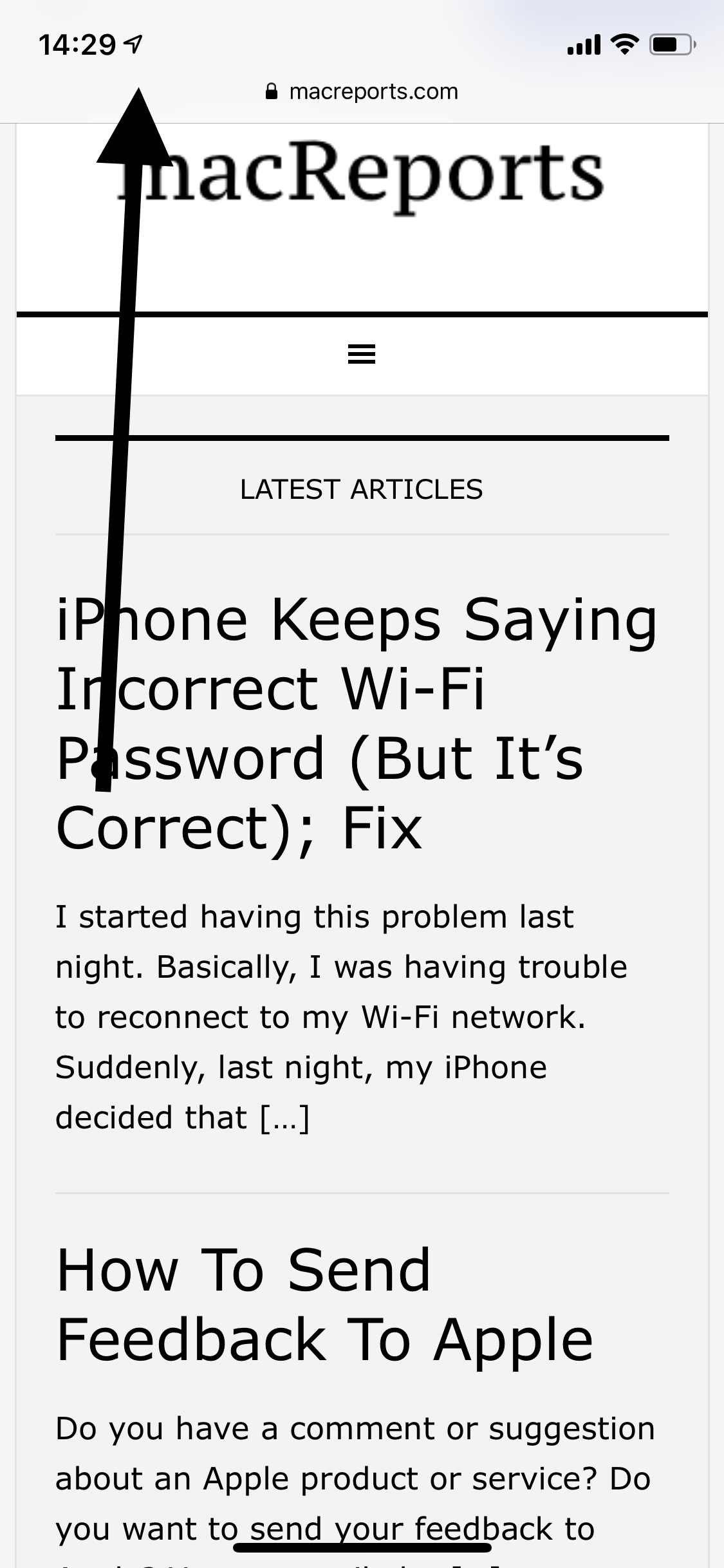
Understanding these icons is more than just a matter of curiosity; it is a vital part of managing your digital footprint and optimizing your device’s performance. This guide provides an in-depth analysis of what the different variations of the arrow mean, how to manage the apps that trigger them, and how to balance convenience with privacy in the iOS ecosystem.
Decoding the Location Services Icons
The arrow icon on your iPhone is not a singular, static image. Depending on the version of iOS you are running and the specific activity occurring in the background, the arrow can change color, fill, and placement. Each variation communicates a different level of location data usage.
The Solid Arrow (Purple or Black)
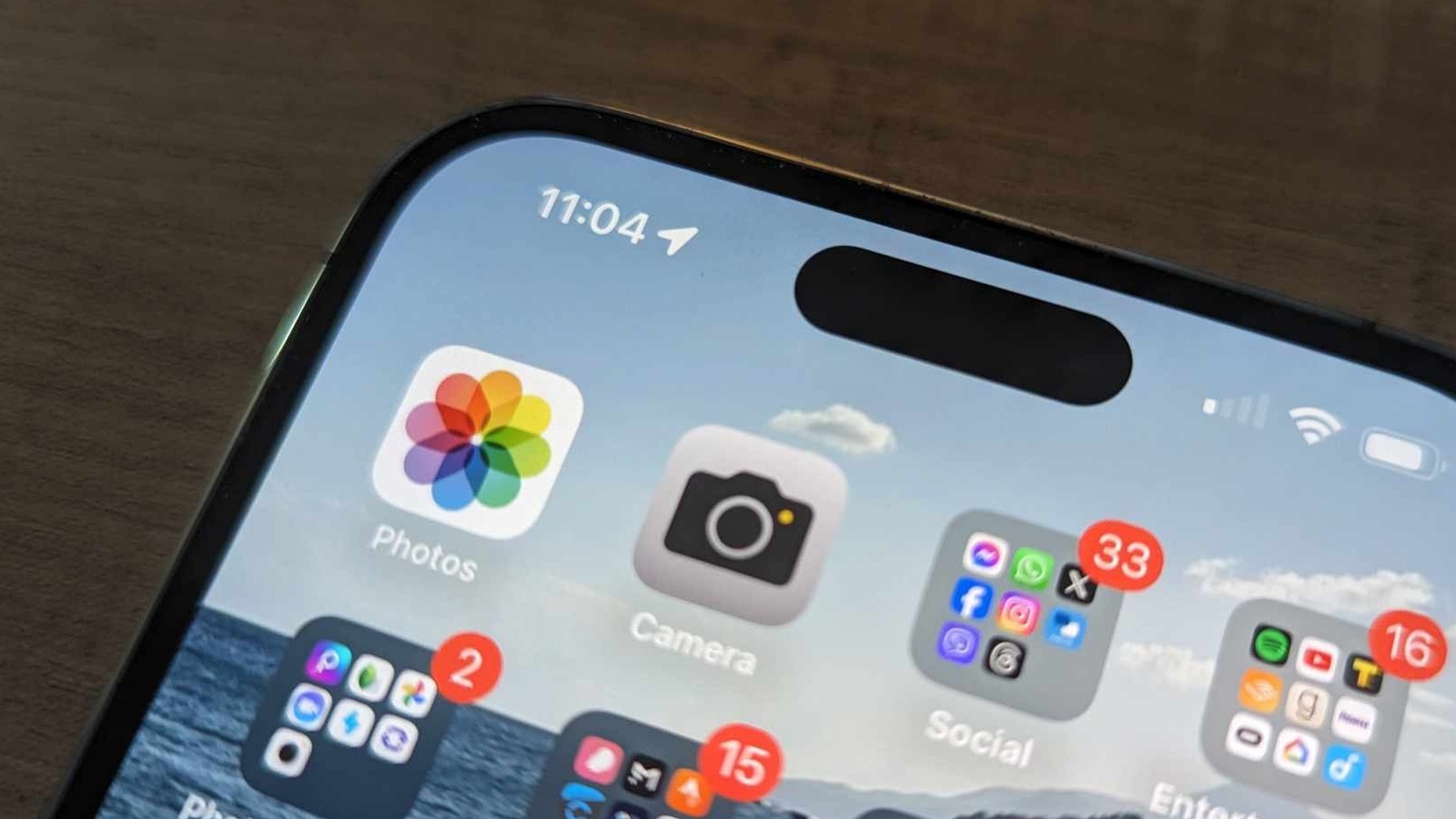
When you see a solid, filled-in arrow in the status bar, it indicates that an app or a system service is actively using your location at that very moment. On older versions of iOS or in certain display modes, this arrow may appear black; on newer OLED displays with specific UI themes, it often takes on a crisp purple hue. This is the most “active” state of the icon. You will typically see this when you have a navigation app like Apple Maps or Google Maps open, or when a weather app is updating its data based on your current coordinates.
The Hollow Arrow
A hollow or outlined arrow indicates that an app or service has the potential to receive your location data if certain conditions are met, or that it has recently requested your location. This is often associated with “geofencing”—a technology that triggers a notification or action when you enter or leave a specific geographic perimeter. For example, a “Reminders” app that alerts you to “Buy milk” when you arrive at the grocery store will often trigger a hollow arrow, as it is constantly monitoring your proximity to a specific coordinate without necessarily pulling high-accuracy GPS data every second.
The Blue Circle or Blue Arrow Pill
In recent iterations of iOS, particularly starting with iOS 15, Apple introduced a more prominent indicator for active location tracking. If an app is using your location in the background—meaning the app is not currently on your screen—the time in the top left corner of your iPhone will be encased in a blue “pill” or bubble. This is a high-visibility feature designed to ensure that users are never being tracked without their knowledge. Tapping this blue indicator will immediately return you to the app that is accessing your location, allowing you to close it or adjust its settings.
The Grey Arrow
A grey arrow typically appears in the Settings menu rather than the main status bar. When you navigate to your Privacy & Security settings, you will see a list of apps with different colored arrows next to them. A grey arrow here indicates that an app has used your location within the last 24 hours. This historical record is a powerful tool for auditing your privacy and identifying apps that may be “phoning home” more often than necessary.
Managing Location Permissions and System Services
The presence of the arrow is the result of Location Services, a framework that uses GPS, Bluetooth, crowd-sourced Wi-Fi hotspots, and cellular towers to determine your approximate or exact position. While essential for many modern conveniences, these services can be granularly controlled.
Customizing App-Level Access
Apple provides three primary levels of location access for third-party applications. Understanding these is key to making the arrow behave the way you want:
- Never: The app is completely barred from accessing your location.
- Ask Next Time Or When I Share: The app must prompt you for permission every single time it wants to see where you are. This is ideal for apps you rarely use.
- While Using the App: This is the recommended setting for most apps. It ensures the arrow only appears when you are actively engaged with the software, preventing background tracking.
- Always: The app can access your location even when it is closed and your phone is in your pocket. This is usually reserved for fitness trackers or smart home automations.
Precise vs. Approximate Location
One of the most significant tech advancements in iOS privacy is the ability to toggle “Precise Location.” Not every app needs to know your exact street address. A weather app, for instance, only needs to know your general city or neighborhood to provide an accurate forecast. By turning off Precise Location for specific apps, you provide “approximate” data, which enhances your privacy while still maintaining the app’s functionality.
Hidden Battery Drain: System Services
If the arrow icon seems to be permanently lodged in your status bar, even when all apps are closed, the culprit is likely “System Services.” These are low-level iOS functions that operate in the background. They include:
- Compass Calibration: Uses location to ensure the internal compass is accurate.
- Emergency Calls & SOS: Provides your location to first responders during an emergency.
- Significant Locations: A feature where your iPhone learns the places that are important to you (like “Home” or “Work”) to provide better traffic data and photo memories.
- Setting Time Zone: Automatically updates your clock when you travel.
Users can view and toggle these by going to Settings > Privacy & Security > Location Services > System Services. Disabling unnecessary system services can significantly improve battery life and reduce the frequency of the arrow appearing.
The Evolution of the Arrow in the Modern iOS Era
The arrow icon has evolved from a simple “GPS on” indicator to a sophisticated privacy dashboard. This evolution reflects the broader tech industry’s shift toward user-centric data control.
The Impact of App Tracking Transparency (ATT)
With the introduction of App Tracking Transparency, Apple forced developers to be more upfront about data collection. The location arrow is a visual extension of this philosophy. It acts as a constant, real-time audit. If you are playing a simple offline puzzle game and the location arrow appears, it serves as a red flag that the app may be collecting data for advertising purposes rather than functional necessity.
The “Find My” Network and the Arrow
The “Find My” ecosystem, which includes AirTags and the ability to find a lost iPhone even when it’s offline, has added a new layer to the location icon’s behavior. When you use another device to locate your iPhone, or if your iPhone is participating in the encrypted Find My network to help someone else find their lost device, you may see the location icon briefly appear. This is part of the “Find My” system’s background heartbeat, ensuring that your devices are reachable in case of theft or loss.
Focus Modes and Icon Visibility
Apple’s “Focus” modes (Do Not Disturb, Work, Sleep) have also changed how status icons are displayed. In some Focus modes, the status bar is simplified to reduce distractions. However, because location tracking is a privacy concern, the arrow often overrides these aesthetic simplifications. If an app accesses your location while you are in a “Sleep” focus, the icon will still appear to ensure you are aware of the background activity.
Beyond the Status Bar: Other Arrows in iOS
While the location arrow is the most discussed, the iPhone interface utilizes various other arrow icons that serve different technological functions. Distinguishing between them is essential for a complete understanding of the device.
The Share Sheet Arrow
In apps like Photos, Safari, or Files, you will see a square with an upward-pointing arrow. This is the “Share” icon. In the context of tech productivity, this is the gateway to the iOS extensibility framework. It allows data to move between apps, enables AirDrop, and facilitates the use of Shortcuts. While it is an arrow, it has nothing to do with location; it is instead about data mobility.
Navigation and UI Arrows
Throughout the iOS interface, you will encounter “Back” arrows (chevron-style) in the top left of apps. These are standard UI elements for hierarchical navigation. Additionally, in Safari, the circular arrow represents “Reload,” a fundamental browser function. In the Mail and Messages apps, a curved arrow pointing to the left indicates a “Reply,” while a curved arrow pointing to the right signifies a “Forward.”
Apple Maps Directional Arrow
Inside the Apple Maps app, your current location is represented by a blue pulse with a directional “beaming” arrow. This uses the iPhone’s magnetometer and accelerometer to show which direction you are facing. If the “beam” is wide, the calibration is low; if it is narrow and sharp, the phone has a high-confidence lock on your orientation.

Best Practices for Privacy and Performance
To master your iPhone’s location settings and ensure the arrow icon only appears when you want it to, consider the following technical best practices:
- Perform a Weekly Privacy Audit: Spend five minutes once a week in the Location Services menu. Look for the grey arrows to see which apps have been active without your direct interaction.
- Use “While Using” as the Default: Unless an app absolutely requires background access (like a tile tracker or a dedicated navigation tool), always set permissions to “While Using.” This limits the arrow’s appearance and saves battery.
- Audit System Services: Most users do not need “iPhone Analytics” or “Popular Near Me” enabled. Turning these off reduces background data transmissions.
- Watch the Blue Pill: If you see the blue bubble around the time, it means an app is actively tracking you in the background. If you aren’t currently using a workout app or GPS, tap it immediately to see which app is “leaking” and close it.
- Understand “Significant Locations”: While encrypted and not accessible by Apple, “Significant Locations” keeps a very detailed log of where you spend your time. If this feels too invasive, you can clear the history and disable the feature entirely within System Services.
The arrow icon on the iPhone is a testament to the complexity of modern mobile operating systems. It distills millions of lines of code and complex satellite communications into a simple, glanceable glyph. By understanding what each version of the arrow signifies, users can move from being passive consumers of technology to active managers of their own digital privacy and device efficiency. In an age where data is the most valuable currency, knowing exactly when your iPhone is “talking” to the satellites above is a fundamental skill for the modern tech user.
aViewFromTheCave is a participant in the Amazon Services LLC Associates Program, an affiliate advertising program designed to provide a means for sites to earn advertising fees by advertising and linking to Amazon.com. Amazon, the Amazon logo, AmazonSupply, and the AmazonSupply logo are trademarks of Amazon.com, Inc. or its affiliates. As an Amazon Associate we earn affiliate commissions from qualifying purchases.