
Navigating the landscape of home networking hardware can often feel like deciphering a complex industrial puzzle. For Spectrum customers, identifying the specific piece of equipment that brings the internet into the home is the first step toward troubleshooting, optimizing performance, or simply organizing a home office. While internet service providers (ISPs) frequently update their hardware rosters, Spectrum has moved toward a standardized design language for its latest generation of devices.
Understanding what a Spectrum modem looks like involves more than just identifying a black box; it requires recognizing the specific form factors, indicator lights, and port configurations that define the current DOCSIS 3.1 ecosystem.
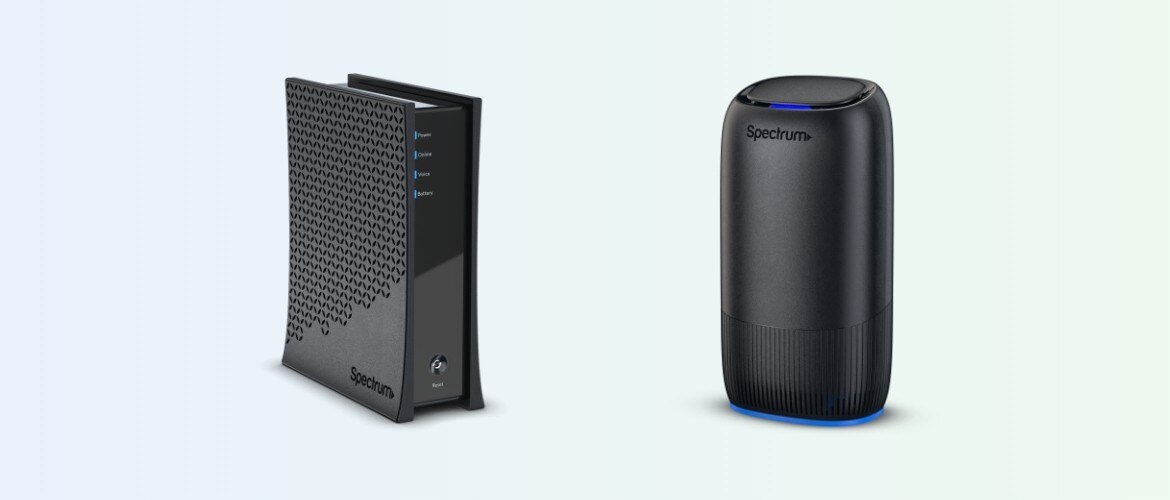
Identifying the Modern Spectrum Modem Aesthetic
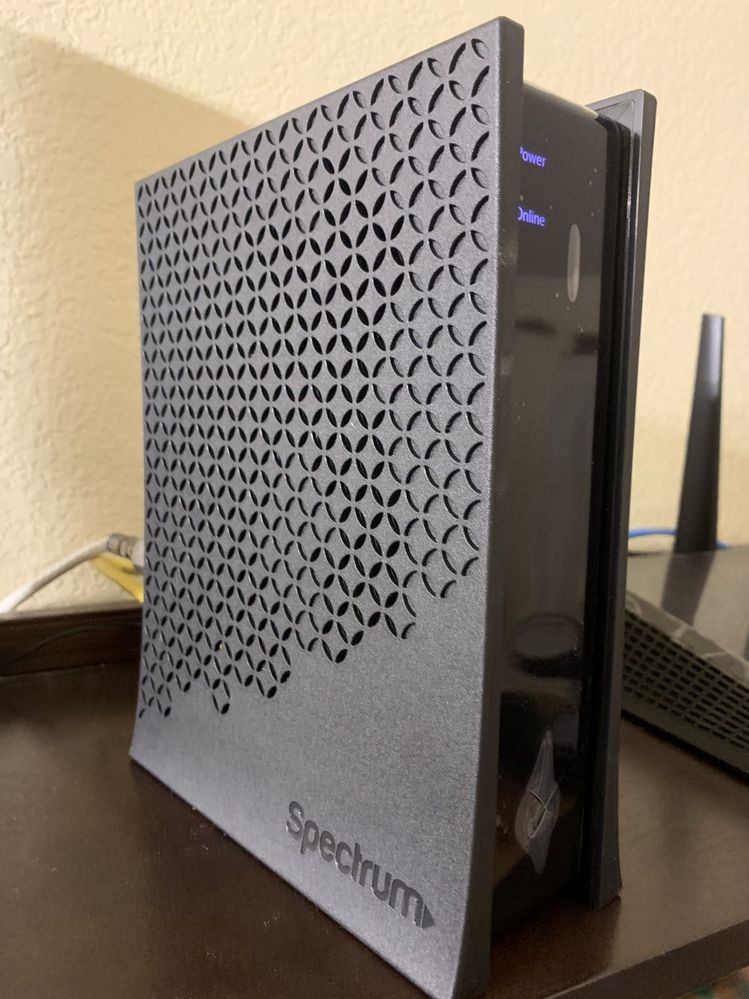
If you have signed up for Spectrum service within the last few years, your modem likely follows a very specific design blueprint. Spectrum has largely moved away from the bulky, horizontal units of the past in favor of a sleek, vertical orientation that occupies a smaller footprint on a desk or shelf.
The Standardized “Worldbox” Design
The current generation of Spectrum modems—often manufactured by partners like Hitron, Technicolor, or Ubee—shares a nearly identical chassis. These units are typically matte black and stand upright. The dimensions are approximately 7 to 9 inches tall and 2 to 3 inches wide. This vertical design is not just an aesthetic choice; it is a functional one intended to promote better airflow and heat dissipation, which is critical for high-speed DOCSIS 3.1 hardware that can run warm during heavy data loads.
Front Panel Minimalism
Unlike older modems that featured a long vertical row of labeled green lights (Power, DS, US, Online, Link), modern Spectrum modems utilize a more minimalist approach. Most current models feature a single “Online” light or a very small set of icons. This shift toward simplicity is designed to reduce user confusion, though it often requires a deeper understanding of color-coded sequences when troubleshooting connectivity issues.
Branding and Labeling
On the side or bottom of the device, you will find a Spectrum logo, usually printed in silver or white. More importantly, the bottom or back of the unit features a detailed sticker. This label is the “ID card” of your hardware, containing the MAC address, the model number (such as the E31T2V1, E31U2V1, or E31H2V1), and the serial number. If you are looking at a device and aren’t sure if it’s the modem, check for these identifiers; a Spectrum-issued modem will always have a CMAC (Cable MAC) address listed here.
Decoding the Different Models: Hitron, Ubee, and Technicolor
While the exterior casing remains consistent across the Spectrum “eMTA” (Embedded Multimedia Terminal Adapter) line, the internal components vary depending on the manufacturer. Spectrum sources its hardware from three primary vendors to ensure a steady supply chain.
The E31 Series
The “E31” prefix is the most common designation for Spectrum’s current DOCSIS 3.1 modems. Regardless of whether the internal manufacturer is Hitron (E31H2V1), Technicolor (E31T2V1), or Ubee (E31U2V1), the external appearance remains a tall, rectangular black tower.
Spectrum Advanced WiFi 6 Routers vs. Modems
It is common for users to confuse the modem with the router. Spectrum typically provides a separate modem and a separate router.
- The Modem: This is the device that connects to the round, threaded coaxial cable coming out of your wall. It is usually a plain black tower with minimal lights.
- The Router: This device often looks similar—a vertical black tower—but it frequently features a blue LED ring at the bottom or top. Its primary purpose is to broadcast the WiFi signal. It connects to the modem via an Ethernet cable.
If you have a single device that performs both functions (a gateway), it will be wider and feature more status lights, but Spectrum has transitioned away from these “combo” units for its high-tier plans to allow for better modularity and easier upgrades to WiFi 6 and 6E standards.
Anatomical Breakdown: Ports, Buttons, and Connections
To truly identify a Spectrum modem, you must look at the rear I/O (Input/Output) panel. The back of the device is where the technical heavy lifting happens, and the layout is standardized to make self-installation as seamless as possible.
The Coaxial Input
The most identifying feature of a cable modem is the threaded metallic port at the bottom of the rear panel. This is the Coax input. A thick, cylindrical cable (typically RG6) screws onto this port, delivering the literal data signal from the Spectrum street node into your home.
The Ethernet Port (LAN)
Above or below the coax connection, you will find a single RJ-45 Ethernet port. On DOCSIS 3.1 models, this is usually a yellow-colored port or is highlighted with a yellow outline. This port is meant to connect directly to your WiFi router’s “WAN” or “Internet” port. In some high-split or multi-gigabit areas, this port may support 2.5Gbps speeds to handle Spectrum’s top-tier internet packages.
Power and Reset Features
- Power Input: A small circular DC jack where the power adapter connects.
- Reset Pinhole: A tiny recessed button that requires a paperclip to press. This is used to perform a factory reset, clearing all internal caches and reverting the device to its out-of-the-box state.
- Voice Ports (Tel 1 / Tel 2): Since many Spectrum modems are eMTAs, they include RJ-11 phone jacks (usually covered by a yellow or grey dust cap if not in use). These are used for Spectrum Voice landline services.
Understanding Status Lights and Indicators
The visual state of your modem is the most direct way the hardware communicates its health. Modern Spectrum modems use a simplified LED system that utilizes color and blink patterns to signal different states of the DOCSIS provisioning process.
The Boot-Up Sequence
When you first plug in a Spectrum modem, the “Power” or “Online” light will typically pulse. This indicates the modem is searching for a downstream frequency. Once it locks onto a downstream signal, it begins searching for an upstream path. During this phase, you may see the light toggle between different colors or blink rapidly.
Solid Blue vs. Solid White
The most common question regarding Spectrum modem appearance involves the color of the “Online” light:
- Solid Blue: This is the ideal state. A blue light indicates that the modem is online and has successfully bonded with multiple channels using DOCSIS 3.1 technology. This ensures you are getting the highest speeds available on your plan.
- Solid White: This indicates the modem is online but is operating in DOCSIS 3.0 mode. While your internet will still work, you may not be achieving the maximum possible throughput, or the local node may not yet support 3.1 bonding.
- Flashing Blue/White: This means the modem is in the process of “ranging” or negotiating a connection with the headend. If this persists for more than ten minutes, it usually signifies a signal issue or a localized outage.
The Red Light of Distress
If you see a solid or flashing red light on a Spectrum device, it indicates a critical failure. On a modem, this usually means it cannot find a signal at all. On a Spectrum router, a red light means the router cannot “see” the modem, often due to a loose Ethernet cable between the two devices.
Optimal Hardware Placement and Maintenance
Once you have identified your Spectrum modem, the physical placement of the device plays a significant role in its longevity and the quality of your connection. Because modern modems handle massive amounts of data throughput, they generate a surprising amount of internal heat.
Airflow and Orientation
The vertical design of the Spectrum modem is intentional. The vents are typically located on the top and bottom of the unit to allow for “chimney-effect” cooling. Placing the modem on its side or tucking it into a tight, unventilated cabinet can lead to thermal throttling, where the hardware slows down to protect its internal circuitry. To keep your modem looking and performing its best, keep it in an open area with at least three inches of clearance on all sides.
Avoiding Signal Interference
While the modem itself does not broadcast WiFi (the router does), the modem is sensitive to electromagnetic interference (EMI). Placing the modem directly next to high-voltage appliances or large metal objects can occasionally interfere with the delicate signal coming through the coaxial cable.

Hardware Lifecycle and Upgrades
If your modem looks significantly different from the tall, black rectangular description—perhaps it is a flat, silver Arris unit or a wide Motorola Surfboard—you are likely using “Legacy” equipment. As Spectrum continues to upgrade its infrastructure to “High-Split” and DOCSIS 4.0 standards, older hardware will eventually become obsolete. If your hardware looks like a relic from the early 2010s, it may be preventing you from accessing the upload and download speeds you are paying for, and a swap for the modern DOCSIS 3.1 “Worldbox” is highly recommended.
aViewFromTheCave is a participant in the Amazon Services LLC Associates Program, an affiliate advertising program designed to provide a means for sites to earn advertising fees by advertising and linking to Amazon.com. Amazon, the Amazon logo, AmazonSupply, and the AmazonSupply logo are trademarks of Amazon.com, Inc. or its affiliates. As an Amazon Associate we earn affiliate commissions from qualifying purchases.