
Instagram, a titan in the social media landscape, has evolved far beyond its humble origins as a photo-sharing app. Today, it’s a multifaceted platform for connection, creativity, commerce, and discovery. At the heart of this intricate digital ecosystem lies a universal language: its symbols. These seemingly small icons are the bedrock of the user experience, dictating how we navigate, interact, and express ourselves within the app. For anyone looking to truly leverage Instagram – whether as a casual user, a burgeoning creator, or a strategic business – understanding the nuances of these symbols is not merely helpful; it’s essential. This guide delves into the core iconography of Instagram, demystifying its visual language and empowering users to interact with the platform more effectively and intentionally.

Navigating the Instagram Interface: Your Visual Compass
The Instagram interface is designed for intuitive exploration, but with new features constantly being introduced, it can sometimes feel like a labyrinth. The primary navigation bar, typically located at the bottom of your screen, serves as your constant compass, guiding you through the app’s main sections. Understanding these foundational symbols is the first step to mastering Instagram.
The Bottom Navigation Bar: Your Core Destinations
The bottom navigation bar is perhaps the most critical set of symbols, offering quick access to Instagram’s primary functionalities.
-
Home Icon (House/House Silhouette): This is your starting point, the digital hearth of your Instagram experience. Tapping this symbol takes you to your main feed, where you’ll find posts and Reels from accounts you follow. It’s an algorithmically curated stream, designed to keep you engaged with the latest content from your network. A subtle but important detail: if you’re already on your home feed, tapping it again will typically refresh the feed, bringing newer content to the top.
-
Search/Explore Icon (Magnifying Glass): This symbol is your gateway to discovery. Tapping the magnifying glass opens the Explore page, a treasure trove of content tailored to your interests, accounts you might like, and trending topics. Instagram’s sophisticated algorithms analyze your past interactions and preferences to present a diverse range of photos, videos, and Reels from accounts you don’t yet follow. It also features a search bar at the top, allowing you to manually look up specific users, hashtags, places, or keywords, making it an invaluable tool for both content consumption and research.
-
Reels Icon (Play Button/Film Strip): Representing Instagram’s short-form video content, the Reels icon transports you to an endless stream of engaging, often viral, vertical videos. Much like TikTok, Reels is designed for rapid content consumption, offering a dynamic and entertaining experience. This section has become a significant focus for Instagram, reflecting the broader industry trend towards short-form video.
-
Shop Icon (Shopping Bag): For many, Instagram has evolved into a powerful e-commerce platform. The shopping bag icon leads you to Instagram Shop, where you can browse and discover products from brands and creators. This feature allows users to click on tagged products in posts and Stories, view product details, and often complete purchases directly within the app or be redirected to the merchant’s website. It signifies Instagram’s foray into direct commerce, offering a streamlined shopping experience.
-
Profile Icon (Your Profile Picture/Generic Silhouette): This symbol is your personal hub. Tapping your profile picture (or a generic silhouette if you haven’t set one) takes you to your profile page. Here, you can view all your uploaded posts, Reels, and tagged content, edit your profile information, access your insights (for business/creator accounts), and manage your settings. It’s where your digital identity on Instagram resides, showcasing your content and personal brand.
Beyond the Bar: Top-Level Tools
While the bottom bar covers the main navigation, a few critical symbols reside at the top of your screen, offering immediate access to creation and communication features.
-
Create Icon (Plus Sign): This universally recognized symbol for “add” or “new” is your primary tool for content creation. Tapping the plus sign typically opens a menu allowing you to choose what kind of content you want to create: a new post, a Story, a Reel, or even go Live. It’s the starting point for sharing your own moments and ideas with the world.
-
Direct Message Icon (Paper Plane/Speech Bubble): Often referred to as the “DM” icon, this symbol (which has evolved from a paper plane to a more generic speech bubble icon on some versions) is your portal to private conversations. It takes you to your inbox, where you can send and receive private messages, photos, videos, and even share posts from your feed with specific users or groups. It’s the app’s internal communication system, fostering more intimate connections.
-
Notifications Icon (Heart/Bell): This icon, often a heart (representing likes) or a bell, lights up when you have new activity. Tapping it reveals your activity feed, showing you who has liked your posts, commented, followed you, mentioned you in a Story, or engaged with your content in other ways. It’s your finger on the pulse of how others are interacting with your presence on Instagram.
Understanding Engagement Symbols: The Language of Interaction
Instagram thrives on interaction. The symbols associated with individual posts are crucial for expressing appreciation, engaging in dialogue, and saving content for later. These icons are universally recognized and form the bedrock of community and feedback on the platform.
Interacting with Posts and Reels
Every piece of content on Instagram comes equipped with a standard set of interaction symbols, allowing users to quickly respond and share.
-
Like Icon (Heart): The quintessential symbol of approval and appreciation, the heart icon allows you to “like” a post. A single tap fills the heart red, indicating your enjoyment or agreement with the content. On some posts, you might even see a small profile picture of a friend who has also liked it, reinforcing the social connection. Double-tapping anywhere on an image or video post is also a quick shortcut to liking it, a testament to its pervasive use.
-
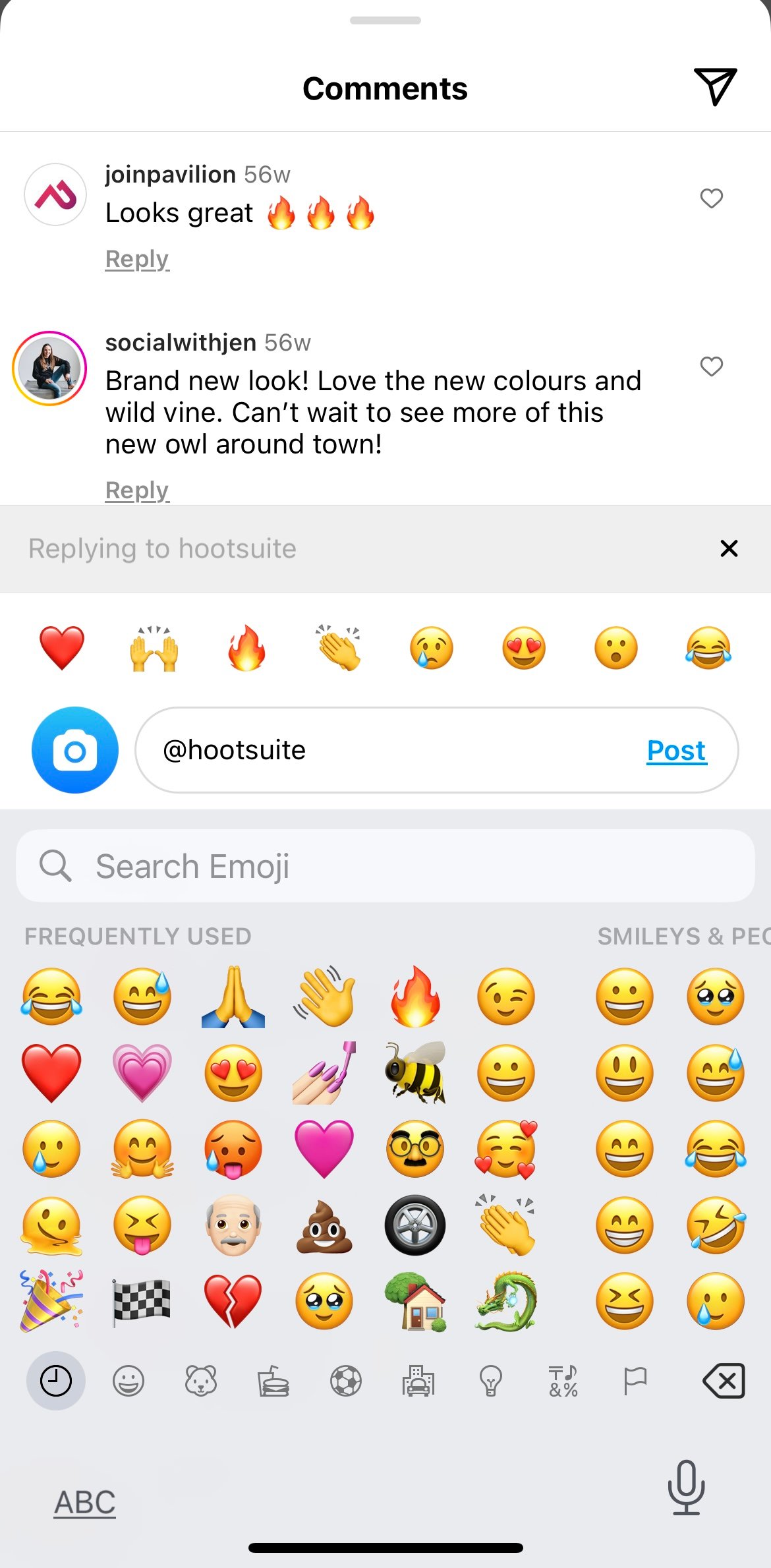
Comment Icon (Speech Bubble): The speech bubble icon signifies conversation and dialogue. Tapping it opens the comments section of a post, allowing you to read what others have said and contribute your own thoughts, questions, or emojis. This is where deeper engagement and community discussions often take place, moving beyond simple appreciation to more meaningful interaction.
-
Share/Send Icon (Paper Plane): This symbol empowers you to share content with others directly. The paper plane allows you to send a post privately to specific friends or groups via Instagram Direct Message (DM). It’s a key tool for sharing interesting content with your inner circle, fostering personal recommendations and discussions outside the public comments.
-
Save/Bookmark Icon (Bookmark Ribbon): The bookmark icon, located on the right side of a post, allows you to save content for personal reference later. Tapping it adds the post to your saved collection, which is only visible to you. This is incredibly useful for curating inspiration, saving recipes, travel destinations, or any content you want to revisit without having to scroll through your entire feed or search again. Your saved posts can be organized into collections for even greater utility.
Mastering Content Creation and Discovery Symbols
Beyond consuming content, Instagram is a powerful platform for creation. Specific symbols guide you through the process of generating your own posts, stories, and Reels, while others enhance your discovery capabilities.
Crafting Your Content
The creation process is streamlined through intuitive icons that guide you to different formats and features.
-
Camera Icon (Within Stories): When you’re in the Story creation interface, a prominent camera icon (sometimes represented as a circular button) is your trigger to capture a photo or record a video for your Story. Holding it down records, a quick tap snaps a photo. This icon is central to the ephemeral, immediate nature of Instagram Stories.
-
Plus Icon (General Creation): As mentioned earlier, the main “plus” icon at the bottom or top of your screen is the universal starting point for creating any type of content. It typically presents a menu, asking whether you want to create a Post, Story, Reel, or go Live, allowing you to select your desired format.
-
Microphone Icon (Stories/Reels): In the creation interface for Stories or Reels, a microphone icon indicates the ability to record audio or voiceovers. Tapping it toggles the microphone on or off, giving you control over the sound in your visual content.
-
Music Icon (Stories/Reels): A musical note icon is your gateway to Instagram’s extensive music library. When creating Stories or Reels, tapping this allows you to add popular songs, sound effects, or original audio to enhance your content, making it more engaging and shareable.
-
Sticker Icon (Stories): The square smiley face sticker icon in Stories is a versatile tool for adding interactive elements. Tapping it reveals a menu of stickers, including polls, questions, quizzes, countdowns, location tags, mention stickers, GIF stickers, and more. These transform passive viewing into active participation, boosting engagement.
-
Filter/Effect Icon (Sparkles/Three Circles): Often depicted as a set of overlapping circles or a sparkle icon, this symbol opens Instagram’s array of visual filters and augmented reality (AR) effects. These tools allow you to alter the aesthetic of your photos and videos, from simple color adjustments to elaborate face filters, adding a layer of creativity and fun to your content.
Enhanced Discovery and Organization
Beyond the main search/explore tab, other symbols contribute to a richer discovery experience and better content organization.
-
Hashtag Symbol (#): While not an interactive button, the hashtag symbol is a fundamental element of discovery. When seen within a caption or comment, it indicates a clickable tag that organizes content by topic. Tapping a hashtag takes you to a page displaying all public posts that have used that same hashtag, making it a powerful tool for exploring niche communities, trends, and content related to specific interests.
-
Location Pin Symbol: Similar to hashtags, the location pin symbol (often seen next to a location name) is a clickable tag. Tapping it takes you to a page featuring all public posts associated with that specific geographical location. This is excellent for discovering content from events, restaurants, landmarks, or exploring a city virtually.
-
Grid Icon (Profile Page): On your profile page, the grid icon (three squares in a grid pattern) filters your content to show only your standard photo and video posts, organized chronologically in a grid. This is the classic Instagram feed view of your profile.
-
Reels Icon (Profile Page): Also on your profile, a separate Reels icon (similar to the one on the bottom navigation) filters your content to display only the Reels you have published, making it easy for visitors to find your short-form videos.
-
Tagged Photos Icon (Profile Page): This icon, often depicted as a person silhouette with a tag, shows you all the posts you have been tagged in by other users. It’s a dedicated section to see where and how you’ve been featured by others on the platform.
Privacy, Profiles, and Personalization Symbols
Instagram also provides a robust set of symbols for managing your privacy, personalizing your profile, and controlling your overall experience within the app. These icons give you agency over your digital presence.
Managing Your Profile and Settings
Your profile is your digital identity, and specific symbols help you tailor it.
-
Hamburger Menu (Three Horizontal Lines): Located in the top right corner of your profile, the “hamburger” menu is a universal symbol for a navigation drawer or expanded menu. Tapping it reveals a comprehensive list of options, including your settings, archived posts, saved collections, insights (for business/creator accounts), activity, and various other tools. It’s the nerve center for managing your Instagram experience.
-
Edit Profile Button: While typically text-based, the “Edit Profile” button (sometimes accompanied by a pencil icon) on your profile page allows you to change your profile picture, name, username, website link, bio, and other personal information. It’s where you refine how you present yourself to the Instagram community.
-
Gear/Cog Icon (Settings): Within the hamburger menu, the gear or cog icon universally represents “Settings.” Tapping this takes you to a detailed menu where you can manage your account privacy, security, notifications, ad preferences, and much more. It’s crucial for tailoring the app to your specific needs and preferences.
Communication and Control Symbols
Beyond direct messages, other symbols contribute to how you manage interactions and privacy.
-
Bell Icon (Turn On/Off Notifications): On another user’s profile, a small bell icon often appears, allowing you to turn on or off notifications for their posts, Stories, or Live videos. This gives you granular control over whose content you want to be alerted about, helping manage your feed’s noise level.
-
Three Dots/Ellipses Icon (…): This versatile symbol appears in various contexts, particularly on individual posts or user profiles, and usually indicates “More Options.” Tapping it reveals a contextual menu offering actions such as reporting the post, unfollowing the user, hiding content, muting, copying the link, or sharing externally. It’s a critical symbol for moderating your experience and taking specific actions.
-
Eye Icon (Stories Viewer List): When you view your own Instagram Story, a small eye icon at the bottom left, accompanied by a number, shows you how many people have viewed your Story. Tapping it reveals a full list of all the individual users who have seen your content, providing valuable insight into your audience.

The Evolving Language of Instagram Symbols
Instagram’s interface is not static; it’s a dynamic canvas that continuously adapts to user behavior, technological advancements, and new feature rollouts. While the core symbols remain largely consistent, the platform frequently introduces new icons, reconfigures existing ones, and experiments with new functionalities. Staying abreast of these changes is part of navigating the ever-evolving digital landscape.
For instance, the emphasis on Reels has seen its icon move into a more prominent position. Shopping features have expanded, leading to dedicated shop tabs and in-app checkout symbols. Augmented reality (AR) filters come with their own unique activation icons, and features like “Guides” or new sticker types introduce fresh visual cues.
Ultimately, Instagram’s symbols are more than just pretty pictures; they are the visual lexicon of a massive global community. They dictate how we create, connect, and consume within this vibrant platform. By understanding each symbol’s function and intent, users can move beyond passive scrolling to become active, informed participants, unlocking the full potential of their Instagram experience. Mastering this visual language is key to truly leveraging one of the world’s most influential social media applications in the digital age.
aViewFromTheCave is a participant in the Amazon Services LLC Associates Program, an affiliate advertising program designed to provide a means for sites to earn advertising fees by advertising and linking to Amazon.com. Amazon, the Amazon logo, AmazonSupply, and the AmazonSupply logo are trademarks of Amazon.com, Inc. or its affiliates. As an Amazon Associate we earn affiliate commissions from qualifying purchases.