
The PlayStation 4 (PS4) controller, also known as the DualShock 4, has been the gateway to countless virtual worlds for millions of gamers. Its ergonomic design, advanced features, and comfortable feel have made it a beloved peripheral. However, like any electronic device, it requires power to function, and understanding its charging needs is crucial for uninterrupted gameplay. This article delves into the specifics of what charger the PS4 controller uses, covering its power requirements, compatible charging methods, and best practices to ensure optimal battery health and longevity.

Understanding the PS4 Controller’s Power Requirements
The DualShock 4, while sophisticated, relies on a relatively straightforward power input. At its core, it’s powered by an internal rechargeable lithium-ion battery. The charging process is designed to be user-friendly, but knowing the technical specifications can prevent confusion and potential damage.
The Micro-USB Standard: The Backbone of PS4 Controller Charging
The PS4 controller utilizes a micro-USB Type-B port for charging. This is a ubiquitous standard found on a vast array of electronic devices, from older smartphones and tablets to portable power banks and many other accessories. This standardization is a key reason why many users might already have compatible charging solutions readily available.
What does “micro-USB Type-B” mean?
- Micro-USB: This refers to the physical connector type. Micro-USB ports are generally smaller and more compact than their mini-USB predecessors, making them ideal for slim electronic devices like game controllers.
- Type-B: This designation specifies the physical shape and pin configuration of the connector. While there are other micro-USB types (like Type-A, often seen on the larger end of cables), Type-B is the one found on the PS4 controller.
The micro-USB port is strategically located at the top edge of the controller, between the L1 and R1 shoulder buttons. This placement makes it convenient to plug in the charging cable while still holding the controller, though most players will likely charge it while it’s resting or connected to a console.
Voltage and Amperage: The Crucial Specifications
While the port type is important, the voltage and amperage of the charger are equally, if not more, critical for safe and efficient charging. The PS4 controller’s battery is designed to accept a standard 5V (Volts) DC (Direct Current) power supply. This is the universal standard for USB charging.
The amperage (Amps), however, can vary. The PS4 controller itself draws a certain amount of amperage from the power source. While the official PS4 charging cable and console ports provide sufficient amperage, using a charger with an amperage rating that is too low can lead to significantly slower charging times. Conversely, using a charger with a much higher amperage rating than what the controller can safely handle is generally not an issue. Modern charging systems are intelligent and will only draw the amperage they require, up to the limit of the power source. However, it’s always best practice to use chargers that are either specifically designed for USB charging (often rated at 1A or 2A) or are part of a reputable ecosystem.
- Typical Charger Amperage for PS4 Controllers: Most standard USB chargers (like those used for smartphones) are rated between 0.5A to 2.4A. A charger in the 1A to 2A range is ideal for charging the PS4 controller efficiently without overstressing the battery or the charging circuitry.
Compatible Charging Methods for Your PS4 Controller
The beauty of the micro-USB standard is its versatility. This means you have several options for powering up your DualShock 4, ranging from the most convenient to more specialized solutions.
The PlayStation 4 Console: The Primary Charging Hub
The most straightforward and intended method of charging your PS4 controller is by connecting it directly to the PlayStation 4 console itself.
- How it works: The PS4 console features USB ports (typically two on the front, and sometimes more on the back depending on the model). When the console is on or in rest mode (if USB power is enabled in settings), these ports supply the necessary 5V DC power through a connected micro-USB cable.
- Benefits:
- Convenience: It’s always there and readily accessible when you’re playing.
- Optimal Compatibility: Designed by Sony to provide the correct power specifications, ensuring safe and efficient charging.
- Rest Mode Charging: You can enable USB power in the PS4’s settings to allow controllers to charge even when the console is in rest mode, ensuring you always have a charged controller ready for your next gaming session.
Enabling Rest Mode Charging:
- Navigate to Settings on your PS4.
- Select Power Save Settings.
- Choose Set Features Available in Rest Mode.
- Ensure Supply Power to USB Ports is checked.
Third-Party USB Wall Chargers: Versatile Power Solutions
For gamers who want to charge their controllers without tying up their PS4 console, a standard USB wall charger is an excellent alternative. These are the same chargers you might use for your smartphone, tablet, or other portable electronics.
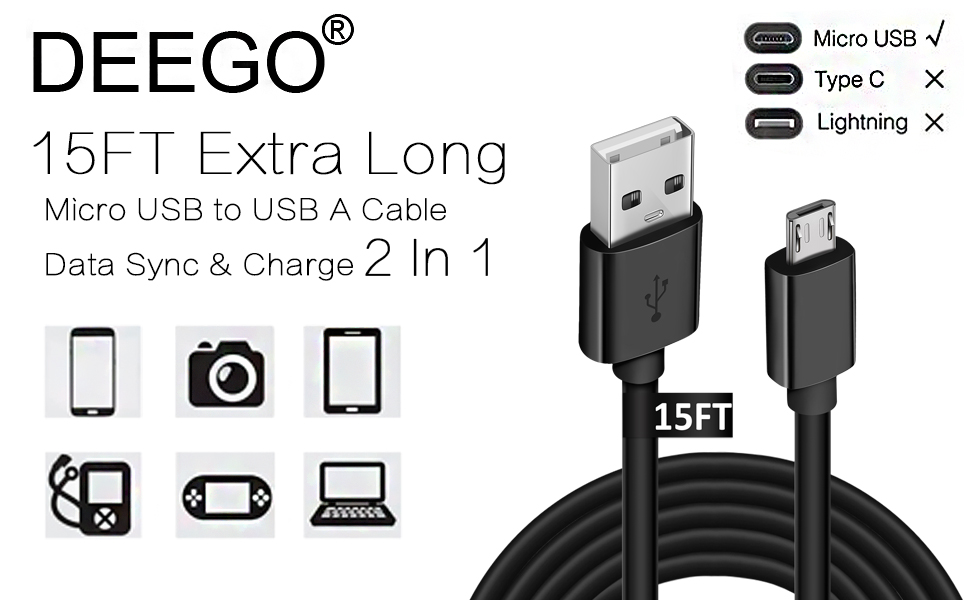
- What to look for: Ensure the wall charger has a standard USB-A port and outputs 5V DC. As mentioned earlier, chargers rated between 1A and 2A are ideal. Avoid chargers with extremely high amperage ratings (e.g., 5A or more) unless they are specifically designed with smart charging technology that can regulate the output.
- Benefits:
- Flexibility: Charge your controller in any room with a power outlet, not just near your console.
- Simultaneous Charging: If you have multiple controllers or other USB devices, you can charge them all concurrently.
- Portability: Easy to take with you on trips.
Power Banks: Charging on the Go
Portable power banks have become indispensable for keeping our devices powered up when away from traditional outlets. These are also perfectly capable of charging a PS4 controller.
- How it works: Most power banks feature standard USB-A output ports. Simply connect your PS4 controller to the power bank using a micro-USB cable.
- Benefits:
- Ultimate Portability: Keep your controller charged during travel, camping trips, or even during long commutes.
- Emergency Power: A lifesaver when you’re away from home and realize your controller is dead.
- Versatility: Can charge multiple devices, not just your PS4 controller.
PC or Laptop USB Ports: A Convenient Option
Connecting your PS4 controller to a powered USB port on your PC or laptop is another viable charging method, especially if your console is in use or you’re not near a wall outlet.
- How it works: Use a micro-USB cable to connect the controller to any available USB-A port on your computer. The computer’s USB port will supply the necessary 5V power.
- Considerations: The amperage supplied by PC/laptop USB ports can sometimes be lower than dedicated wall chargers, potentially leading to slower charging times. However, for topping up the battery, it’s usually sufficient. Ensure your computer is powered on or in a sleep mode that allows USB power delivery.
Optimizing Battery Health and Longevity
While charging your PS4 controller is generally straightforward, adopting a few best practices can significantly extend the lifespan of its internal lithium-ion battery and ensure optimal performance for years to come.
Using Quality Cables and Chargers
The quality of your charging accessories can have a direct impact on charging speed and battery health.
- Certified Cables: Opt for official PlayStation cables or cables from reputable brands that are known for producing high-quality accessories. Cheap, unbranded cables can sometimes have thinner wires, poor shielding, or incorrect pin configurations, leading to slower charging, overheating, or even potential damage to the controller’s charging port.
- Reliable Chargers: Similarly, stick with well-known charger brands. Using chargers from brands like Anker, RAVPower, or other established electronics manufacturers ensures that they meet safety standards and provide consistent power output. Avoid generic, no-name chargers that lack any safety certifications.
Avoiding Extreme Temperatures
Lithium-ion batteries, like those in your PS4 controller, are sensitive to extreme temperatures.
- Heat: Prolonged exposure to high temperatures (e.g., leaving your controller in a hot car, direct sunlight, or near a heat source) can degrade the battery’s capacity and shorten its lifespan. It can also pose a safety risk.
- Cold: While less immediately damaging than heat, extremely low temperatures can also temporarily reduce battery performance and, in severe cases, contribute to long-term degradation.
Always aim to charge and store your controller in a cool, dry environment.
Understanding Battery Cycles and Degradation
All rechargeable batteries have a finite number of charge cycles they can endure before their capacity begins to noticeably degrade. A charge cycle is typically defined as a full discharge and recharge.
- Partial Charges: Unlike older battery technologies, lithium-ion batteries do not suffer from a “memory effect.” This means you can partially charge your PS4 controller without harming its battery. In fact, keeping the battery between 20% and 80% charged can sometimes extend its overall lifespan.
- Deep Discharges: While not as detrimental as with older battery types, consistently letting your controller’s battery drain completely to 0% can put more stress on the battery over time. It’s generally a good idea to charge it when it drops below 10-20%.
- Long-Term Storage: If you plan to store your PS4 controller for an extended period (months), it’s recommended to store it with a partial charge (around 50-60%). Storing it with a full charge or a completely depleted charge can lead to faster degradation of the battery’s capacity.

The Role of the “Light Bar” in Power Consumption
The DualShock 4 features a prominent light bar on the front of the controller. While it enhances the gaming experience by providing visual feedback (e.g., indicating player number, damage status, or health), it also consumes power.
- Dimming the Light Bar: For users looking to maximize battery life between charges, dimming or even turning off the light bar can make a noticeable difference. This can be adjusted within the PS4’s system settings.
- Navigate to Settings.
- Select Devices.
- Choose Controllers.
- Adjust the Brightness of the Light Bar.
- You can also choose to turn off the controller automatically after a set period of inactivity, which is another effective power-saving measure.
By understanding the charging mechanics of your PS4 controller and implementing these simple maintenance tips, you can ensure your reliable gaming companion stays powered up and ready for action for as long as possible, minimizing downtime and maximizing your enjoyment of the vast world of PlayStation gaming.
aViewFromTheCave is a participant in the Amazon Services LLC Associates Program, an affiliate advertising program designed to provide a means for sites to earn advertising fees by advertising and linking to Amazon.com. Amazon, the Amazon logo, AmazonSupply, and the AmazonSupply logo are trademarks of Amazon.com, Inc. or its affiliates. As an Amazon Associate we earn affiliate commissions from qualifying purchases.