
The evolution of ChromeOS has been one of the most significant shifts in the modern computing landscape. Initially dismissed as nothing more than a “glorified web browser,” the operating system has matured into a robust, versatile, and highly secure platform favored by students, professionals, and developers alike. While the system is inherently built around Google Chrome, the modern Chromebook is no longer a walled garden.
Thanks to the integration of the Google Play Store and the Linux development environment (Crostini), users are no longer tethered to a single browsing experience. Whether you are seeking enhanced privacy, specific developer tools, or cross-platform synchronization with a Windows or macOS machine, the options for alternative browsers on a Chromebook are more extensive than ever.

The Native Experience and the Power of ChromeOS
At its core, ChromeOS is designed to deliver the fastest and most secure version of the Google Chrome browser. Before exploring alternatives, it is essential to understand why the native experience remains the benchmark for performance on these devices.
Why Google Chrome Remains the Gold Standard
On a Chromebook, Google Chrome is not just an application; it is the interface of the operating system itself. Because of this deep integration, the native Chrome browser enjoys direct access to hardware acceleration, optimized battery management, and the highest level of system-level security.
For the average user, Google Chrome provides a seamless experience. Features like “Shared Clipboard” between your Android phone and your Chromebook, integrated Google Drive access, and the ability to sync every tab, password, and bookmark across devices make it a formidable productivity tool. Furthermore, Chrome on ChromeOS supports a vast library of extensions from the Chrome Web Store, which can transform the browser into a full-fledged workstation for video editing, coding, or graphic design.
Understanding the ChromeOS Architecture
The versatility of the modern Chromebook stems from its three-layered architecture. First, there is the native ChromeOS layer (the web-centric core). Second, there is the Android container, which allows for the installation of mobile apps via the Google Play Store. Third, there is the Linux container, which provides a virtualized environment for running desktop-class Debian Linux applications.
Understanding these layers is key to choosing a browser. Depending on your needs, you might choose an Android-based browser for its touch-friendly interface or a Linux-based browser for its desktop-grade features and extension support that mimics a traditional PC environment.
Leveraging the Google Play Store: Android Browsers
For most users, the easiest way to install an alternative browser is through the Google Play Store. While these are technically mobile versions of the browsers, they have been increasingly optimized for large screens and keyboard/mouse input.
Microsoft Edge for Mobile: Syncing Across Ecosystems
For those who use Windows at work and a Chromebook at home, Microsoft Edge is a compelling choice. By installing the Android version of Edge, users can sync their history, favorites, and “Collections” across platforms.
One of the standout features of Edge on Chromebooks is the integrated Microsoft Copilot. This AI-powered assistant allows users to summarize web pages and generate content directly within the browser interface. Additionally, Edge’s “Read Aloud” feature and “Immersive Reader” remain some of the best accessibility tools in the browsing world, often surpassing what is available in the native Chrome browser.
Brave and Vivaldi: Privacy and Customization on the Go
If privacy is your primary concern, the Android versions of Brave and Vivaldi offer robust alternatives. Brave is built on the Chromium engine but comes with “Shields” that automatically block trackers and invasive advertisements. This not only increases privacy but also significantly improves page load speeds and reduces data consumption—a major plus for users on limited data plans or older hardware.
Vivaldi, on the other hand, is the king of customization. Even its Android version allows for significant UI tweaks, including tab stacking and a built-in notes tool. For users who find Google Chrome’s interface too minimalistic, Vivaldi offers the granularity needed to tailor the browsing experience to specific workflows.
Firefox for Android: A Non-Chromium Alternative
Firefox is one of the few browsers that does not rely on the Chromium engine. Using its own Gecko engine, Firefox for Android provides a different rendering experience. While the mobile version of Firefox on a Chromebook doesn’t support the full range of desktop extensions, it does support a curated list of essential add-ons like uBlock Origin and Dark Reader. This makes it an excellent secondary browser for users who want to move away from the Google ecosystem entirely.
Professional Grade: Running Linux (Crostini) Browsers
For power users, the Android versions of browsers often feel limited. They can sometimes struggle with “mobile” layouts on a 15-inch screen. To solve this, Chromebooks offer the ability to run full desktop-class Linux versions of popular browsers.
Installing the Desktop Version of Firefox
By enabling Linux (Beta) in the ChromeOS settings, you can install the full desktop version of Firefox. Unlike the Android version, this is the exact same software you would run on a high-end Ubuntu or Fedora workstation.
The desktop version of Firefox allows for full extension support, deep “about:config” customization, and advanced developer tools. To install it, users simply use the Linux terminal and enter a few commands (e.g., sudo apt install firefox-esr). This version is ideal for developers who need to test how websites look on a non-Chromium engine or for users who require specialized extensions not available on the mobile version.
Tor Browser: Maximum Anonymity for Chromebook Users
For those who require the highest level of digital security and anonymity, the Tor Browser can be installed via the Linux container. The Tor Browser routes your traffic through a series of encrypted nodes, making it nearly impossible for third parties to track your location or browsing habits.
Running Tor on a Chromebook is a powerful way to turn a consumer-grade device into a secure communication tool. Because it runs in the isolated Linux container, it adds an extra layer of sandboxing between your anonymous browsing and your primary Google account data.
Opera: Integrated VPN and Messaging Features
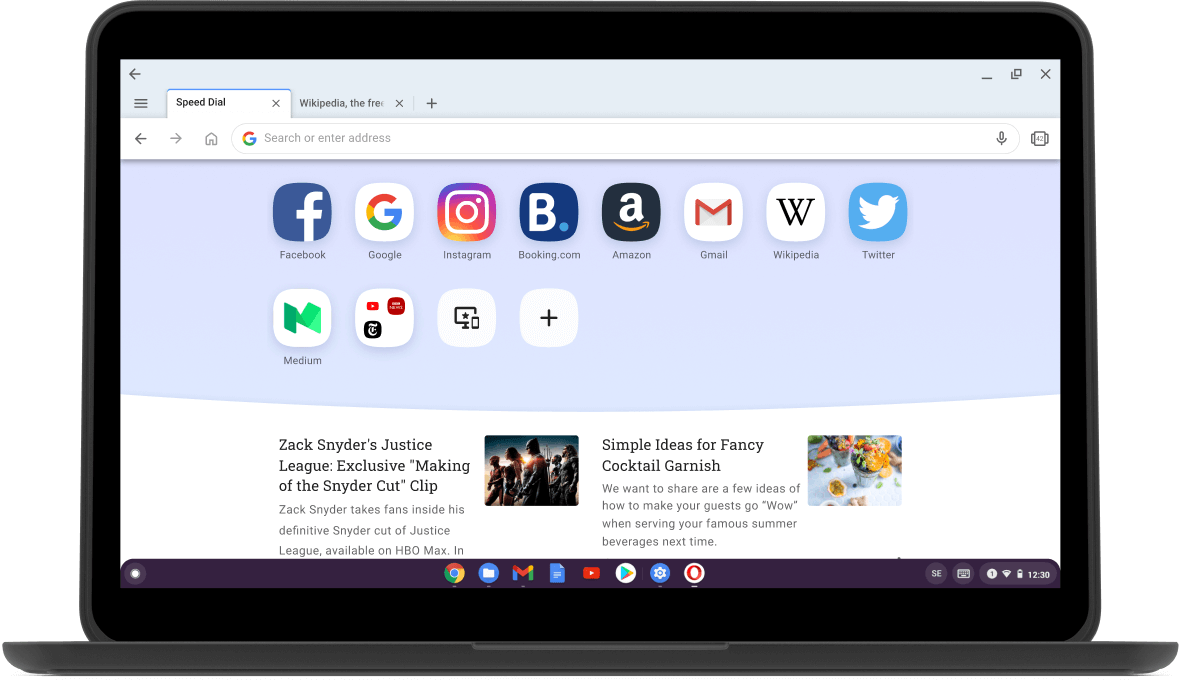
Opera’s desktop version (via Linux) or its Android version provides a unique suite of built-in tools. Most notably, Opera includes a free browser VPN and integrated sidebar messengers for WhatsApp, Telegram, and Discord. For social media managers or researchers who need to stay connected while browsing, Opera’s “Workspace” feature allows for the organization of tabs into distinct categories, helping to manage high-intensity workloads without cluttering the interface.
Performance Optimization and Security Considerations
Running multiple browsers on a Chromebook requires an understanding of the device’s hardware limitations. Unlike a high-powered gaming laptop, many Chromebooks are optimized for efficiency rather than raw power.
Managing System Resources (RAM and CPU)
Each environment on a Chromebook—ChromeOS, Android, and Linux—consumes system resources. If you have a Chromebook with 4GB of RAM, running a Linux-based browser while having twenty tabs open in native Chrome may lead to system slowdowns.
To optimize performance, it is recommended to use “Memory Saver” mode in the native Chrome browser and to close the Linux container when it is not in use. For users with 8GB or 16GB of RAM, these concerns are less prevalent, allowing for a smooth multitasking experience across multiple browser engines.
Security Protocols: Sandboxing and Extension Safety
One of the primary reasons people use Chromebooks is their “Verified Boot” and sandboxing capabilities. When you run an Android or Linux browser, you are running it within a secure container. This means that even if a malicious site affects your Linux-based Firefox browser, it is unlikely to compromise the core ChromeOS system.
However, users should be cautious with extensions. Extensions often have permission to “read and change all your data on the websites you visit.” Stick to well-known developers and audit your extension list every few months to ensure you aren’t harboring outdated or compromised software.
Progressive Web Apps (PWAs) as a Browser Alternative
Sometimes, you don’t need a whole new browser; you just need a better way to interact with a specific site. Progressive Web Apps (PWAs) allow you to “install” a website so it functions like a standalone app. Services like Outlook, Twitter (X), and Spotify offer PWAs that run in their own window without the browser UI. This can often be faster and more resource-efficient than opening a separate browser like Edge or Firefox just to access one specific service.
Choosing the Right Browser for Your Workflow
The “best” browser for a Chromebook depends entirely on your specific needs and the hardware you are using.
For Developers and Power Users
If your work involves web development, the Linux version of Firefox or Chromium is indispensable. These provide the full suite of “Inspect Element” tools, network monitors, and responsive design modes that are missing from mobile-optimized browsers. The ability to run these in a window alongside your code editor (like VS Code, also available via Linux) makes the Chromebook a legitimate development machine.
For Privacy Advocates
The combination of the Brave Android app for daily browsing and the Tor Browser (Linux) for sensitive tasks creates a robust privacy shield. Brave’s ability to block ads and trackers by default reduces your digital footprint significantly, while Tor provides the ultimate layer of protection when necessary.
For General Productivity and Students
Most students and general users will find that the native Google Chrome browser, supplemented by Microsoft Edge (Android), covers all bases. This setup allows for the speed of Chrome with the added benefit of Edge’s superior PDF annotation tools and AI integration.
In conclusion, the modern Chromebook is far more than a one-trick pony. By understanding how to utilize the Android and Linux layers of the operating system, you can transform your device into a multi-browser powerhouse. Whether you choose to stay within the Google ecosystem or venture out into the world of open-source and privacy-focused software, the Chromebook provides a flexible, secure, and increasingly capable platform for any browsing need.
aViewFromTheCave is a participant in the Amazon Services LLC Associates Program, an affiliate advertising program designed to provide a means for sites to earn advertising fees by advertising and linking to Amazon.com. Amazon, the Amazon logo, AmazonSupply, and the AmazonSupply logo are trademarks of Amazon.com, Inc. or its affiliates. As an Amazon Associate we earn affiliate commissions from qualifying purchases.